
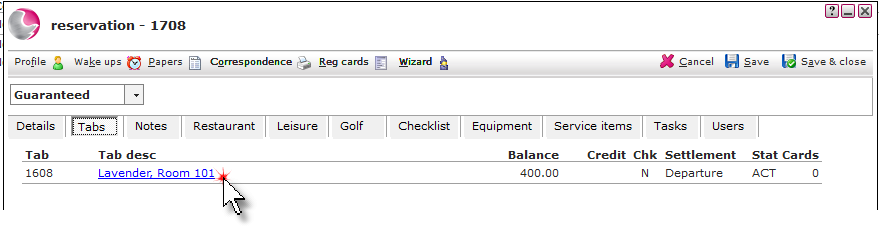
1. Open the reservation and click on the Tabs page. Click on the Tab description.
2. If the package is already on the tab, right click on the item and select one of the options.
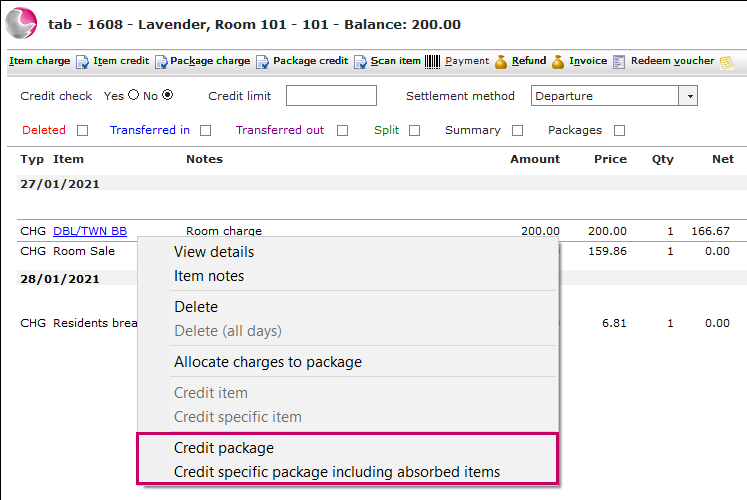
Credit package: This option will credit the package at the original price and will default to todays date, which can be changed if required.
Credit specific package including absorbed items: This option will credit the package on the date of the charge, and will pick up any price changes and include any items that have already been absorbed by the package.
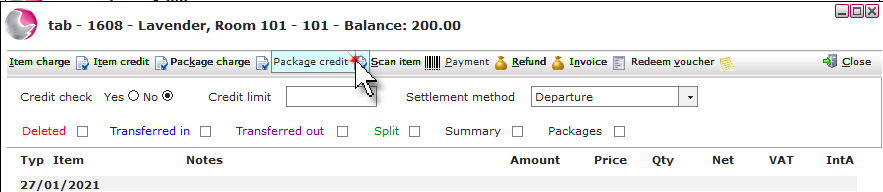
3. If the package is not already on the tab, click Package credit.
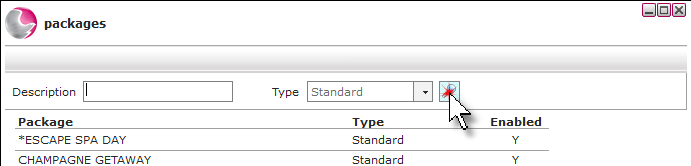
4. Use the filters and click on the magnifying glass or hit enter on the keyboard to search for the package.
5. Check the Package credit form and click Save.
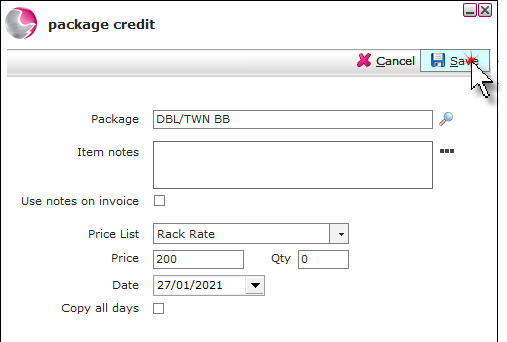
Item: The name of the package selected, to change the package click on the magnifying glass.
Item notes: Short notes added here will appear on the tab form alongside the package, if the use notes on invoice check box is ticked.
Display notes on invoice: Tick if item notes have been added.
Price list: The default price list of the package will be displayed and can be changed if required.
Can't find Correct Price List? See How to Create New Price List
Price & Qty: The price of the package will display. If more than one package needs to be added to the tab change the quantity.
Date: The date the package credit will be applied.
Copy all days: The package credit will be added to each day of the reservation.
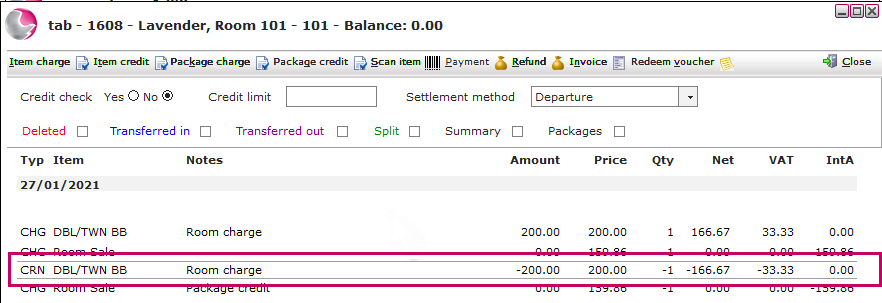
The package will appear as a CRN on the tab.
See Next: How to Add Item and Package Charges to a Tab
How to Create Extra Tab
How to Refund a Payment