
Equipment can be booked out against reservations to enable users to see into where and when equipment is in use.
- Creating New Equipment
- Increase the amount of equipment:
- Amending Equipment:
- Inactive Equipment
- Delete Equipment:
Creating New Equipment
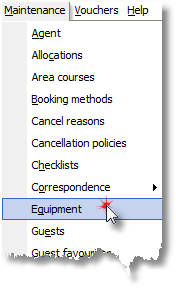
1. Select Equipment from the Maintenance Menu.
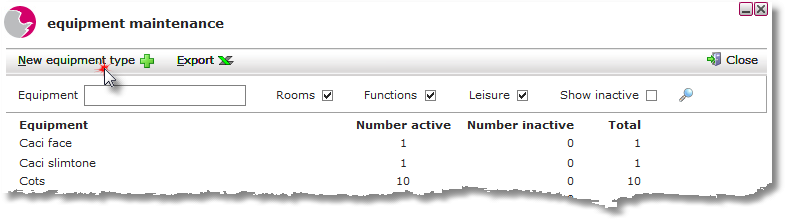
2. Click New equipment type.
The four headings in bold display the equipment type available, number active displays the quantity of the equipment type available, number inactive display the quantity of equipment type in use and the final heading displays the total number of a particular equipment type.
3. Complete the equipment type form. Click Save.
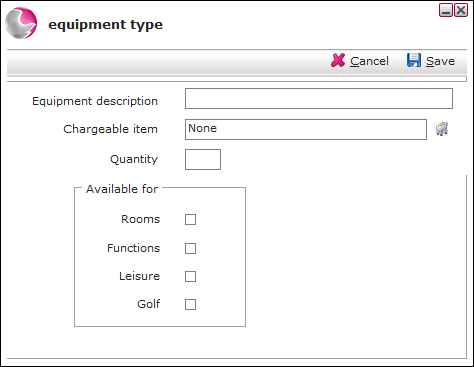
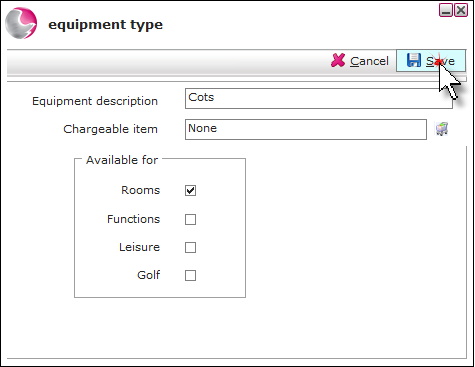
Equipment description: Enter the equipment description.
Chargeable item: Click on the trolley icon to add a chargeable item. This will display on the tab when the equipment is added to a reservation.
Quantity: Enter the total number of the new equipment, that would be available to select.
Available for: Click the checkbox that the equipment corresponds to and will be available to select from in the areas stated.
Increase the amount of equipment:
1. Click on the required equipment.
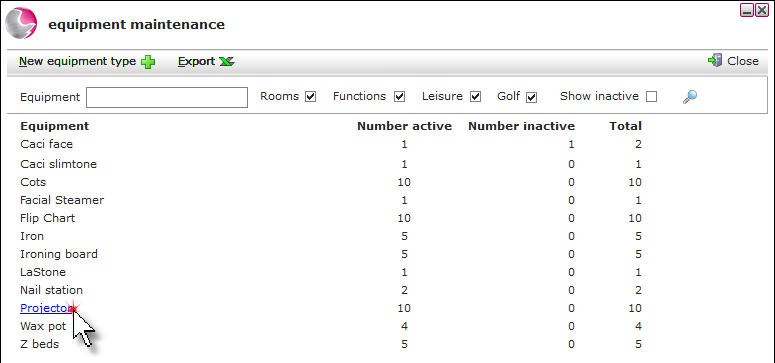
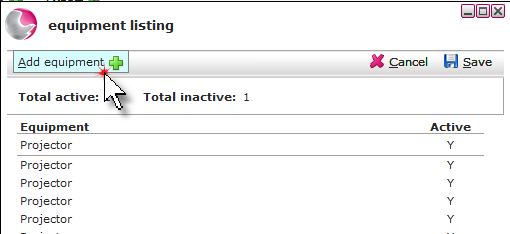
2. Click on Add equipment as many times as necessary. Click Save.
Amending Equipment:
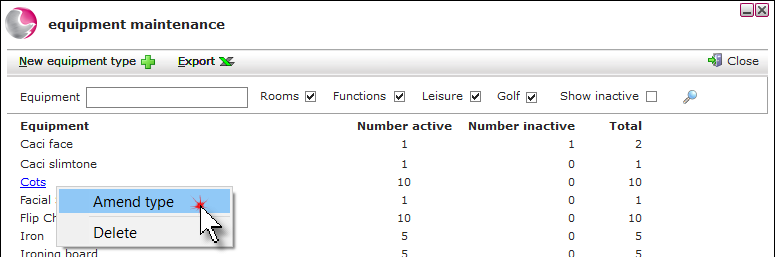
1. Right click on the selected equipment. Click Amend type.
2. Make the required changes to the equipment. Click Save.
Inactive Equipment
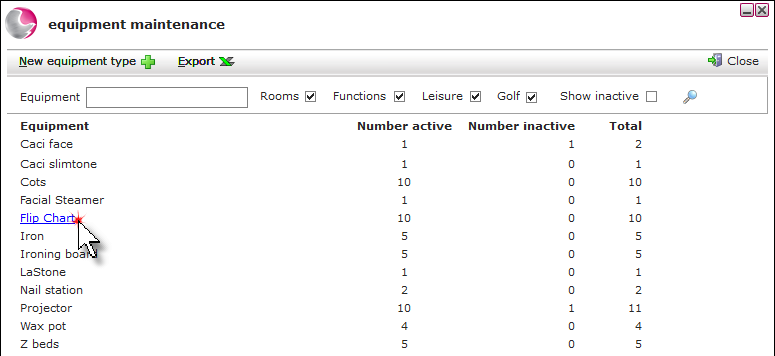
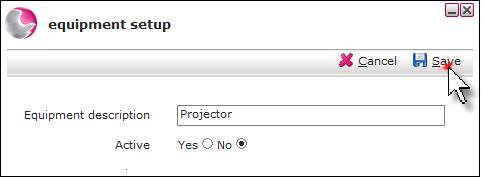
1. A piece of equipment can be put out of use i.e. if there was damage caused to the equipment and needed fixing. Click on the equipment.
2. Click on the equipment, Click Active No and then Save.
Delete Equipment:
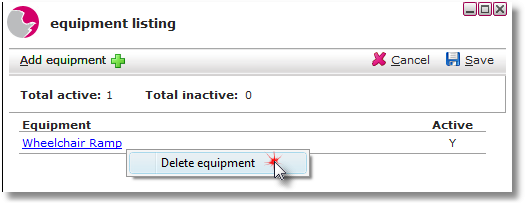
1. Right click on the equipment. Click Delete equipment.
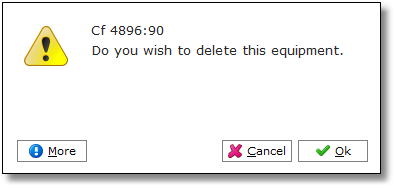
2. Click OK.
See next: How to Add/Remove Equipment on a Reservation (Hotel Manager)
How to Check Equipment Availability/Reservation (Hotel Manager)
How to Add Equipment on a Reservation (Restaurant Manager)