
Room features helps to filter rooms based on the features that have been attached to them.
- Adding New Resource Features
- Associating Features to a Resource
- Removing an Association from a Resource
- Disabling Features
For example: If a room has a sea view, you can attach this feature to the room to help users find available rooms with a sea view.
There can only be 10 features added per room.
Adding New Resource Features
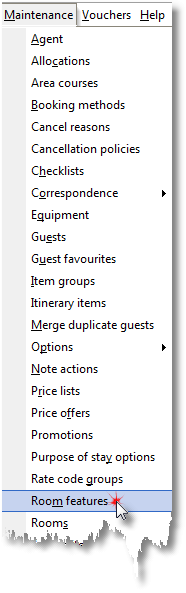
1. Select Room features from the Maintenance Menu.
2. Click Feature maintenance.
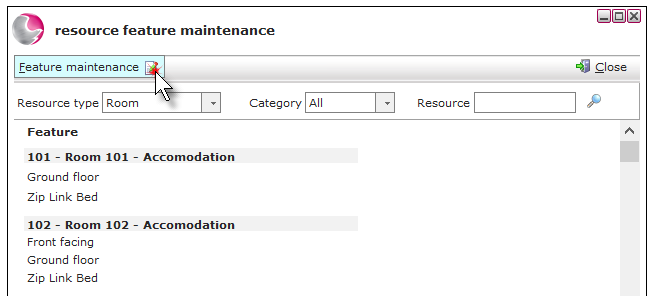
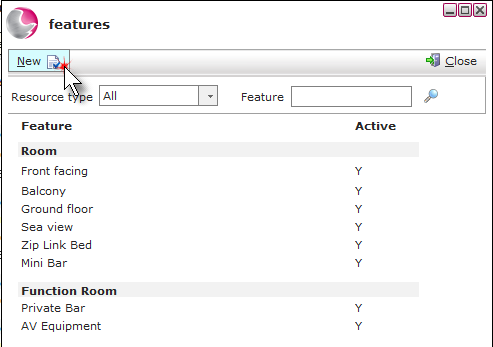
3. Click New.
4. Complete the Feature maintenance form.
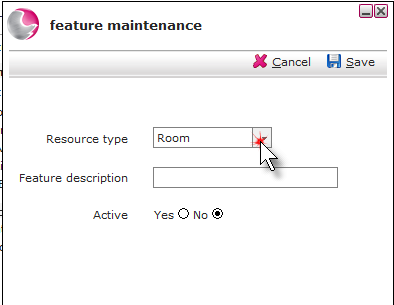
Resource type: Select the resource type that the feature is associated with.
Description: Enter a name for the feature.
Active: Click Yes to make the feature active.
5. Click Save.
Associating Features to a Resource
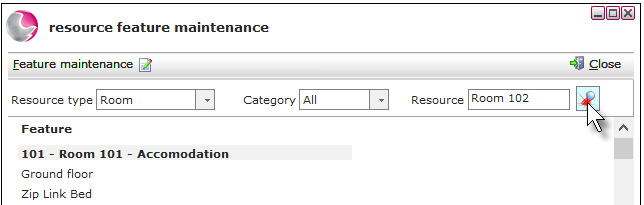
1. Use the resource type filter or alternatively enter the room number or name of the name in the resource search field and click the magnifying glass.
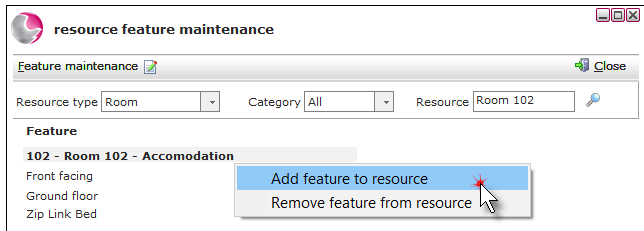
2. Right click on the room. Click Add feature to resource.
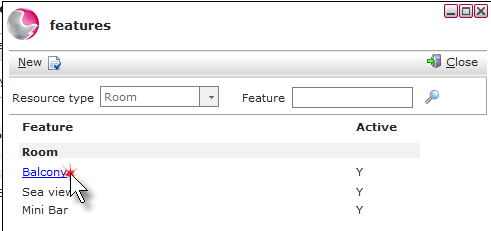
3. Left click on the selected feature.
4. Click Close.
Removing an Association from a Resource
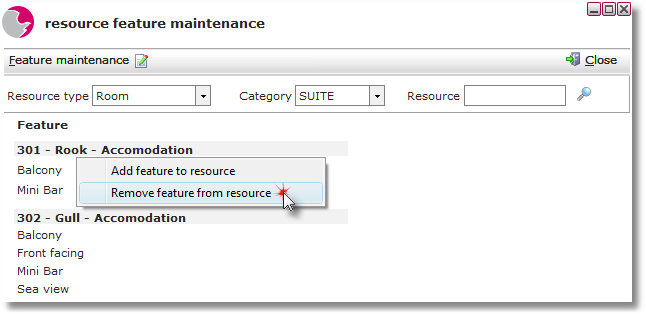
1. Right click on the selected feature.
2. Click Remove feature from resource.
3. Click Close.
Disabling Features
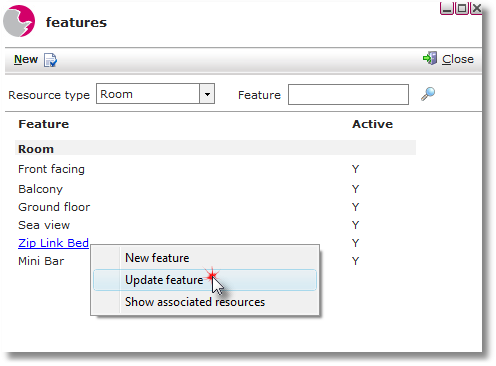
1. Right click on the selected feature. Click Update feature.
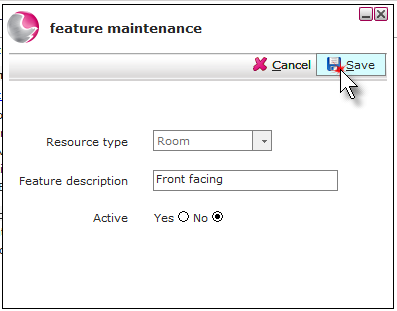
2. Click the 'No' option in the Active checkbox. Click Save.
See next: How to Change the Name of a Room
How to Create a Bedroom Reservation