
The optimise functionality on Chart 1 allows the user to utilise room availability. It will allocate reservations (that have not been locked) for the next 14 days from the initial allocation date, in the most efficient way. Please note: Once the chart has been optimised the changes cannot be reversed.
1. Click the Rooms icon in the areas part of the screen.

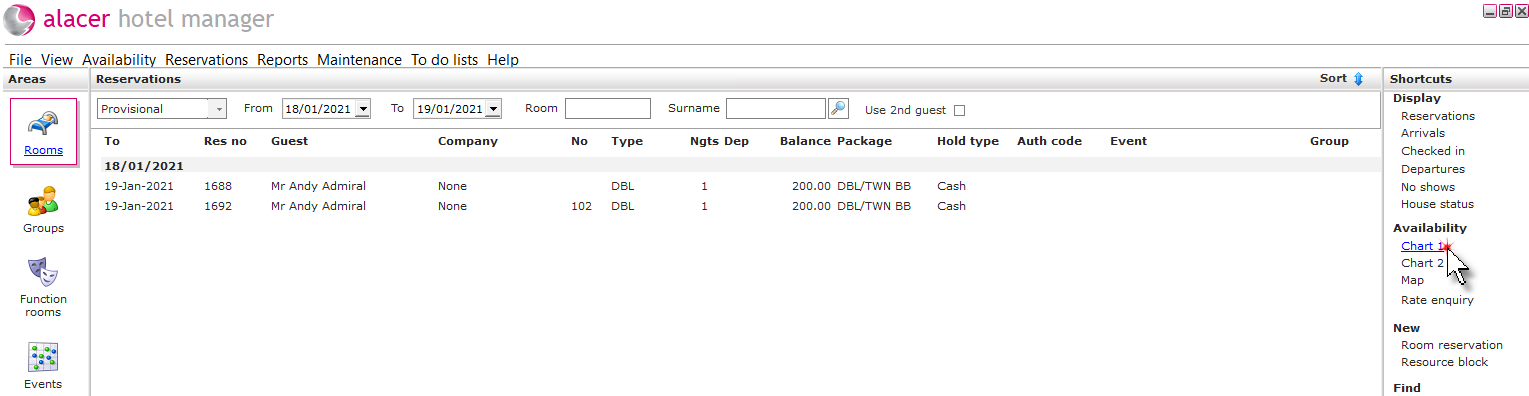
2. Click on Chart 1 under the Availability shortcut.
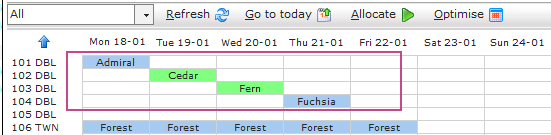
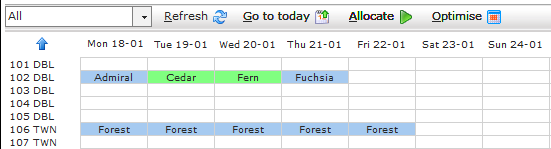
3. The highlighted rooms on the chart below are not maximising bedroom availability. For example: if a guest wanted to book a DBL room for a long stay, the current availability has been reduced as the reservations on the chart have not been allocated to make best use of availability.
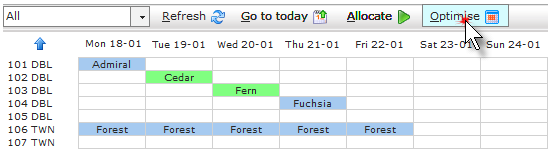
4. Click Optimise.
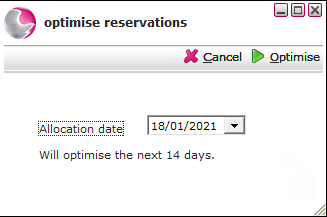
5. Choose the allocation start date (This will optimise the next 14 days) and click Optimise.
6. The reservations will be optimised.
See next: How to Use the Chart 1
How to Create a Bedroom Reservation