
There are three types of EPOS screens: Main Screens, Shifted Screens, and Button Screens:
Main Screen: The primary screen that is displayed on EPOS.
Button Screens: Secondary screens accessed from the primary screen.
Shifted Screens: A screen only available by pressing a shift button on EPOS.
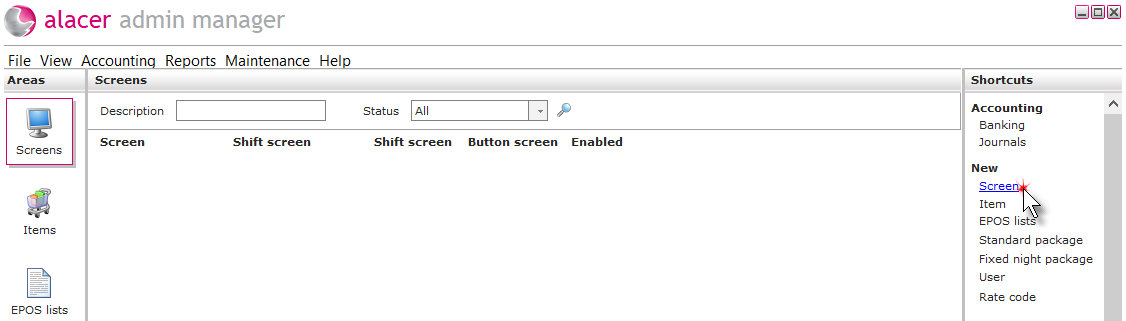
1. Click on the Screens icon in the Areas section.

2. Click Screen under the heading of New in the Shortcuts Menu.
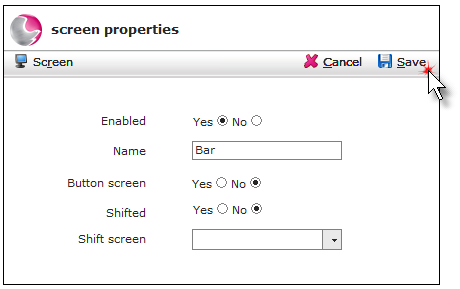
3. Complete the screen properties form.
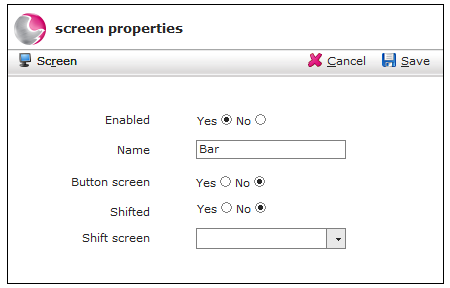
Enabled: Click Yes if the screen is available for use.
Name: Enter a description for the screen.
Button screen: Leave as No if the screen is the main screen. Click Yes if the screen is a secondary screen accessed via the main screen.
Shifted: Select Yes if the screen is a shift screen.
Shift screen: If other screens have been set up as shift screens they can be selected from here.
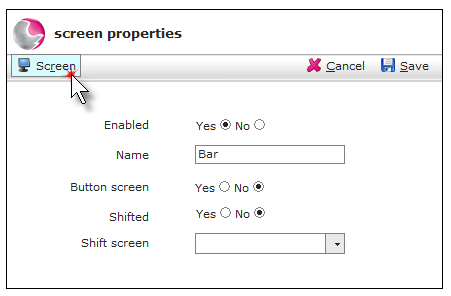
4. Click on Screen.
5. Click on the group that the item belongs to.
The white space indicates that a button can be placed in that position.
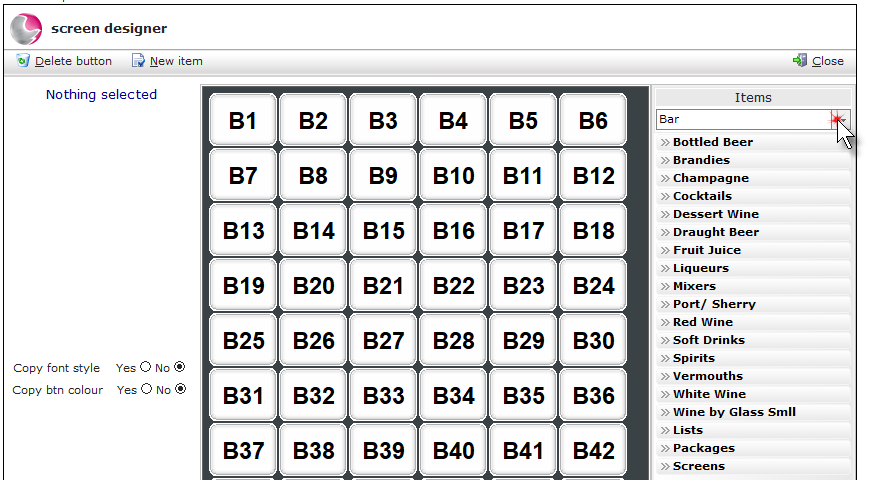
6. Click on the sub-group the items belong to.
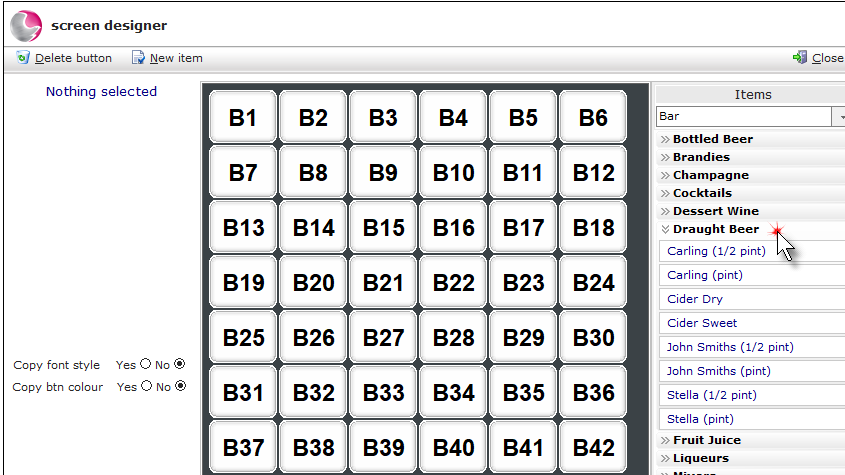
7. Left-click, hold and drag the item onto an available button space and release the mouse button. Repeat until all of the items have been added to the screen.
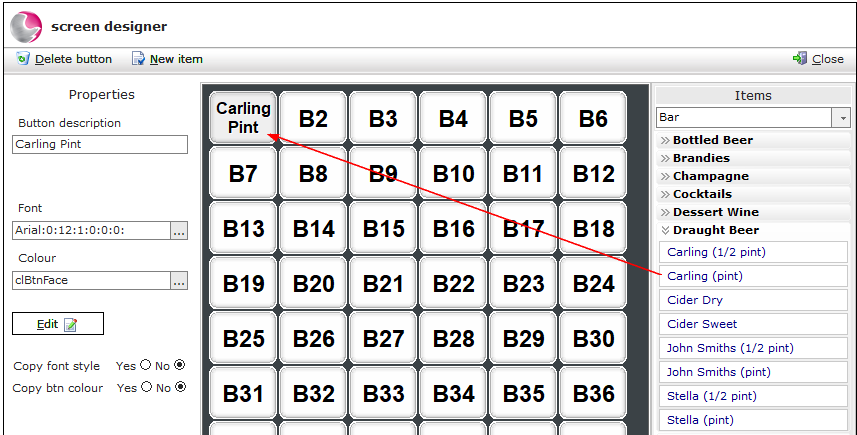
8. To add a button screen to the screen designer, click on Screens.
If a screen has been set up as a button screen it will be available to select from the list.
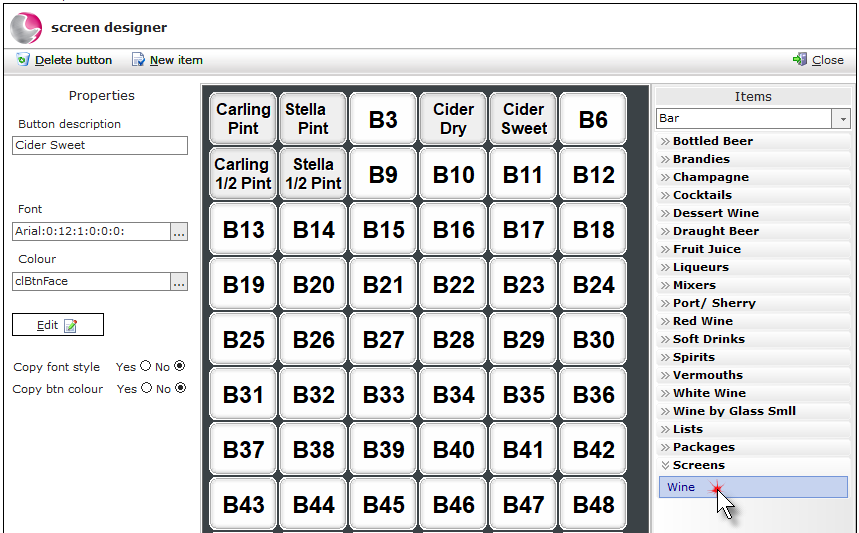
9. Left-click, hold and drag the screen onto an available button space and release the mouse button.
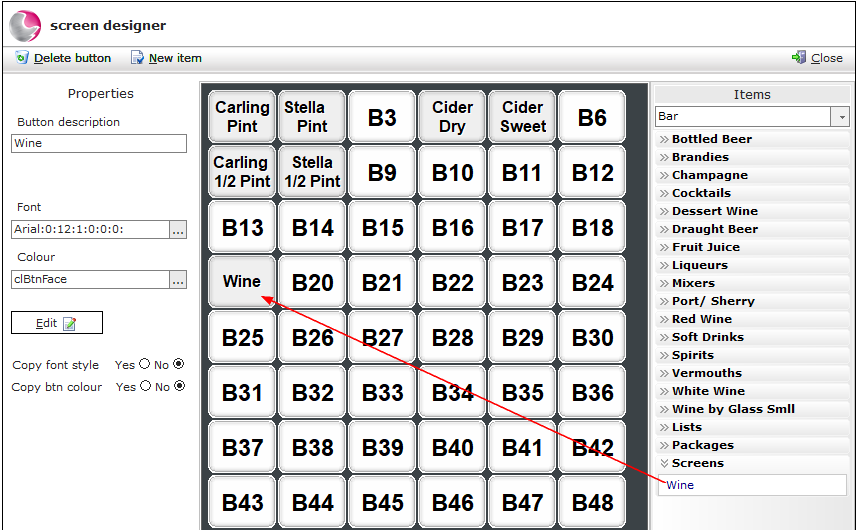
10. To add an EPOS list to the screen designer, click on Lists.
Can't find it? See How to Create a New EPOS List
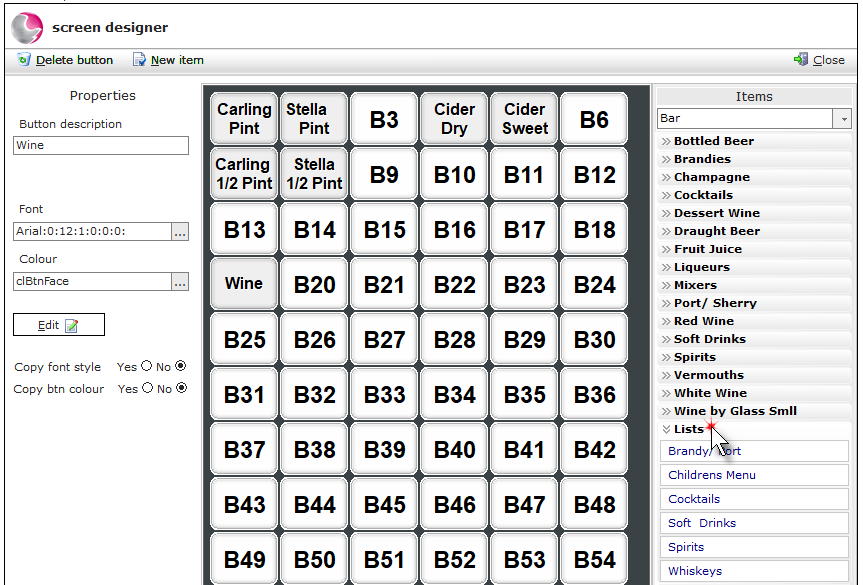
11. Left-click, hold and drag the list onto an available button space and release the mouse button.
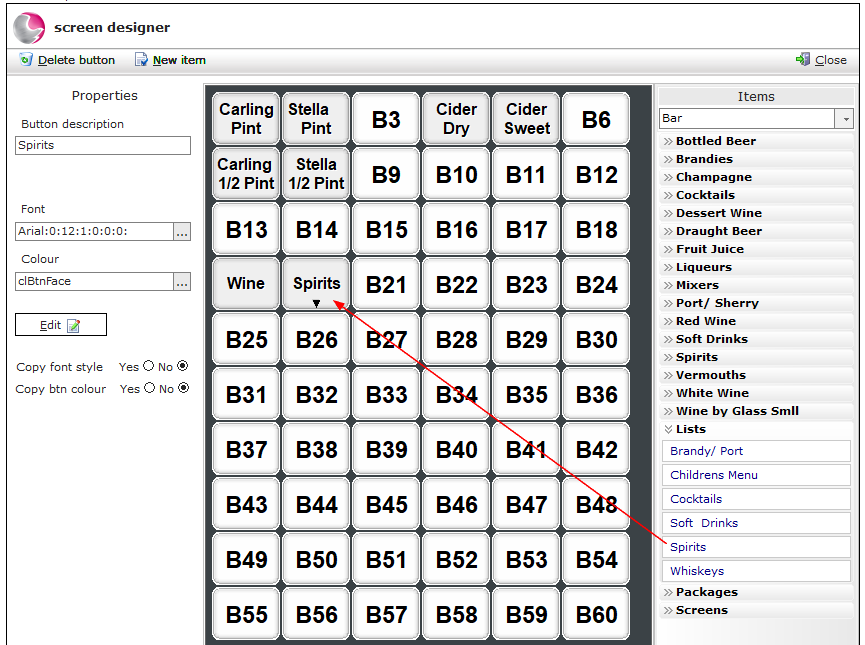
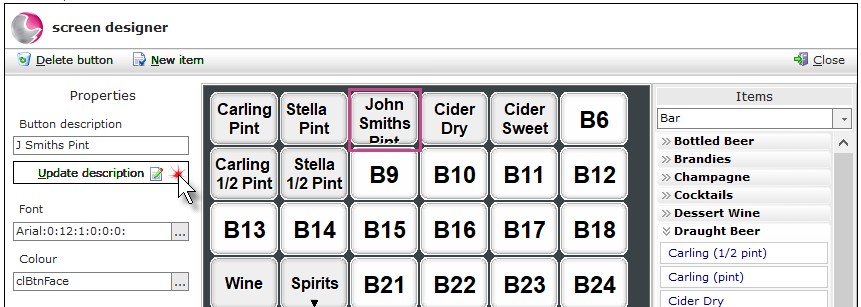
12. To change a button caption, click the button first then enter the new text in the button description field. Click Update description.
This can be used to abbreviate the button text.
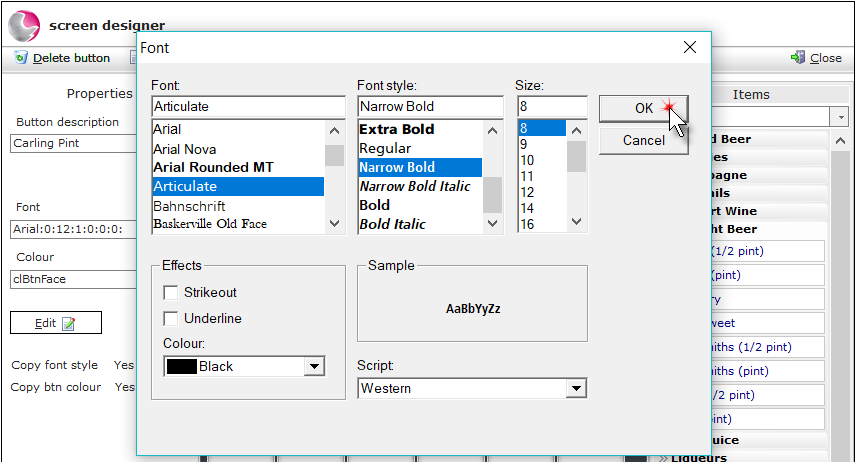
13. To change a button's font, first, select the button then click the three dots on the font option.
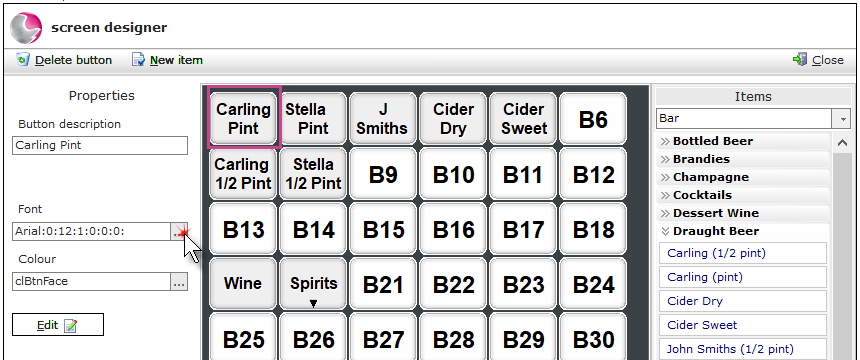
14. Choose the font and size. Click Ok.
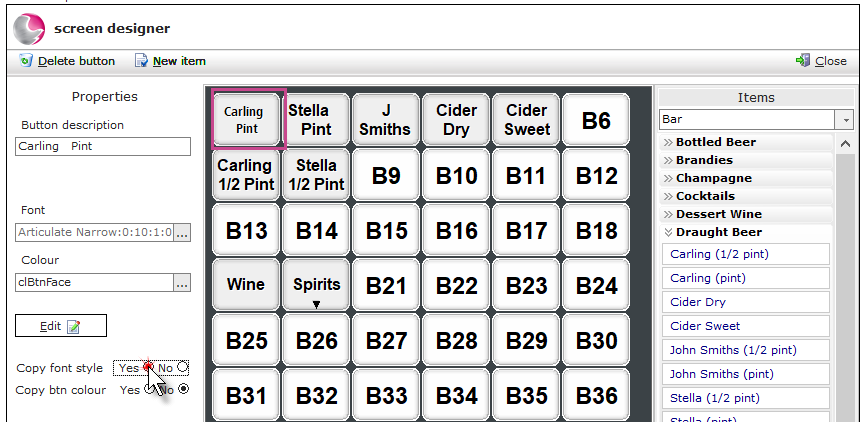
15. To copy the selected font to the other buttons on the screen, click the button with the new font then click Copy font style.
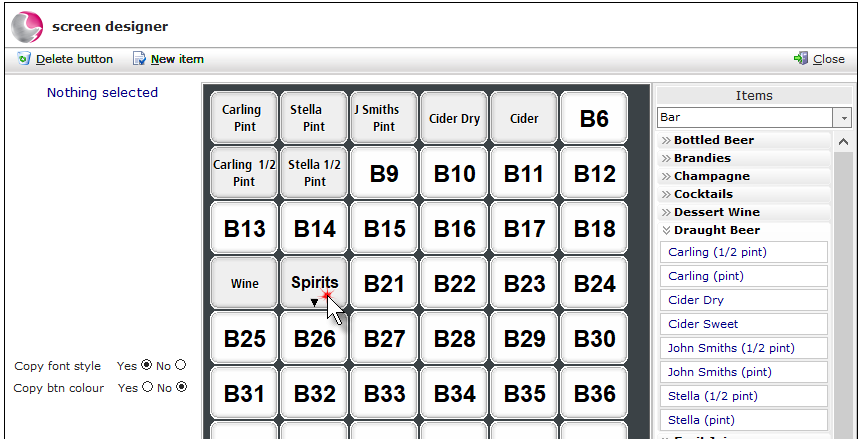
16. Click on the required buttons to copy the font.
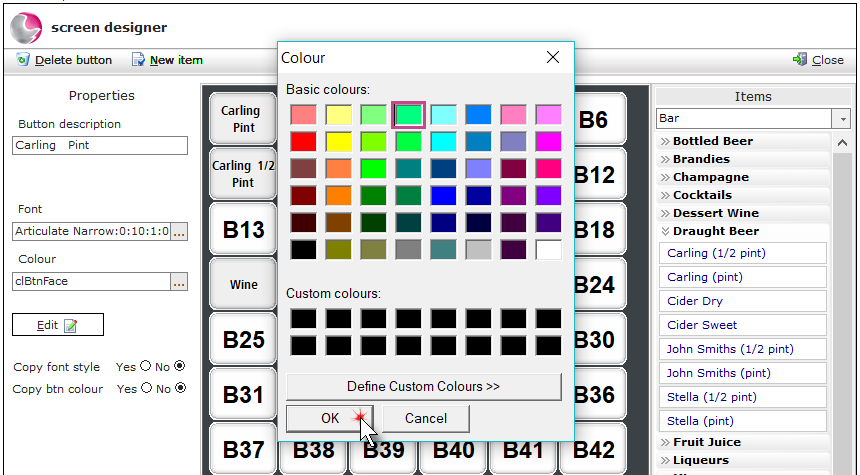
17. To change the colour of a button, first, select the button then click the three dots on the colour option.
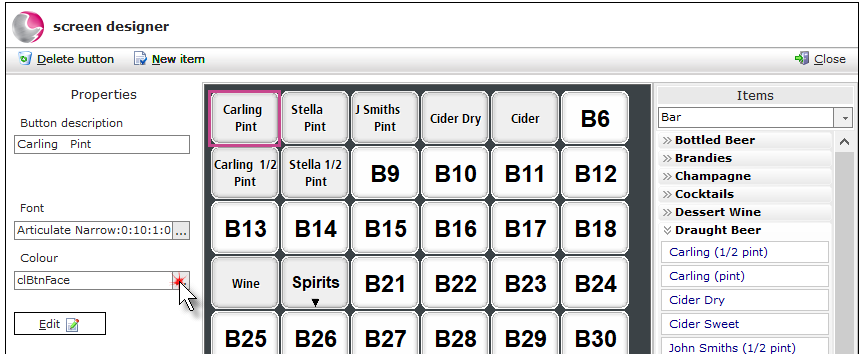
18. Choose a colour. Click Ok.
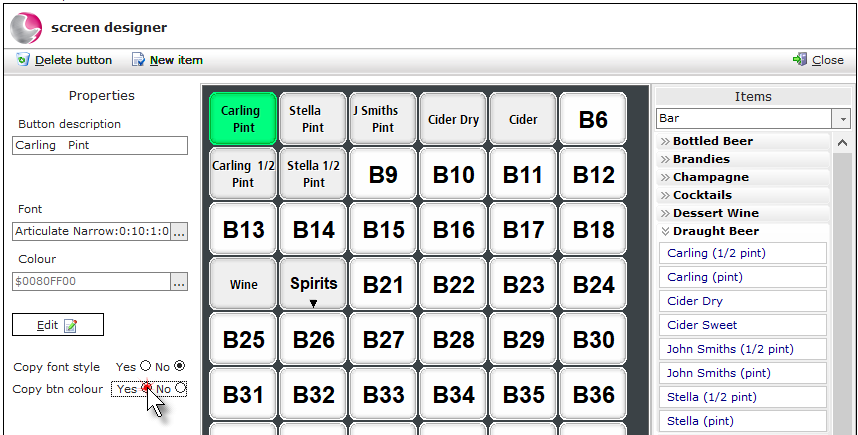
19. To copy the selected colour to the other buttons on the screen, click the button with the new colour then click Copy btn colour.
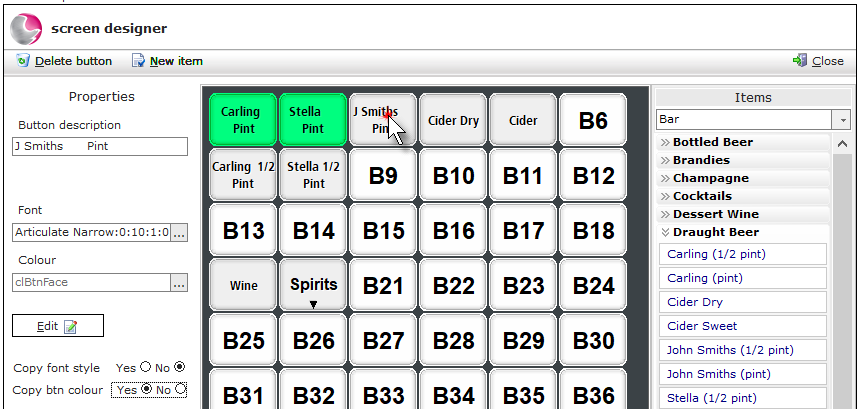
20. Click on the required buttons to copy the colour.
21. Click Close.
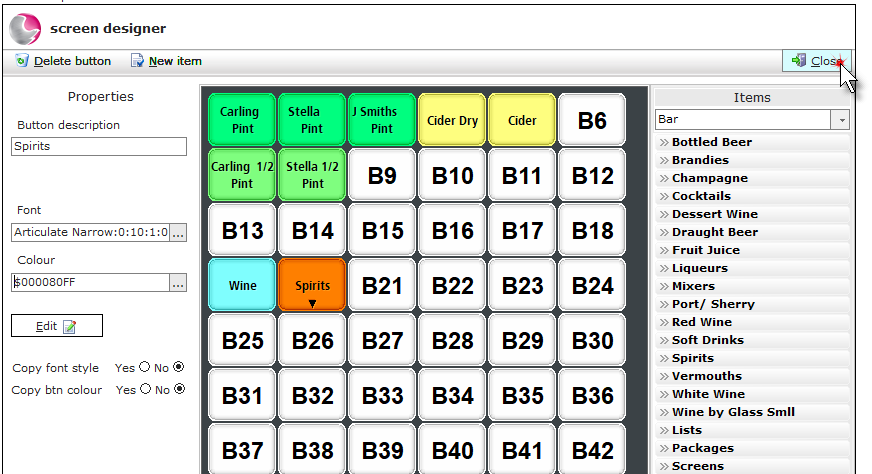
22. Click Save.
See next: How to Create New Items
How to Add Items to an existing EPOS Screen