
Associations are similar to item options however the associated items are chargeable.
For example: Bacardi Rum is most commonly sold with coke or lemonade. Therefore when a Bacardi Rum is sold through EPOS a list of the associated items will pop up as an option to select.
This helps the user process an order more efficiently.
See: How to Create Item Options
Add an association to an item:
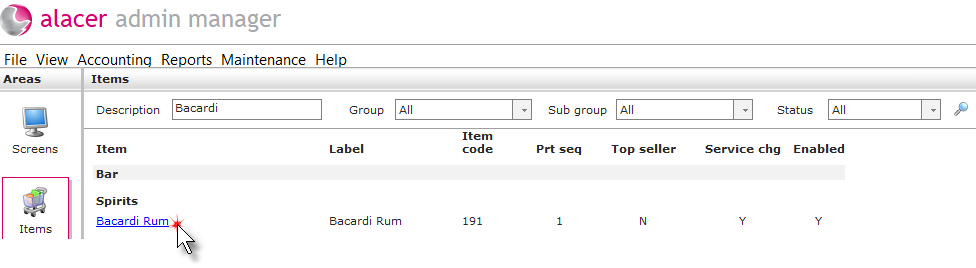
1. Find the item.
Don't know how? See How to Find an Item
2. Click on the selected item to open the item details form.
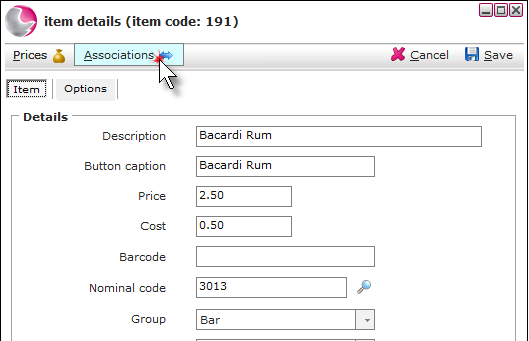
3. Click on Associations.
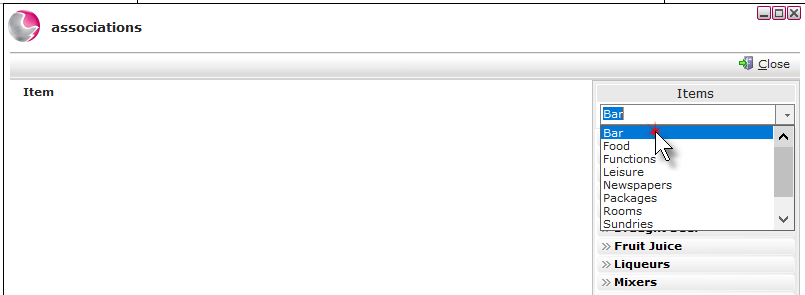
4. Select the group the item belongs to.
5. Click on the sub group the item belongs to.
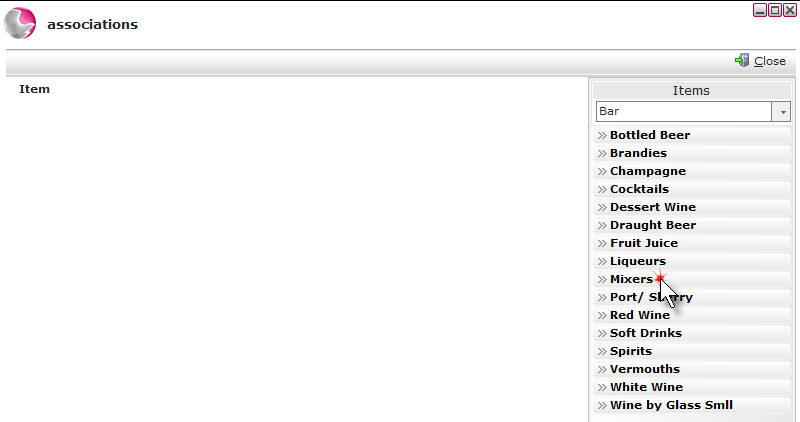
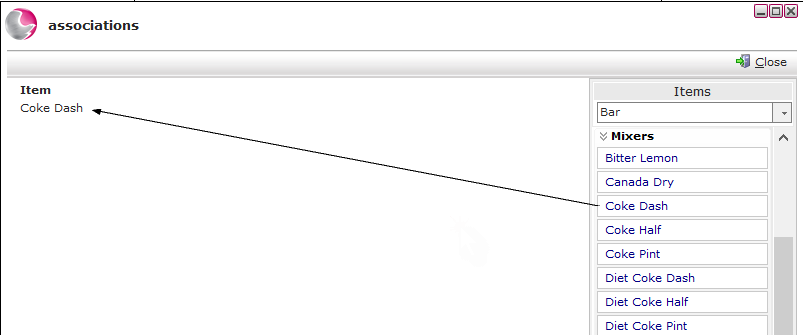
6. Left click, hold and drag the item into the Item section of the form and release the mouse button. Repeat as many times as necessary.
The associated items will need to be created as an item already for it to be available to select.
Can't find it? See How to Create a New Item
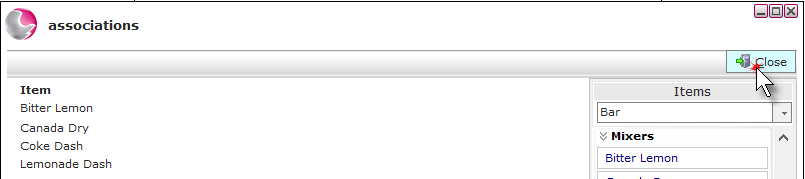
7. Click Close.
8. Click Save.
See next: How to Create New EPOS Screen
How to Create New EPOS List