
A voucher type sets what a voucher is, how long it lasts, what it can be redeemed against and how it's sold.
Good to know: You only need to create one new item for each voucher type: the charge item, priced at what the guest pays for the voucher. Create it in Admin Manager. See How to Create an Item. The unused, discount and shortfall items are already set up in your system, and you can use the same ones for every voucher type.
In this article
- Step 1: Enter the voucher type details
- Step 2: Add elements
- Step 3: Set delivery, categories, promos and relations
Step 1: Enter the voucher type details
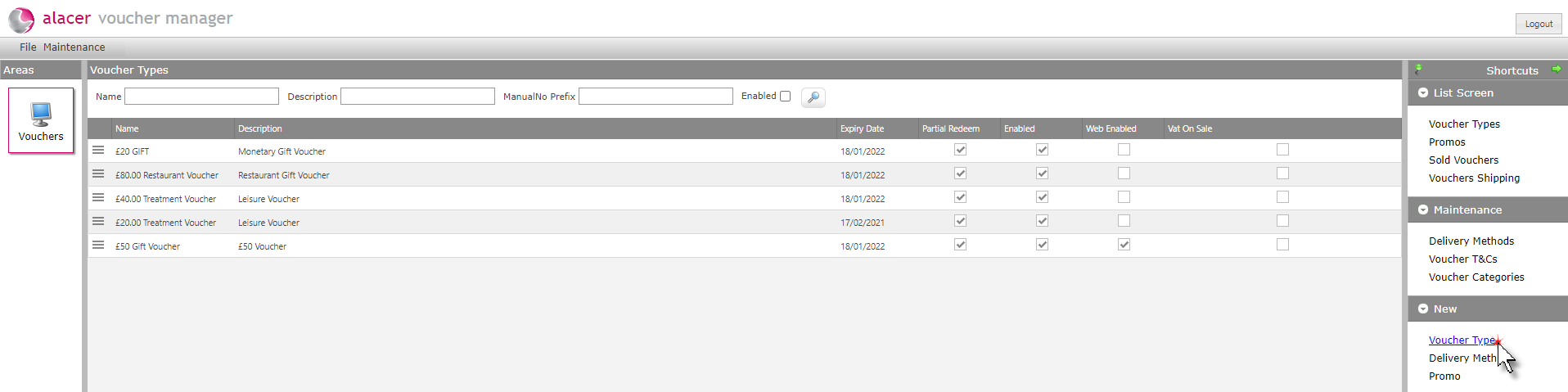
In the Shortcuts menu, under New, click Voucher type.
Complete the Voucher type maintenance form. See Voucher type fields below.
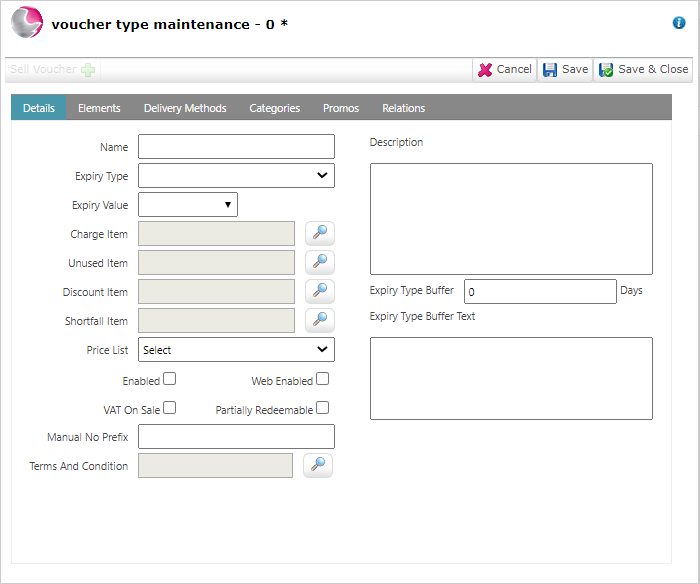
Voucher type fields
| Field | What to enter |
|---|---|
| Name | The voucher type name, for example Afternoon Tea for 2 Voucher, Dinner, Bed & Breakfast Voucher or Treatment for 1 Voucher. |
| Expiry type | Date: expires on a set date, whenever it was bought. Duration: expires after a set number of days. |
| Expiry value | The expiry date, or the number of days the voucher is valid, for example 365. |
| Charge item | The item that holds the sale price of the voucher. Name it the same as the voucher type. |
| Unused item | Usually called Unused Voucher. If a voucher is expired manually without being redeemed, the revenue shows against this item in item sales reports. |
| Discount item | Usually called Discount Voucher in the system. |
| Shortfall item | Usually called Voucher Shortfall. It handles future price changes to the charge item. |
| Price list | The price list. See How to Create a New Price List. |
| Enable | Tick to allow the voucher type to be sold. |
| Web enabled | Tick if the voucher type can be bought on the voucher web engine. To find out more about the web engine, contact the Alacer sales team on 0333 313 0066, option 1. |
| Partially redeemable | Tick if the voucher can be partly redeemed. For example, a guest could use £25 of a £50 voucher on one visit and the rest on the next. |
| Manual no prefix | Optional. A prefix added to the start of each voucher code, which makes it easier to identify which voucher type a code belongs to. For example, XMAS gives codes such as XMAS765890T. |
| Terms and conditions | The terms shown alongside online voucher sales. See How to Create Voucher Terms & Conditions. |
| Description | The full description, shown on the printed voucher and alongside online sales. For example, Afternoon Tea Voucher: freshly prepared finger sandwiches, warm scones with clotted cream and preserves, homemade cakes and pastries, and your choice of tea. |
| Expiry type buffer | Optional. The number of days before the expiry period starts. If a voucher is sold today, its expiry period won’t start until these days have passed. |
| Expiry type buffer text | An explanation of the expiry buffer. |
Step 2: Add elements
Elements set what the voucher can be redeemed against. The redemption value sets how much the voucher is worth.
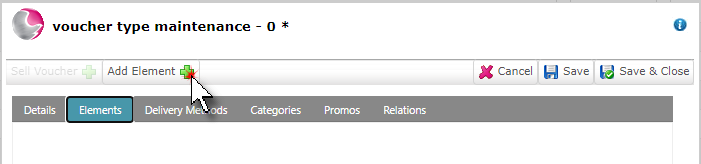
Open the Elements page and click Add element.
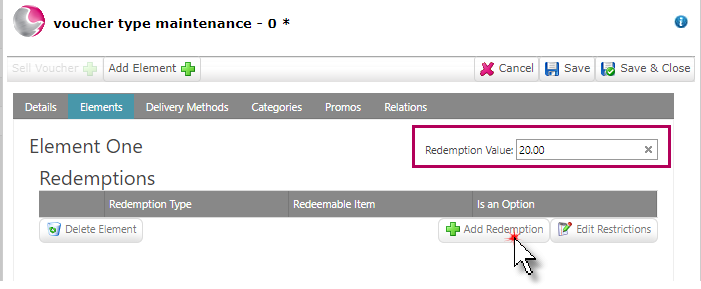
Enter the redemption value, then click Add redemption.
Choose the element redemption type.
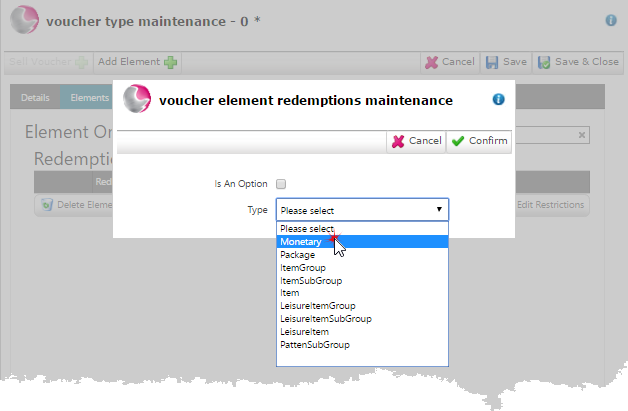
Enter the redemption amount again, then click Confirm.
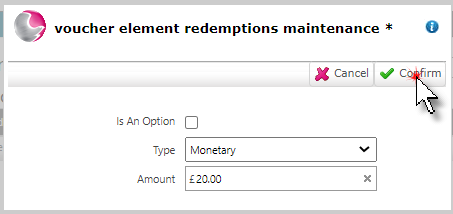
Good to know: To let the voucher be redeemed against any item or package, use Monetary. Any other type can only be redeemed against the element you select, and this can't be changed later.
Step 3: Set delivery, categories, promos and relations
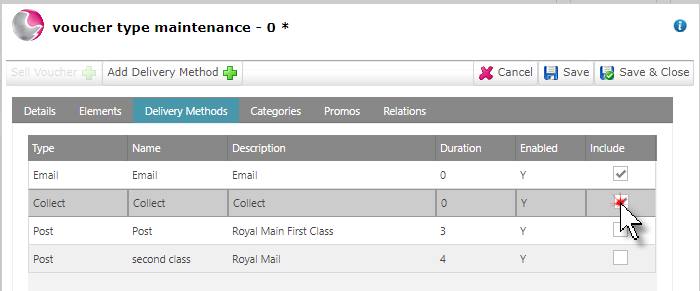
Open the Delivery methods page and tick the delivery methods that apply. See How to Create a New Delivery Method.
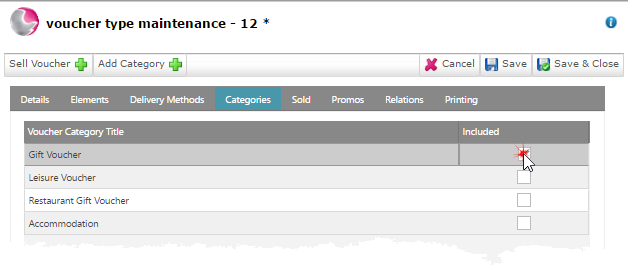
Open the Categories page and tick the voucher category. See How to Create Voucher Categories.
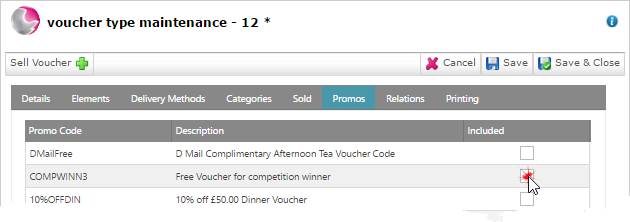
Optional. Open the Promos page and select the promo code. See How to Create Voucher Promo's.
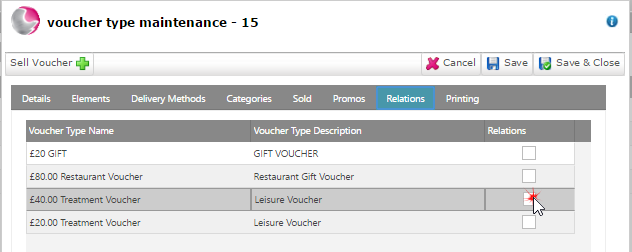
Optional. Open the Relations page and select related voucher types. Related vouchers show on the voucher web engine once a customer adds a voucher to their basket.
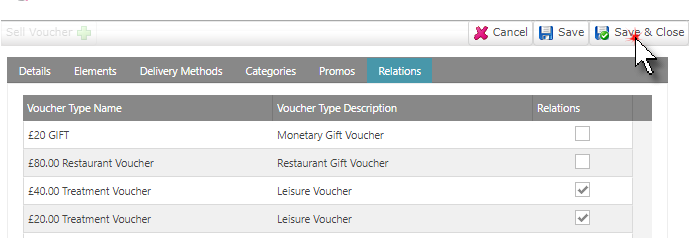
Click Save & Close.
Related articles