
Print a sold voucher, or email a confirmation.
Good to know: Alacer sets up your voucher PDF template, using an HTML template of your voucher stationery, and your email confirmation templates. You can have different templates for physical and emailed vouchers. To add or change a template, or to find out more, contact the Alacer helpdesk on 0333 313 00 66, option 2.
In this article
Print a sold voucher
Click Sold vouchers.

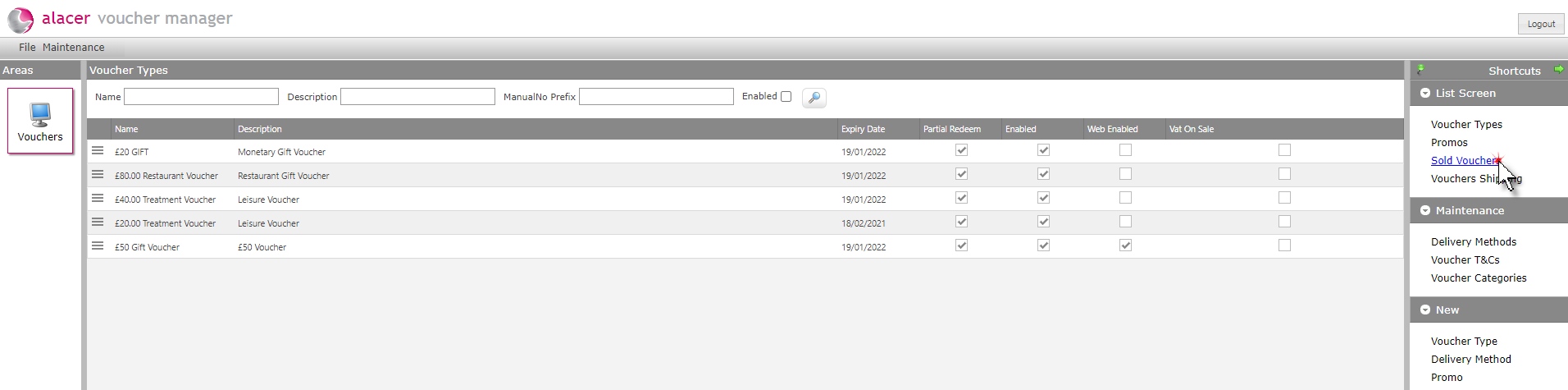
Click the voucher.

Open the Email & printing page.

Select the options you need.
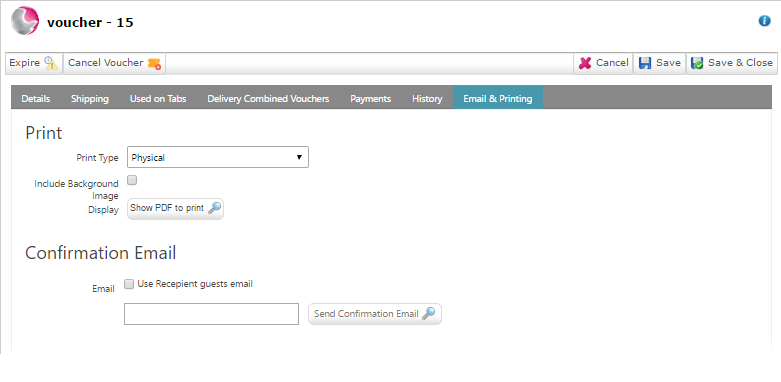
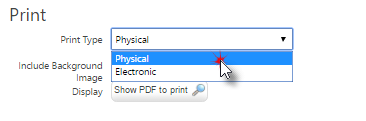
Under Print, choose the print options. See Print options below.
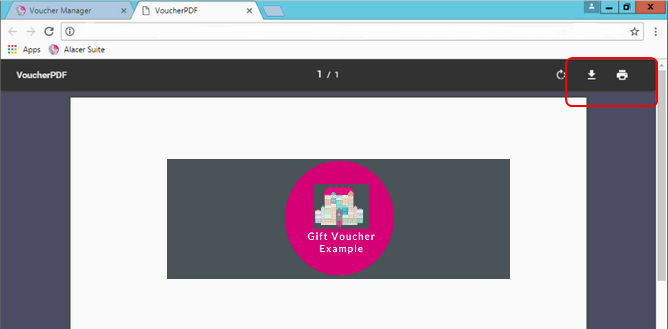
Click Show PDF.
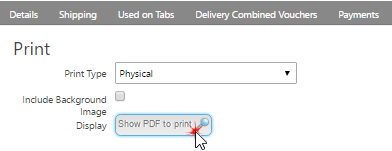
The voucher PDF opens in a new browser tab, where you can download or print it.
Print options
| Option | Use it when |
|---|---|
| Physical | You are printing a physical voucher. |
| Electronic | The voucher will be emailed. |
| Include background image | Tick if you're not printing on pre-printed stationery. |
Email a confirmation
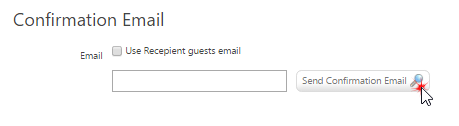
On the Email & printing page, choose where to send the confirmation:
| Option | What it does |
|---|---|
| Use recipient guests email | Sends the confirmation to the voucher recipient. |
| Sends the confirmation to the email address you enter. |
Related articles