Voucher PDF Printing: The voucher PDF printing is initially configured by Alacer by using a HTML template of your sites voucher stationary provided by you. It is possible to have different templates configured for physical and emailed vouchers.
Email Confirmations: The voucher email confirmation templates are initially configured by Alacer.
If you would like to add a new email confirmation template, make any changes to an existing template or to find out more information regarding the Voucher PDF printing, please contact the Alacer helpdesk on 0333 313 00 66 option 2 to to speak to the support team.
Printing a sold voucher:
Click on Sold vouchers.

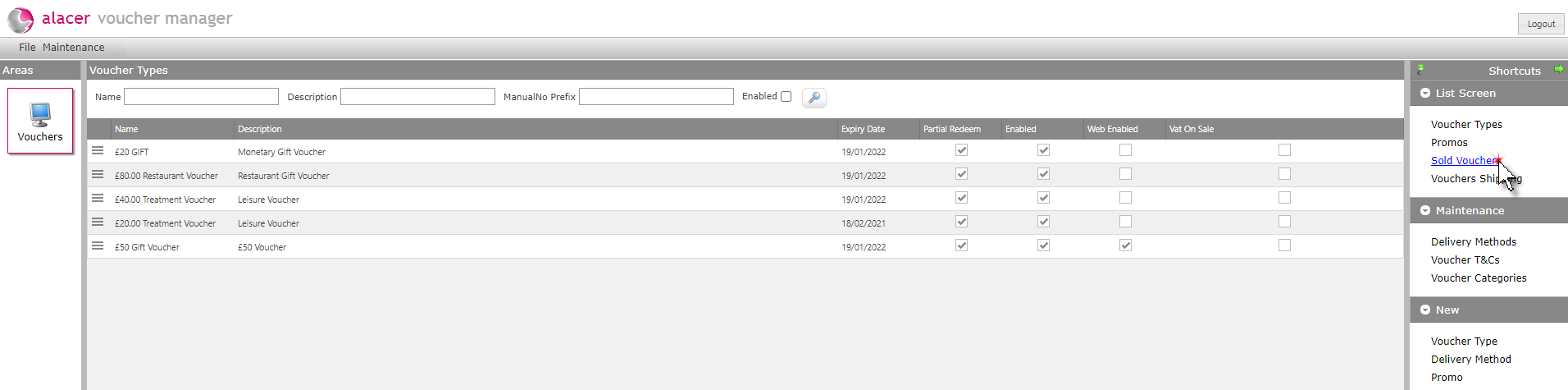
Click on the required voucher.

Click on the Email & Printing page.

Select the options required.
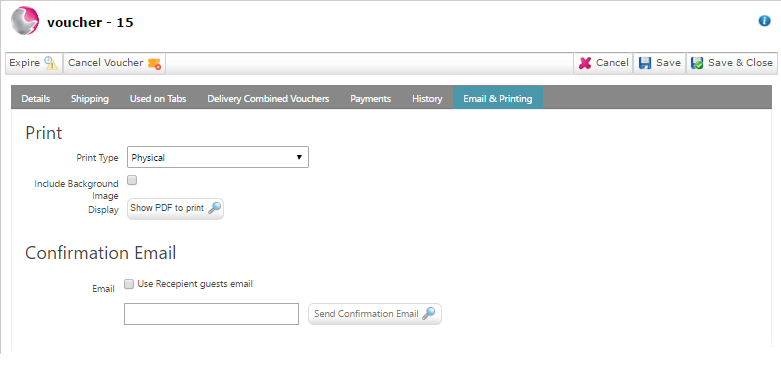
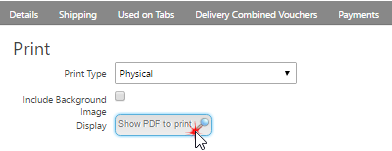
Print:
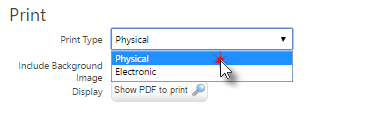
Physical: Select this option if you are printing a physical voucher.
Electronic: Select this option if the voucher is going to be emailed.
Include background image: Select if you are not printing the voucher on to pre printed stationary.
Click show PDF to print.
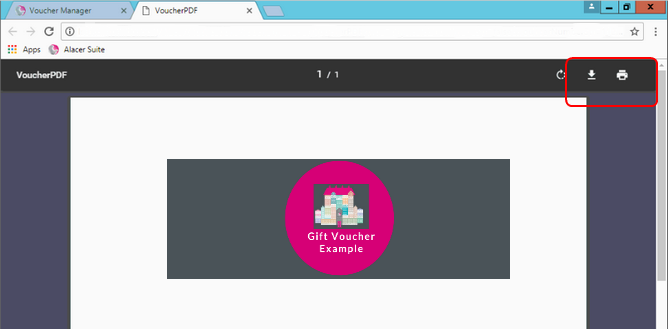
The voucher PDF will open in a web browser in a new tab, you will have the option to download or print the voucher from the browser.
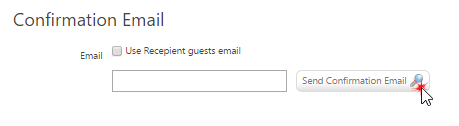
Confirmation Emails:
Use recipient guests email: The confirmation will be send to the voucher recipient.
Email: The confirmation will be sent to the email address entered into the email field.