
Sell a voucher directly from Voucher Manager.
In this article
Step 1: Enter the voucher details
In the Shortcuts menu, under List screen, click Voucher type.

Click the voucher type.

Click Sell voucher.
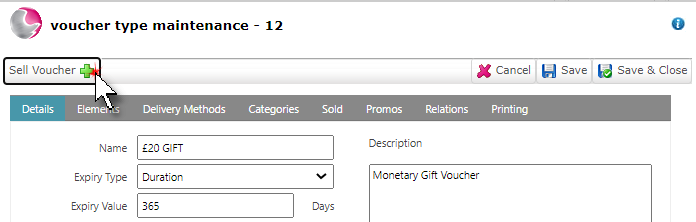
Complete the voucher details page. See Voucher detail fields below.
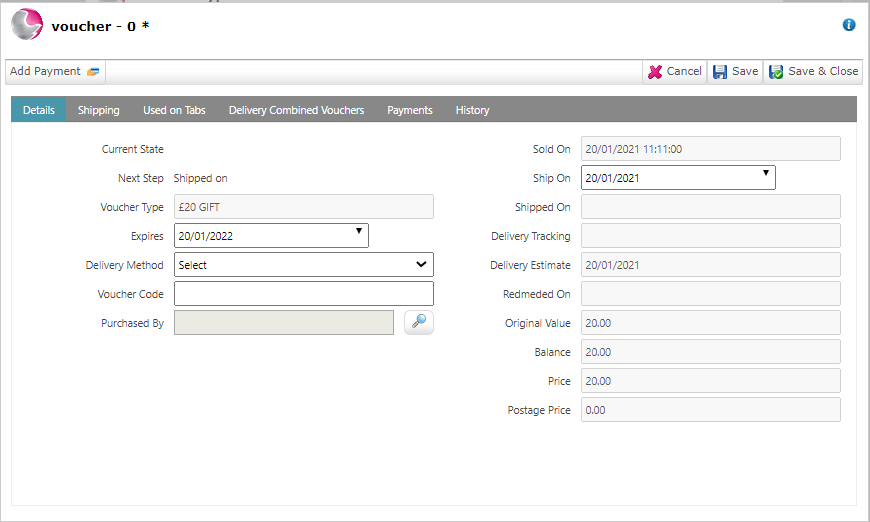
Voucher detail fields
| Field | What to enter |
|---|---|
| Expires | The expiry date, if it is different from the default expiry period. |
| Delivery method | The delivery method. |
| Voucher code | Optional. If you leave it blank, a code is generated at the payment stage. |
| Purchased by | Select the purchaser from the guest search, or create a new guest. See How to Use Guest Search. |
| Shipped on | Defaults to a date based on the delivery method. To change it, click the date and pick a new one. See How to Create a New Delivery Method. |
Step 2: Add shipping details
Open the Shipping page.
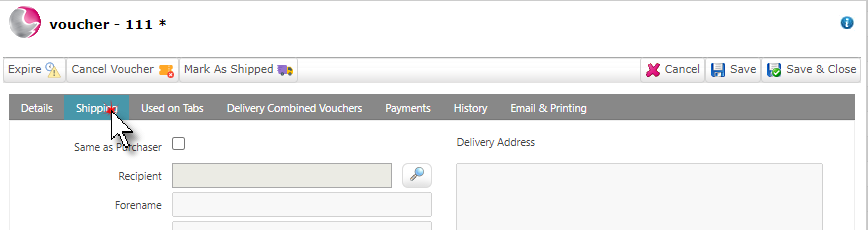
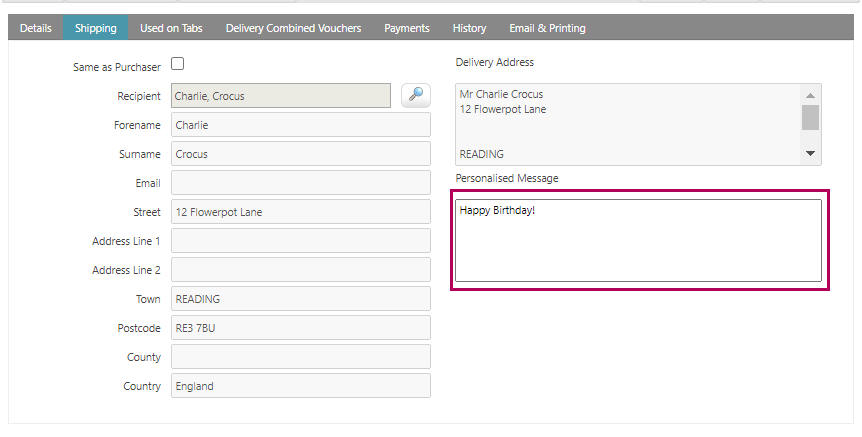
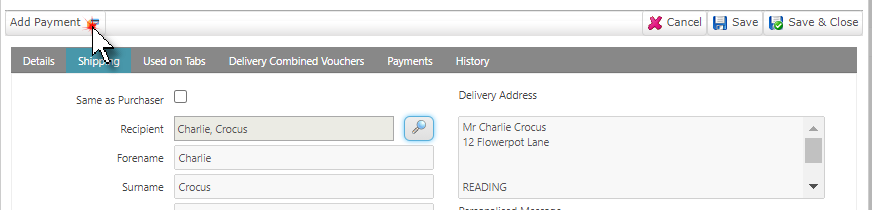
Tick Same as purchaser if the shipping address is the purchaser's. If not, select the recipient from the guest search, or create a new guest.
Optional. Add a personalised message.
Step 3: Take payment
Click Add payment.
Select the payment type, then click Save & Close.
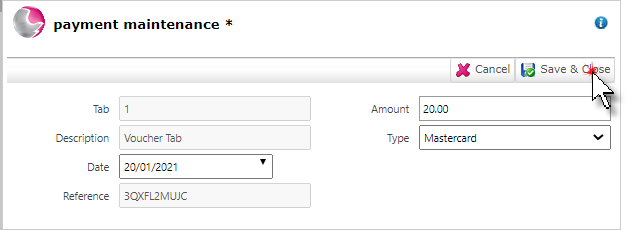
The payments page shows that the payment has been recorded.

What's next? Print or email the voucher, and mark it as shipped if needed. See How to Print or Email a Sold Voucher.
Related articles