
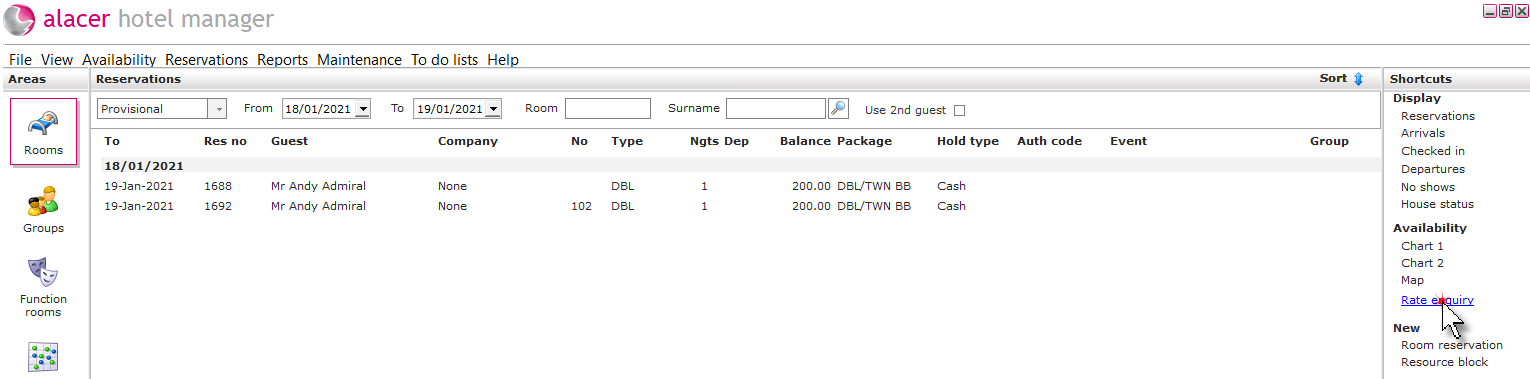
1. Click the Rooms icon in the areas part of the screen.

2. Click on Rate enquiry from the Availability shortcut.
3. Complete the reservation details and filter results. Click Refresh rates.
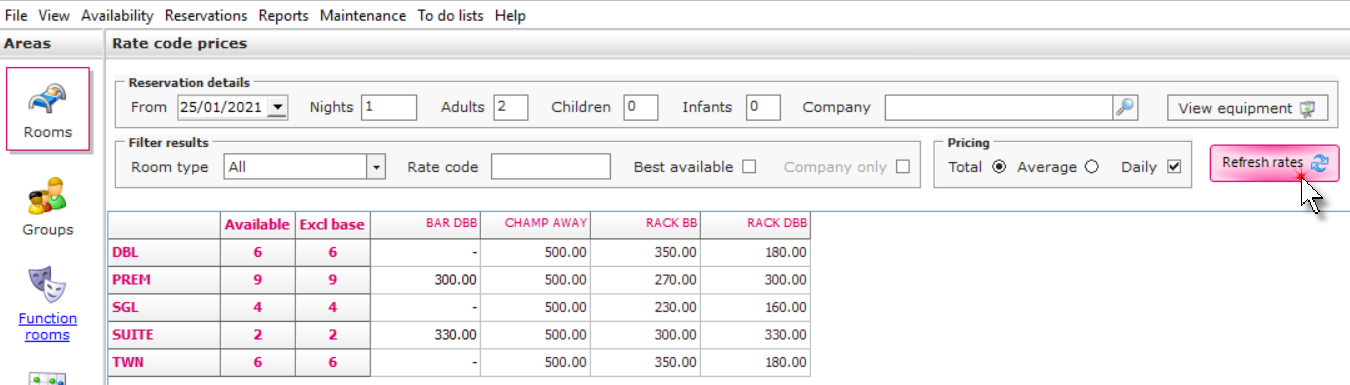
Reservation details:
From: Select the date the booking begins on.
Nights: Enter the number of nights.
Adults, Children, Infants: Enter the occupants.
Company: If the guest is staying on a company only rate select the company.
Equipment: View equipment availability (if required)
Equipment not setup? See How to Add New Equipment
Filter results:
Room type: Select the room type if known.
Rate code: If a specific rate code is requested, type it into the field.
Missing a Rate Code? See How to Create New Rate Code
Best available: If a rate code has been setup as a best available rate, ticking the box will add an extra column on the grid and display the cheapest rate available for a particular date/room type.
Pricing: Total - This shows the total price for the stay. Average - This will display the average rate per night. Daily - The daily rate will be shown.
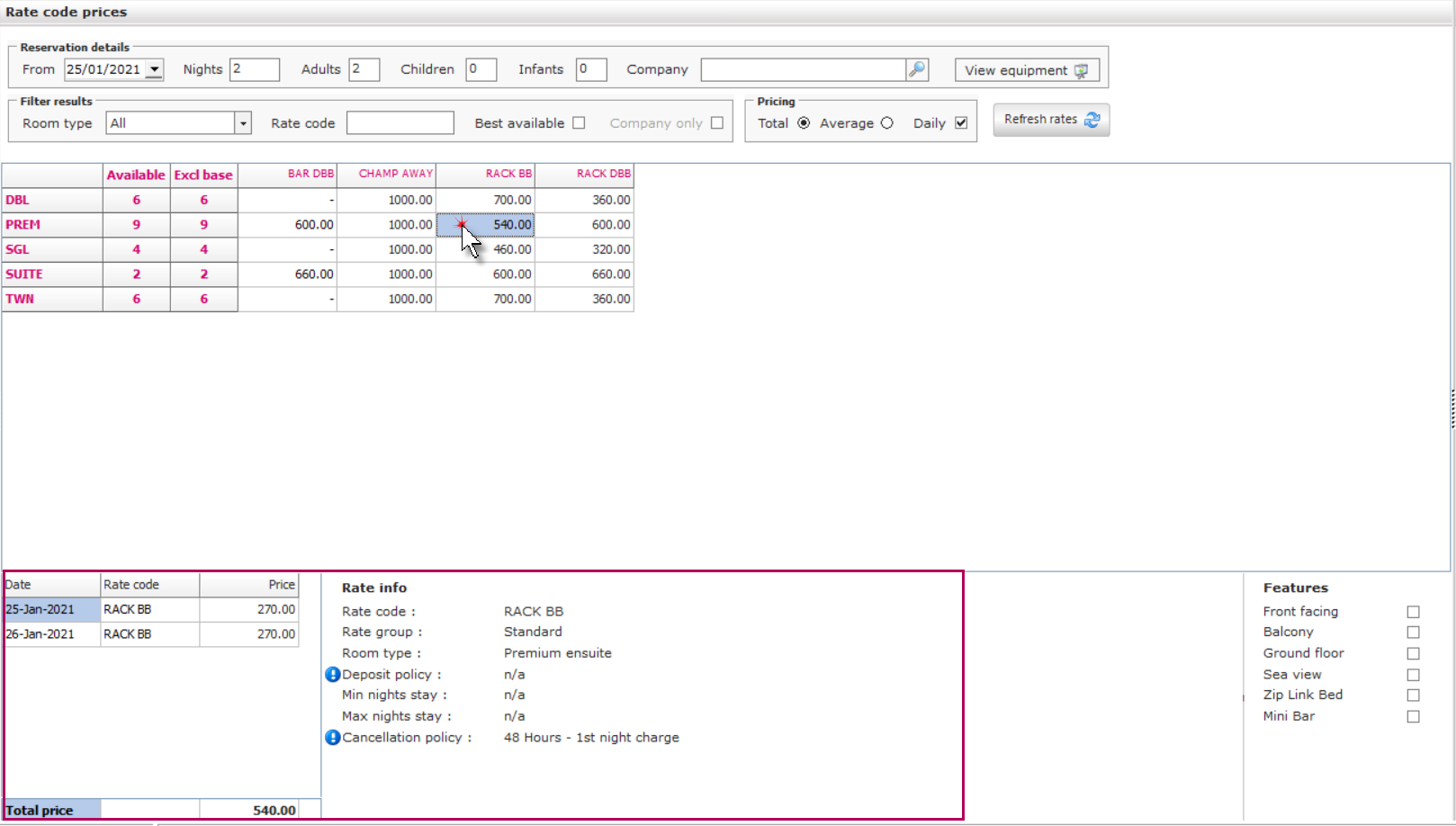
4. Once the filters have been completed, click on the chosen rate code / room type combination to view the rate details.
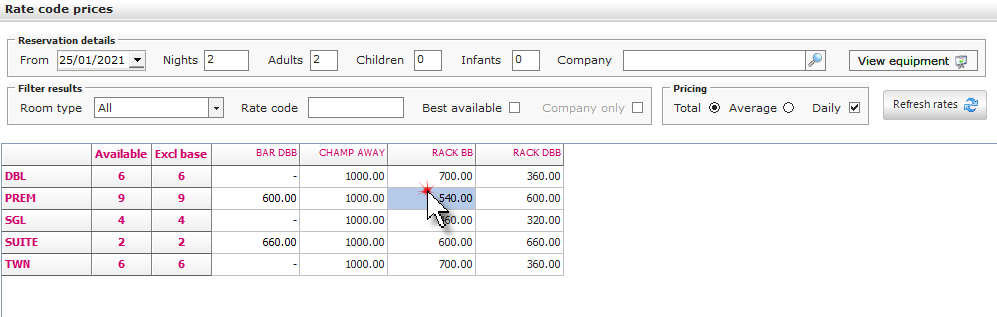
5. Double click on an available room type and rate code to begin the reservation process.
See next: How to Create Bedroom Reservation