This feature allows users to add a new Function Room Layout to a reservation. The layouts can be selected from the reservation form and the layout description will appear on function and even sheets.
Create a function room layout:
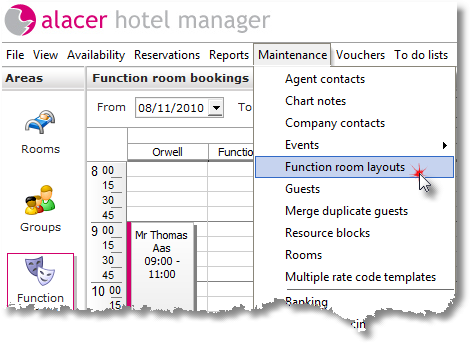
Click on Function room layouts from the Maintenance menu.
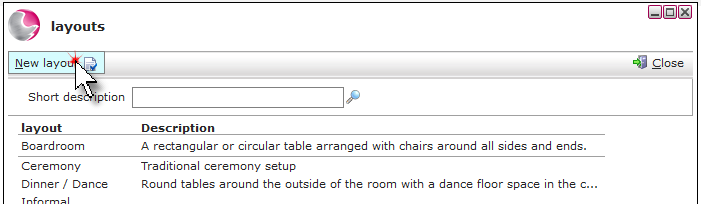
Click on New Layout.
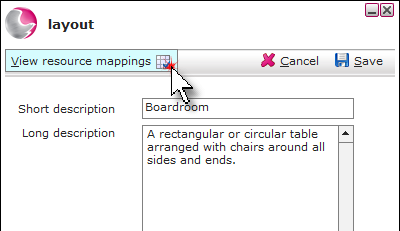
Complete the Layout form.
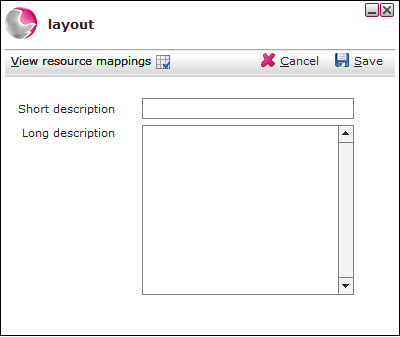
Short Description: The name of the layout, i.e. Boardroom, Classroom.
Long Description: Enter a description of the layout.
Click on View resource mapping.
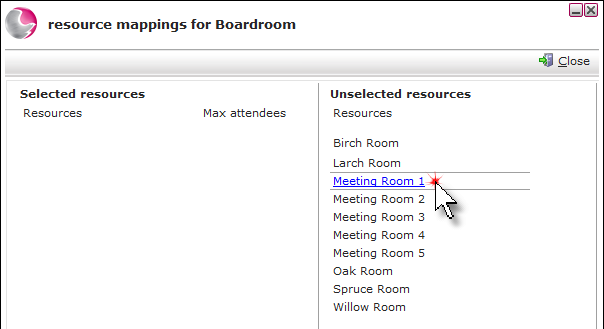
Unselected resources are displayed on the right hand side of the screen, click on a resource to make the layout available in that room.
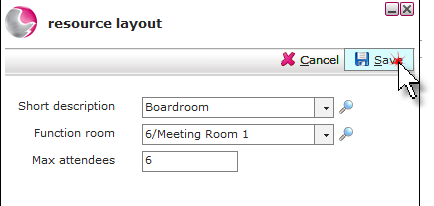
Enter the maximum number of attendees for the layout in that particular resource. Click Save.
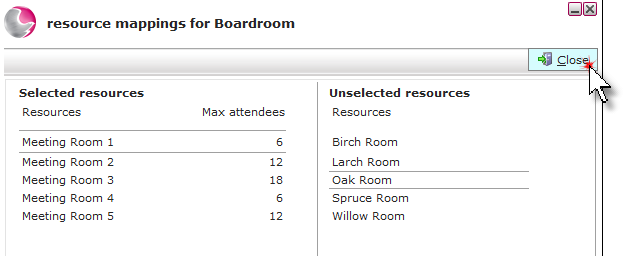
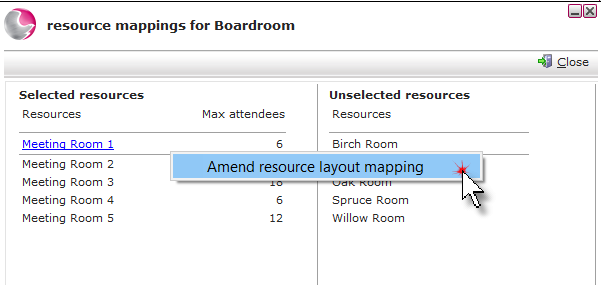
The resource will now show on the left hand side with the maximum number of attendees. Repeat for each room the layout can be applied to. Click Close.
Amend max attendees:
Right click on the resource and click amend resource layout.
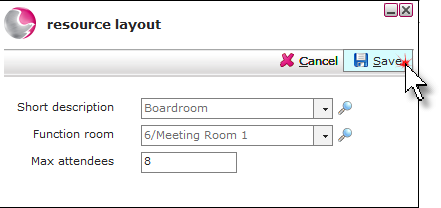
Amend the max attendees and click Save.
Remove a function room layout:
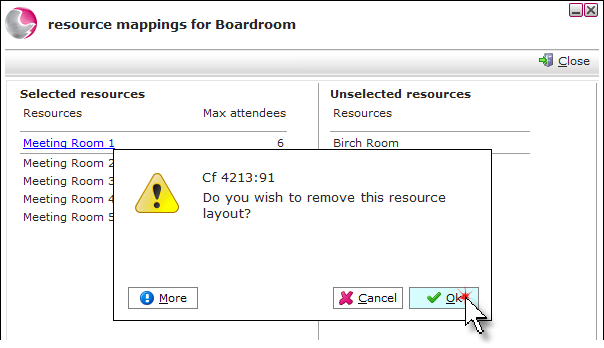
To remove a function room layout from a resource, click on the resource then click OK.