
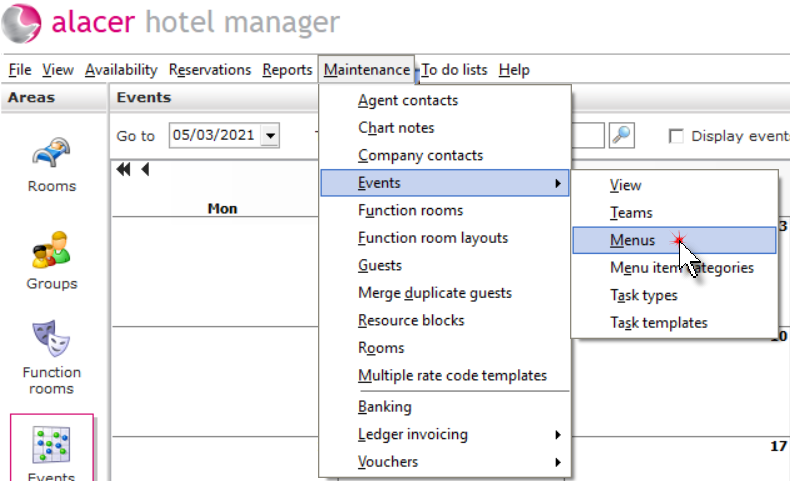
1. From the Maintenance menu, click Events then Menus.
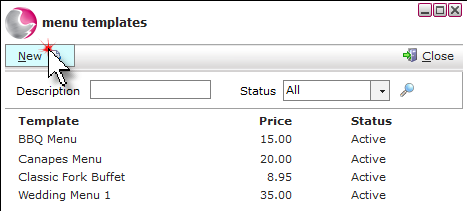
2. Click New.
3. Complete the new menu template form.
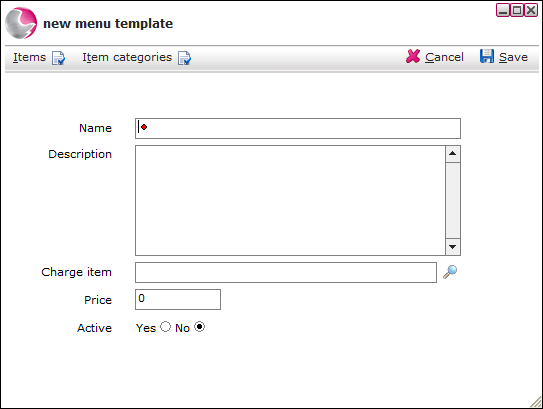
Name: Enter the menu name.
Description: Enter a long description for the menu.
Charge item: Select a chargeable item if required.
Price: Enter the price of the menu.
Active: Set to active yes.
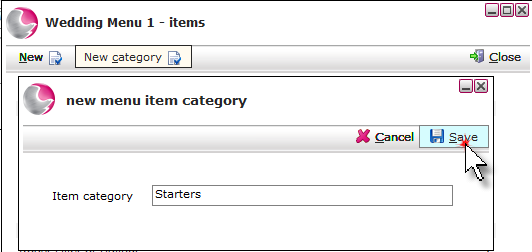
4. If no menu categories exist, click on New category. Enter the item category name, click Save. I.e. Starters, mains, desserts.
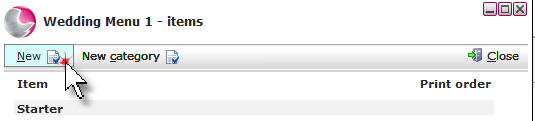
5. Once the categories have been created, to add the items to the menu, click New.
6. Complete the new menu item form.
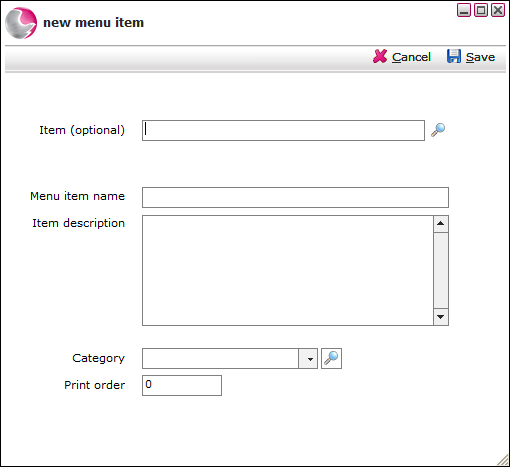
Item optional: If there is an additional charge for an item on a menu, select that item. i.e. Steak sauce.
Menu item name: Enter the name of the menu item.
Item description: Enter a long description of the item, this will appear on the menu if its printed.
Category: Select the category.
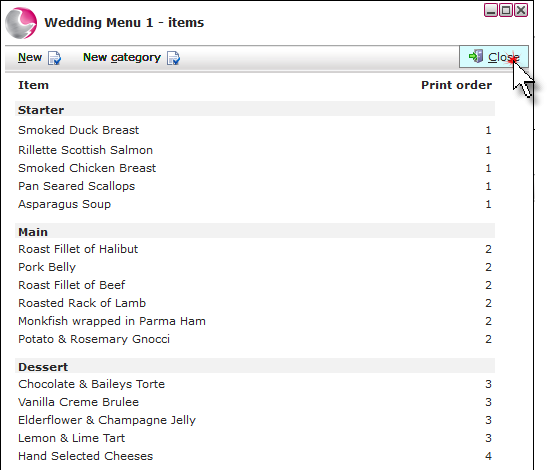
Print order: Controls the order that items show on the menu. A typical way to group items would be to use the following settings: 1 - starters, 2 - mains, 3 - desserts, 4 - drinks etc.
7. Click Save.
8. Repeat as necessary until all the items have been added to the menu. Click Close.
See next:
How to Add a Menu Template to an Event