
1. Open the event and click on the Tabs page. Click on the Invoice.
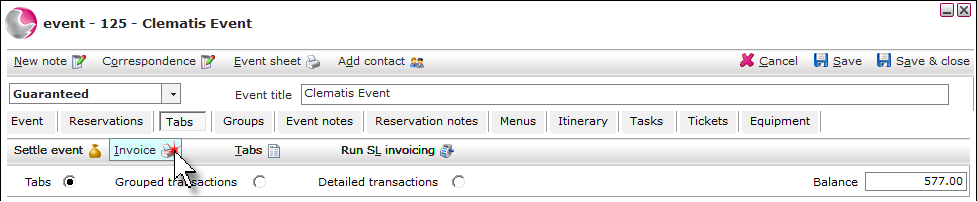
2. Click Print to print the invoice or Preview to view it first.
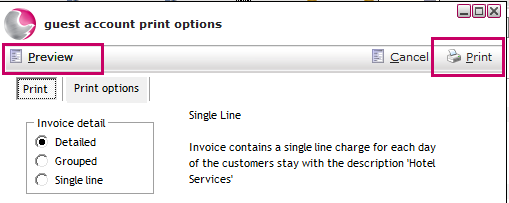
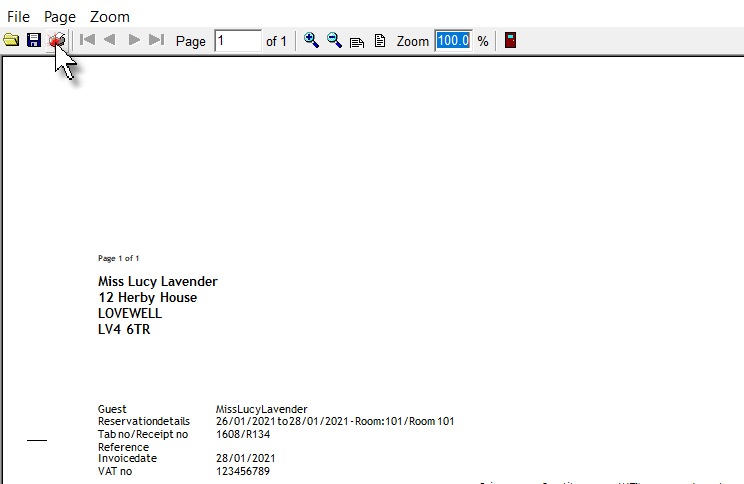
3. The invoice can also be printed from the preview.
Using the print options:
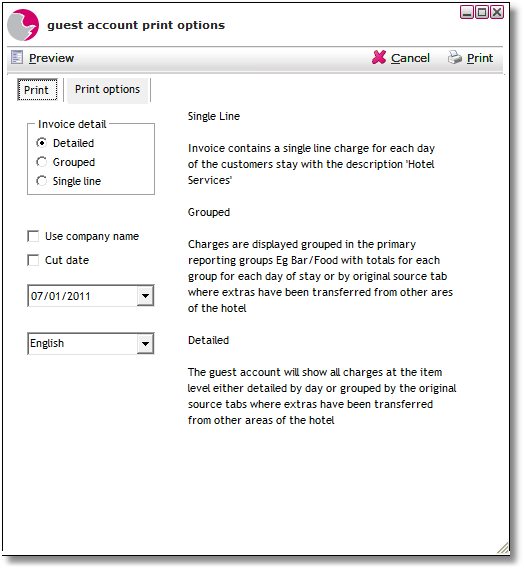
Detailed, Grouped or Single Line: Select a print detail option.
Use company name: This will replace the guests name and address with the company name and address.
Cut date: The invoice will only display a defined period of the guest's stay.
4. Click Print options.
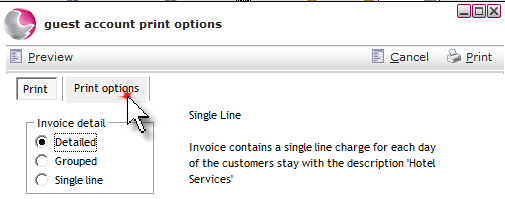
5. Select the required options.
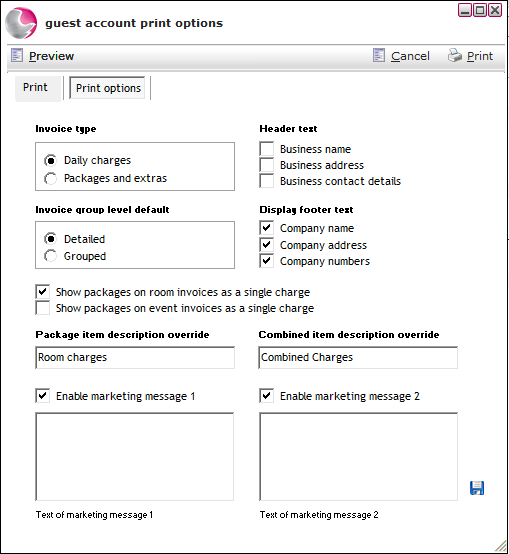
Invoice type:
Daily charges: The invoice will display the item and package charges by date.
Packages and extras: The invoice will display the packages and extras into two defined sections with a sub total for packages and extras.
Header text & display footer text: The header text option can be used to display the site name and contact details if headed paper is not used. The footer text will display the company trading details.
Invoice group level details: Choose the default print option of detailed or grouped.
Show packages on room/event invoices as a single charge: If the use single line print option is being used tick the options that apply.
Package/room combined item description override: Enter the description for the single line print option in these fields.
Enable marketing message 1 & 2: Marketing messages can be added to display at the bottom of all invoices.
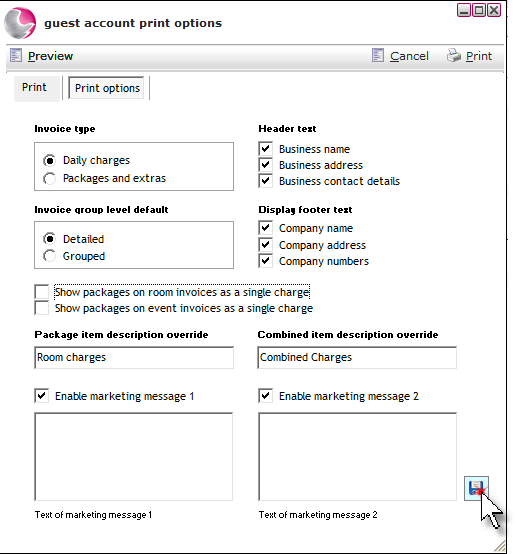
6. Click the save icon to set the default print options for the invoice.
See next: How to Create an Event Sheet