
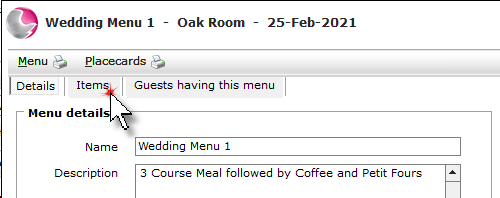
1. Open the event and click on the Menus page.
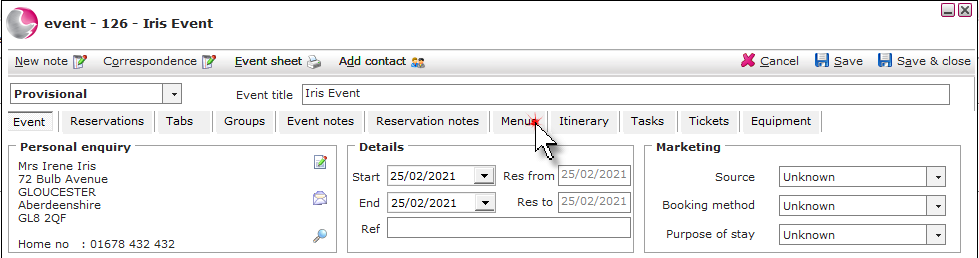
2. Click Add template and select a function room.
Learn How to Create a New Template
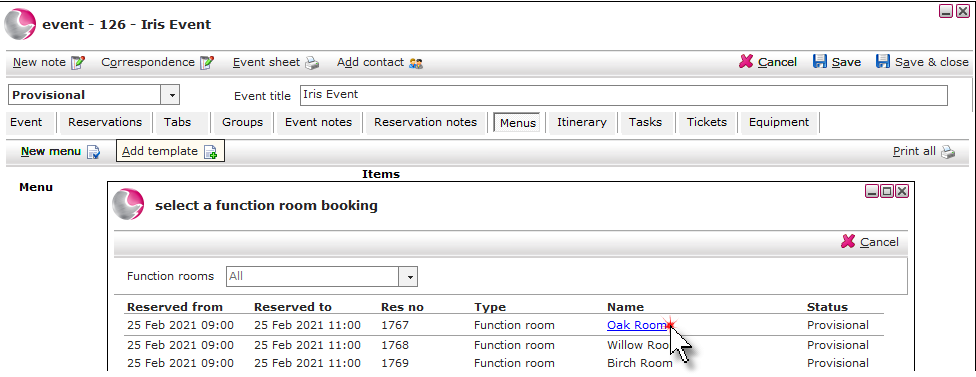
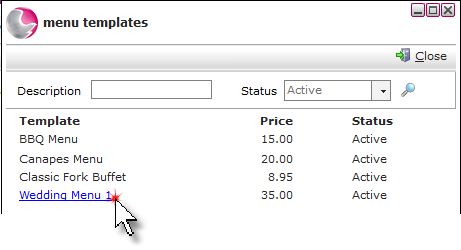
3. Select the menu template.
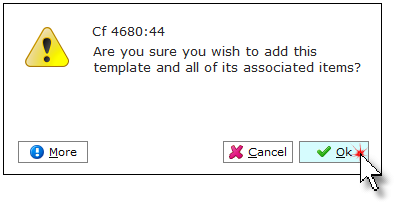
4. Click OK.
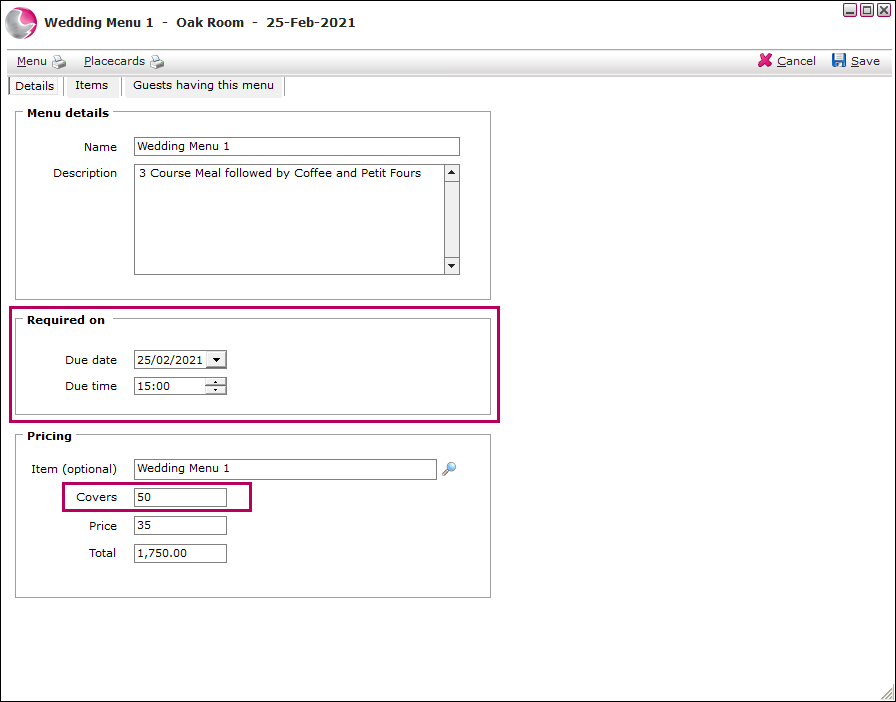
5. Enter the date and time the menu is required on and the amount of covers the menu is for.
6. Click on Items.
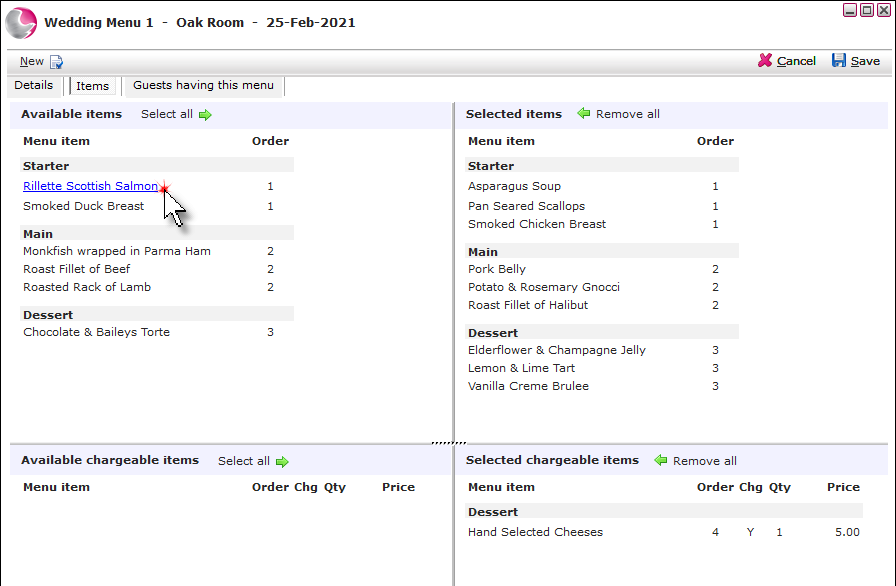
7. The chargeable and non chargeable items that have been added to the menu template will appear on the left under the heading of available items. Click on the items that need to be included in the menu to move them to the selected item section on the right.
Add guest menu choices:
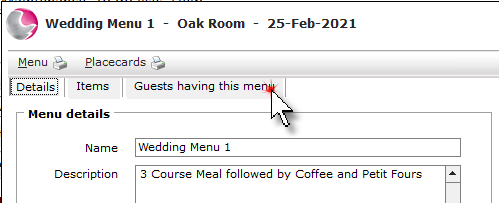
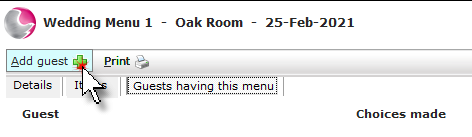
8. To add guest menu choices, click on Guests having this menu.
9. Click Add guest.
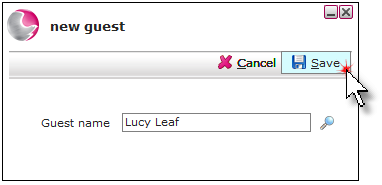
10. Type the guests name into the field to add a guest without adding them to the guest database or select an existing guest from the guest database. Click Save.
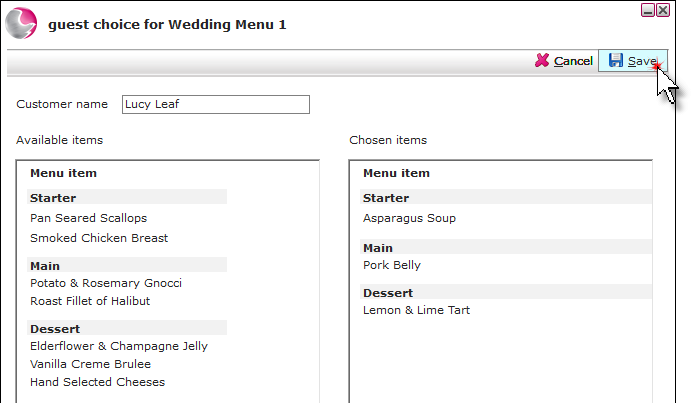
11. Click on the items to add the menu selection for the guest. Click Save. Repeat the process for all guests.
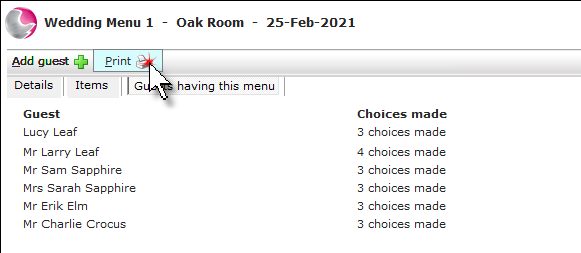
12. Once all the guests have been added. The menu selections can be printed if required.
Print the menu:
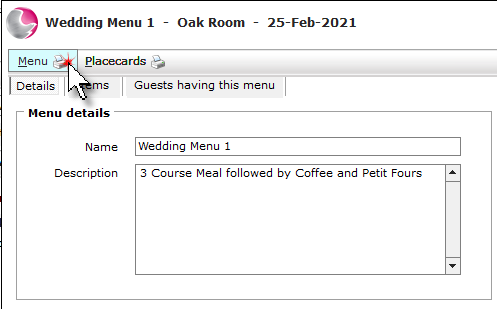
13. To print the menu, click on menu from the details page.
Print guest place cards:
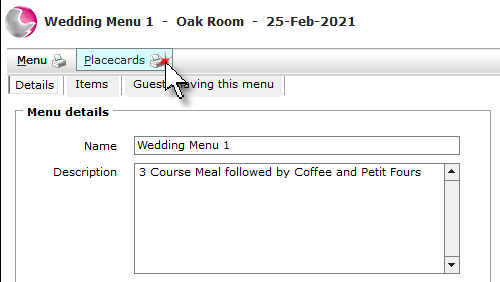
14. Click on Place cards from the details page.
Print the event menu details:
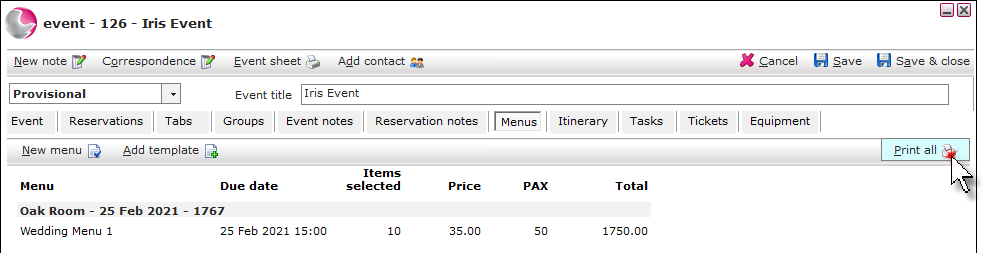
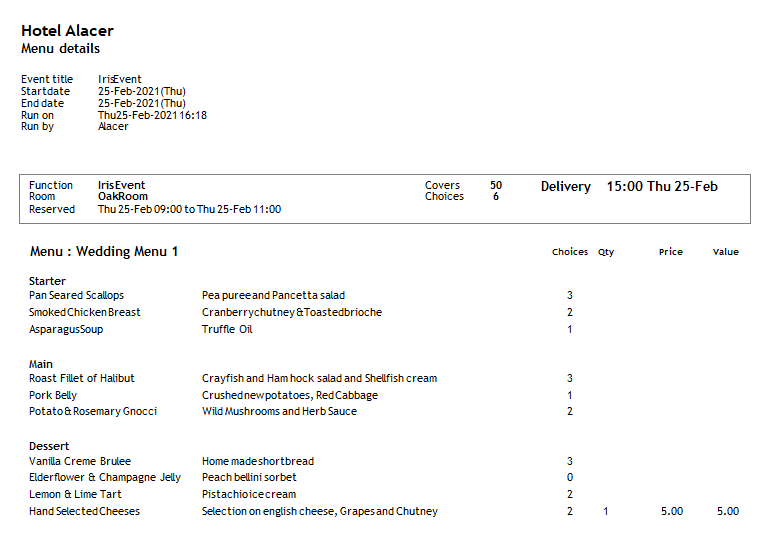
15. To print the total amount of item selections, click Print all from the menus page.
See next: How to Create Event Itinerary