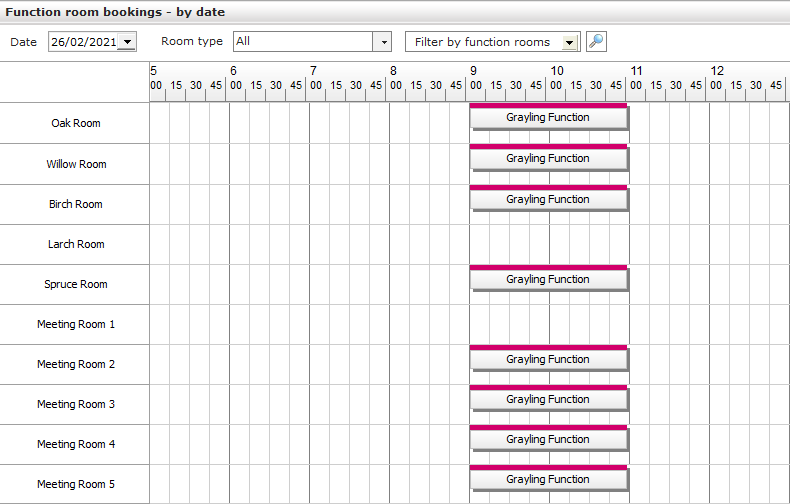
Block bookings allow multiple function rooms to be booked at one time.
Create a block function room booking:
Click on the Function rooms area.

Click Block booking under the New shortcut.

Complete the function block booking form.
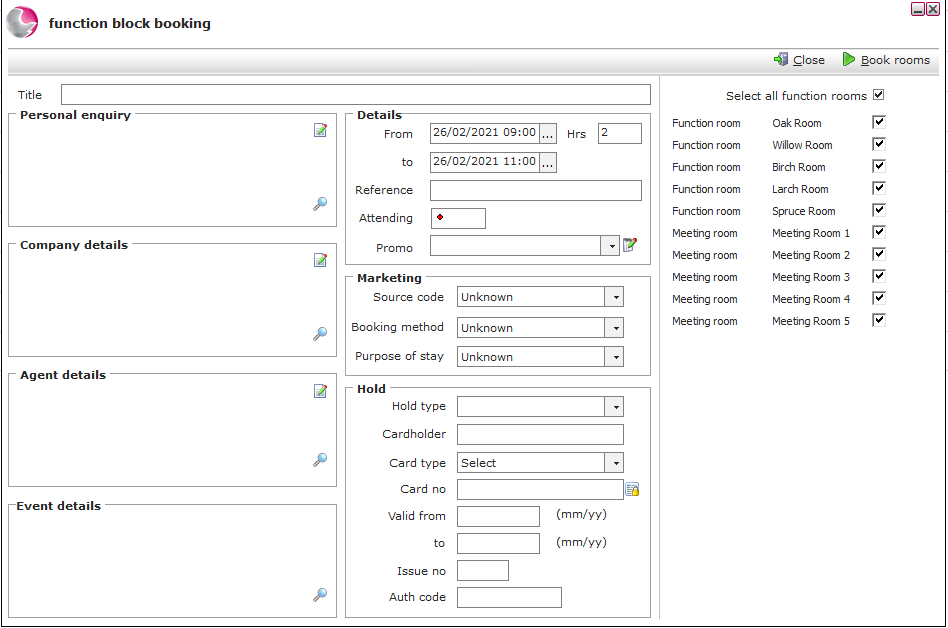
Title: Enter the function room title. This will be copied to all of the function room reservations within the block booking.
Company, Agent, Event details: Link the function to one of these options if required.
From and To date: Enter the reservations date and time.
Reference: A booking reference from the guest or agency making the booking can be entered.
Attending: Add the number of guests attending.
Promo: Used for specific promotions.
Marketing: Select a source code, booking method and purpose of stay.
Hold Type: Add the method used to secure the reservation.
Cardholder & Card details: Enter/check the card details.
Auth Code: Enter the authorisation code in here if a preauthorisation has been taken.
Select the rooms that will be booked as part of the block booking. Click Book rooms.
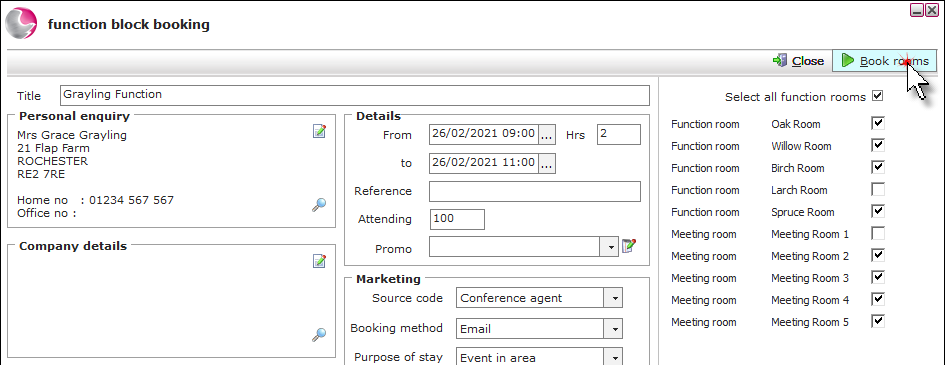
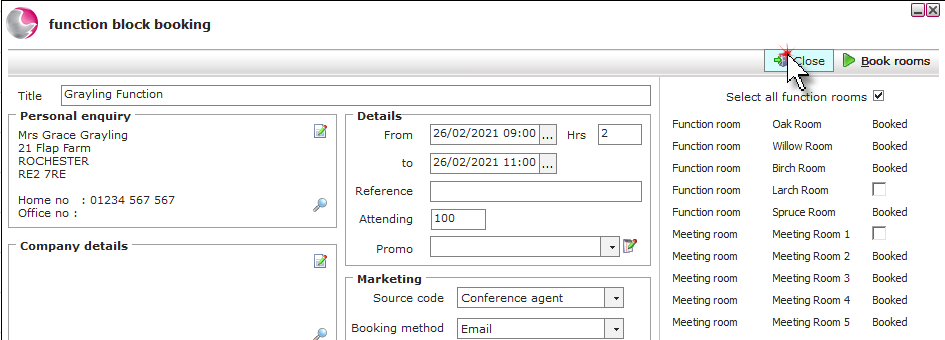
The rooms will show as booked. Click Close.
The block bookings will be displayed.