Notes are added to a reservation to alert users of guest requirements or important details about the booking. Notes can be added to the reservation alone or linked to the guest so that the note will be automatically added to their future reservations.
Standard notes can be created to quickly add reoccurring notes to bookings.
Adding a note to a function reservation:
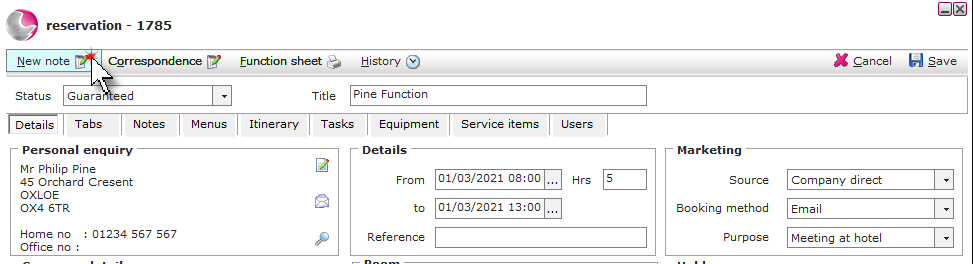
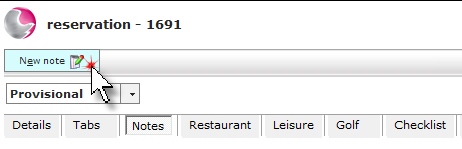
Open the reservation and click on the New note.
Complete the note form. Click Save.
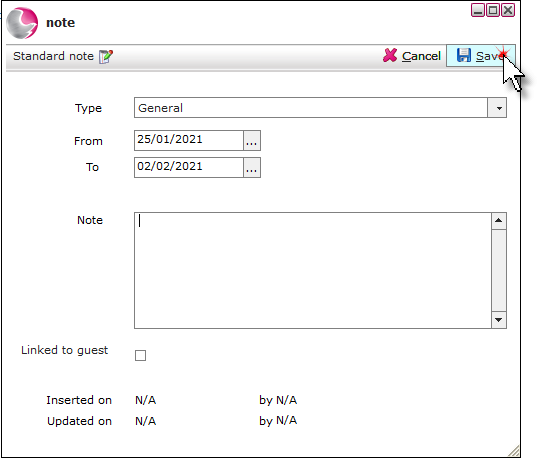
Type: Select the note type from the menu. New note actions can be created from Admin Manager if required.
From/To: Select the note dates.
Notes: Add the details of the note.
Link to guest: Tick if the note should be applied to the guests future reservations. i.e. Guest requires a ground floor room.
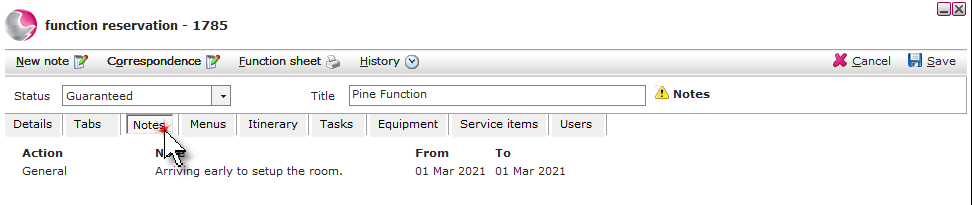
The added note will appear on the notes page of the function room booking.
Creating a standard note:
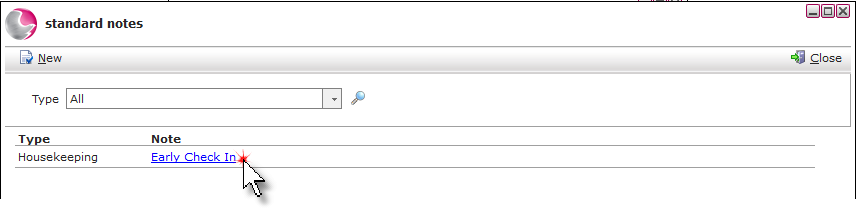
Notes that are used frequently can be set as a standard note to save time.
Click on standard note.
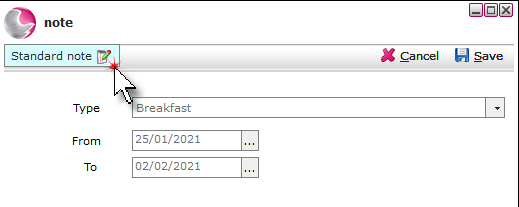
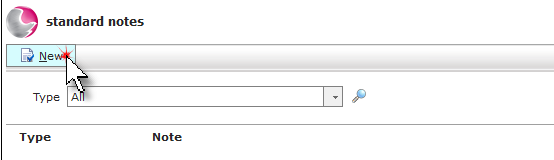
Click New.
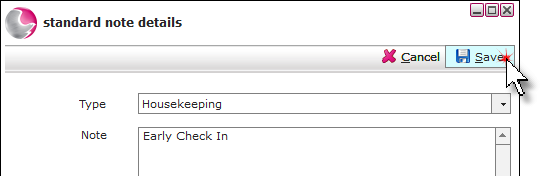
Select the note type, add the note details. Click Save.
To add a standard note to a reservation, click New note.
Click on standard note.
Select the note and click close.