
Notes are a great way for staff to communicate important information about an event. You can use them to record as much detail as needed, such as agreed terms and conditions, selected menus, wine orders, or conversations related to the booking.
If you find yourself entering the same information for multiple events, you can save time by creating a Standard Note.
- Open the Event Booking in Hotel Manager.
- Go to the Notes page and click the Notes button.
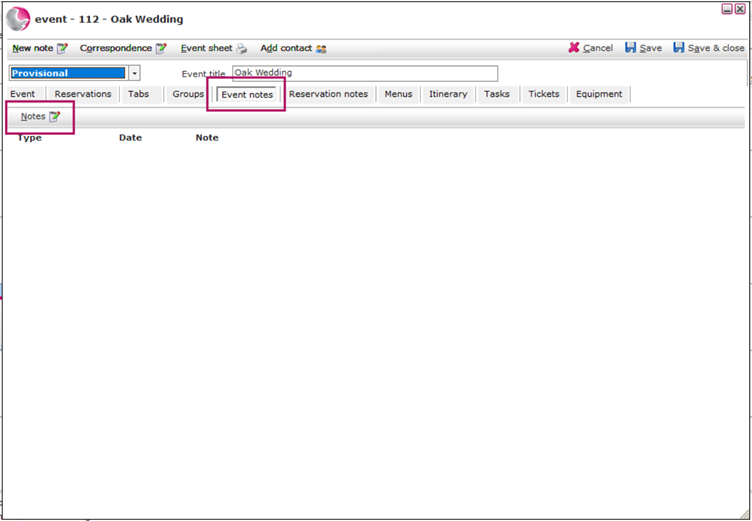
3. Click New in the top-left corner to open the Note form.
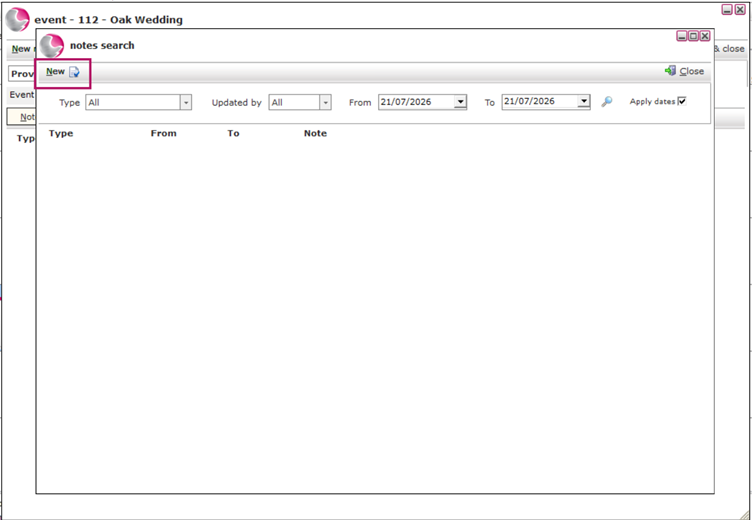
4 . Click the Standard Notes button.
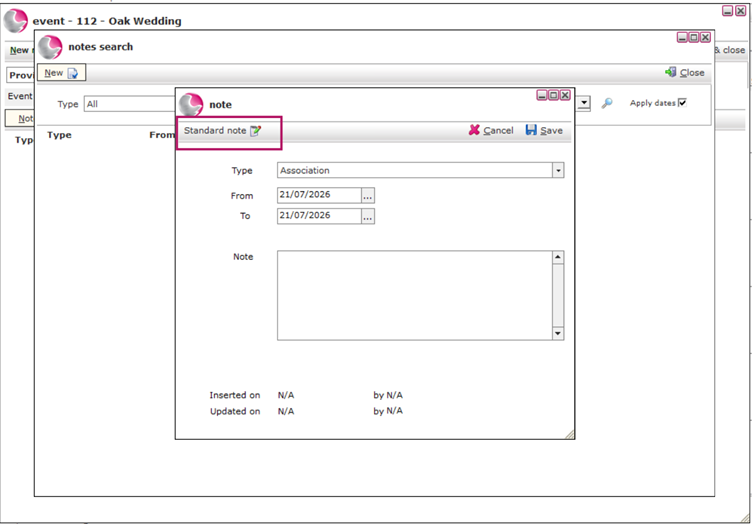
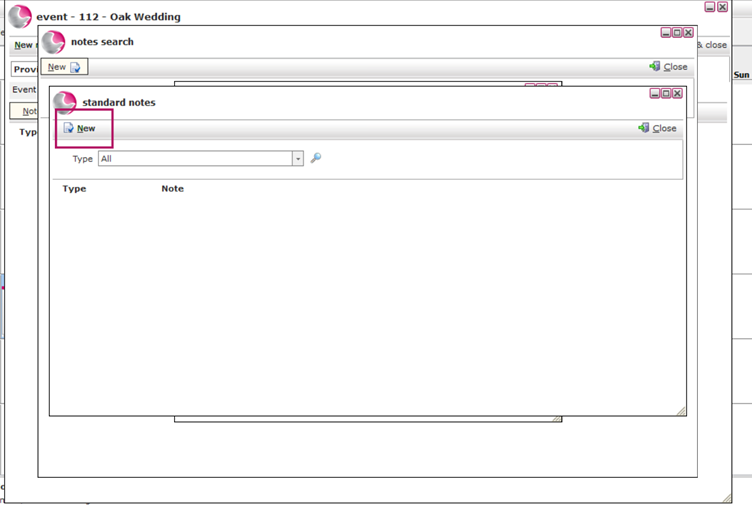
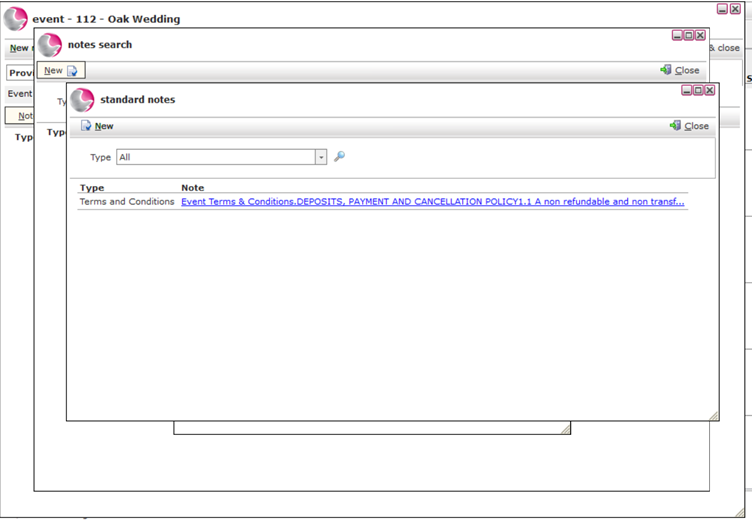
5. A list of existing Standard Notes will be displayed.
- To create a new Standard Note, click New.
7. Select the Type for the note. This determines where the note will be available and visible within the system.
Need a New Note Type? See here: How to Create a New Note Type.
- Enter the note information.
- Click Save.
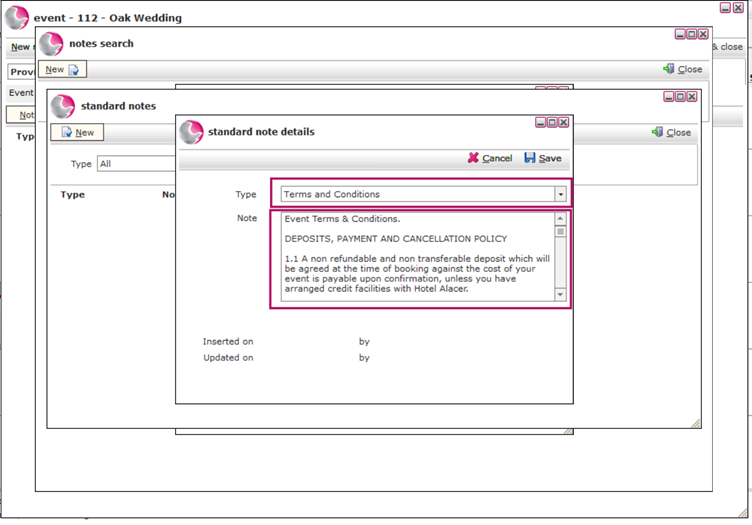
Your Standard Note is now available to use in Event Bookings.
10. Select the required Standard Note
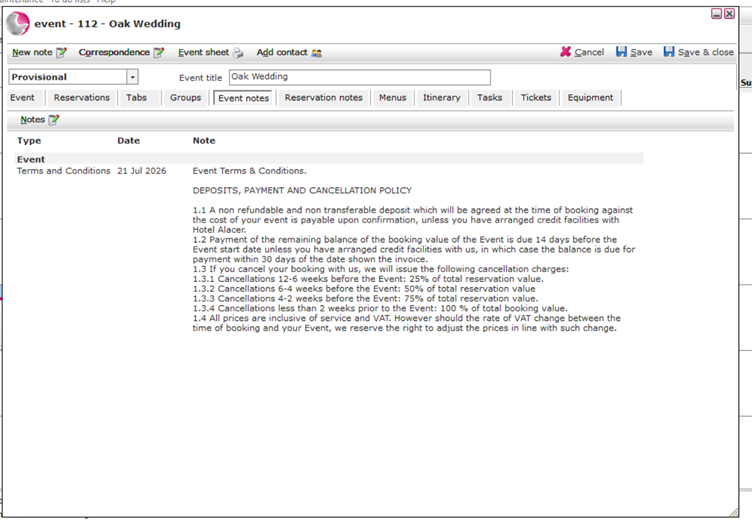
11. The note will automatically be added to the Event Booking.
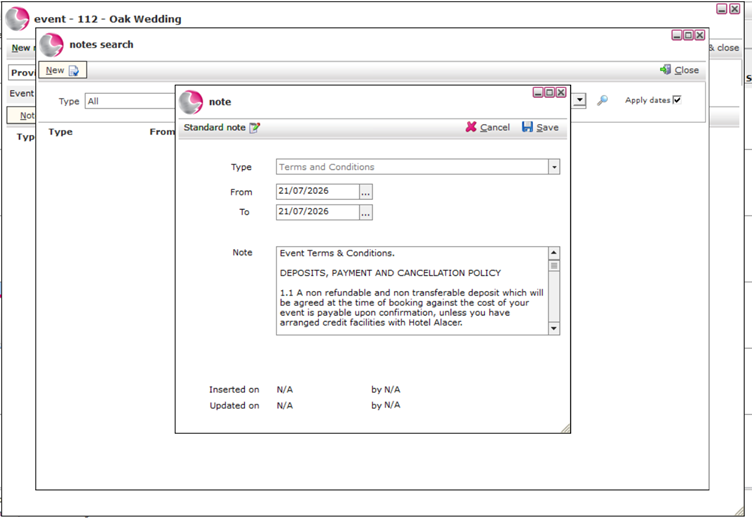
12. Click Save to keep the note with the booking.
See next: How to Create a Group Booking.