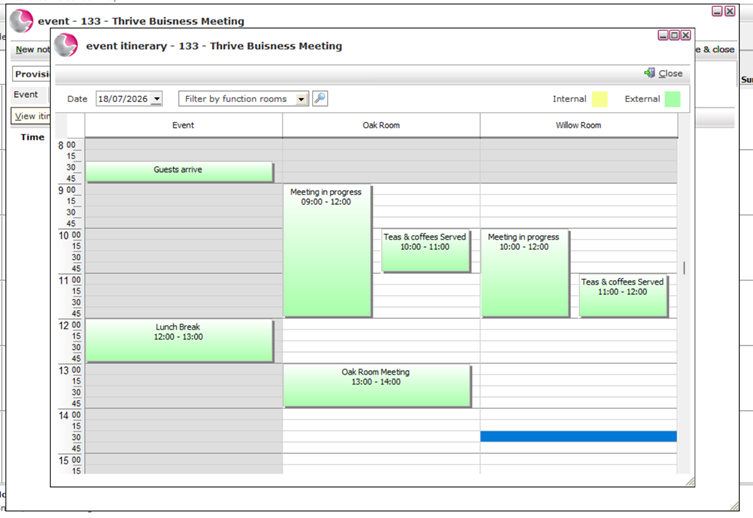
Moving an Itinerary Item
If you accidentally add an item to the wrong column, for example, the Event column instead of the Oak Room, there is no need to delete and recreate it.
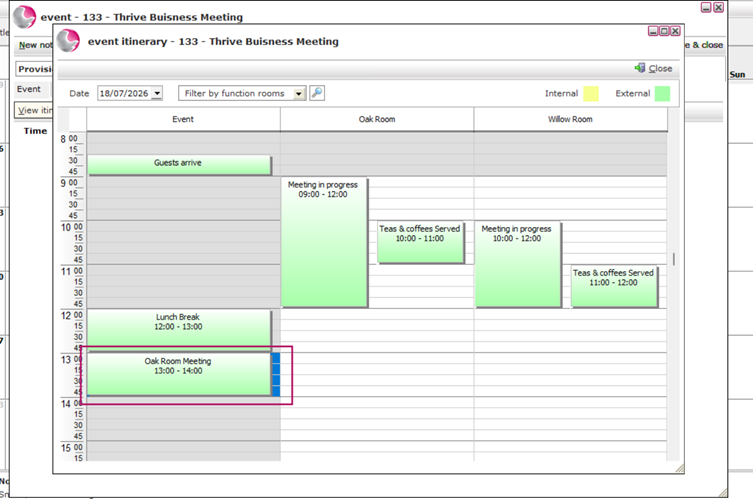
- Double-click the item to open the Itinerary Item details form.
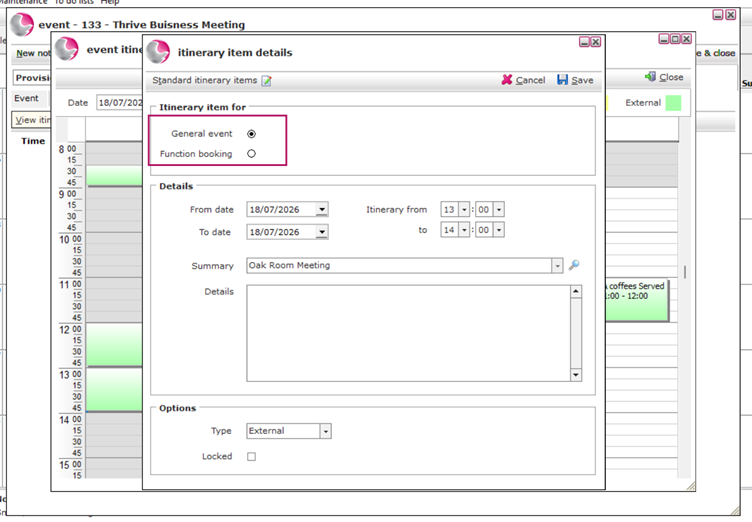
2. In the Itinerary Item For section, select Function Booking and use the magnifying glass to choose the correct function room.
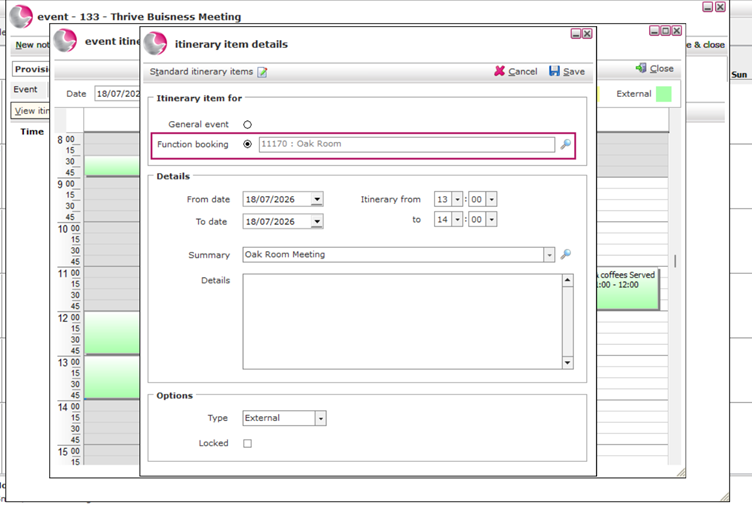
3. The item will automatically move to the correct column without needing to remove and add it again.