
Ticket Types allow guests to purchase and pay for event tickets in advance through the Ticket Engine.
- Go to Event Booking > Ticket.
- Click New Ticket Type.
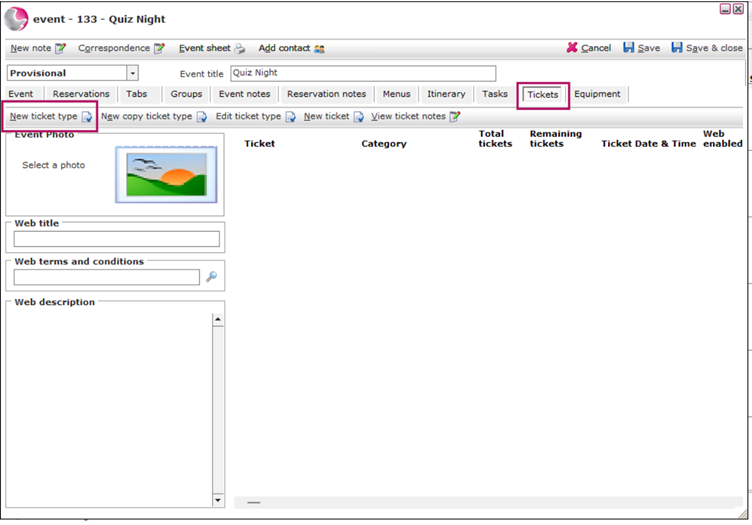
- Enter a Description that will be visible on the Ticket Engine.
Example: Wednesday Quiz Night.
4. Select the Ticket Category where this ticket will appear.
Can't see the correct category? See How to Create a New Ticket Category.
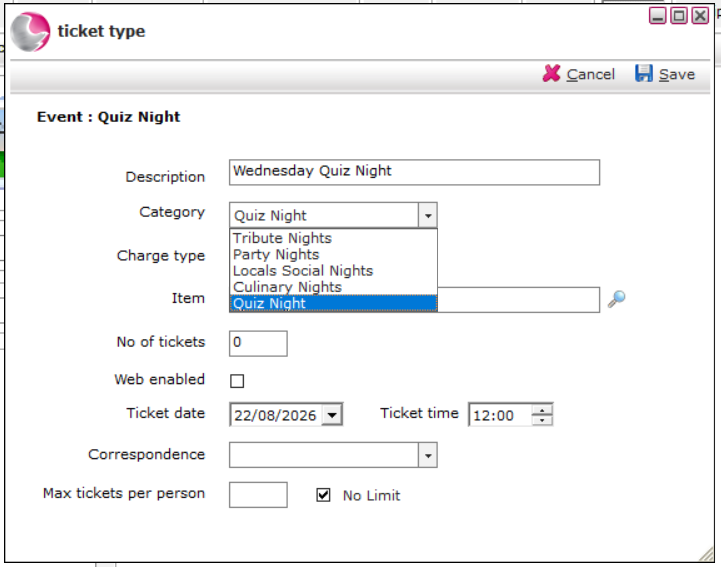
5. Select the Item or Package that determines the ticket price.
Example: If the ticket costs £10, select the Quiz Night item priced at £10.
Can't see the correct item? See How to Create a New Item in Admin Manager.
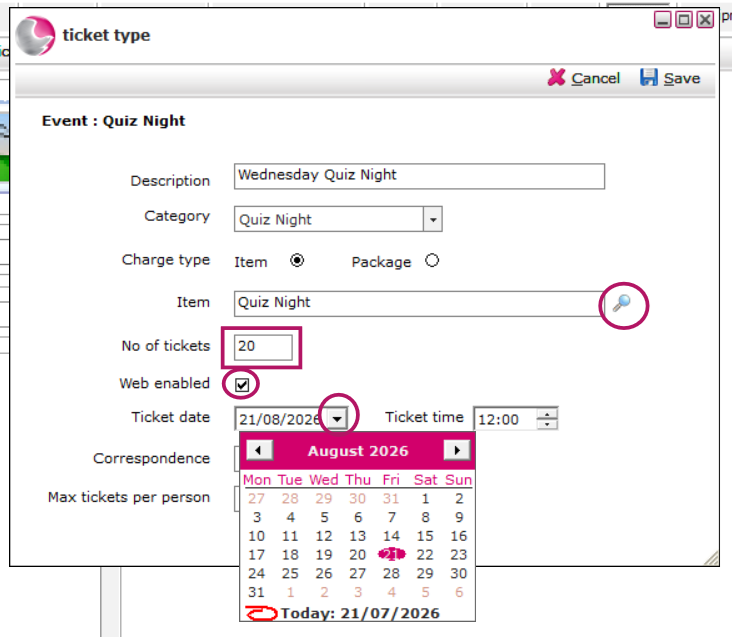
6. Enter the number of tickets available to sell for this event.
- Tick Web Enabled to make the ticket available on the Ticket Engine.
If left unticked, the ticket will be available to sell in-house only.
8. Select the date when ticket sales should end on your website.
Example: Select one day before the event if you want to stop last minute online sales.
Select the day of the event if you want to sell it right until the event begins.
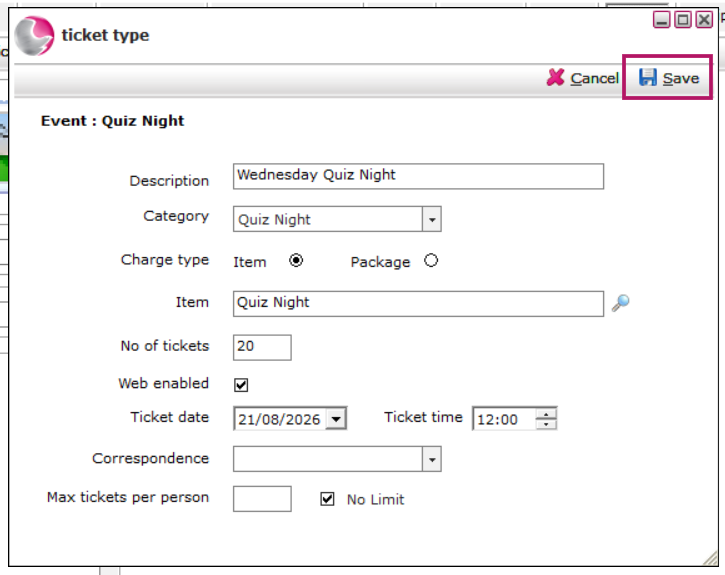
9. You can limit how many tickets one person can buy
For example: If you have a very popular event and want to limit the number of tickets each guest can purchase, enter 8 in the Max Tickets per Person box. This allows each guest to buy a maximum of 8 tickets.
10. Click Save.
See next: How to create an Event on Ticket Engine and
How to Sell a Ticket In-house