
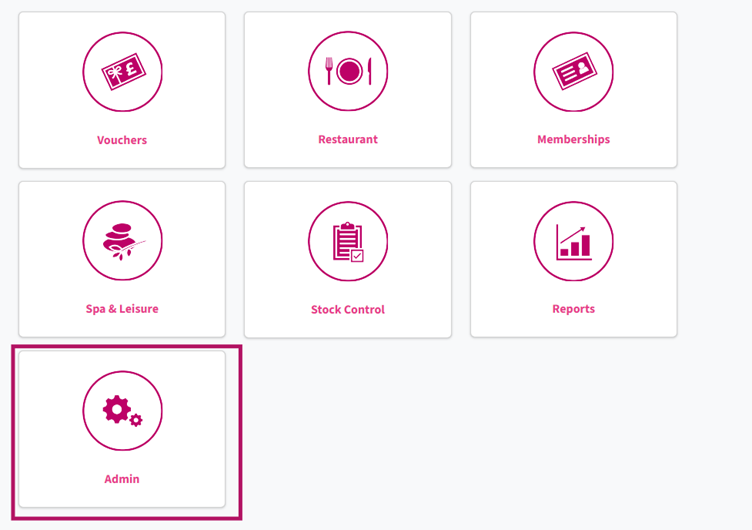
1. Open Alacer Hospitality, select Admin.
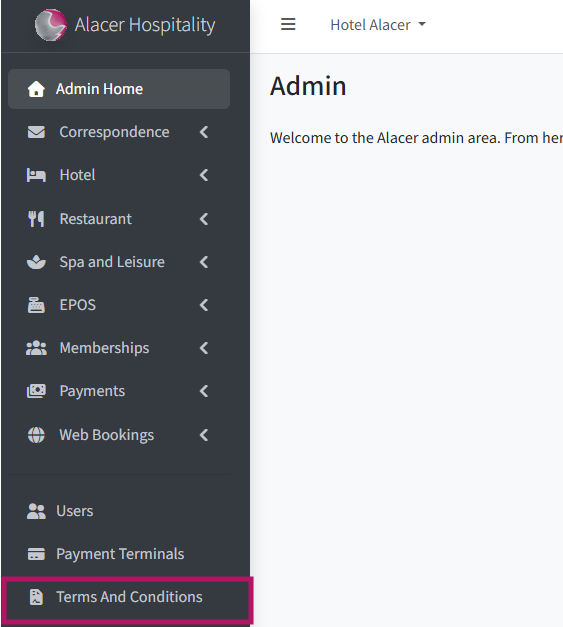
2. Scroll to the bottom of the menu and select Terms and Conditions.
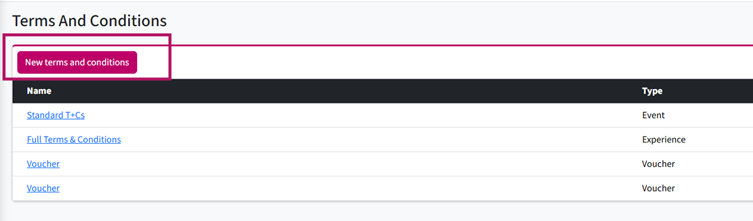
3. Click New Terms and Conditions.
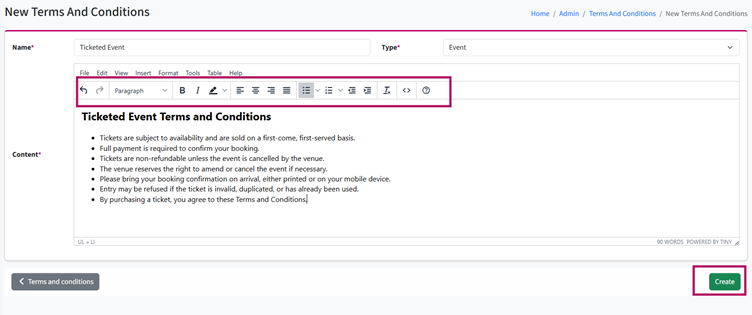
4. Enter a Name for the Terms and Conditions.
5. Select the appropriate Type:
- Event – Available for Events.
- Experience – Available for Experiences.
- Voucher – Available for Vouchers.
6. Enter the Terms and Conditions in the Content field.
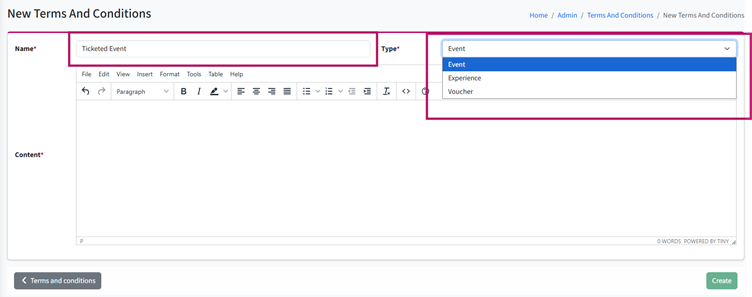
7. You can format and edit the text using the available editing tools.
8. Click Save.
See next: How to Create a New Voucher Type
How to Create a New Ticket Type