
Event Booking acts as the central hub for your event. It brings together all related bookings under one umbrella, linking Function Room Bookings, Table Bookings, and Group Bedroom Bookings into a single event. This allows you to manage every aspect of the event from one place.
- Go to Hotel Manager > Event Area.
- In Shortcuts, select Calendar Display, then choose the day you want to create the event.
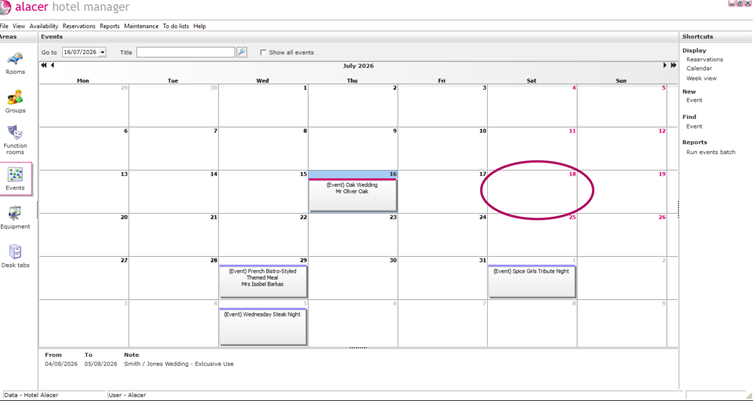
3. Right-click on the selected day to open the hidden menu, then select New to create a new event.
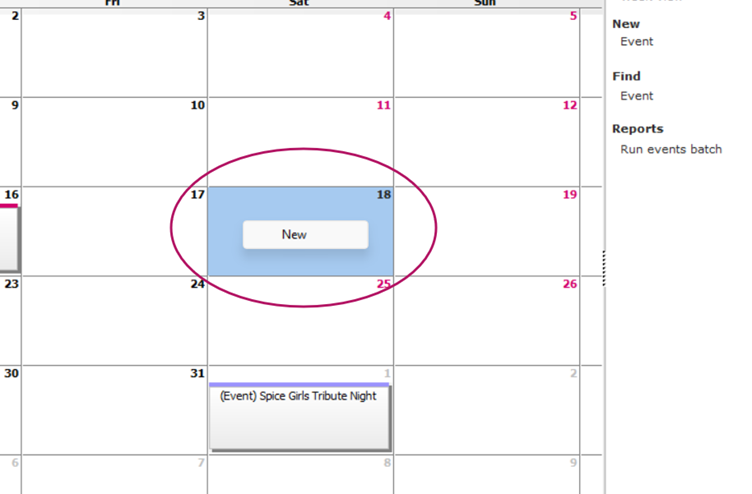
4. Enter the Event Title and add the Personal Enquiry contact information.
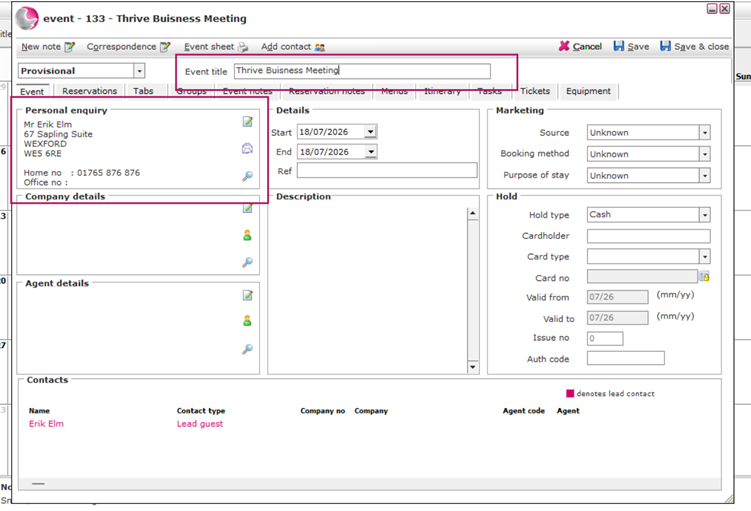
5. If required, add the Company details. These can be pulled through to the invoice.
- The Date will automatically default to the day you selected on the calendar.
- In the Description field, add a brief overview of the event. This is useful for providing your colleagues with important event information.
8. Select the Reservation tab (next to the Event tab) to book the function room that will be included in the event booking.
- To create the function room booking:
- Select New Block Function to create multiple function room reservations.
- Select New Function to create a single function room reservation.
- Select New Block Function to create multiple function room reservations.
In this example, we are booking a single function room, so select New Function.
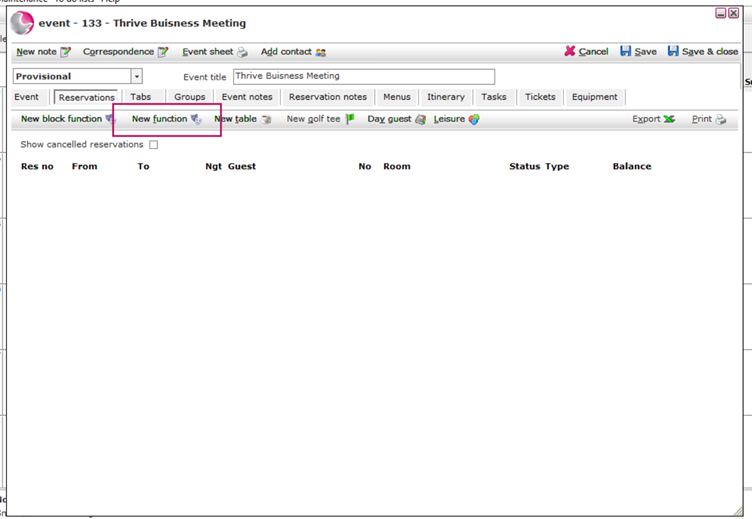
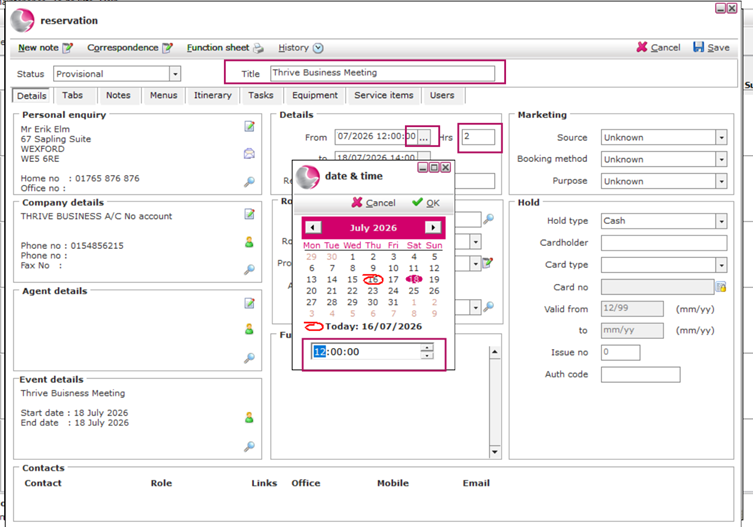
10. Enter title and the booking times for the function room. In this example, the room will be booked from 9:00 AM to 5:00 PM (8 hours).
- Click the three dots (...) in the From field to open the calendar, then set the start time at the bottom of the window.
- Repeat the same process in the To field to set the end time.
- Alternatively, you can enter the total number of hours the function rooms will be booked.
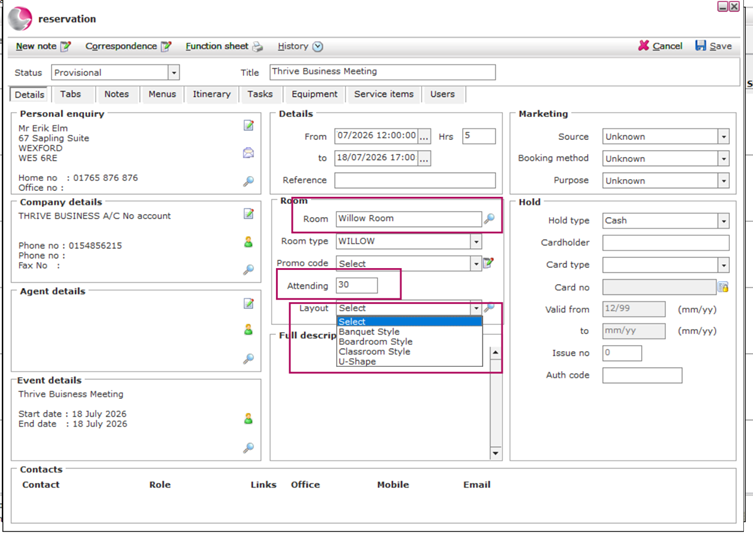
11. Click the magnifying glass to select a Function Room from the list. Enter the number of attendees, then choose the required layout from the drop-down list.
12. Once you have entered all the required details, click Save to complete the booking.
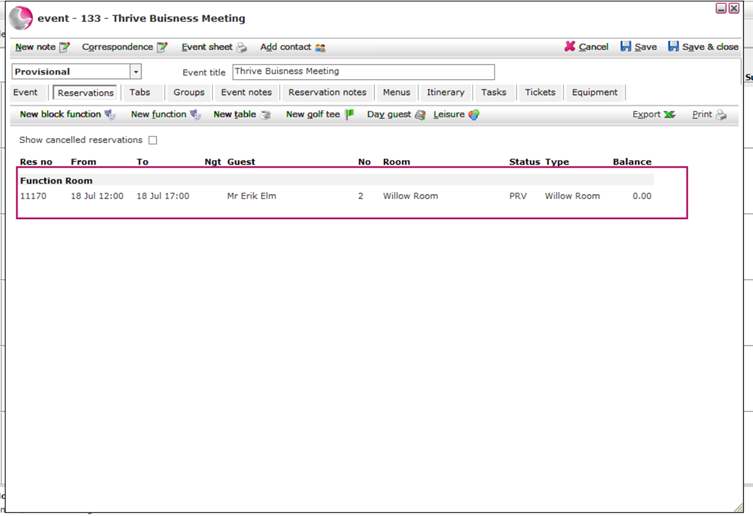
13. You should now see the function room reservation listed on the Event page.
See next: How to Create An Event Booking with Multiple Function Room.
How to Create a Group Bedroom Booking in Event Booking,
How to Create Event Itinerary