
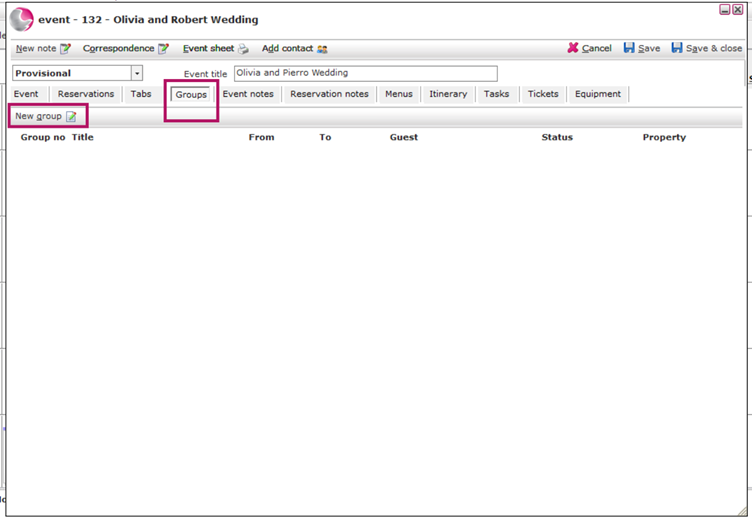
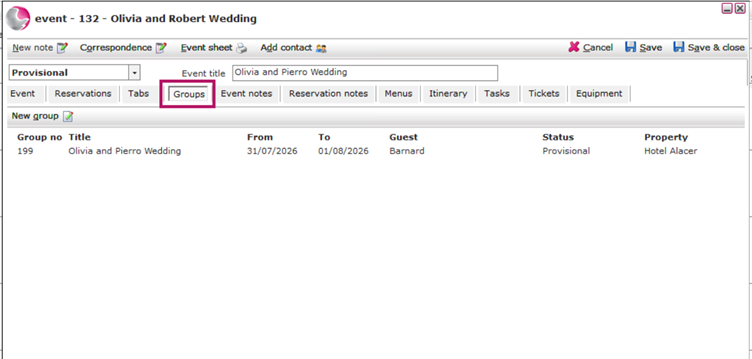
- Open the Event Booking and go to the Groups page.
Don't have Event Booking ? See How to Create Event Booking. - Click New Group.
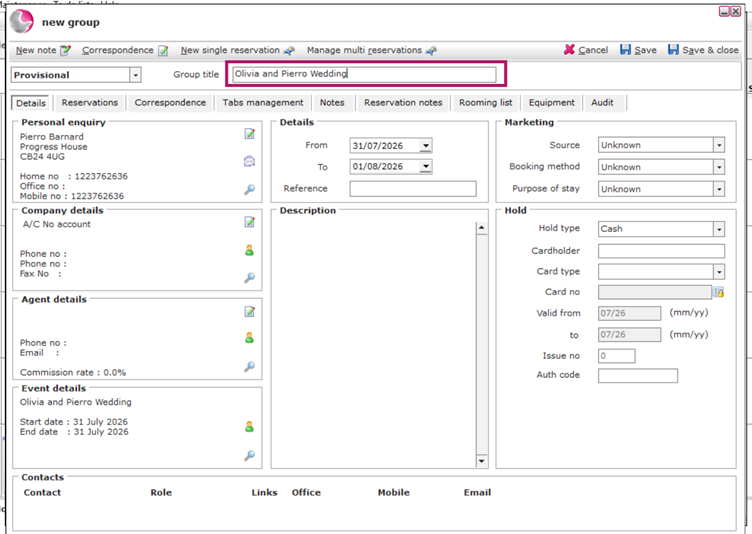
The Group Booking Reservation form will open.
3. Enter a Group Title.
- Tip: Use the same name as your Event Name.
- The Personal Enquiry, Event Details, and Booking Dates will be automatically copied from the Event Booking.
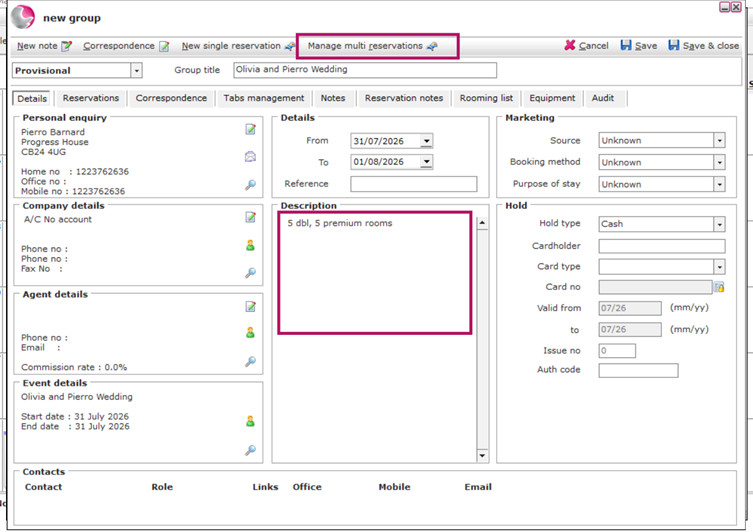
4. Click Manage Multi Reservations to start creating the bedroom bookings.
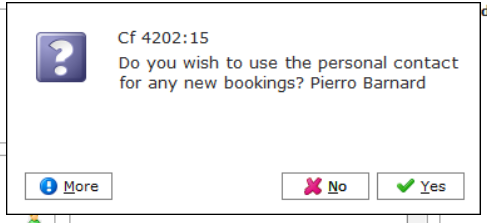
5. A pop-up window will ask whether the bedroom booking should be created under the Personal Enquiry contact.
- Click Yes to use the Personal Enquiry contact.
- Click No to select a different contact from the guest database.
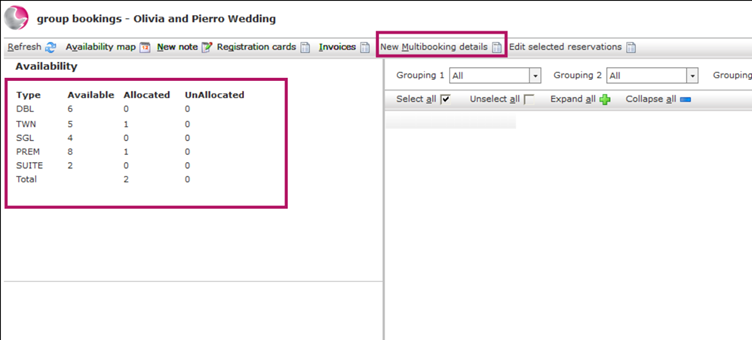
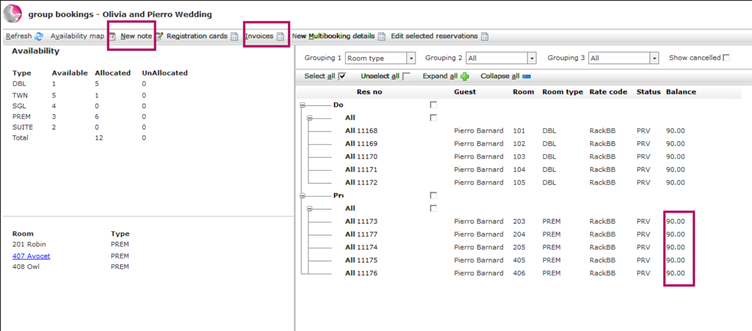
6. On the left-hand side, you will see all available bedrooms for the selected dates.
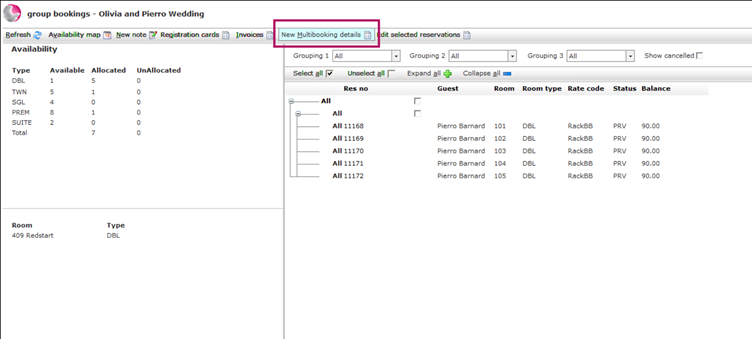
- Click New Multibooking Details to create your group of bedroom reservations.
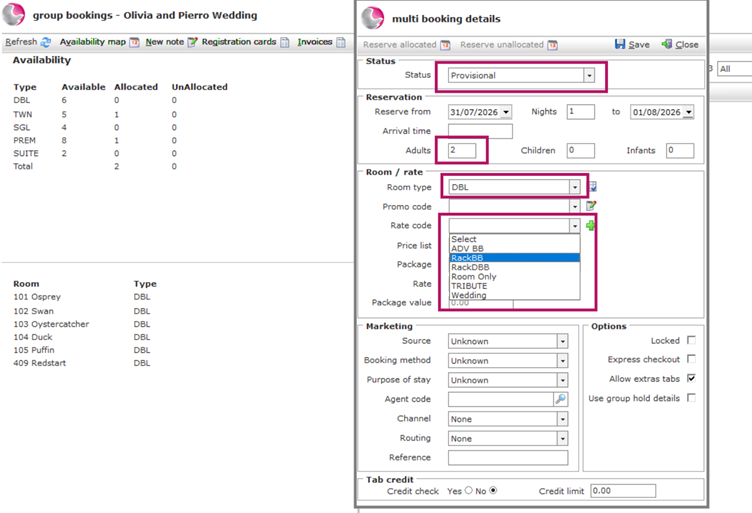
8. Complete the Multi Booking Details form by selecting the booking criteria:
- Reservation Status
- Number of Adults per room
- Bedroom Type
- Rate Code
Example:
- Status: Provisional
- Adults: 2
- Bedroom Type: Double
- Rate Code: RackBB
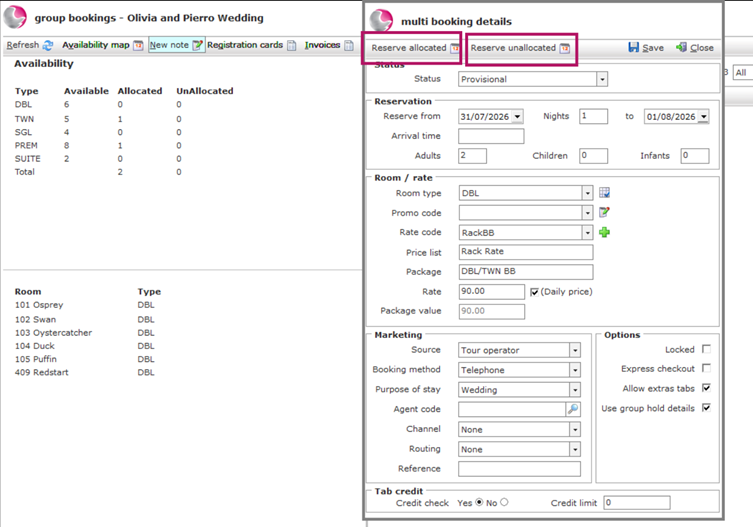
9. Choose how you would like the reservations to be created:
- Allocated – Assigns each reservation to a specific room.
- Unallocated – Creates reservations without assigning a room.
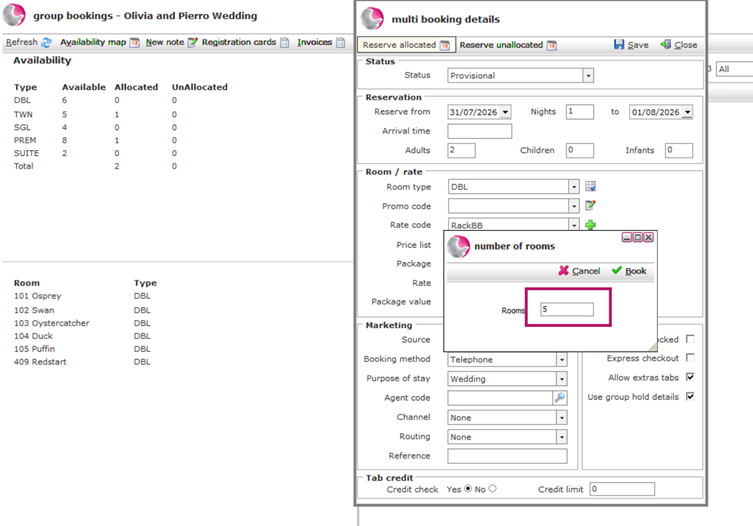
10. After clicking Allocated or Unallocated, enter the number of rooms you want to book.
Example: Enter 5 to create 5 Double Bedroom reservations.
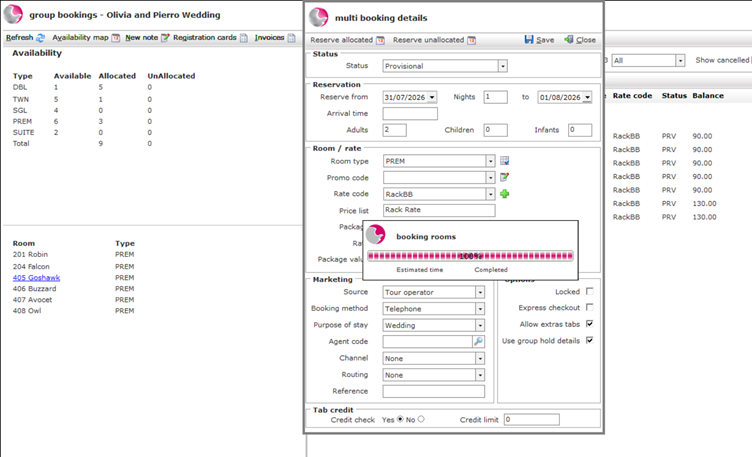
11. The system will create the reservations.
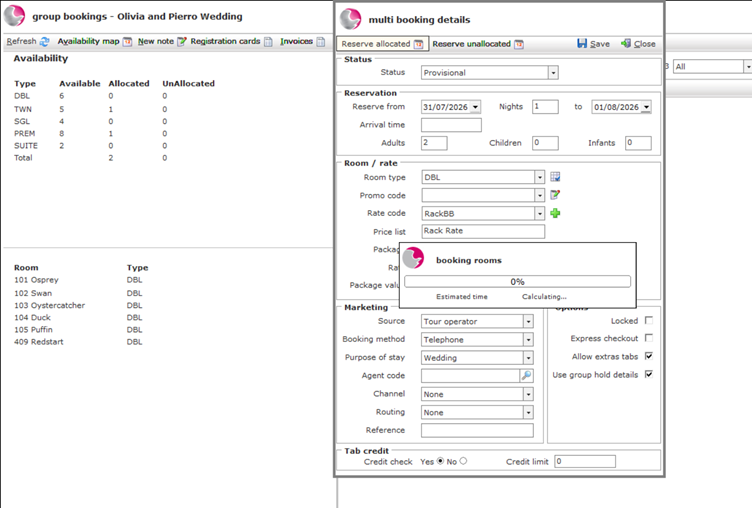
12. Once complete, they will appear in the reservation list.
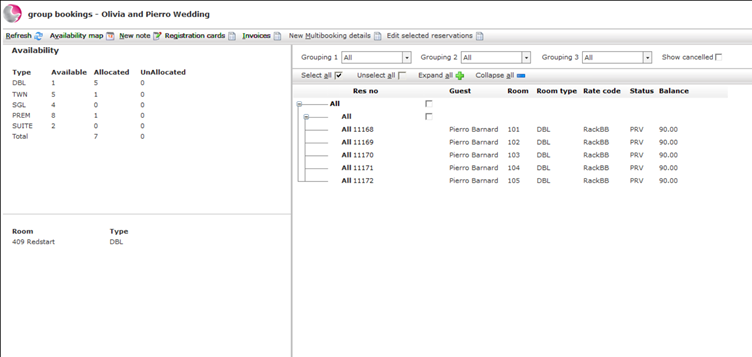
Add More Bedroom Reservations
13. To add another group of rooms, click New Multibooking Details again.
14. The previously entered information is retained, so you only need to change the fields that are different.
Example: Change the Bedroom Type from Double to Premium to create 5 Premium Rooms.
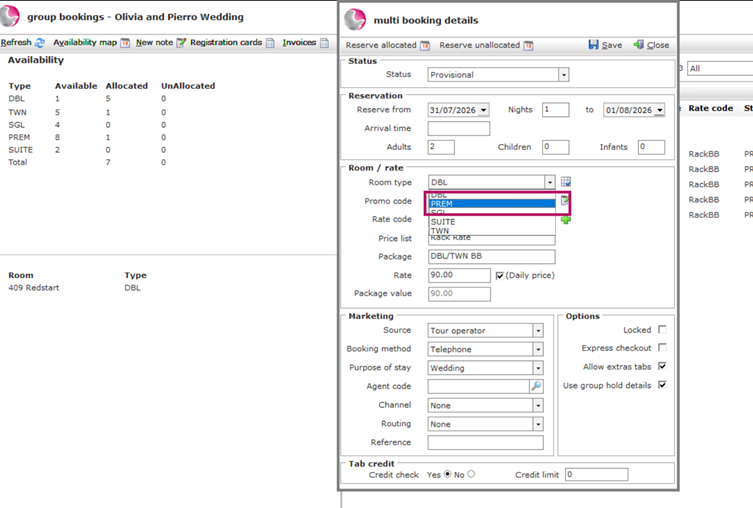
15. This time, instead of letting the system choose the rooms automatically, select the rooms yourself.
- Click the available Premium Rooms in the bottom-left section.
- Select 5 rooms, one at a time.
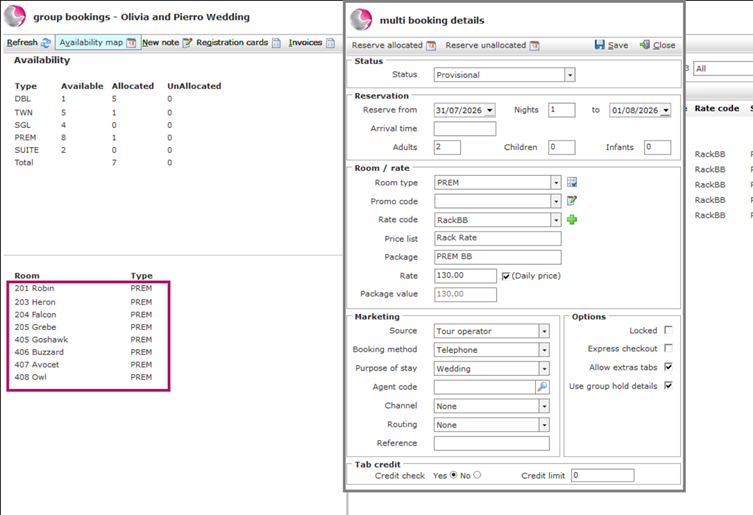
16. The system will create reservations using the booking criteria you entered.
Edit Group Reservations
17. Once all bedroom reservations have been created, you can update them if required.
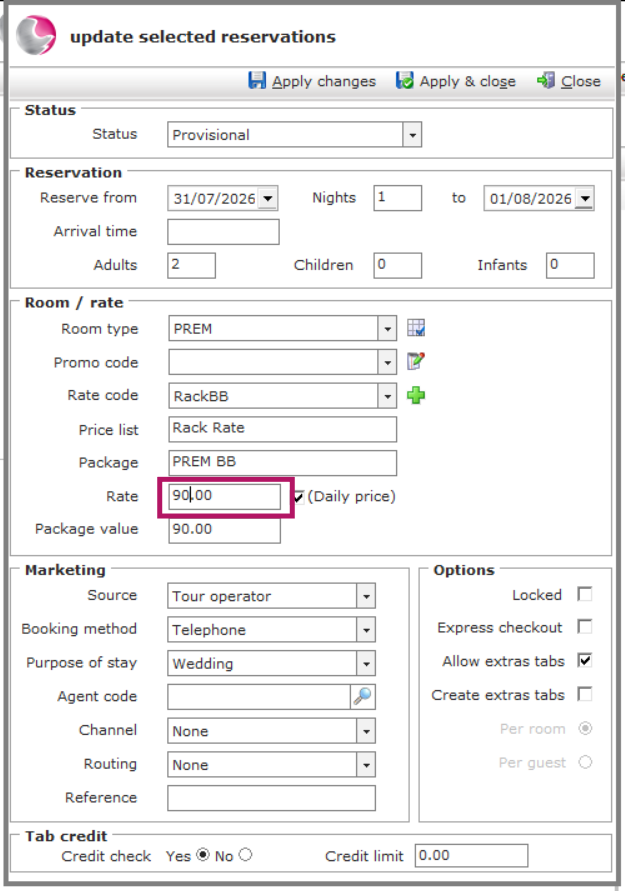
Example: You have agreed with the organiser that Premium Rooms should be charged at the Double Room rate.
18. In the Grouping 1 drop-down, select Room Type to group the reservations by room type.
19. Tick the checkboxes for the Premium Rooms you want to update.
20. Click Edit Selected Reservations.
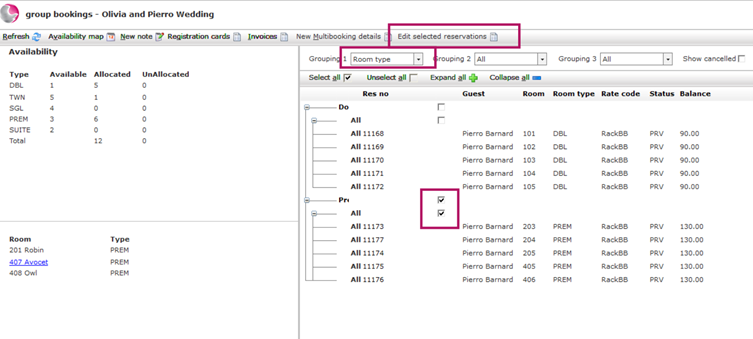
21. The booking form will open, allowing you to amend the room price. Click Apply & Close.
From the multibooking view, you can also:
- Add notes to the selected bedroom reservations.
- Create an invoice for the selected reservations.
22. Close the multibooking form when you have finished.
23. Click Save and Close to close the Group Booking form.
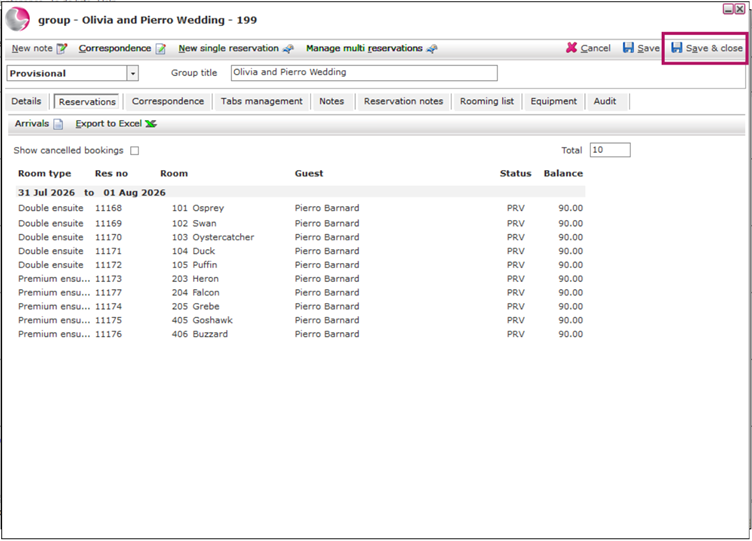
24. Your Group Bedroom Booking will now appear in the Event Booking and will be linked to your event.
See next: How to Create a Rooming List
How to Exclude/Include Tabs for Group Booking
How to Create a Group Bookings (detailed)