
- Open the Event Booking.
- Click Event Sheet at the top of the window.
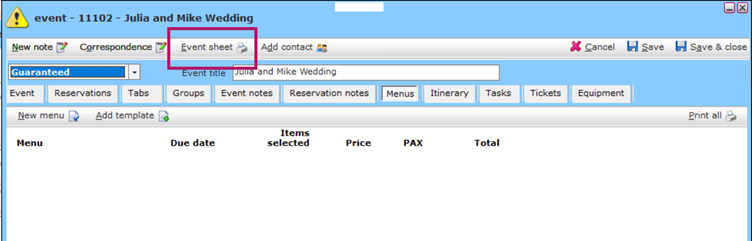
The Event Sheet Options window will open, allowing you to choose what information will be included on the Event Sheet.
3. The Event Number will be added automatically.
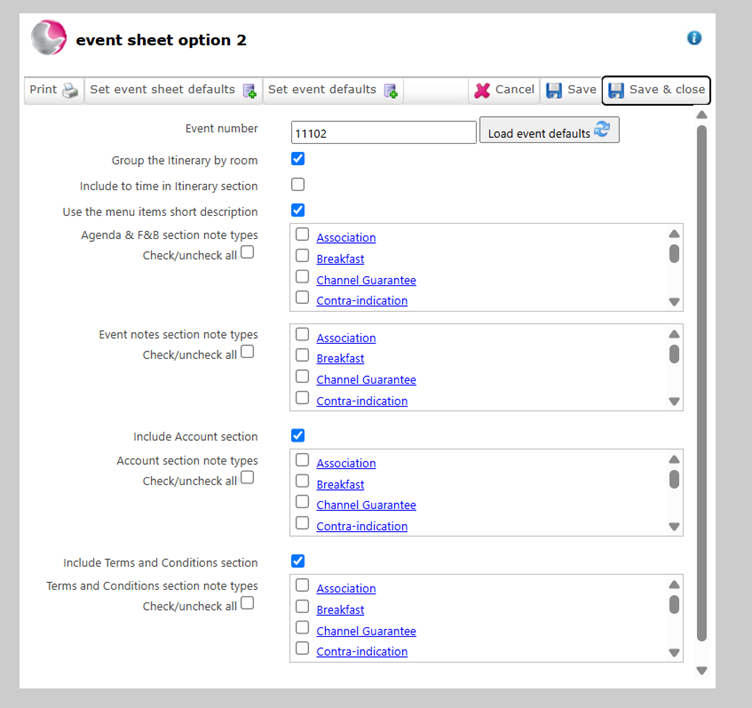
4. Choose how you want the itinerary to be displayed.
- Group the Itinerary by Room – Groups itinerary items under the Function Room they are assigned to, making it easier to see everything taking place in each room.
5. Choose how the itinerary times should be displayed.
- Include To Time in Itinerary Section – Displays both the From and To times for each itinerary item.
- If left unticked, only the From time will be shown.
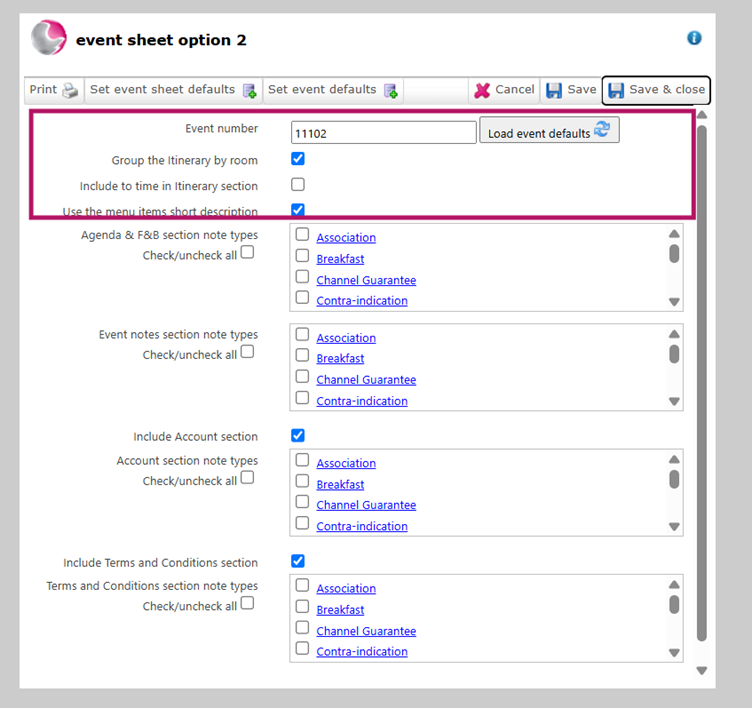
6. Select which Notes should appear in each section of the Event Sheet.
Example:
- F&B Section – Restaurant, Dietary Restrictions and Menu Notes.
- Account Section – Payment Notes.
- Terms and Conditions Section – Terms and Conditions Notes.
Can't find the required Note Type? See How to Create a New Note Type in Admin Manager.
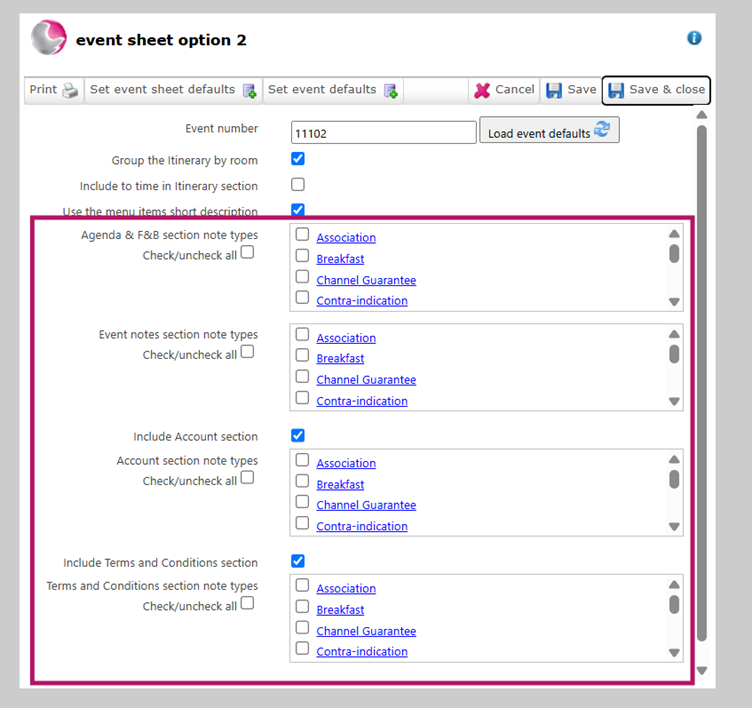
7. Choose whether to include the following sections by ticking or unticking the checkboxes:
- Account – Displays all charges and payments from the Event tab.
- Terms and Conditions – Includes the selected Terms and Conditions notes.
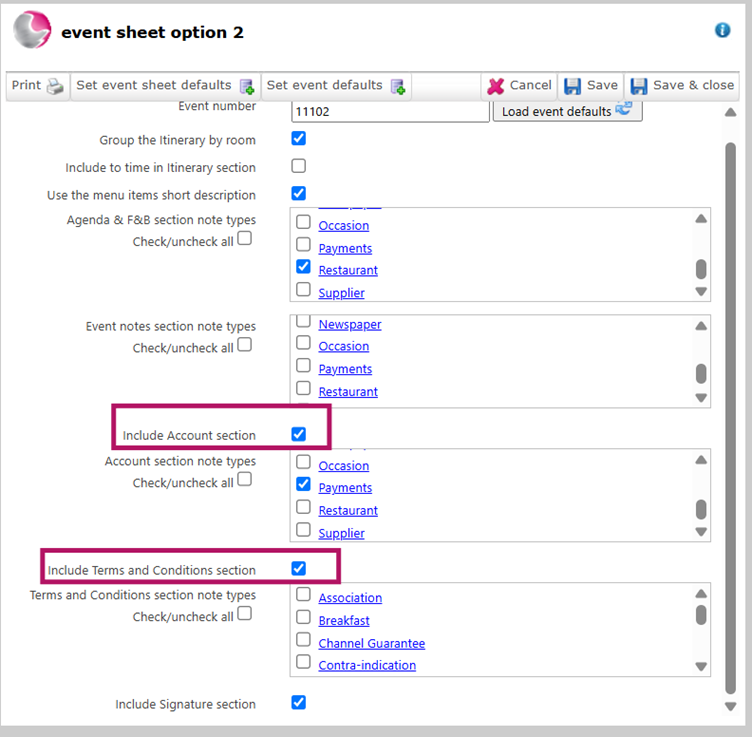
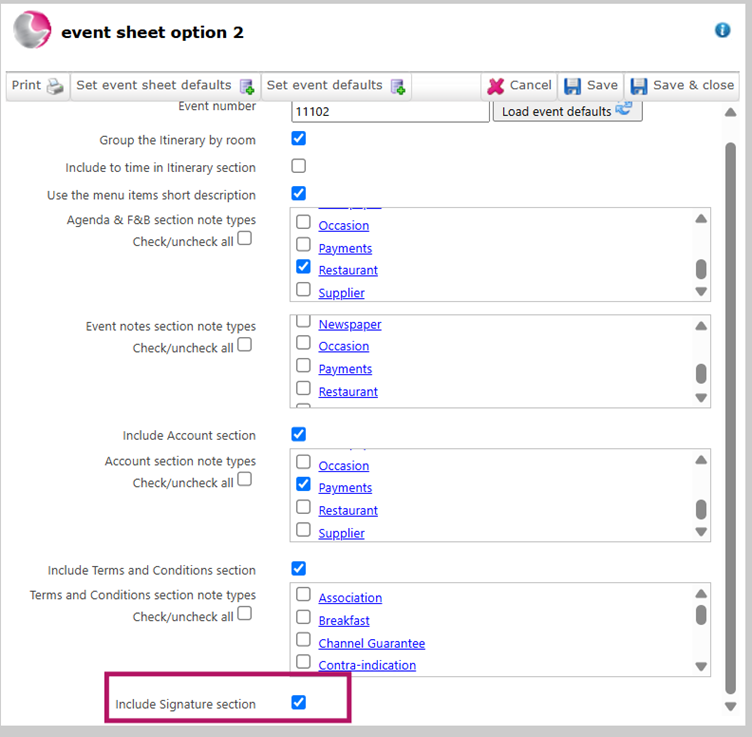
8. If you want the Event Sheet to be used as an event contract, tick Include Signature Section.
- This adds a signature area to the bottom of the Event Sheet.
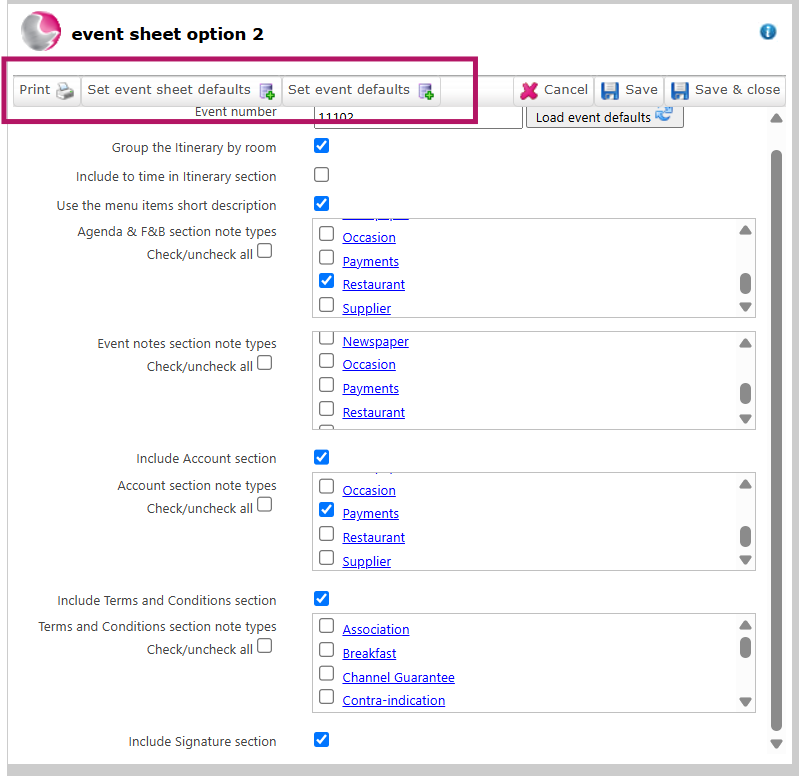
9. If you regularly use the same layout, click Set Event Default to save the current settings for future Event Sheets.
- To apply previously saved settings to the current Event Sheet, click Set Event Sheet Defaults.
- Click Print to generate the Event Sheet.
- To save the generated Event Sheet , click Export and choose the required format:
- Excel
- XPS
See next: How to Settle Event Tab