
Setting up Charity Voucher
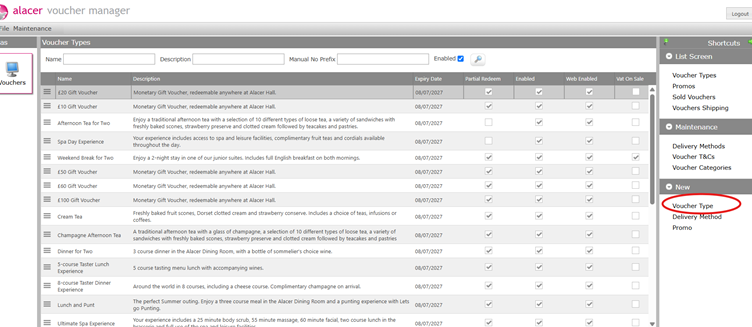
1. Go to Alacer Hospitality – Voucher Manager, click Voucher Type under New Section in Shortcuts.
2. Enter a Voucher name
For example: Charity Voucher or Charity Voucher £50.
3. Select the Expiry Type:
Duration – expires a set number of days after purchase (e.g. 183 or 365 days)
Date - all Vouchers expire on the same date regardless of purchase date.
4. Enter the Duration (days) or Expiry Date, depending on the selected expiry type.
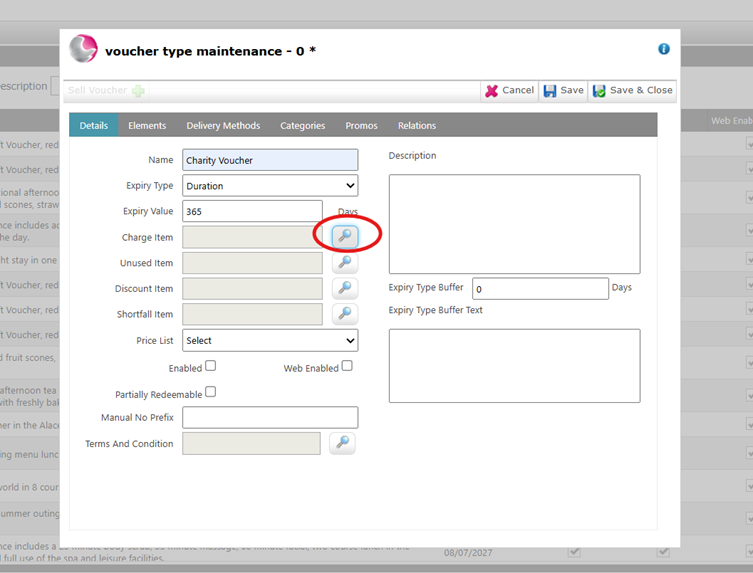
5. Add a Charge Item from Admin Manager using the magnifying glass. For a Charity Voucher, this item must be priced at £0, as no payment is recorded.
For example: You can create a new item called Charity Voucher in Admin Manager.
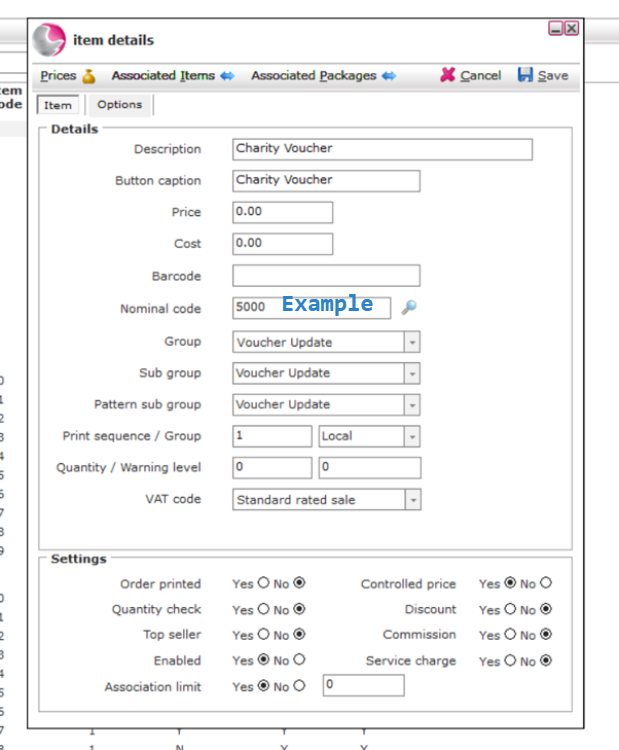
See also: How to Create a New Item
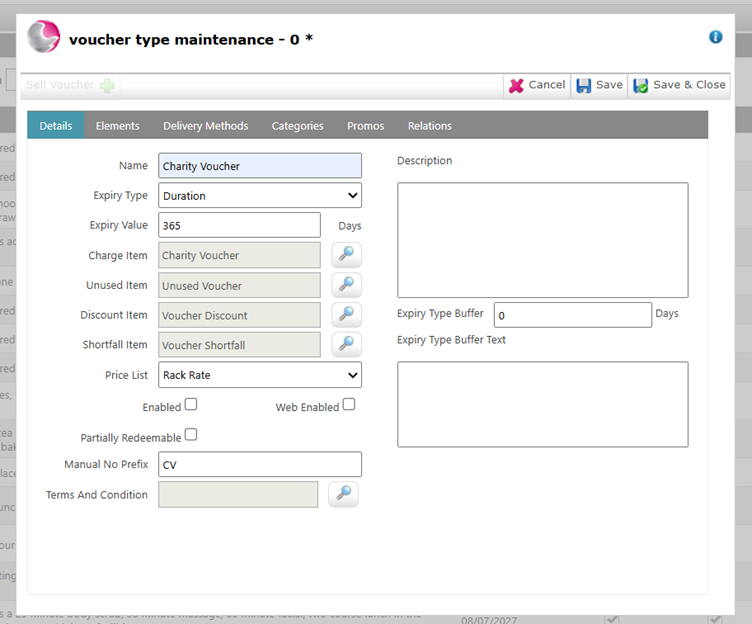
6. Add the Unused Voucher, Voucher Discount, and Voucher Shortfall items.
7. Set the Price List to Rack Rate.
8. Leave Enable, Web Enable, and Partially Redeemable unticked for now. (The voucher cannot be enabled until Elements have been added.)
9. The system generates a unique voucher number automatically. You can add Manual No Prefix to identify Vouchers more easily.
For example: enter a prefix CV for Charity Vouchers.
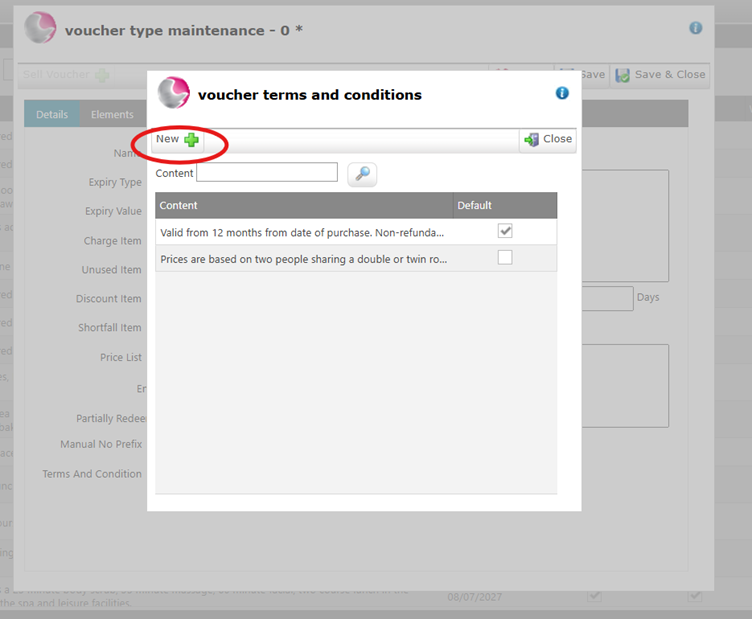
10. To add Terms & Conditions, click the magnifying glass and select an existing T&C or create a new one.
See How to Create New Terms & Conditions for Vouchers
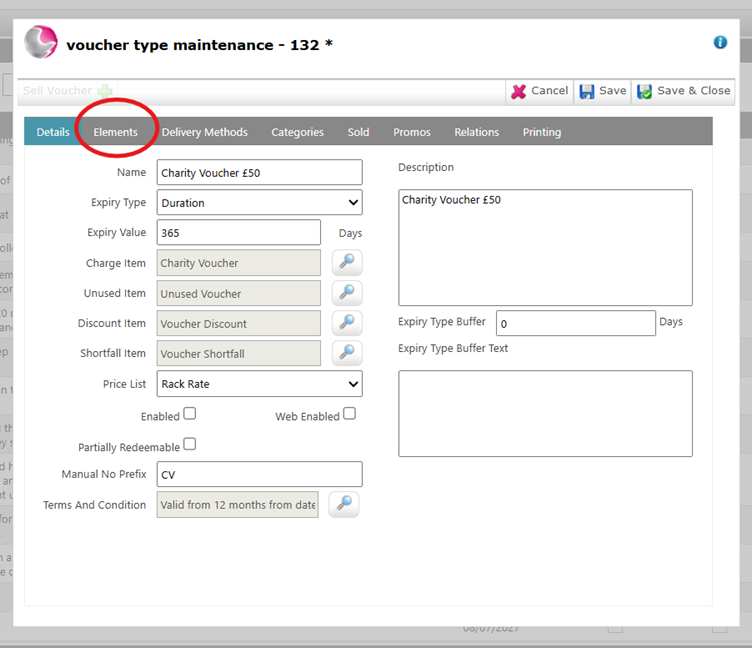
11. Enter a Description, then open the Elements page.
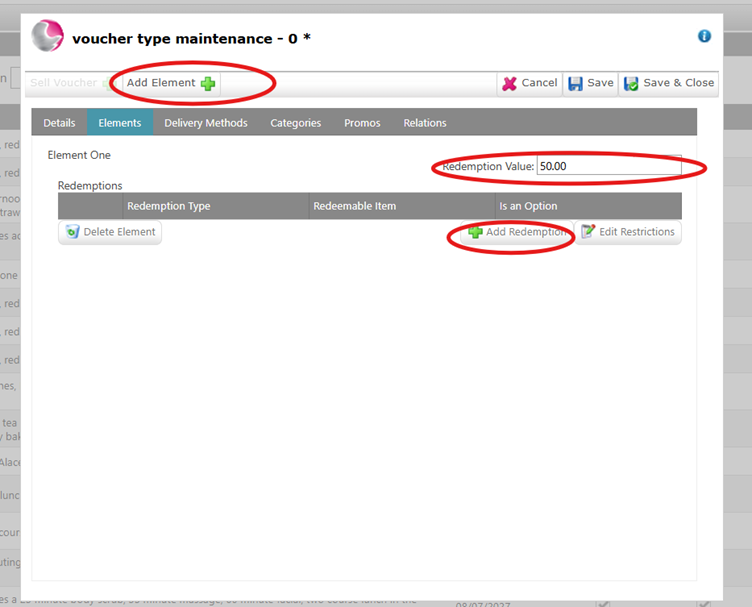
12. Click Add Element, enter the Redemption Value
For example: £50 for a £50 Charity Voucher
13. Click Add Redemption to define what the voucher can be redeemed against.
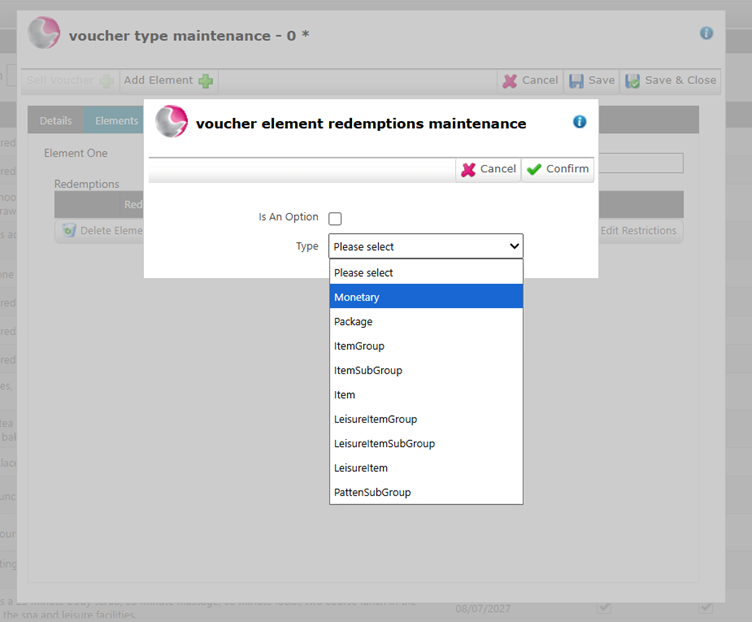
For Experience Voucher that can be redeemed against a specific item or group of items or package, select Type to reflect that, then select the appropriate item, group, or package.
For example: for Afternoon Tea for Two – add item Afternoon Tea for Two or Spa Treatment select the Treatments group the person can redeem the voucher against.
For Monetary Voucher: Select Monetary and add amount
For example: £50
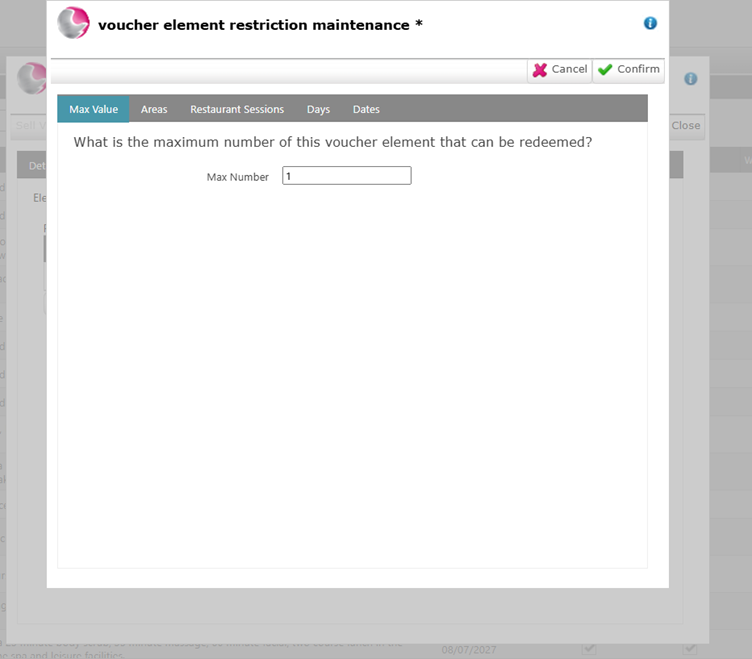
14. For an Experience Voucher, click Edit Restrictions and set the maximum number of items that can be redeemed
For example: Max Number = 1 for one Spa Treatment
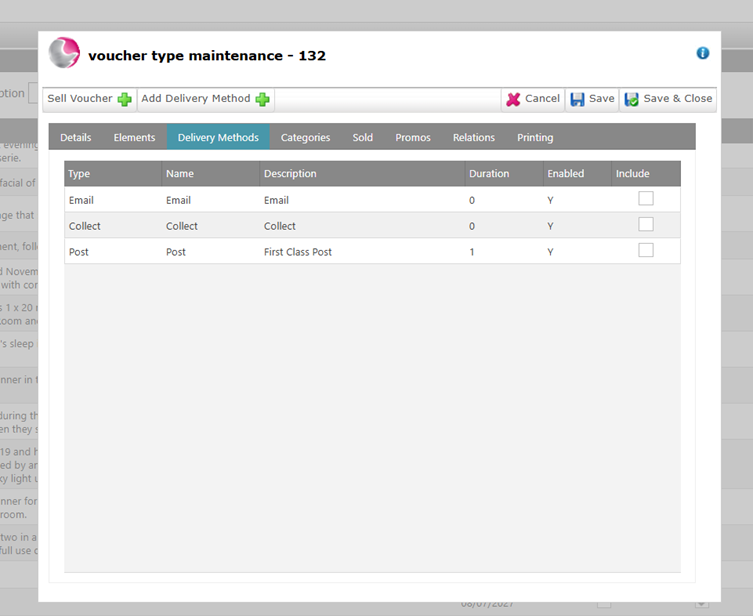
15. On the Delivery Method page, select the available delivery methods.
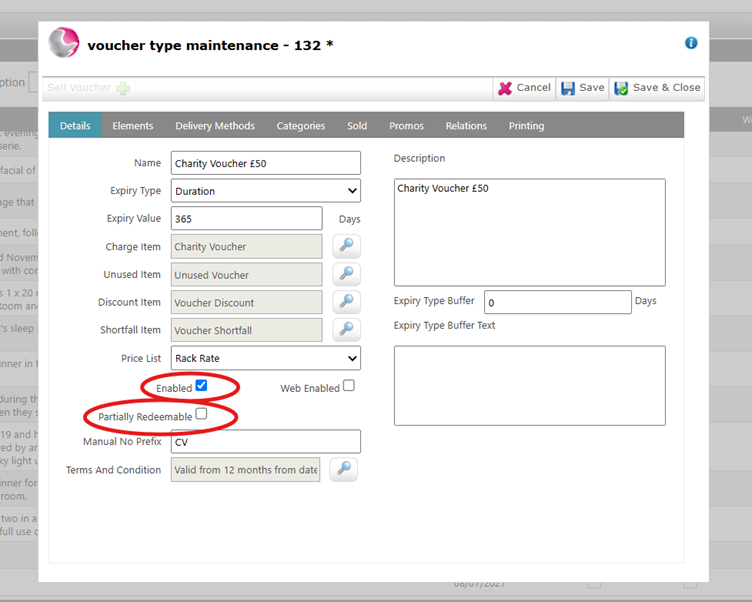
16. Return to the Details page and Enable the voucher. Tick Partially Redeemable only if multiple redemptions are allowed. Leave Web Enable unticked as the voucher should not be sold through the Voucher Engine.
17. Click Save & Close.
Generating a Charity Voucher
1. In the Voucher Types Screen List in Shortcuts, select Charity Voucher.
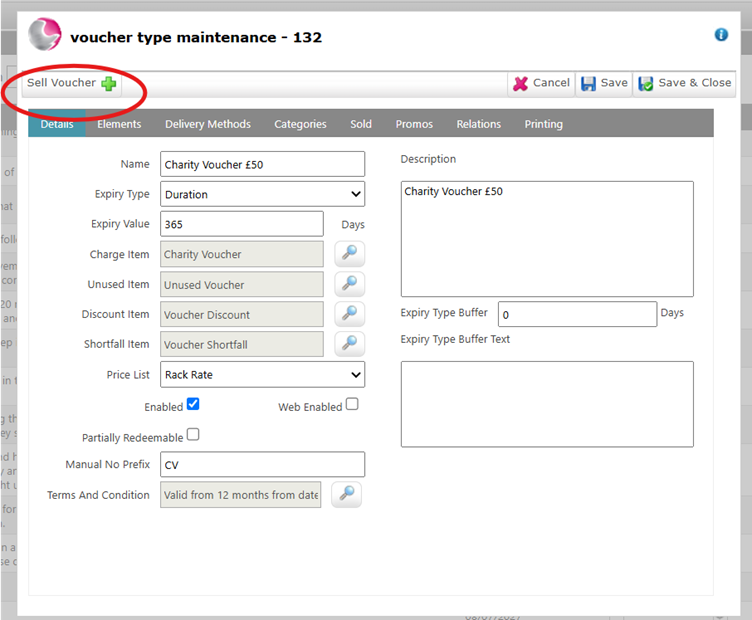
2. Click Sell Voucher (top left corner).
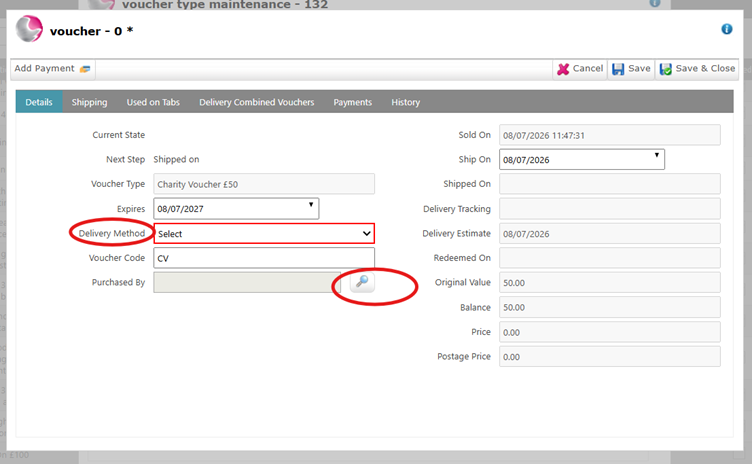
3. Enter the Delivery Method and Purchaser.
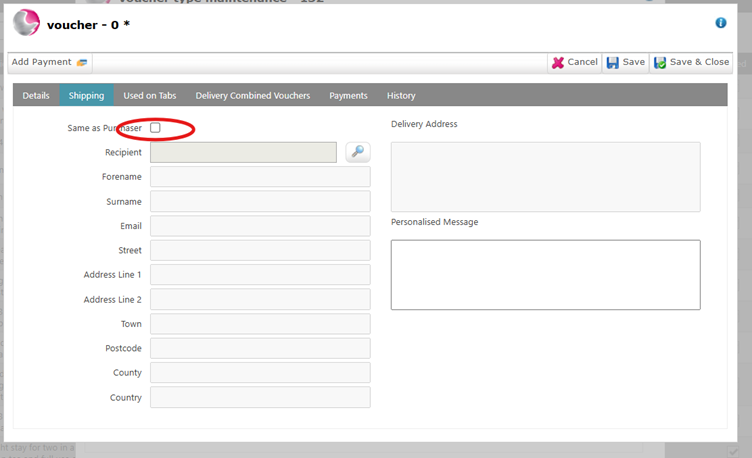
4. On the Shipping page, tick Same as Purchaser – or enter a different Recipient.
Click Save & Close.
5. The sold voucher will appear in the Sold Voucher (Screen List) with its unique voucher code.
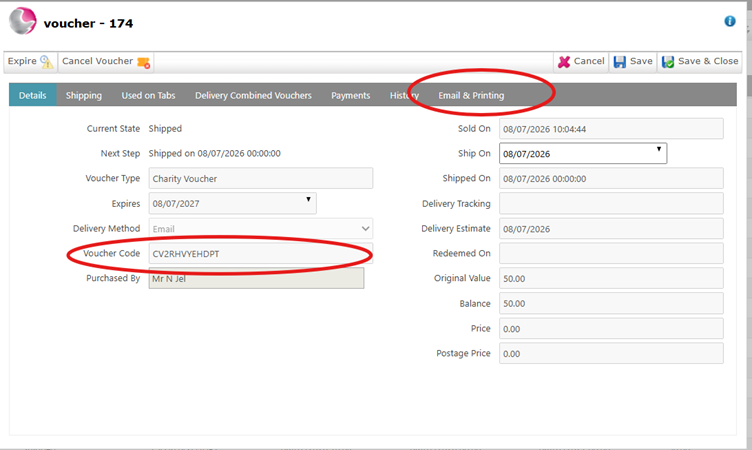
6. To send or print the voucher, open the Email & Printing page
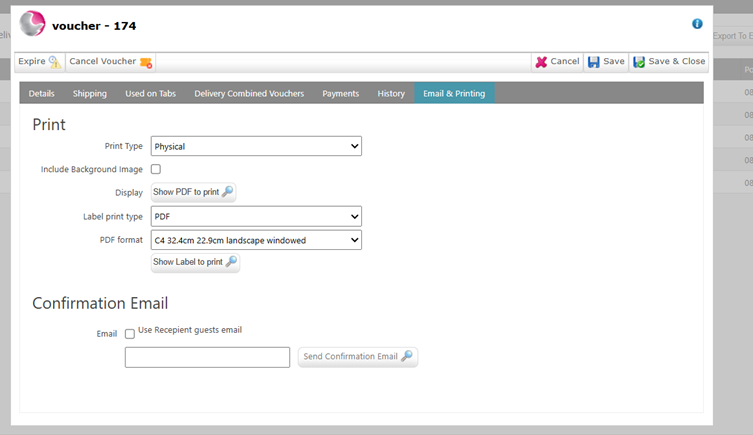
7. To generate digital Voucher, enter an email address and Click Send Confirmation Email.
8. To generate physical Voucher, click Show PDF to print.
9. The background image is excluded by default. Tick the box if you would like to include it.
See next: How to Create a New Voucher Type
How to Expire a Sold Voucher