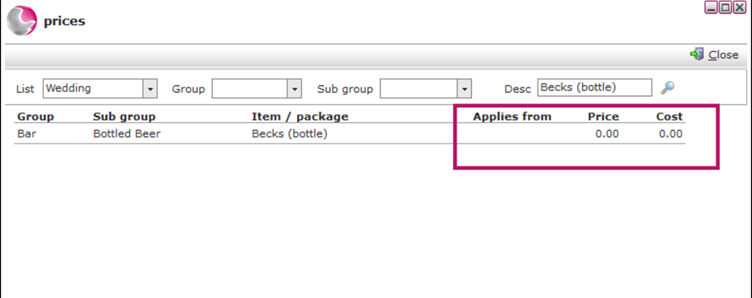
Every item and package has a price, which is stored on a Price List.
An item can be linked to multiple price lists, allowing you to charge different prices without creating duplicate items.
In this guide, you'll learn how to update an item's price on different price lists.
Updating Rack Rate List
1. Go to the Items area and open the item you want to update.
2. Click the Prices button.
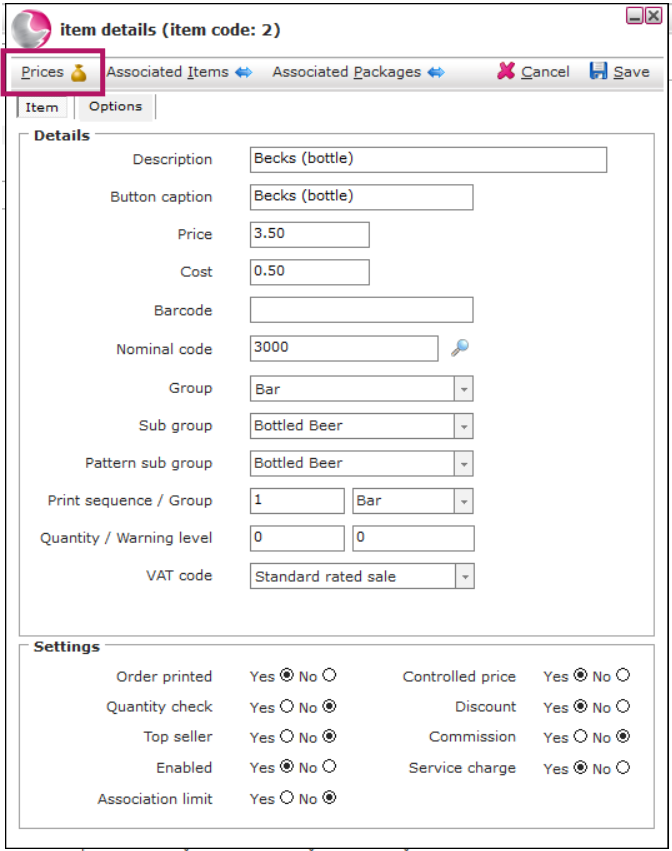
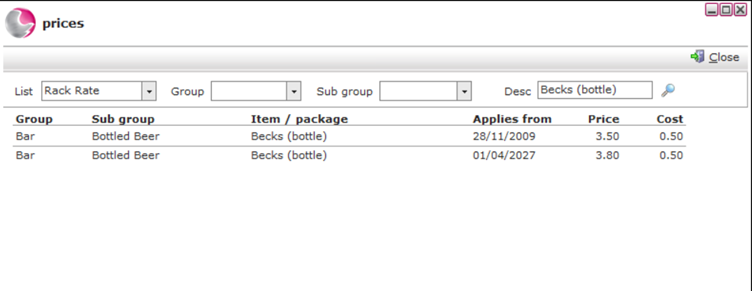
3. By default, the Rack Rate price list is displayed.
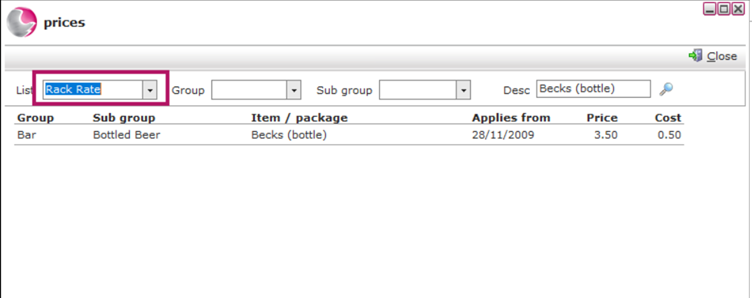
4. Right-click in the empty space below the current price and select New from the hidden
 menu.
menu.
5. Enter the Start Date and the new Price, then click Save.
For example: If you know the price of Becks will increase from £3.50 to £3.80 on 1 April, set the Start Date to 1 April and enter the new price.
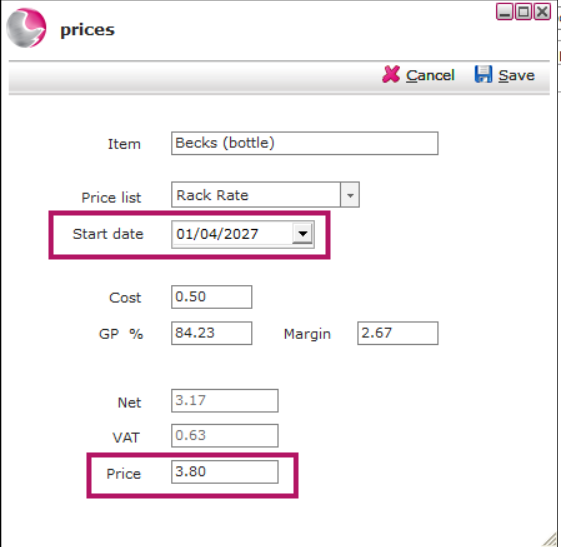
Tip: Add a new price each time the price changes instead of editing an existing one. This keeps a history of previous prices while ensuring the correct price is applied from the selected start date.
Updating a Different Price List
1. Go to the Items area and open the item you want to update.
2. Click the Prices button.
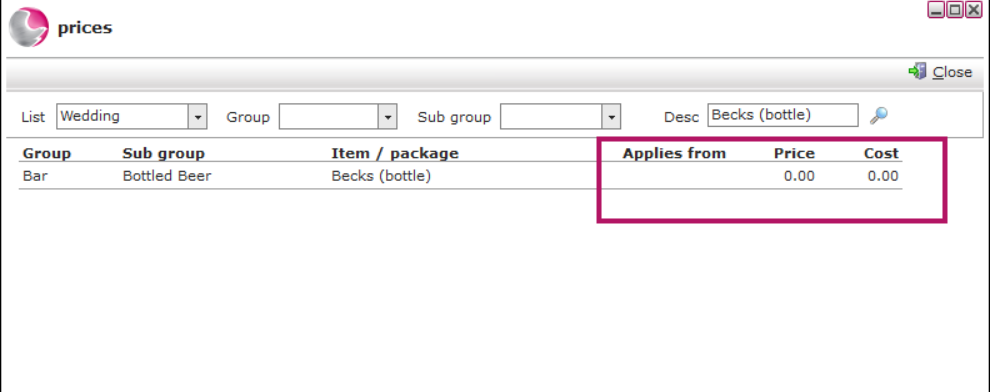
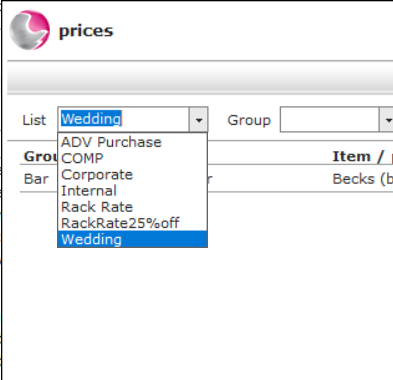
3. Open the List drop-down menu and select the required price list.
For example: Wedding Price List.
4. Right-click in the empty space and select New.
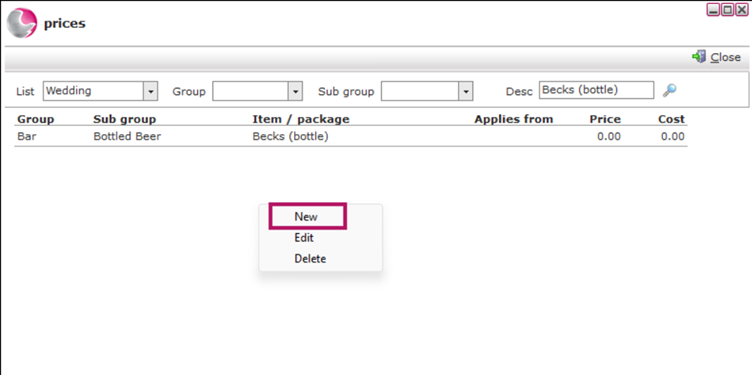
5. Enter the Start Date from which the new price should apply, then enter the new price and click Save.
Note: If no price has been added to a price list, the system automatically uses the Rack Rate price.