
Options are non chargeable item enhancements.
For example: type of bread with a soup, (white, brown, seeded, GF etc) or preferences how a customer would like their steak is cooked (rare, medium, well done etc.).
An option has to be attached to an item and will automatically prompt users to select an option when that item is sold on EPOS.
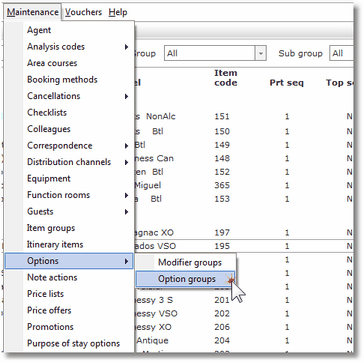
1. Click on the Maintenance menu, select Options then Option groups.
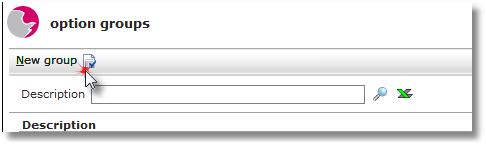
2. Click on New group.
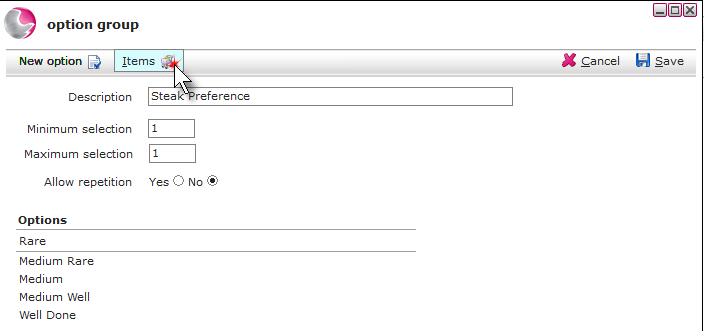
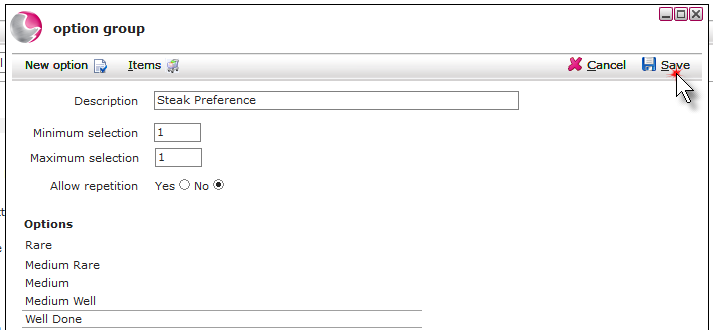
3. Complete the option group form.
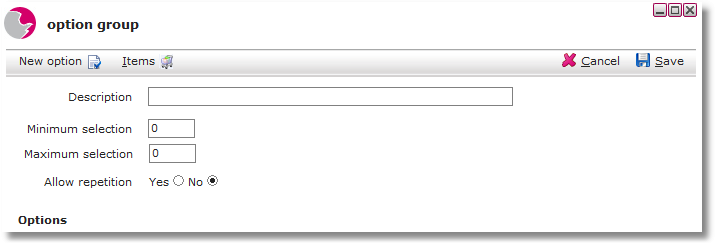
Description: Enter the name of the group
For example: Steak preference
Minimum selection: Enter the Minimum selection of options that must be selected.
For example: if the item was steak, at least 1 option would need to be selected to notify the kitchen how the steak needs to be cooked.
Maximum selection: Enter the Maximum selection of options.
For example: if the item was steak, no more than 1 option would need to be selected.
Allow repetition: This allows an option to be selected more than once.
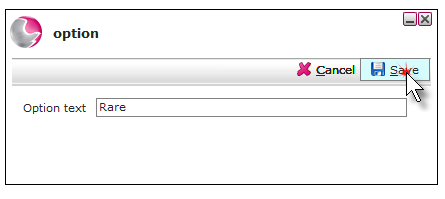
4. Click New option.
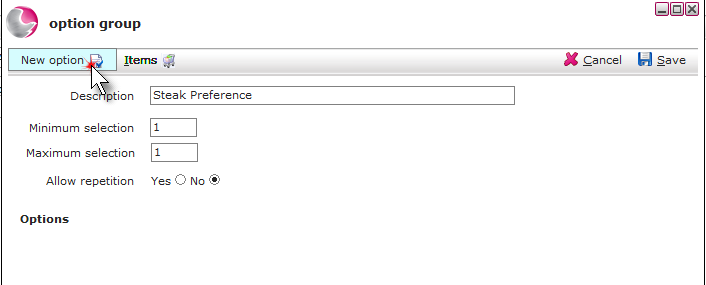
5. Add the option. Click Save.
The options will need to be added one at a time.
6. Click Items.
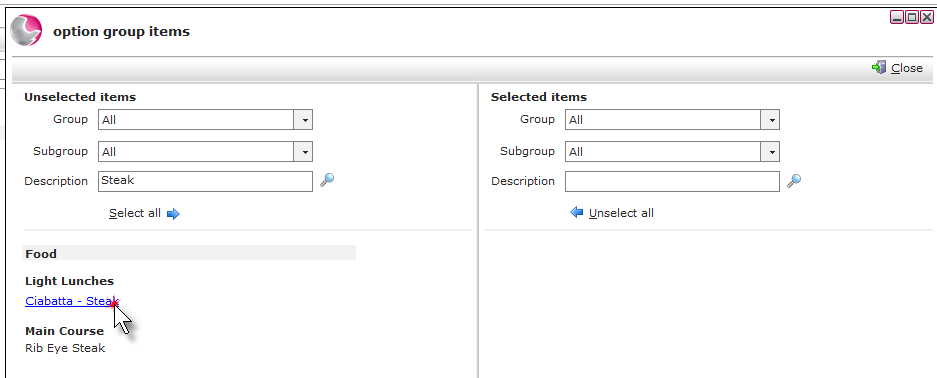
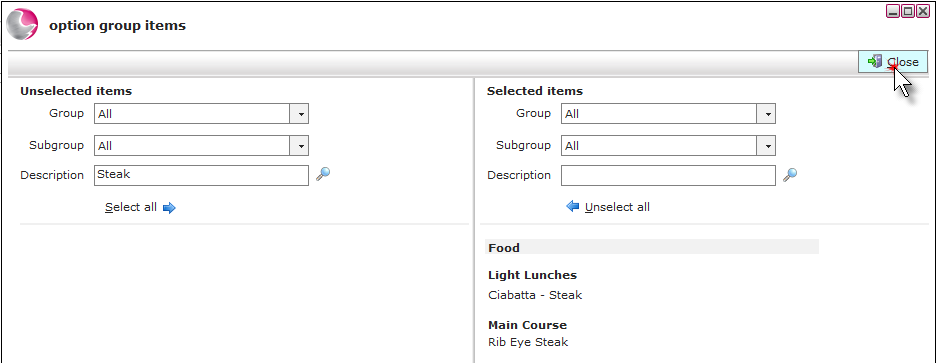
7. The unselected items will display on the left side of the form, use the description field to search for the items that the option needs to be attached to. Click on the items to move them to selected items.
8. Click Close.
9. Click Save.
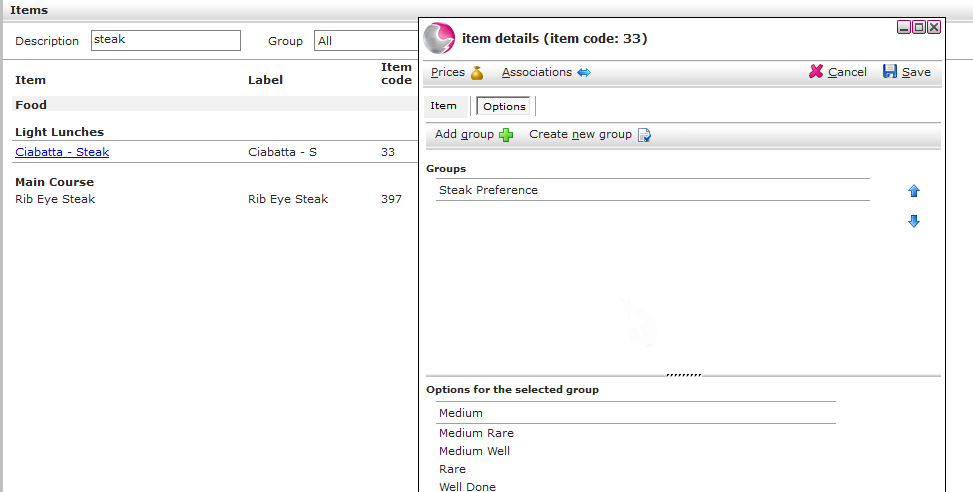
10. The option will now be attached to the items.
See next: How to Create Item Associations
How to Create a New EPOS Screen