
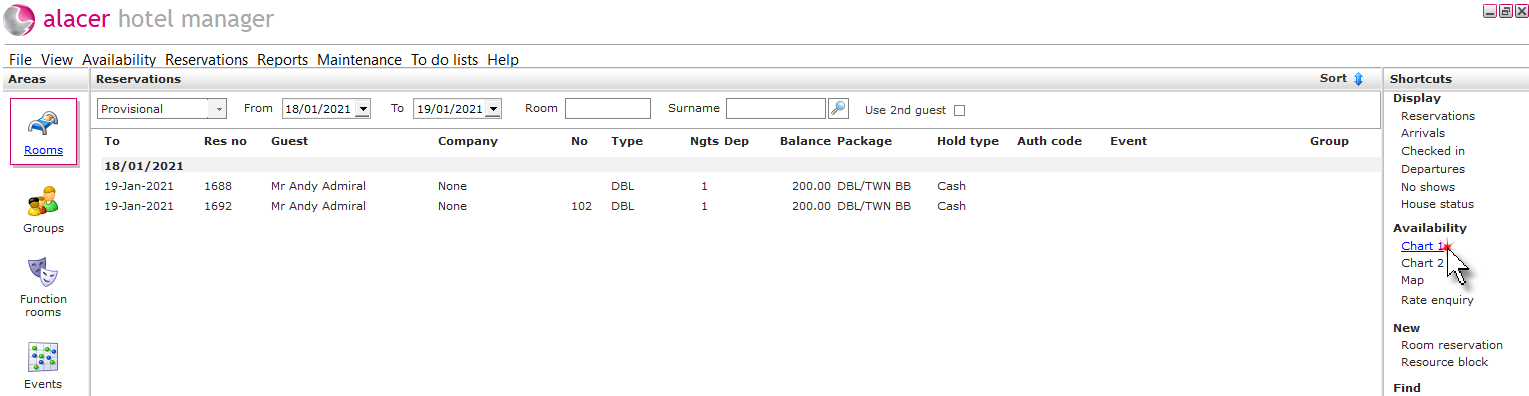
1. Click the Rooms icon in the areas part of the screen.

2. Click on Chart 1 under the Availability shortcut.
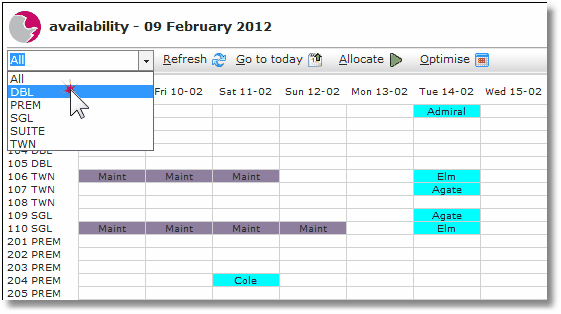
Filtering the chart by room type:
3. Click on the arrow on the drop down menu to show the list of room types. Click once on a selection to view the specific room type on the chart.
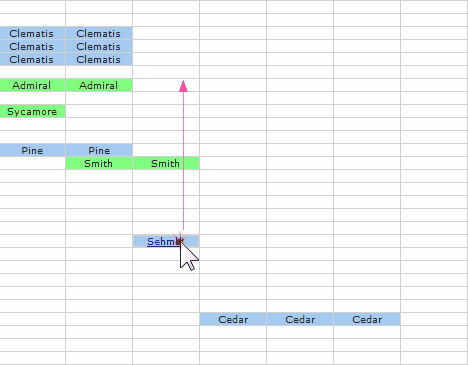
Moving reservations using the chart:
Click & Drag Option:
4. Select the reservation that needs to be moved. Right click, hold and drag the reservation to the new date/room type and release into the selected tile.
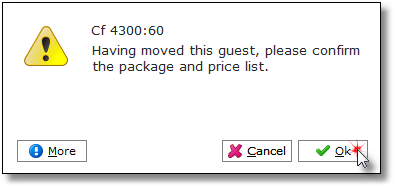
5. Click OK.
Force Room Move Option:
6. Right click on the reservation, select Force room move.
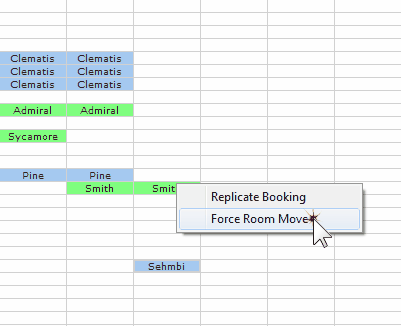
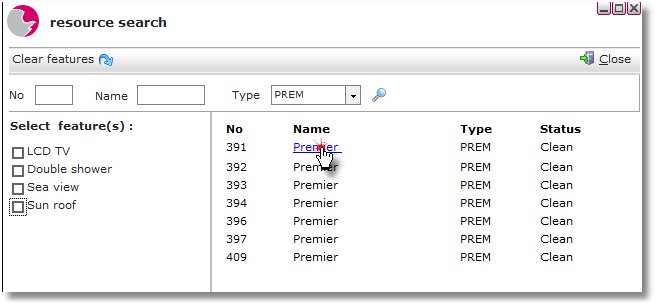
7. Click on a room to move the reservation to.
Replicate reservations on the chart:
The replicate reservation function can be used to copy the details from an existing reservation.
Please Note: The replicate reservation function will only copy the details of the primary reservation and the room type, it will not automatically allocate a specific room. This means that the replicated reservation will appear in the unallocated reservation section of the chart and will require the user to drag the reservation on the chart.
8. Right click on the selected reservation to view the hidden menu. Click Replicate Booking.
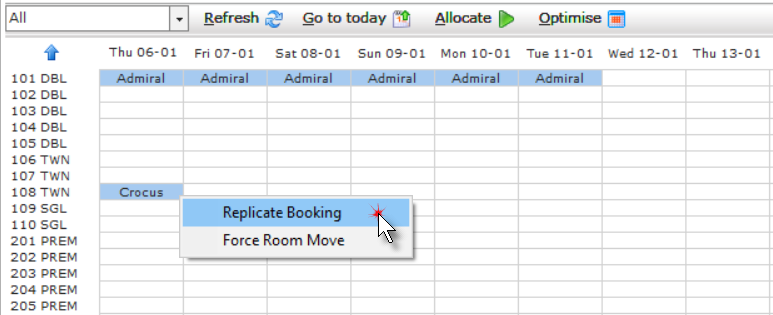
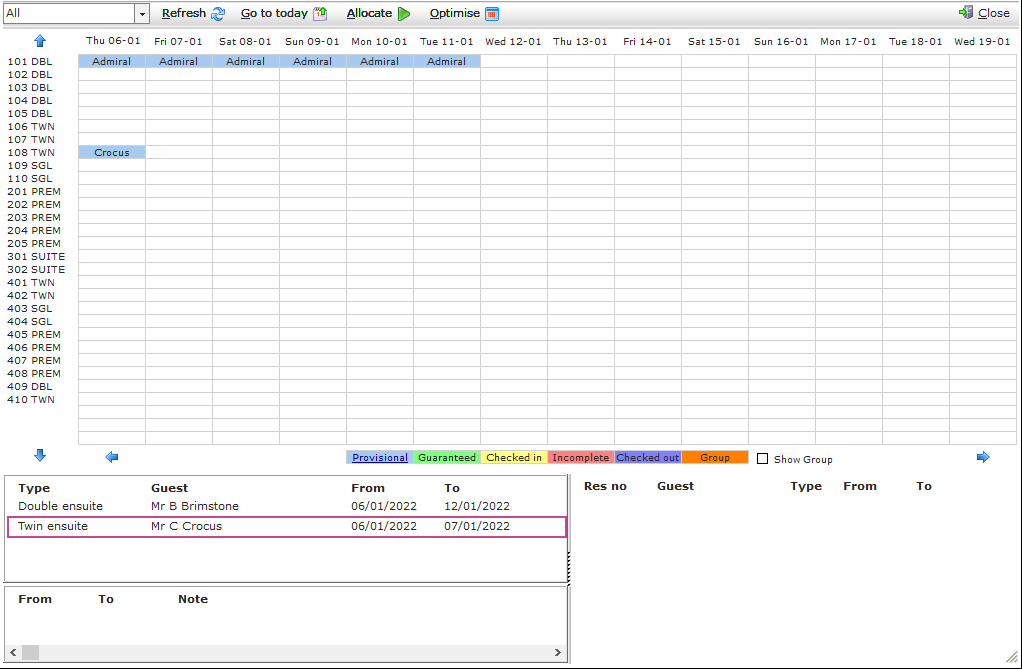
9. The replicated reservation will automatically appear in the unallocated section of the chart.
Showing group reservations on the chart:
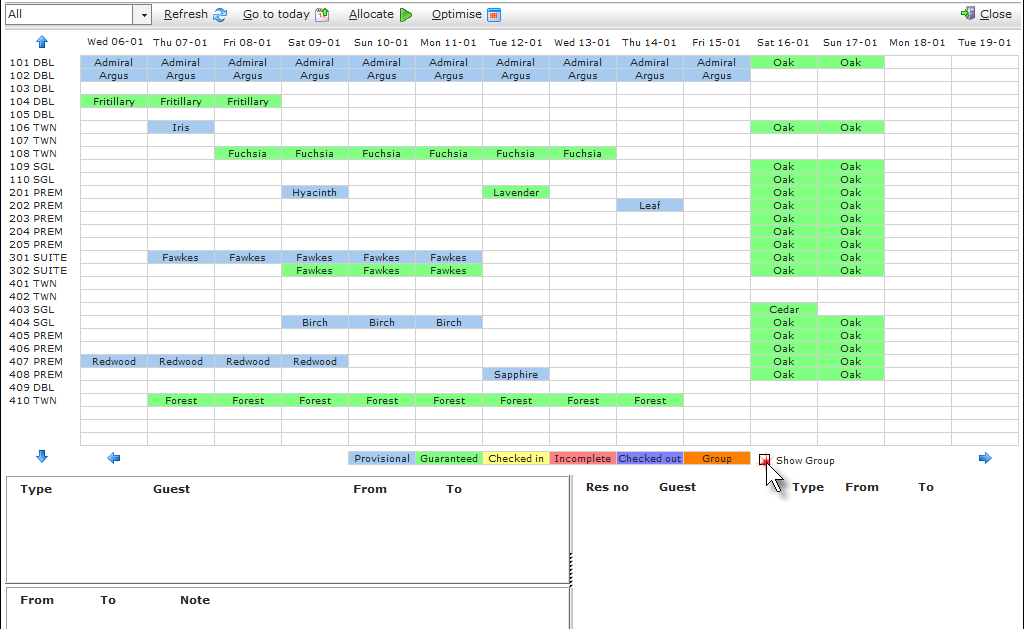
10. Click on the Show Group checkbox.
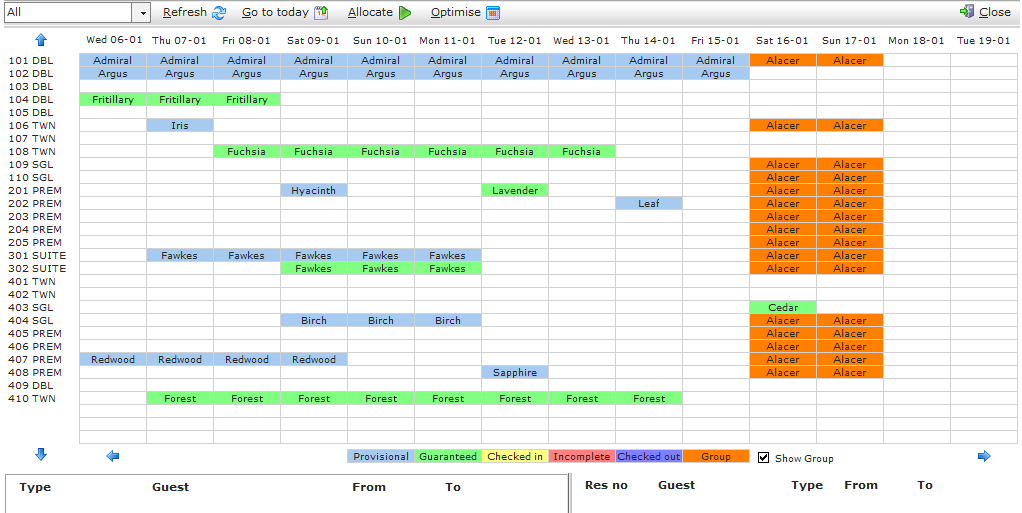
11. Any reservations that are attached to groups will now be displayed in orange and the group title will be displayed instead of the guest name.
See next:How to Create a Bedroom Reservation