
Hotel Manager makes reservations simple by using a wizard to request all the key information. Simply step through the wizard completing each section, asking the guest for the appropriate information, thereby the reservations are created immediately.
The software retains the details of all previous guests, therefore capturing valuable marketing information; and can be used to view guest history, favourites, statistics, and average spend.
A reservation can be made in several ways, giving the user the flexibility of selecting the method that is based on the guest's requirements.
TABLE OF CONTENTS
- Using the shortcuts menu:
- Using the Charts:
- Using the Map:
- Using the Rate Enquiry:
- Completing the Reservation:
Using the shortcuts menu:
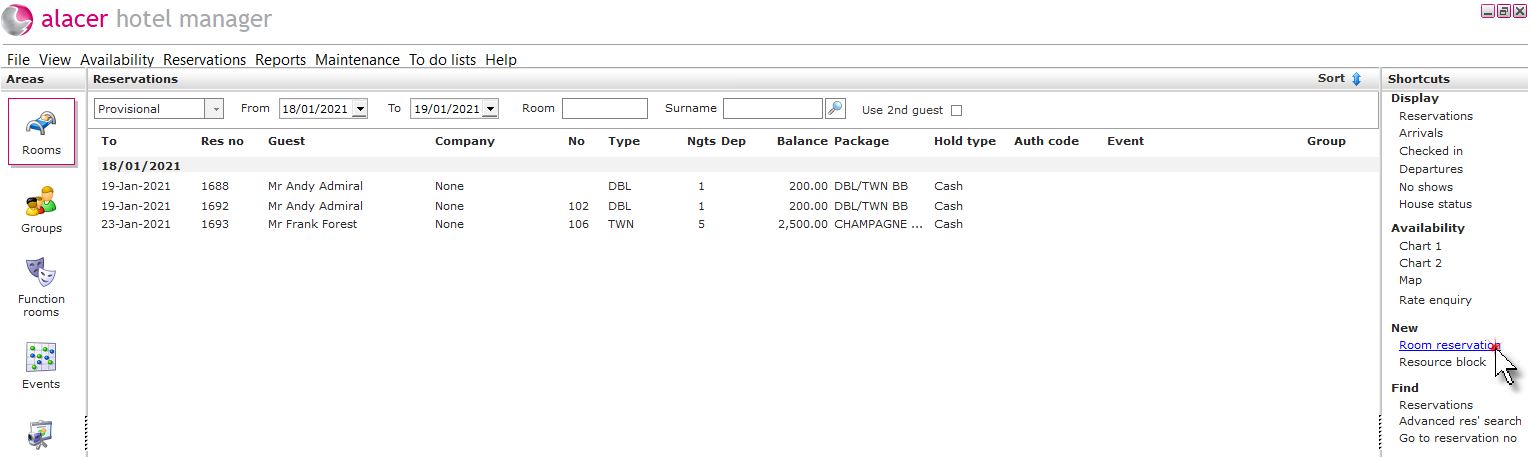
1. Click the Rooms icon.

2. Click Room reservation under New in the Shortcuts Menu.
Using the Charts:
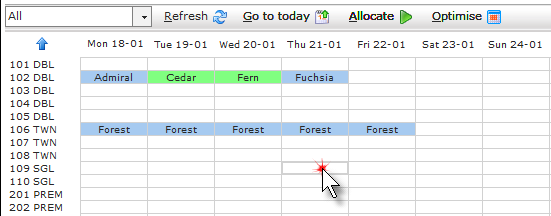
1. Open Chart 1 or Chart 2. Double click on an available date/room type.
Using the Map:
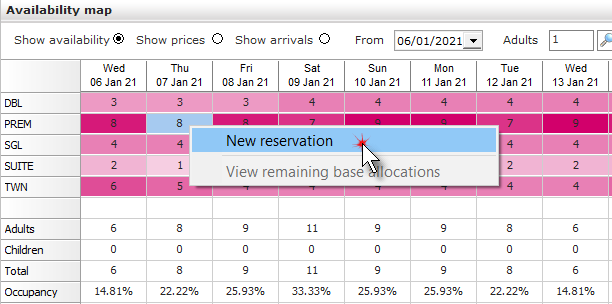
1. Right-click or double-click on an available date/room type and select New reservation.
Using the Rate Enquiry:
1. Double click on an available room type and rate code.

Completing the Reservation:
2. Complete the Guest search and the reservation wizard.
Can't find Guest profile? See How to Use Guest Search
3. Enter the reserve from date by either typing the date or using the drop-down menu and selecting a date from the calendar. The to-date will automatically update when the number of Nights is entered.
Alternatively, enter the to date which will automatically update the number of nights. Note: if you have started the reservation from the chart the date will be pre-populated.
If equipment is required you can check availability by clicking the equipment icon.
See How to Check Equipment Availability/Reservations
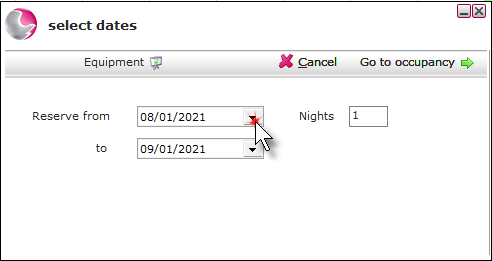
4. Click Go to occupancy. Enter the number of occupants.
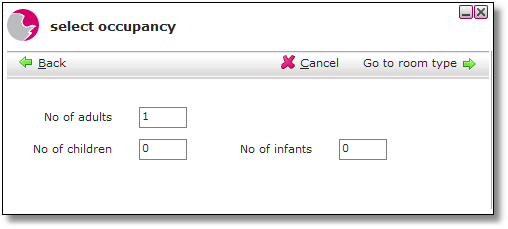
5. Click Go to room type. Select a Room type.
If the reservation is being made from the charts, this field will be greyed out as the room type has already been selected.
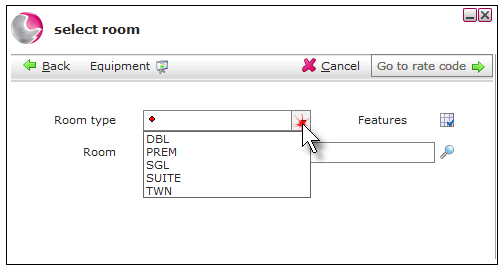
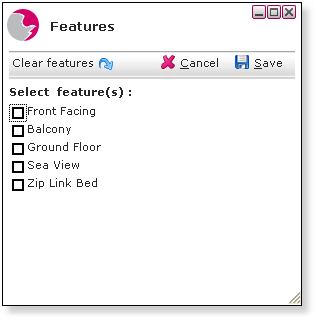
6. Click the Features icon to refine the room options if required.
See also: How to Create Room Features in Admin Manager
7. To allocate a specific room click the magnifying glass.
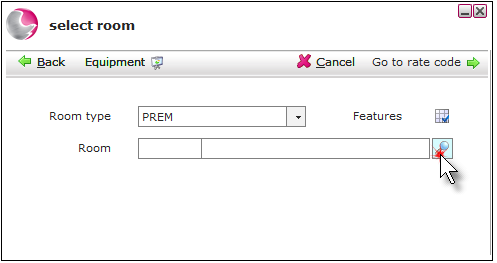
8. This will list the rooms available based on the room type and features if selected. Click on the required room.
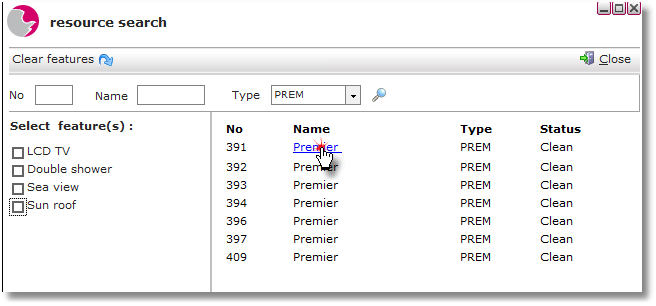
9. Click Go to rate code. Select a rate code.
Missing a Rate code? See: How to Setup New Rate Code
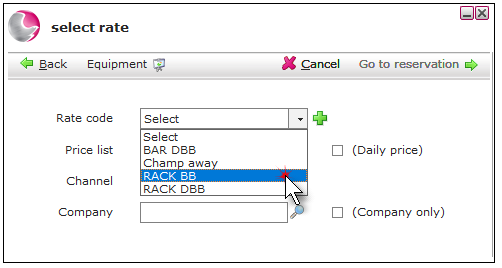
Channel: If required, click on the drop down menu to select the channel the reservation has been received through i.e. Booking.com.
Company: Click on the magnifying glass next to select a company then click on the company only tick box to view the negotiated rate codes.
10. Click Go to reservation and complete/check the reservation details.
Most of the details are automatically completed during the wizard process.
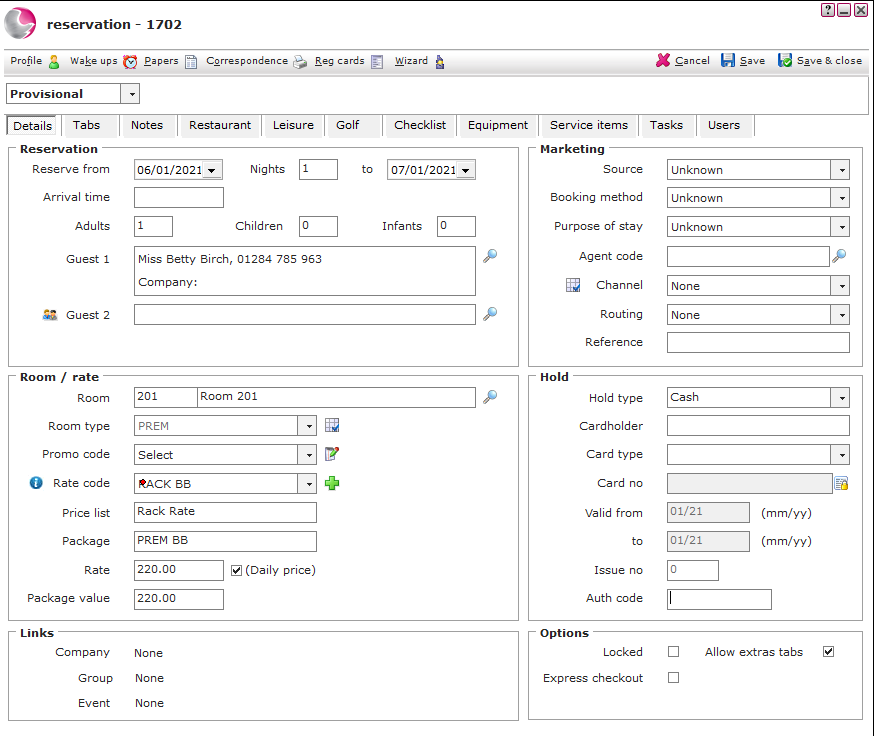
Reserve From/To: The reservation dates.
Nights: The number of nights will depend on the reservation dates entered.
Arrival time (Optional): Enter the guests estimated time of arrival (this field can hold 12 characters).
Adults, Children, Infants: Enter/check the occupants.
Guest: The details of the first guest will be displayed.
Guest 2: Select the second guest (if required).
See also: How to Use Guest Search
Room: The room that has been allocated to the guest.
Room Type: The type of room the guest has requested e.g. single, double, suite etc.
Promo Code: Used for specific promotions and special rates.
See here: How to Create Promo codes
Rate Code: The rate code booked by the guest.
Price List & Package: This will be picked up automatically from the rate code selection.
Rate: The rate price will display, if the the rate code allows overrides the price can be changed.
Package Value: The total cost to the customer for the reservation.
Company, Group, Event: Attach a reservation to a Company, Group or Event (if required).
Source Code: Select/check the source code.
Cant find correct Source code? See How to Create New Source Code
Booking Method: Select /check the booking method.
Can't find Booking method? See How to Add New Booking Method
Agent Code: Select/check the agent.
See How to Create New Agent
Channel & Routing: Select the channel an routing (if required). i.e. Booking.com, Expedia, Own website.
Reference: A booking reference from the guest or agency making the booking can be entered.
Hold Type: Add the method used to secure the reservation.
Cardholder & Card details: Enter/check the card details.
Auth Code: Enter the authorisation code in here if a preauthorisation has been taken.
Locked: Tick to lock the reservation.
Express Check Out: If a guest has paid and will be checking out early, ticking this box will display the reservation on the express checkout report.
Allow extras tabs: Tick/untick to allow extras tabs to be created for the reservation.
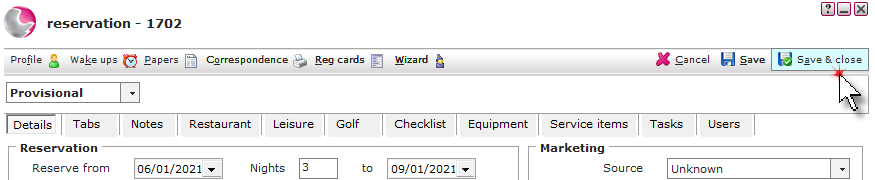
11. Click Save & Close.
See next: How to Add Notes to Bedroom Reservations
How to Send Confirmation Email