
A rate code links a price list, packages and room types together, so reservations can be made more quickly. Each room type on the rate code is linked to a package.
Good to know: A rate code needs packages attached before it can be used. If you haven't created one yet, see How to Create a Standard Package.
In this article
- Step 1: Create the rate code
- Step 2: Attach packages to room types
- Step 3: Complete the Advanced page
- Step 4: Add companies (company-only rates)
- Step 5: Set the schedule
Step 1: Create the rate code
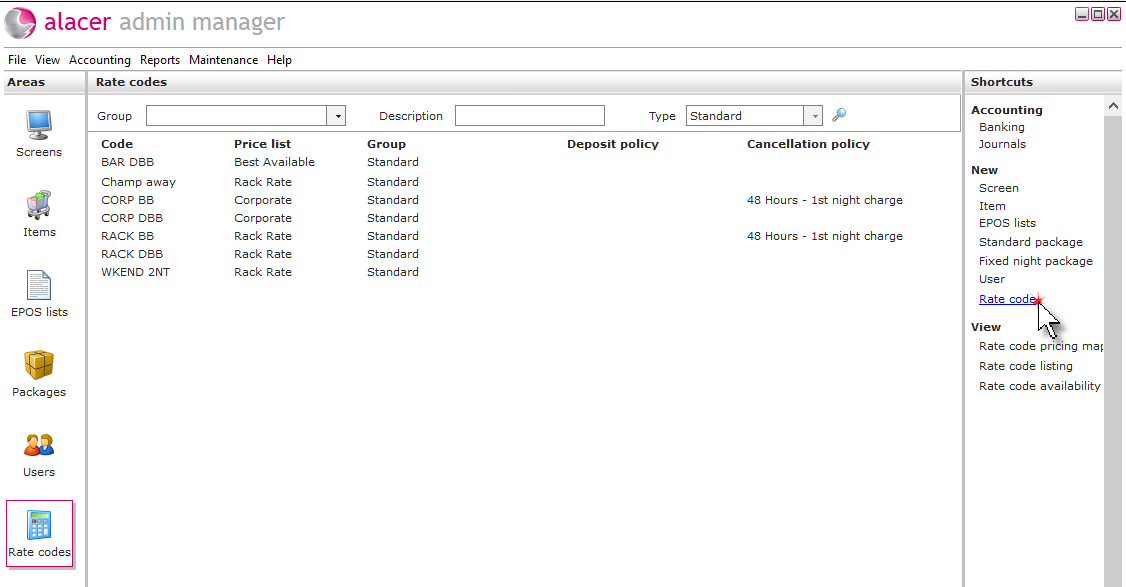
In the Areas section, click the Rate codes icon.

In the Shortcuts menu, under New, click Rate code.
Complete the General page. See General page fields below.
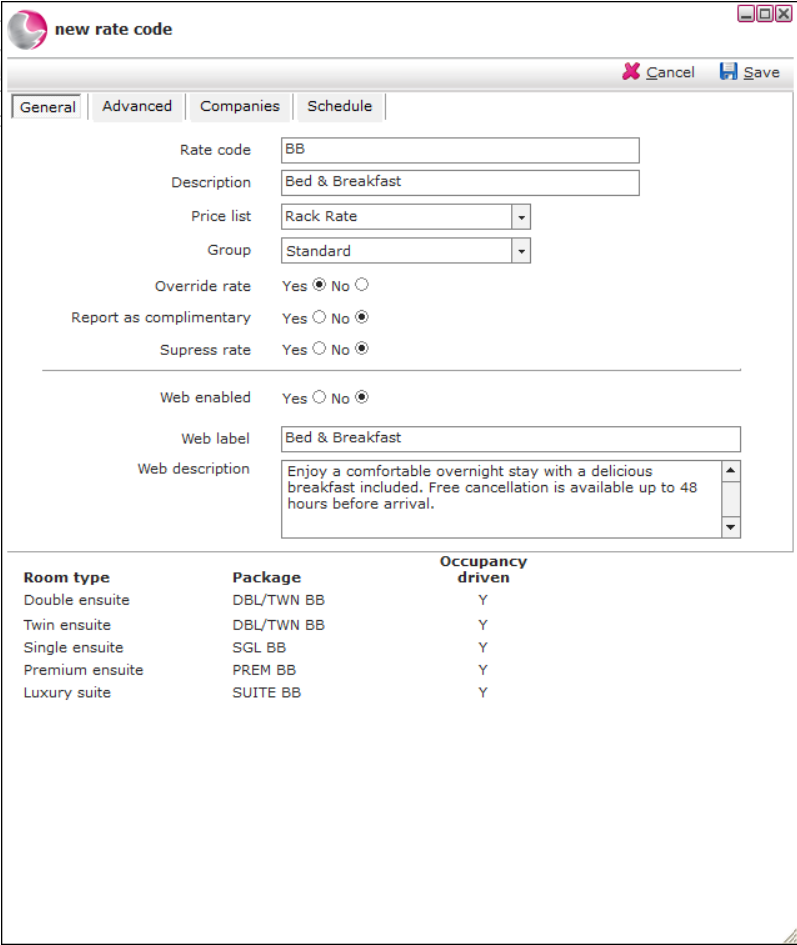
General page fields
| Field | What to enter |
|---|---|
| Rate code | A short code for the rate, for example B&B. |
| Description | The rate code name, for example Bed & Breakfast. |
| Price list | The price list the rate code uses. |
| Group | The rate code group. Can't find it? See How to Create a Rate Code Group. |
| Override rate | Yes lets users change the price during the reservation. |
| Report as complimentary | Yes if the rate is complimentary. It shows as a £0.00 sale on sales reports. |
| Suppress rate | Yes hides the rate price on guest registration cards and invoices. |
| Web label | Only needed if the rate is sold online. The rate code name guests see, for example Bed & Breakfast. |
| Web description | Only needed if the rate is sold online. A fuller description of the rate. |
Step 2: Attach packages to room types
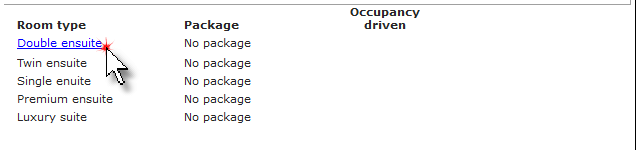
Click a room type.
Select the package for that room type, then click Save.
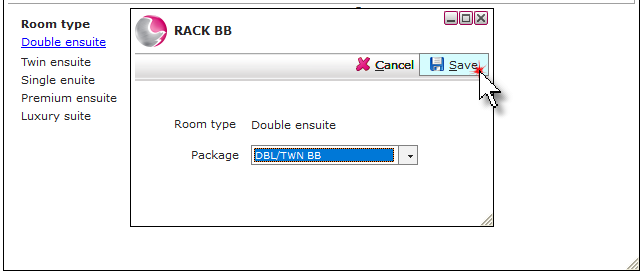
Repeat for each room type the rate code is available for.
Step 3: Complete the Advanced page
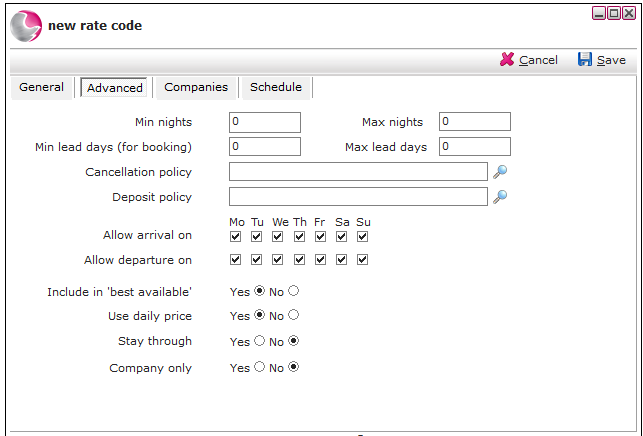
When all the packages are attached, open the Advanced page and complete the fields. See Advanced page fields below.
Advanced page fields
| Field | What to enter |
|---|---|
| Min/Max nights | Optional. The minimum and maximum number of nights a reservation can be for. |
| Min lead days | Optional. How many days in advance a reservation must be booked on this rate. |
| Cancellation policy | The cancellation policy for this rate. Can't find it? See How to Create a New Cancellation Policy. |
| Deposit policy | The deposit policy for this rate. Can't find it? See How to Create a New Deposit Policy. |
| Allow arrival/departure on | The days guests can arrive and depart on this rate. |
| Include in best available | Yes shows the rate in the best available section of the rate enquiry. |
| Use daily price | Yes shows the daily rate on the guest tab. No shows the average rate. |
| Stay through | Overrides the rate schedule and uses the first night's price for the whole stay. |
| Company only | Yes if the rate is only for selected companies. You'll add them in Step 4. |
Step 4: Add companies (company-only rates)
Only needed if Company only is set to Yes.
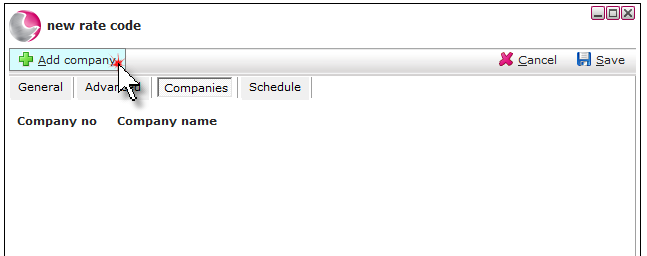
On the Companies page, click Add company.
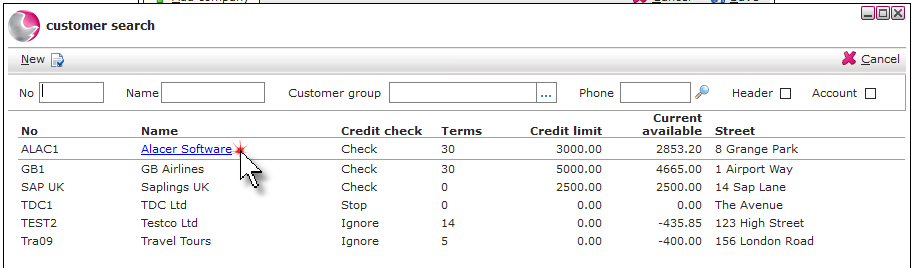
Select the company. Repeat for each company that can use the rate.
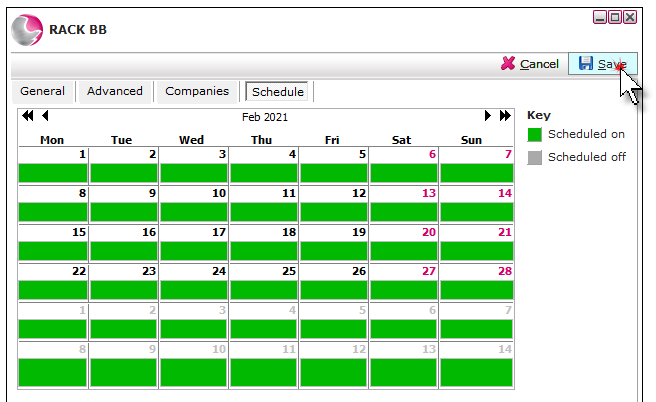
Step 5: Set the schedule
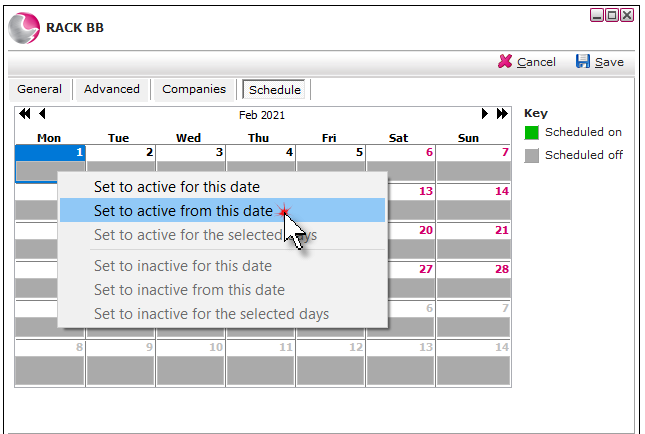
On the Schedule page, click the date the rate code should be available from. Right-click and select Set to active from this date.
Click Save.
What's next? To switch the rate code on or off for set dates, see How to Schedule a Rate Code On/Off.
Related articles