
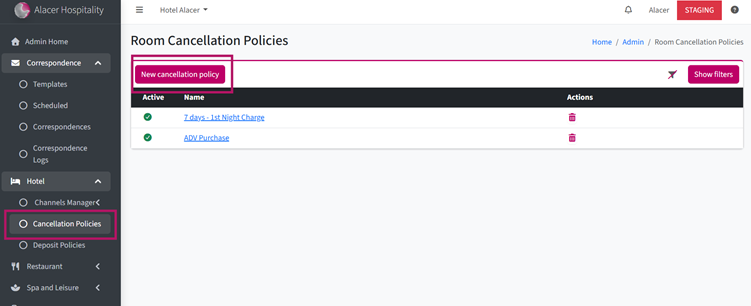
1. Open Alacer Hospitality and go to Admin > Hotel > Cancellation Policies.
2. Click New Cancellation Policy.
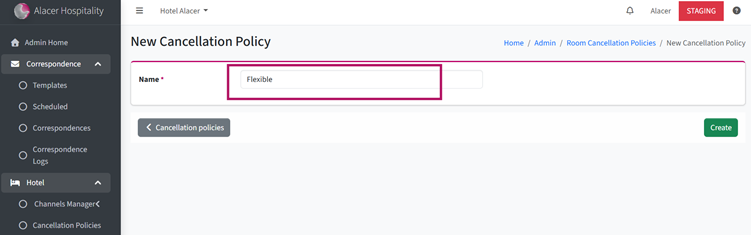
3. Enter a Policy Name and click Create.
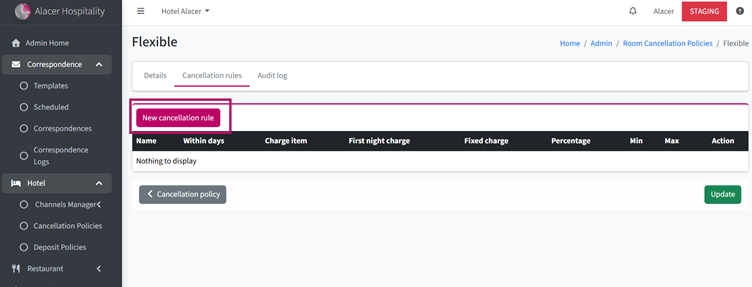
4. You will be taken to the Cancellation Rules page. Click New Cancellation Rule.
5. Create the first rule by entering a Rule Name.
6. Enter the number of days before the arrival date when this rule should apply.
For example: Enter 7 if guests who cancel 7 days or less before arrival should incur a cancellation charge.
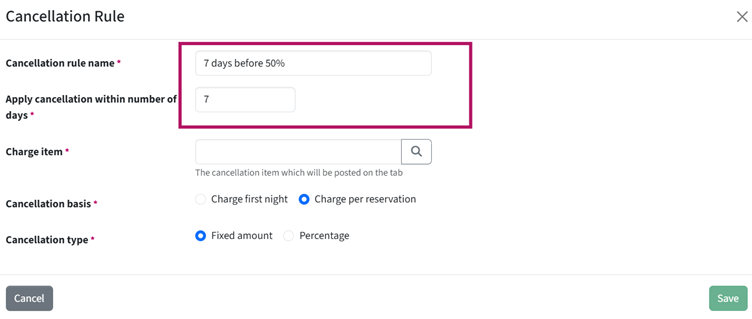
7. Choose how the cancellation charge should be calculated:
- Charge First Night – Charges the first night's accommodation.
- Charge Per Reservation – Charges the entire reservation based on either a fixed amount or a percentage.
8. If you select Charge Per Reservation, choose one of the following options:
- Fixed Amount– Charges a set amount using the selected charge item.
Note: The system uses the price of the charge item, so make sure the charge item has the correct price. - Percentage – Charges a percentage of the reservation value. You can also set optional minimum and maximum charge limits.
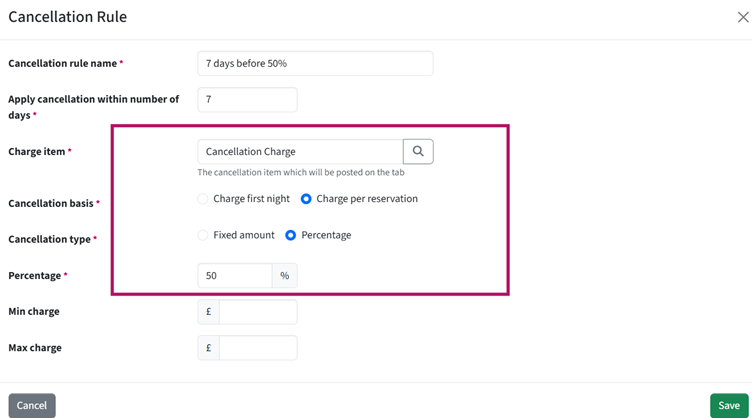
9. Click Save to create the rule.
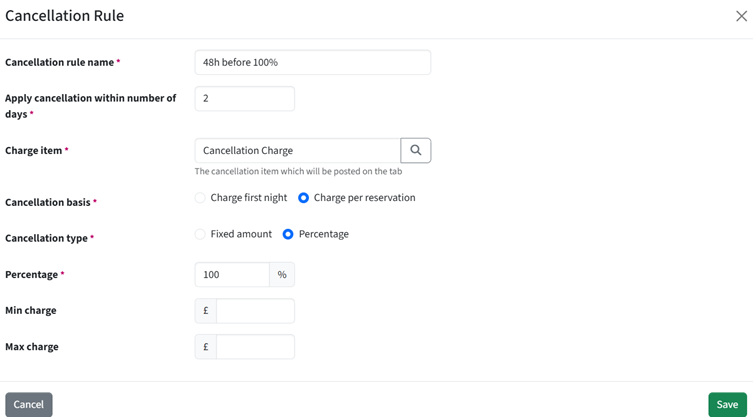
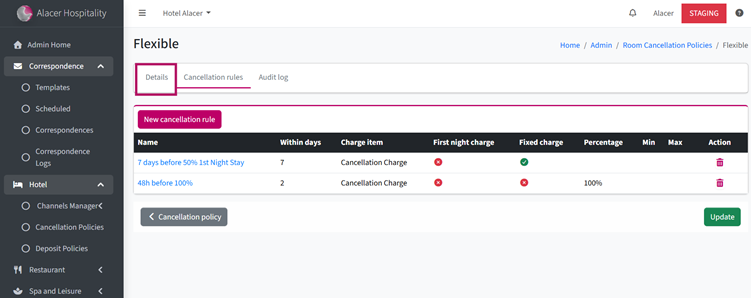
10. Repeat the process to add any additional rules.
For example:
- 7 days or less before arrival – Charge 50% of the reservation.
- 2 days or less before arrival – Charge 100% of the reservation.
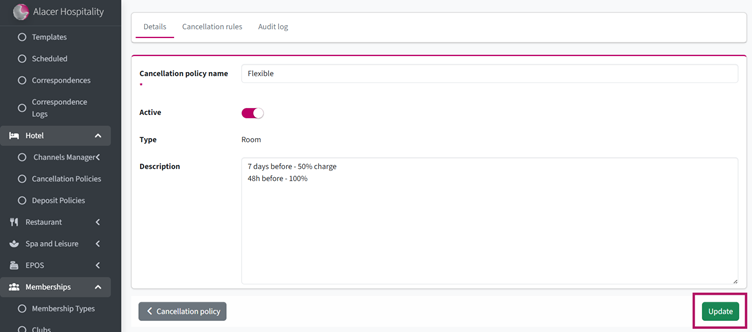
11. Once you have created all the rules for this cancellation policy, open the Details page.
12. Turn the Active toggle On.
13. Enter a Description to explain this cancellation policy.
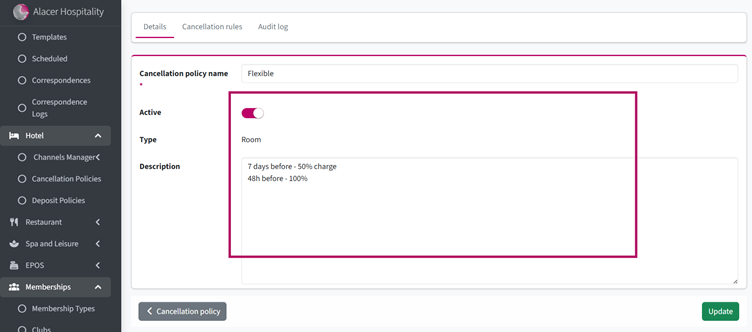
14. Click Update to save your changes.
See next: How to Create a Bedroom Deposit Policy
How to Create a Table Cancellation Policy