
Rate codes link price lists, packages and room types together to make the reservation process quicker. A rate code must have packages attached before it can be used.
See How to Create a Standard Package
- Complete the General page
- Complete the Companies page if the rate code is a company only rate.
- Complete the schedule page.
Complete the General page
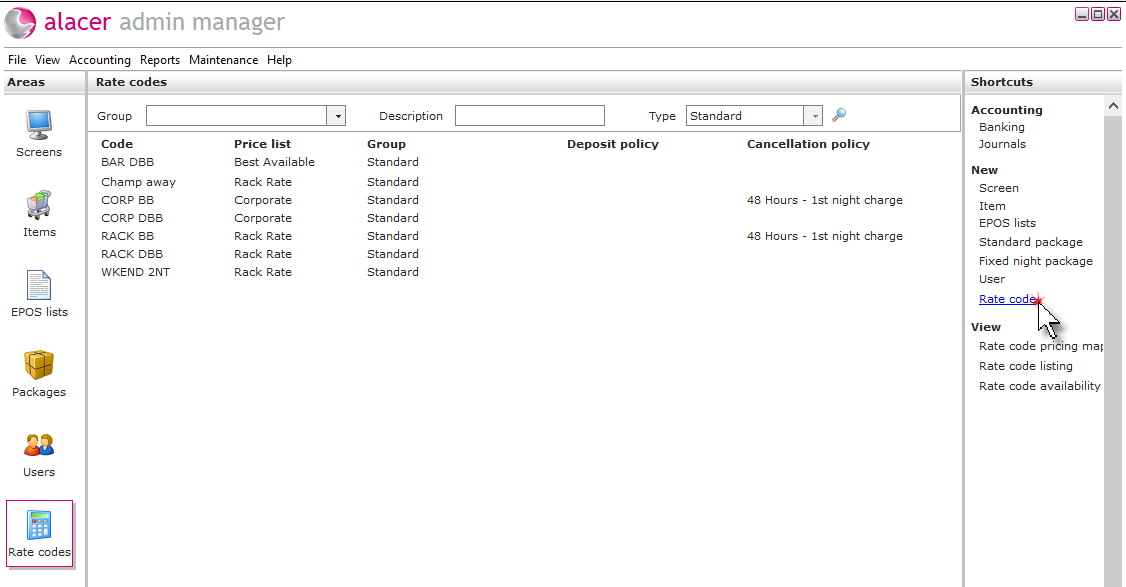
1. Click on the Rate codes icon in the Areas section of the screen.

2. Click Rate code under the heading of New in the Shortcuts Menu.
3. Enter the required information on the General page.
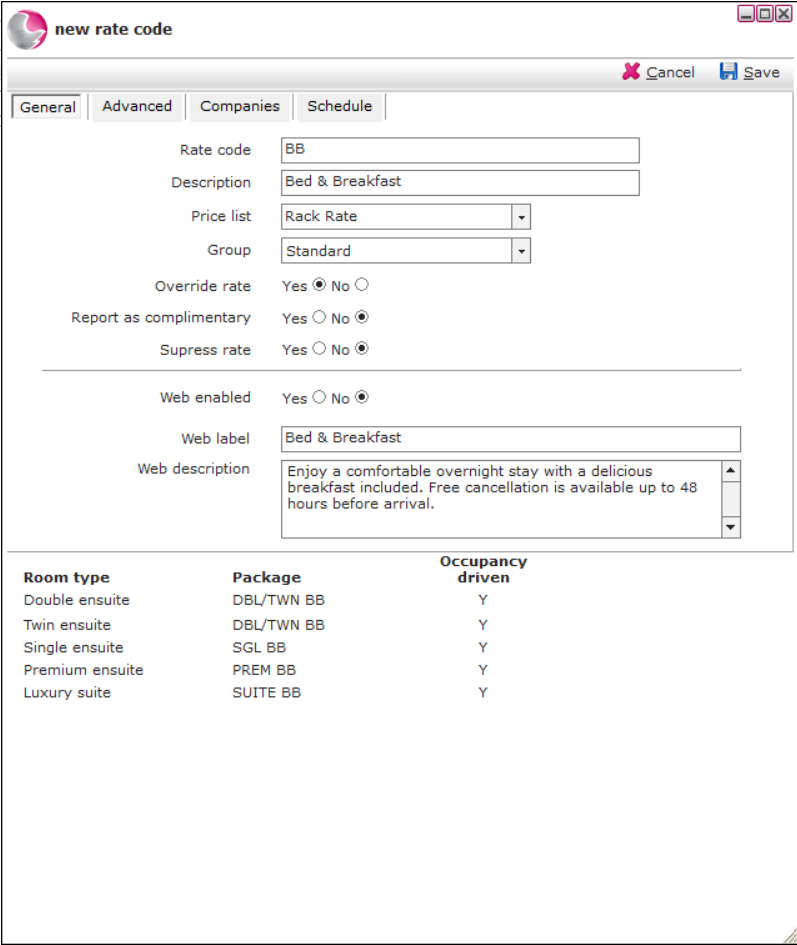
Rate code: Enter an abbreviation of the rate code.
For example: B&B.
Description: Enter the description of the rate code.
For example: Bed & Breakfast.
Price list: Select the price list that the rate code is associated with.
Group: Select a rate code group.
Can't find the group? See How to Create a Rate Code Group
Override rate: Selecting Yes will allow users to change the rate to a different price during the reservation process.
Report as complimentary: If the rate is complimentary the rate code will display reports and a £0.00 sale on sales reports.
Suppress Rate. Selecting yes will hide the rate price on guest registration cards and invoices.
Web label: If the rate code is being sold online enter the rate code name.
For example: Bed & Breakfast.
Web description: Enter a detailed description of the rate code.
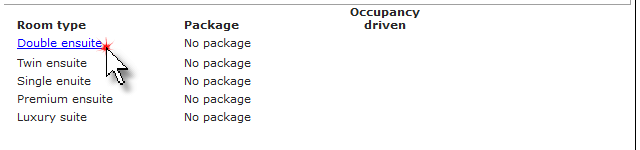
4. Click on a room type to attach it to a package.
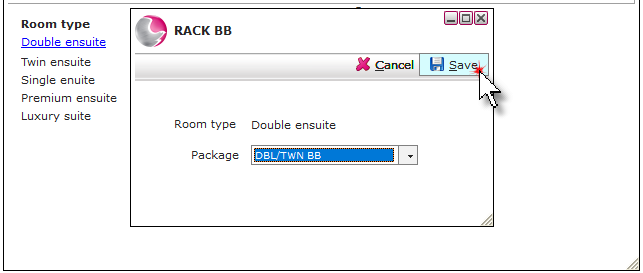
5. Select a package and click Save.
6. Once all the packages have been attached complete the Advanced page.
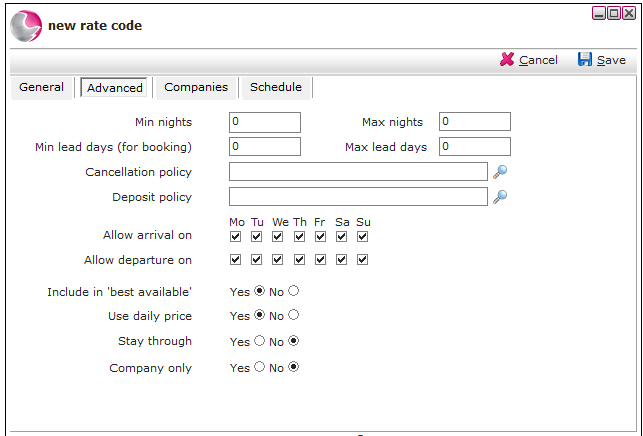
Min/Max Nights: The minimum and maximum nights a reservation can be made for against the rate code (if required).
Min lead days: The minimum and maximum lead days required before a reservation can be booked against this rate code (if required).
Cancellation policy: Attach a cancellation policy.
Can't find the cancellation policy? See How to Create a New Cancellation Policy
Deposit policy: Attach a deposit policy.
Can't find it? See How to Create New Deposit Policy
Allow arrival/departure on: Select the arrival and departure days that the rate code can be booked for.
Include in best available: If Yes is selected the rate will be displayed in the best available section on the rate enquiry.
Use daily price: If Yes is selected the daily rate will be shown on the guests tab, if not then the rate will be shown as the average rate.
Stay through: This option can be used to override the rate schedule. It will use the first nights stay for the duration of the reservation.
Company only: If the rate code is only available to companies, click Yes and select the companies on the company page.
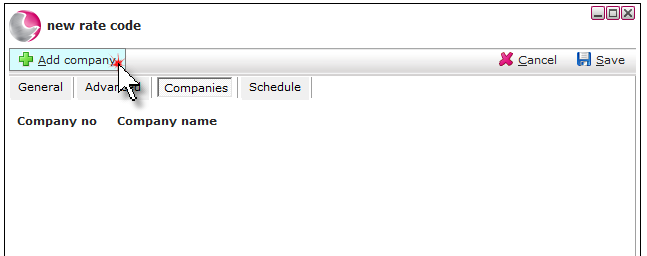
Complete the Companies page if the rate code is a company only rate.
1. Click Add company.
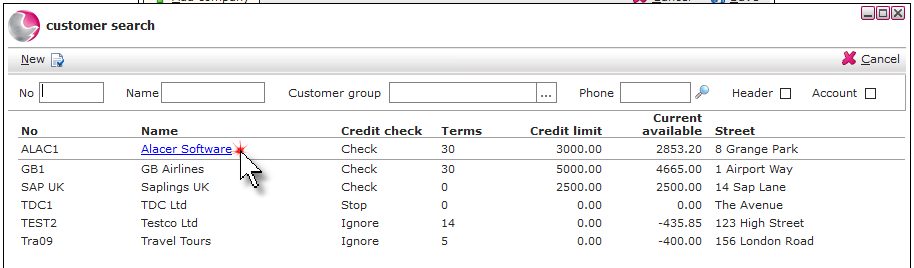
2. Select a company.
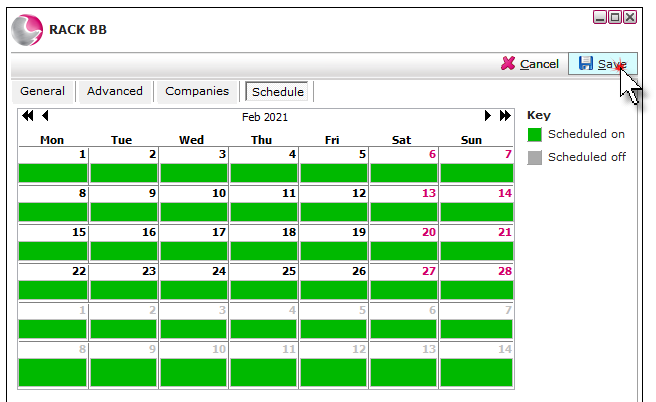
Complete the schedule page.
1. Click on the date the rate code is available from then right click and select Set to active from this date.
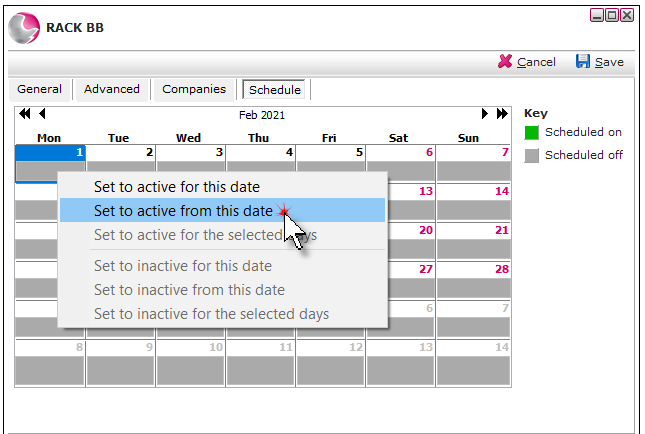
2. Click Save.
See next: How to Schedule a Rate code On/Off
How to Change the price of a Rate Code