
Promo's are used to unlock an alternative price for an existing voucher type.
For example; if an afternoon tea voucher is sold for £15.00 and the price is temporarily reduced to run a half price afternoon tea promotion for a limited period, a promo code could be given to recipients. They can then enter the code during the online voucher purchase process, which would change the price of the £15.00 Afternoon Tea voucher to £7.50.
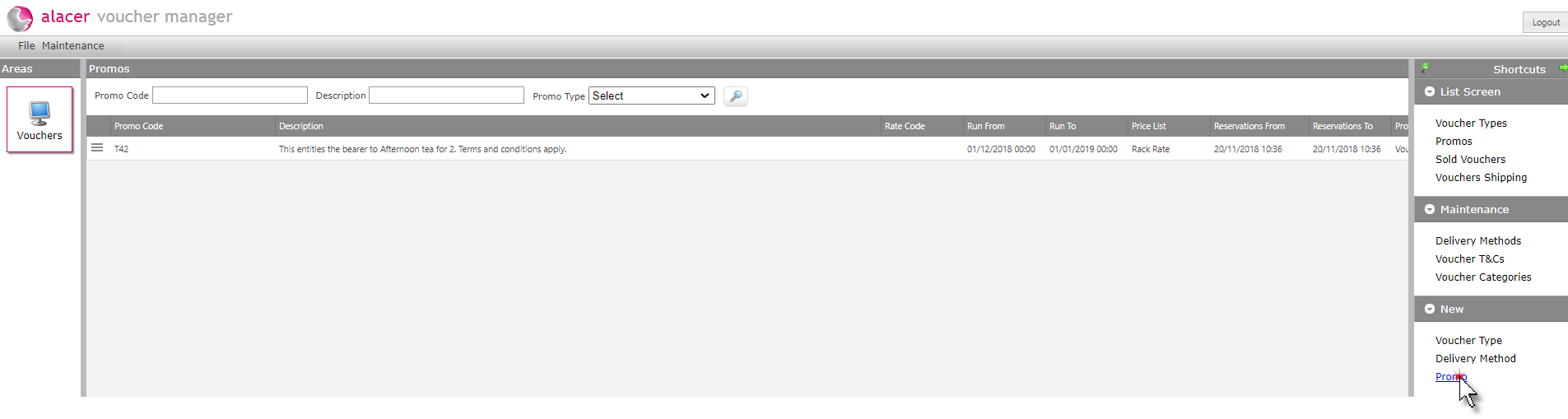
1. Click on Promo under the New menu.
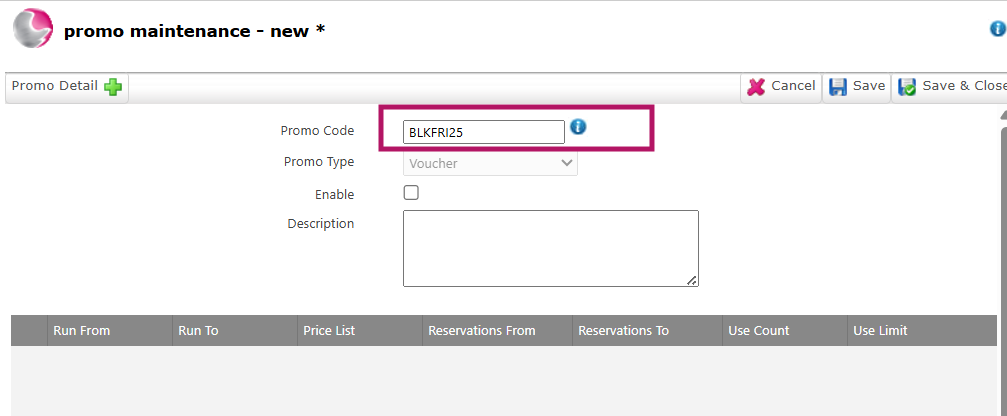
2. Enter the Promo Code. This is the code that will be given to the guest to enter during the online check out process.
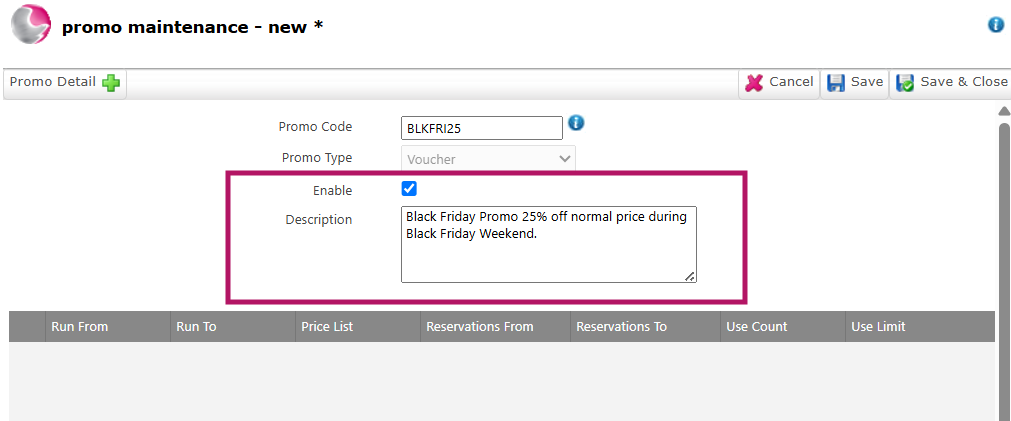
3. Tick the Active box to make the promo code available.
4. Enter a Description explaining what the promotion is.
For example: Black Friday – 25% Off the Standard Rate.
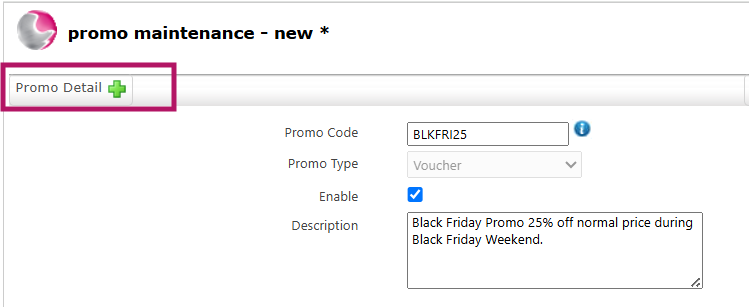
5. Click Promo Detail to configure the promotion
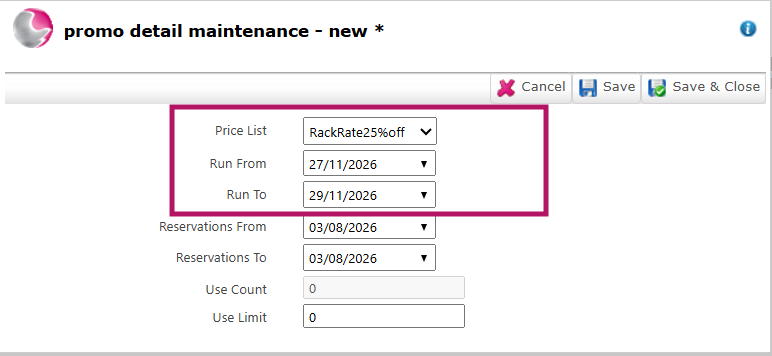
6. Select the Price List that the promo code will apply to.
See How to Create New Price List
For example: If the promotion offers 25% off, create a new Price List with prices set to 25% below the Rack Rate, then select that Price List for the promo code.
7. Set the Run From and Run To dates to define when the promotion is available.
8. Once the Run To date has passed, the promo code will no longer be valid unless you extend the dates.
Note: The Reservation From and Reservation To fields are currently not functional.
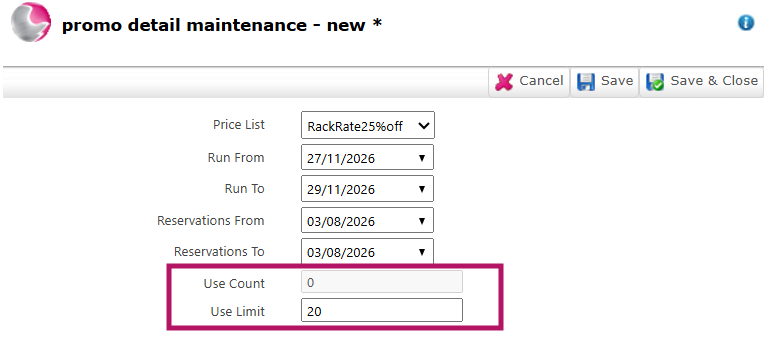
9. The Use Count shows how many times the promo code has been redeemed.
10. Use Use Limit to set the maximum number of times the promo code can be redeemed.
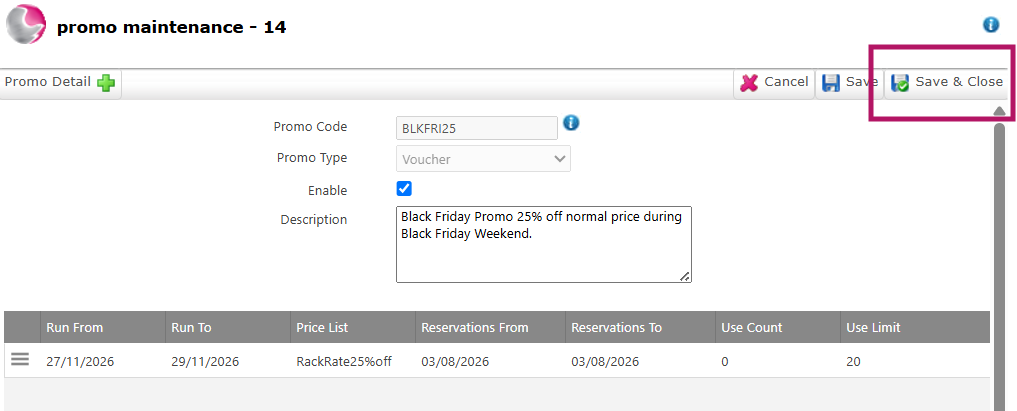
11. Click Save & Close.
See next: How to Create New Voucher Type
How to Create Charity Voucher