
The rooming list will display the the room/room types that have been reserved as part of the group. Guests can be added to the group and allocated a room.
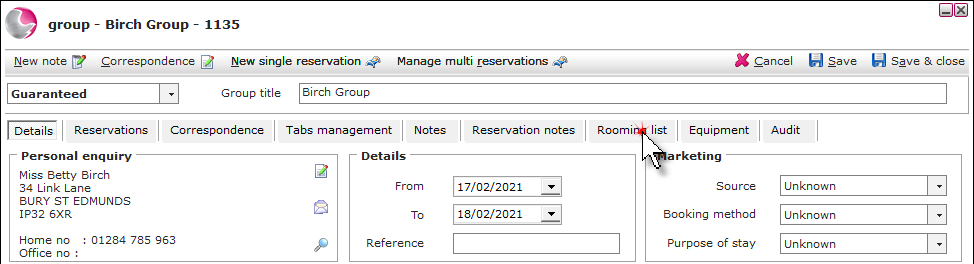
1. Open the group booking and click Rooming list.
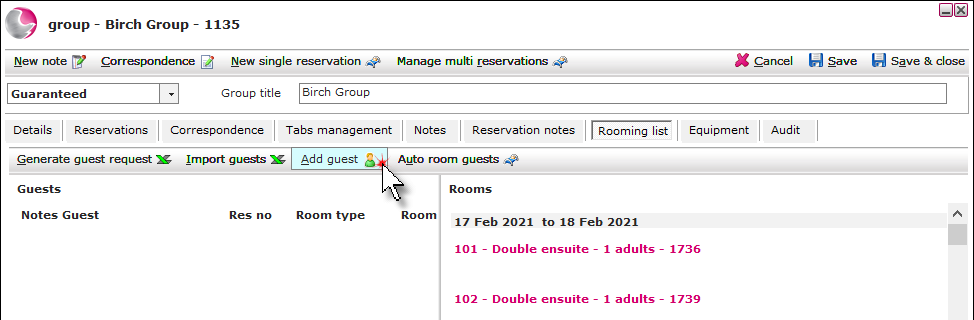
2. Click Add guest. Use the guest search and select the guest.
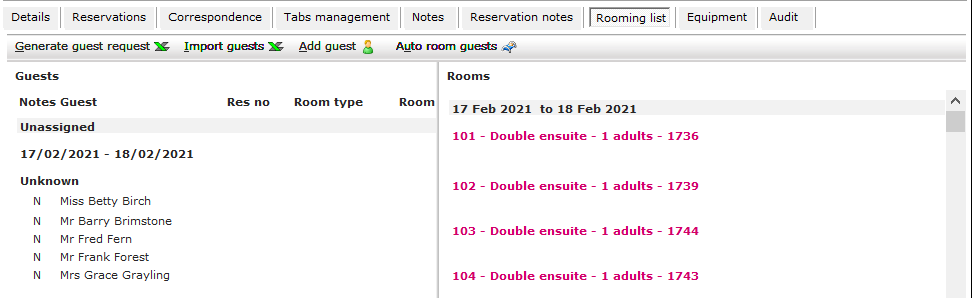
3. When the guests have been added they will display on the left of the form under the heading of unassigned.
Allocate guests to a room:
Guests can be assigned a room/room type manually or automatically.
Manually:
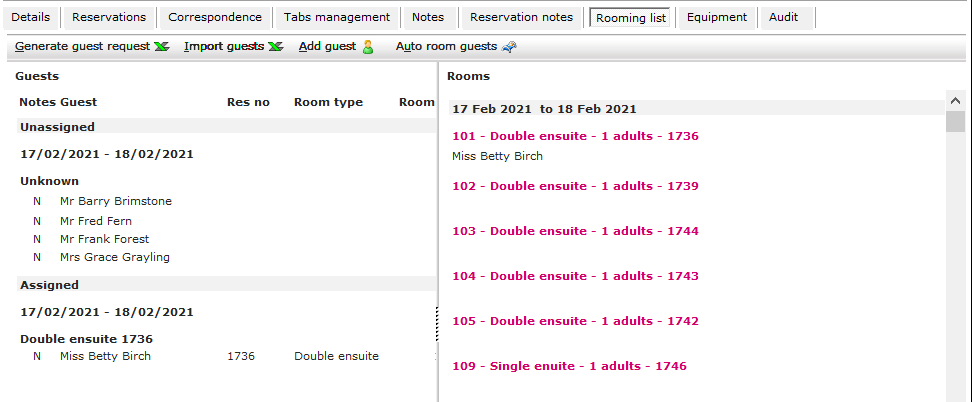
4. Click on the guest on the left of the form, then click on the room/room type on the right.
When the guest is selected they will display in red.
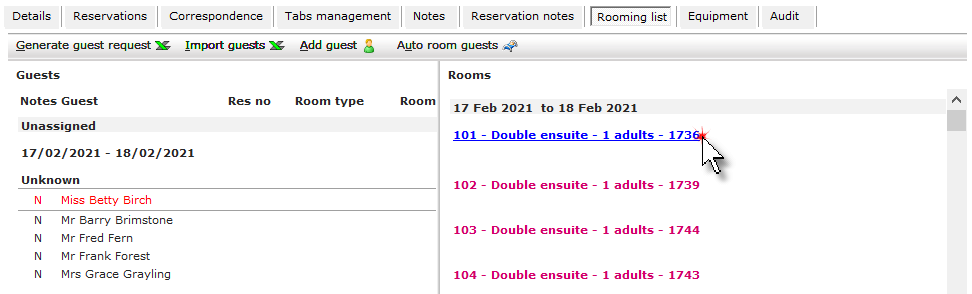
5. The guest will display against the room/room type on the right and will move under the heading of assigned on the left of the form.
Automatically:
(Might not be possible if the group reservation contains rooms in different category)
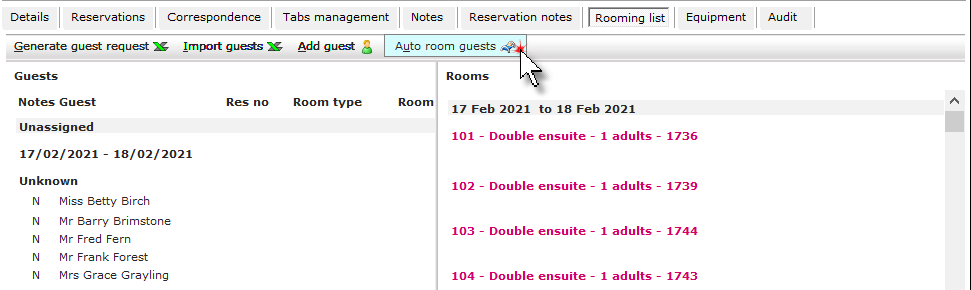
4. Click Auto room guests.
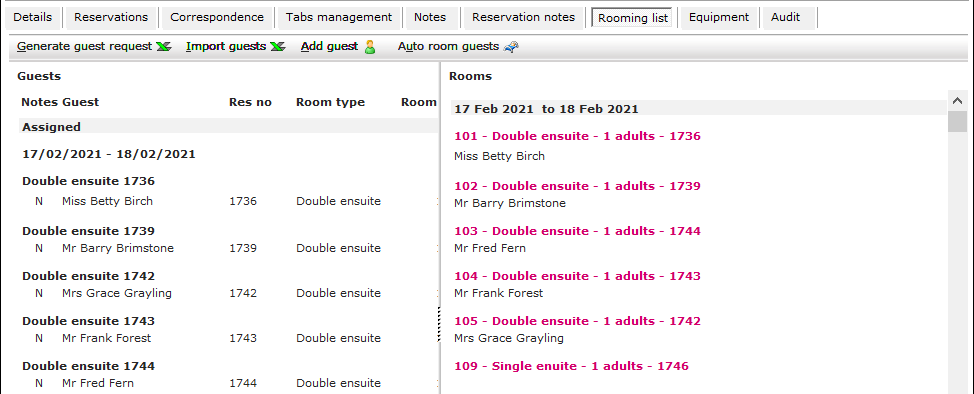
5. The guests will display against the room/room type on the right and will move under the heading of assigned on the left of the form.
Generate the guest request:
The guest request is a sheet that can be completed by the customer to allocate the reserved room types to guests. The sheet can them be imported into the system.
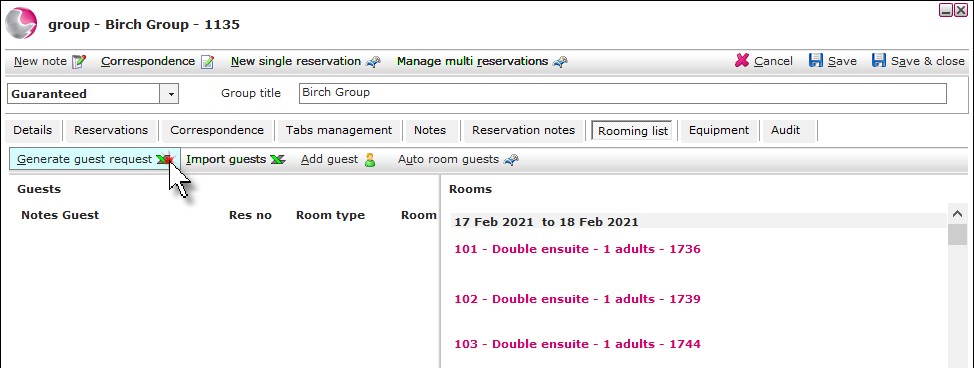
1. Click on Generate guest request.
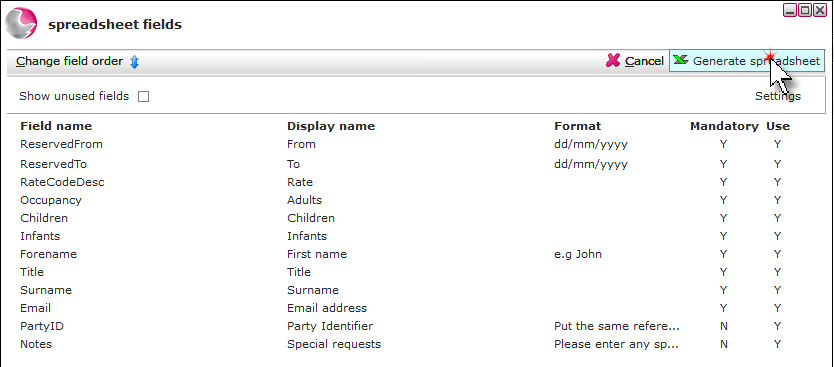
2. The spreadsheet fields will display. Click Generate spreadsheet.
3. The order of the fields can be changed from this form if required, there are extra fields that can be added by clicking show unused fields.
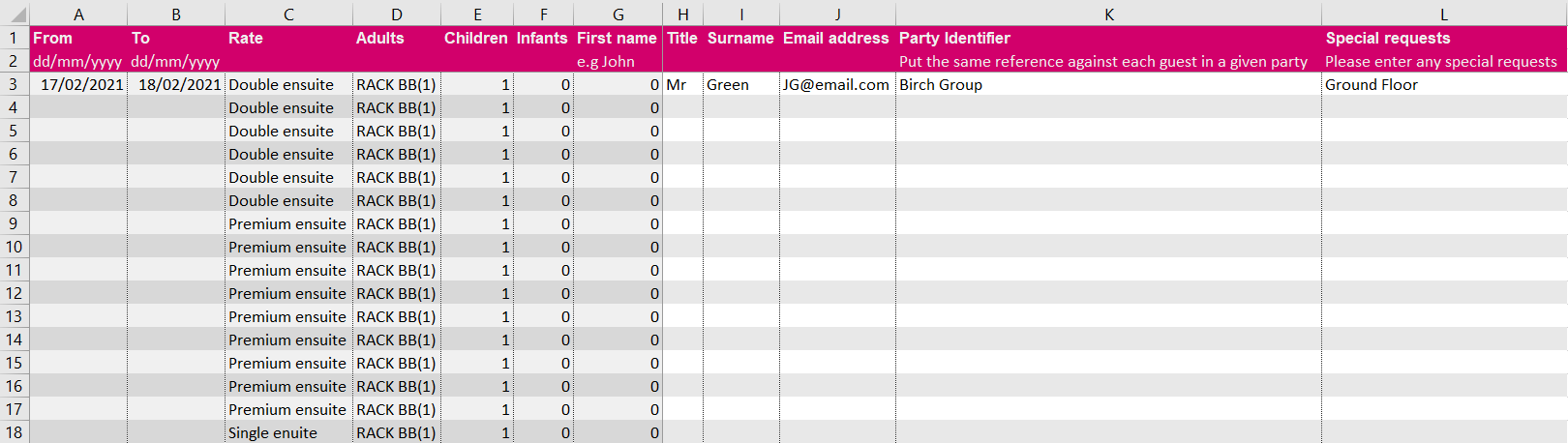
4. The sheet can be saved and then sent to the customer to complete.
5. The system fields will display on the left of the sheet and cannot be amended.
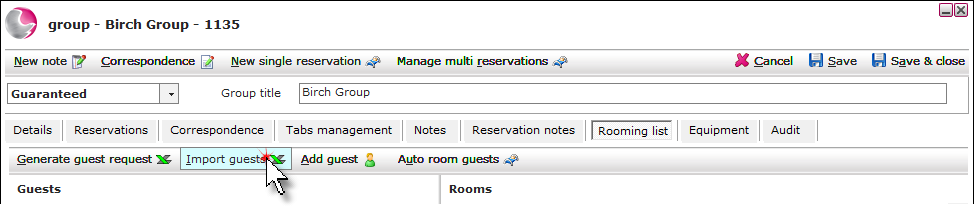
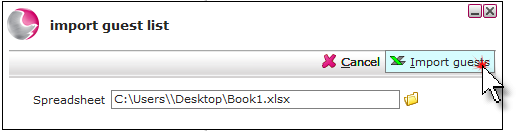
6. Once the sheet has been completed the guests can be imported into the system. Click Import guests.
7. Click the folder to upload the saved document. Select the document.
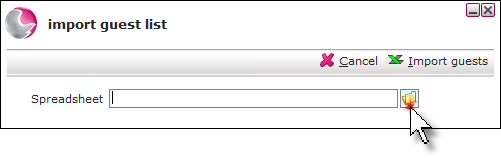
8. Click Import guests.
9. When the guests have been added they will display on the left of the form under the heading of unassigned.
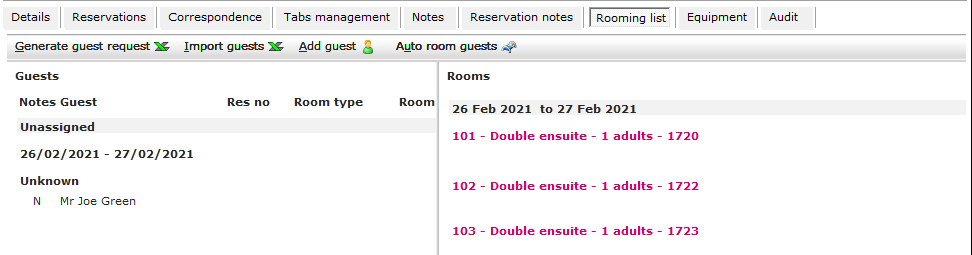
10. Guest can be assigned to a room using the steps in the allocate guests to a room section above.
See next: How to Settle a Group Tab
How to Cancel Group Booking
How to Generate Rooming Spreadsheet (Detailed)