
Generate and Import a Rooming List
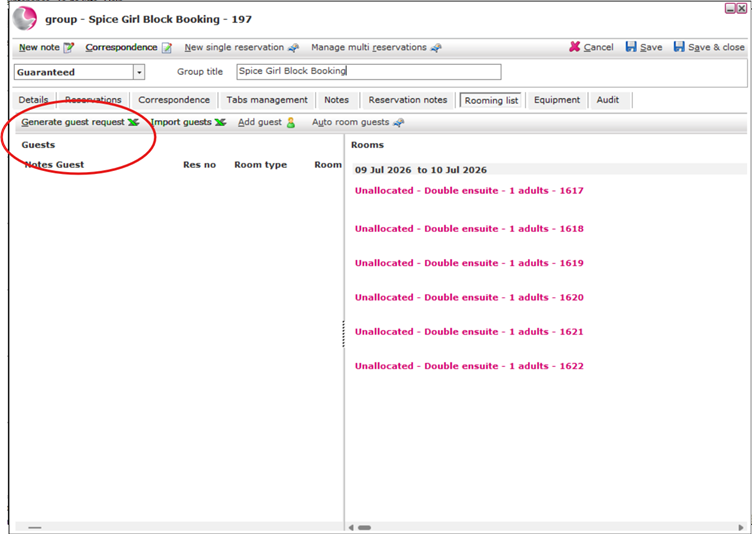
- Open the Group Booking and go to the Rooming List page.
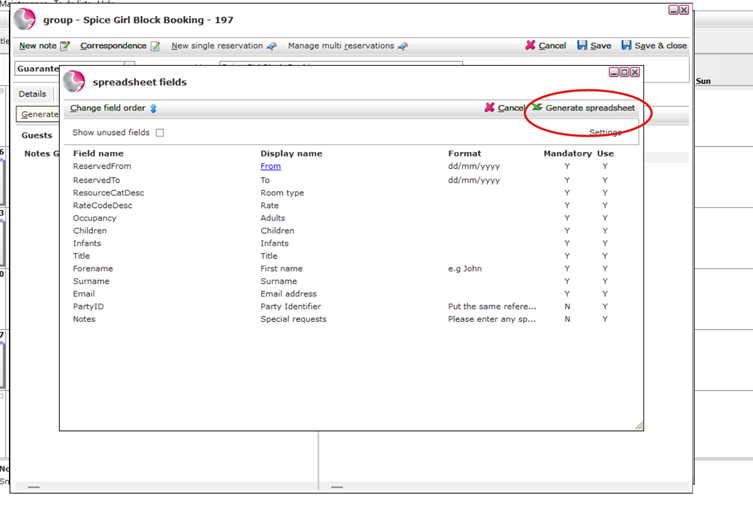
- Click Generate Guest Request.
A pop-up window will display the fields that will be included in the spreadsheet.
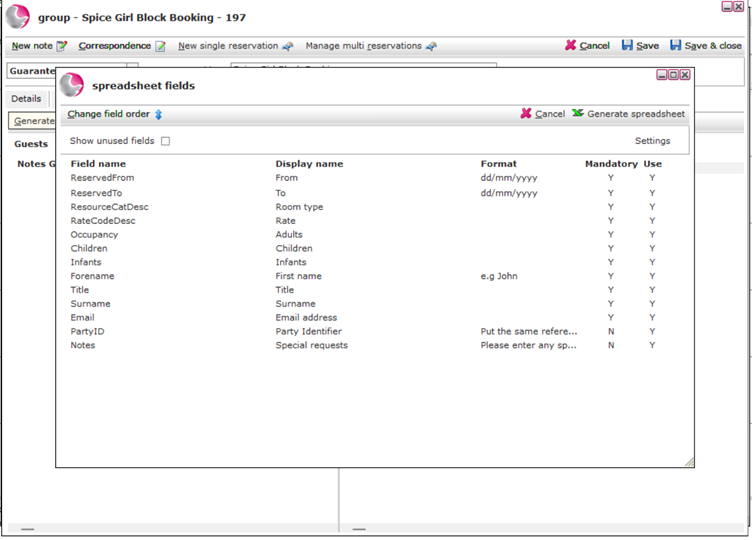
3. Review the fields.
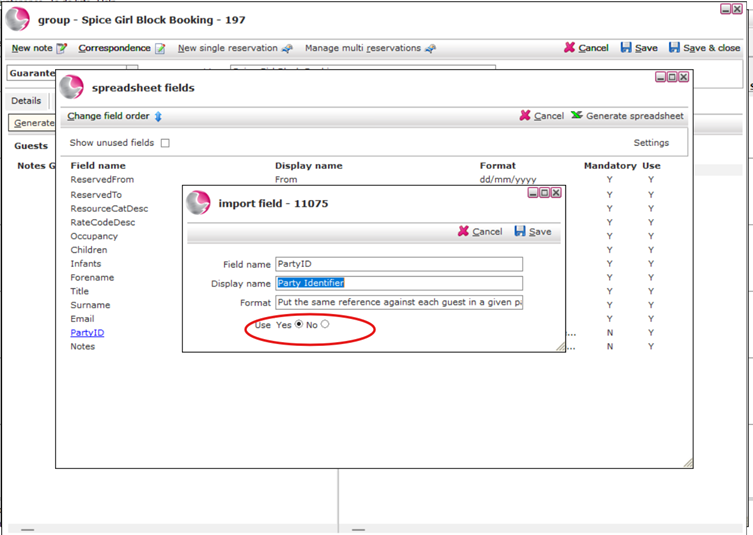
If you do not want a field to appear on the spreadsheet, select it and change Use to No.
4. To change the order of the fields, click Change Field Order.
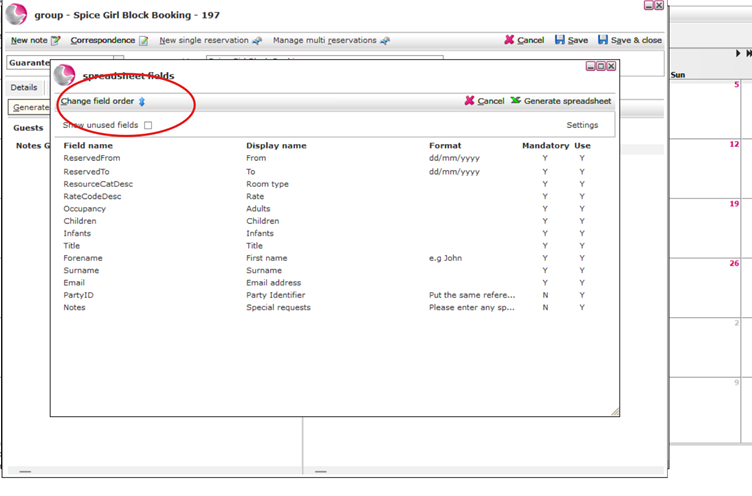
5. Select the field you want to move, then click Move Up or Move Down until it is in the required position.
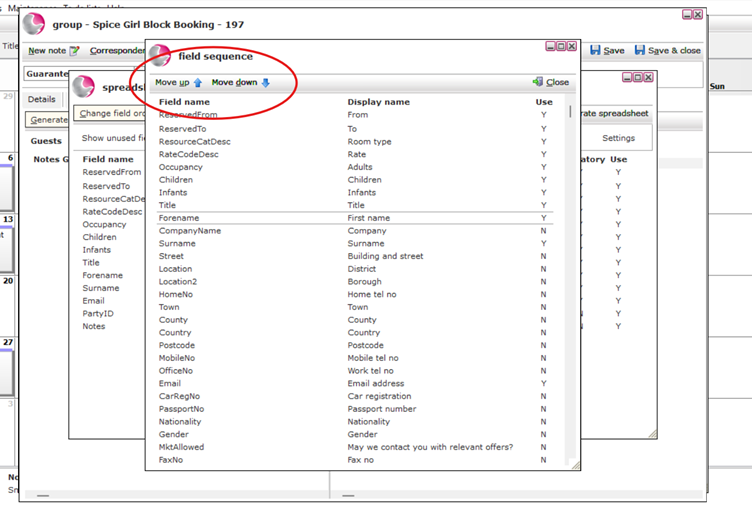
6. Once you are happy with the selected fields and their order, click Generate Spreadsheet.
7. The spreadsheet will be created.
- Columns A to G contain booking information and cannot be edited by the guest.
- Columns H onwards can be completed by the guest.
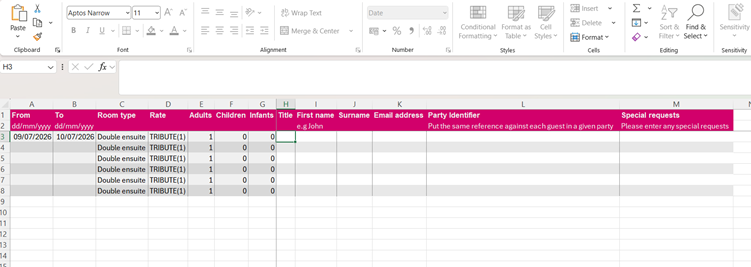
8. Save the spreadsheet and send it to the guest responsible for collecting the rooming information.
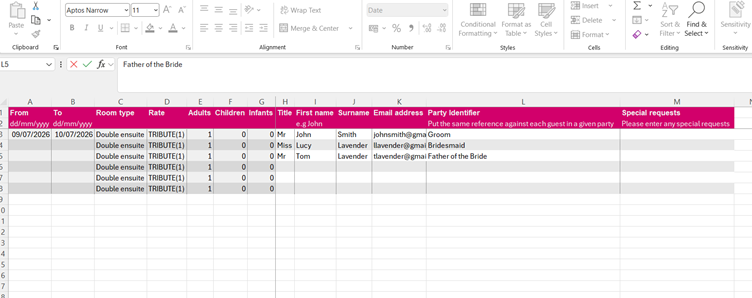
Import the Completed Rooming List
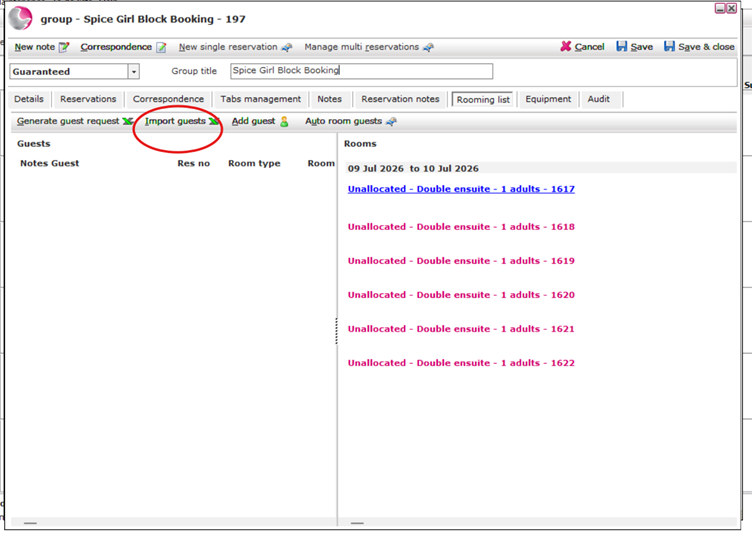
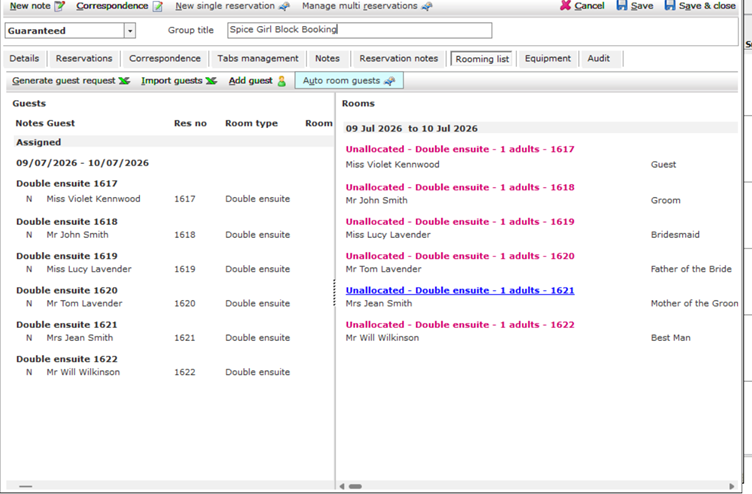
- Once the completed spreadsheet has been returned, go back to the Rooming List page and click Import Guests.
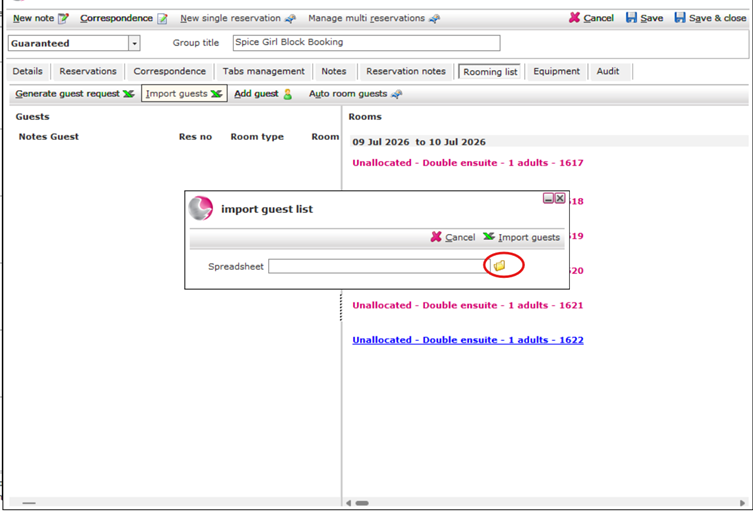
10. Click the Folder icon and select the completed spreadsheet.
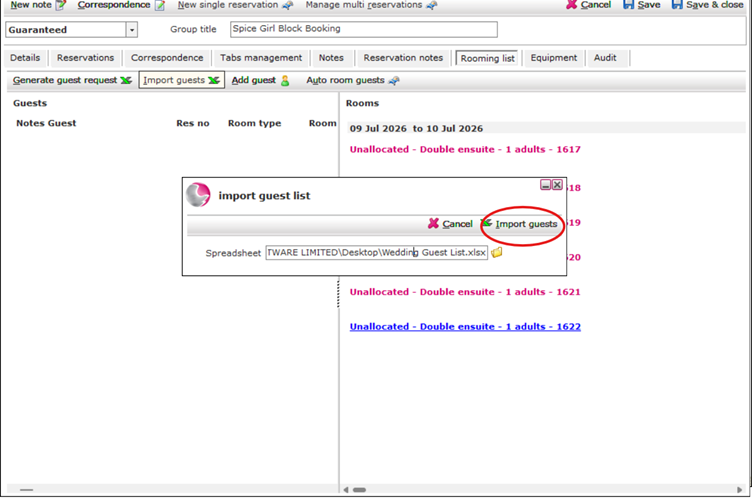
11. Click Import Guests.
The system will automatically create guest profiles for the imported guests.
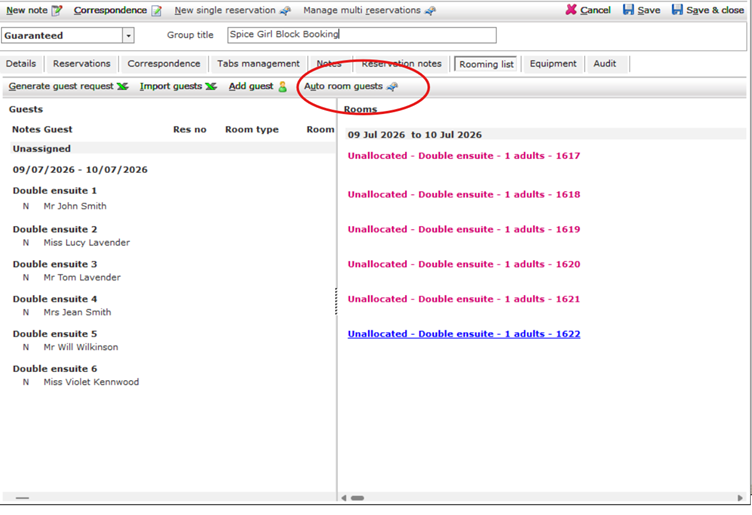
12. Once the guest profiles have been created, you can:
- Allocate guests to rooms manually, or
- Click Auto Room Guests to let the system allocate them automatically.
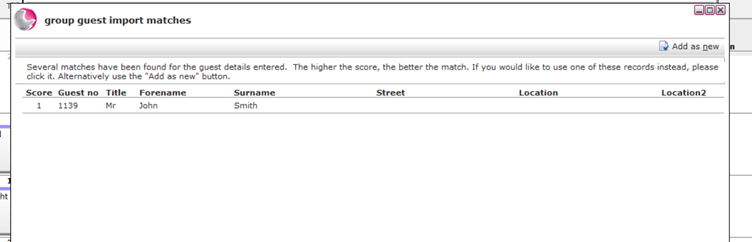
13. If the system matches an imported guest with an existing guest profile, you will be asked whether you want to:
- Use the existing guest profile, or
- Create a new guest profile.
See next: How to Amend Group Booking