
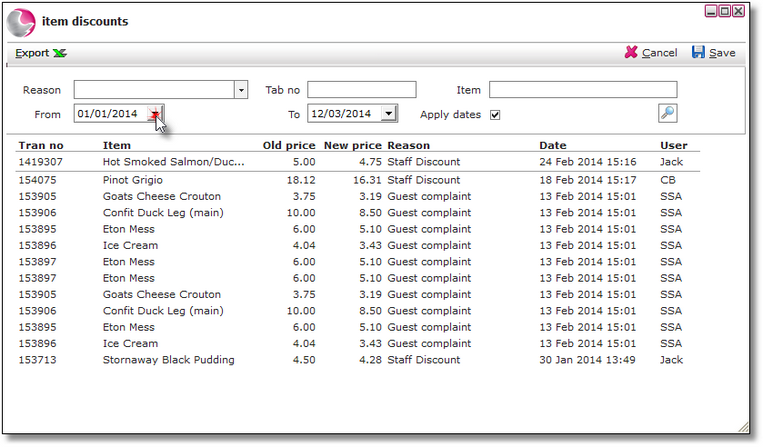
The item discount log shows every discounted transaction sold through the EPoS, so you can check what was discounted and by how much.
Run the report
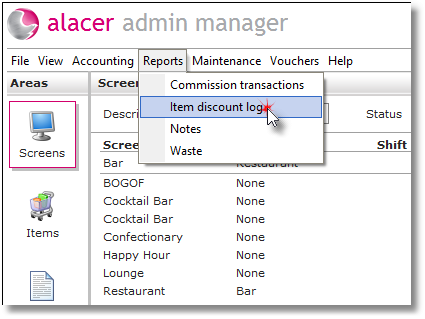
In the Reports menu, select Item discount log.
Select the From and To dates. The log shows the discounted transactions in that date range. See Reading the log below.
Reading the log
| Column | What it shows |
|---|---|
| Old price | The normal selling price. |
| New price | The price after the discount. Complimentary items show as 0.00. |
Need a new discount reason? See How to Add New Discount Reasons.
Related articles