
The rate code pricing map shows a two-week view of your accommodation. Use it to check availability, see and change rate code prices, and check which days guests can arrive on a rate code.
In this article
Step 1: Open the pricing map
In the Areas section, click the Rate codes icon.

Under View, click Rate code pricing map.
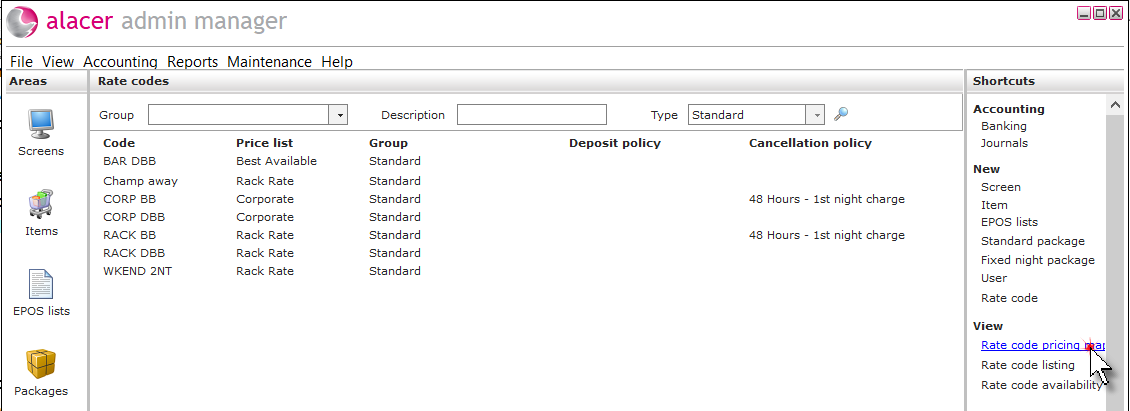
Then choose one of the views below.
Check availability
Shows how much of each room type is available from the date you select. The lighter the shade of pink, the less availability there is.
Click Show availability, select a date, then click the magnifying glass.
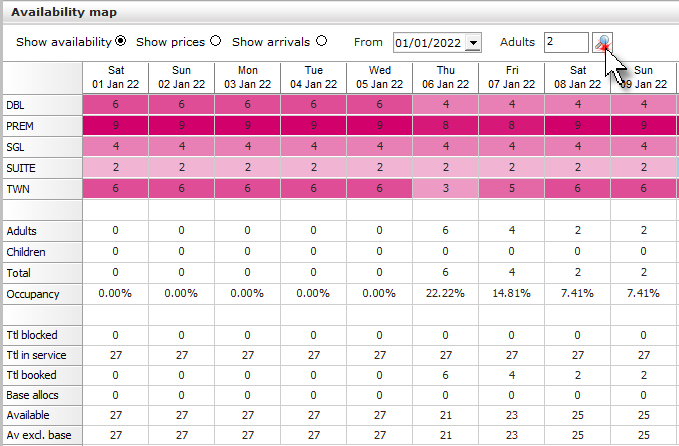
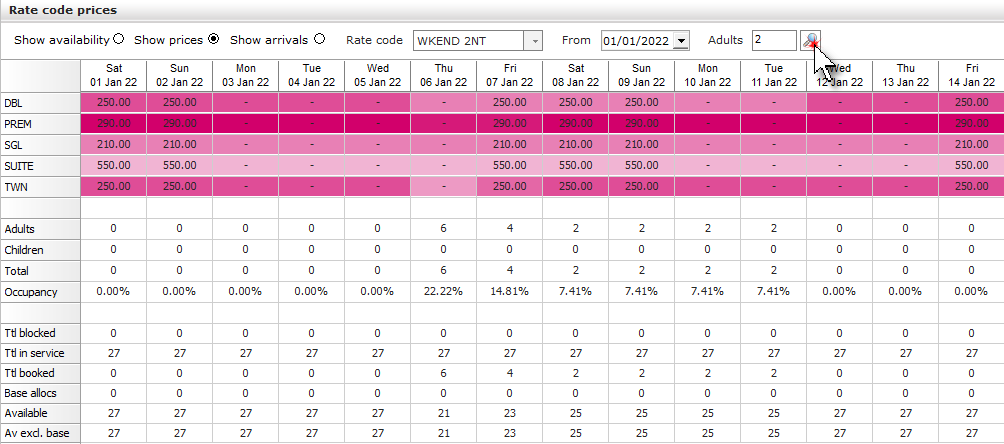
Check prices
Shows the current price of a rate code from the date you select.
Click Show prices and select the rate code.
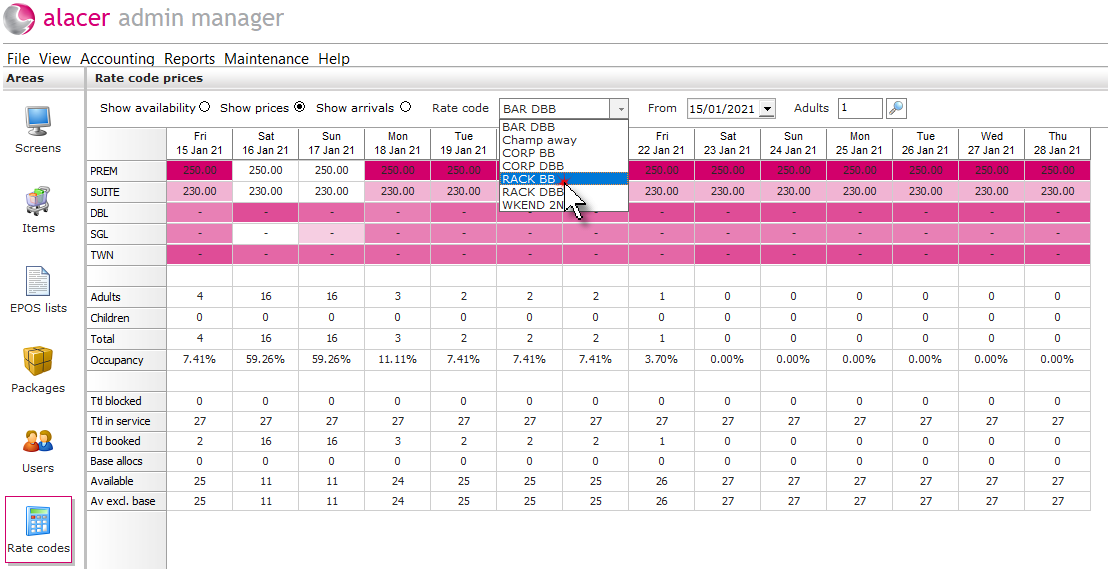
Select a date.
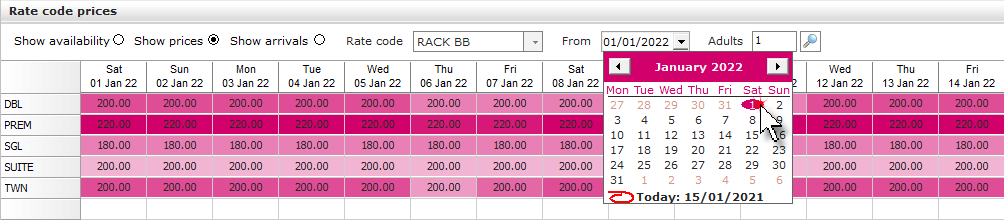
If the price is based on occupancy, change Adults to see the price for that number of adults.

Need to change the price? See How to Change the Price of a Rate Code.
Check arrival days
Shows which days guests can arrive on a rate code, so you can check it's set up correctly.
Click Show arrivals, select the rate code and change the date, then click the magnifying glass.
Related articles