
1. Click Voucher Type under the List Screen short cut.

2. Click on the voucher type.

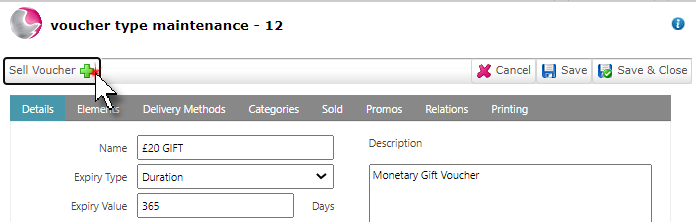
3. Click Sell Voucher.
4. Complete the voucher details page.
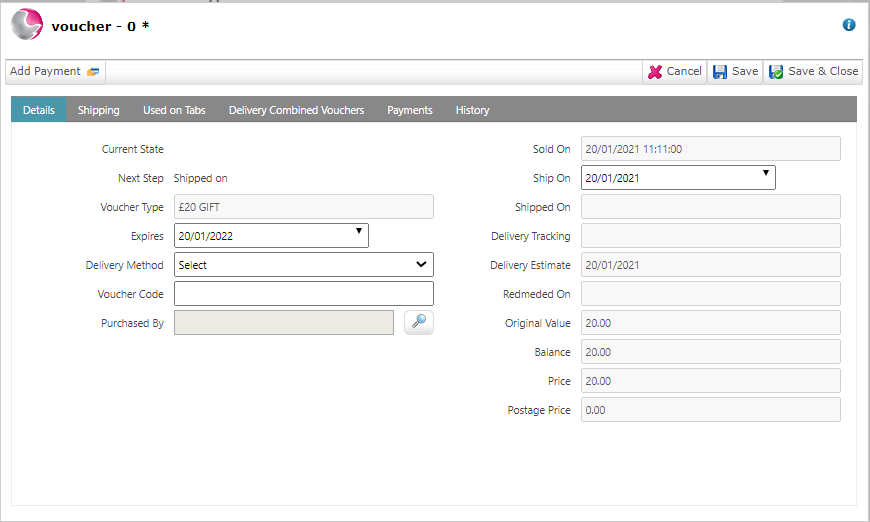
Expires: Choose the expiry date of the voucher if it is different to the default expiry period.
Delivery method: Select the relevant delivery method from the drop down menu.
Voucher code: Enter the voucher code. If no code is entered one will be generated at the payment stage.
Purchased by: Select a guest from the guest search or create a new guest for the purchaser.
Shipped on: The shipped on date will default to a date based on the set up of the delivery method attached to the voucher type, this can be manually changed if required by clicking on the date and selecting a new one from the calendar.
See How to Create a New Delivery Method
5. Click on the Shipping page.
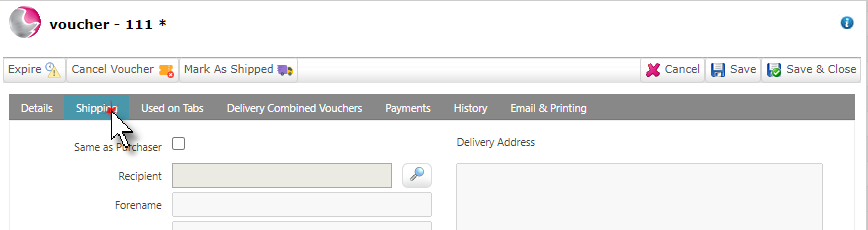
Same as Purchaser: Tick if the shipping address is the same as the purchasers address. If not select a recipient.
Recipient: Select a guest from the guest search or create a new guest for the recipient.
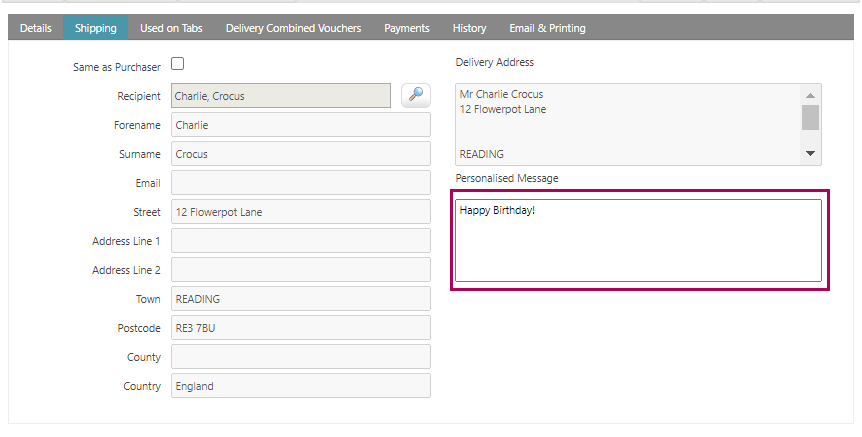
6. Add an optional personalised message.
7. Click Add Payment.
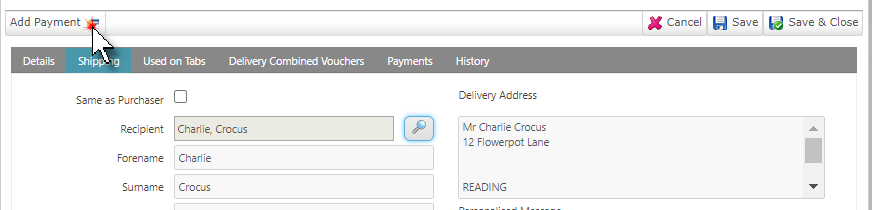
8. Select the payment type and click Save & Close.
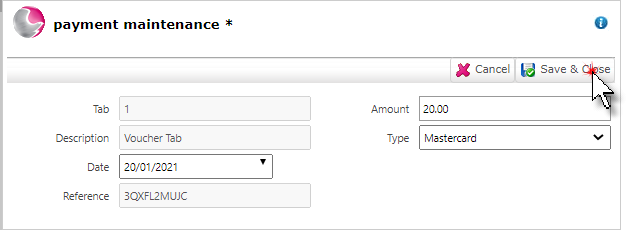
9. The payments page will be displayed, showing that the payment has been recorded.

10. Print or email the voucher and mark as shipped if required.
See How to Print or Email a Sold Voucher
See next:
How to Create a New Voucher Type
How to Create Charity Voucher