
The groups functionality enables user to create and manage multiple bookings efficiently.
Create a group booking:
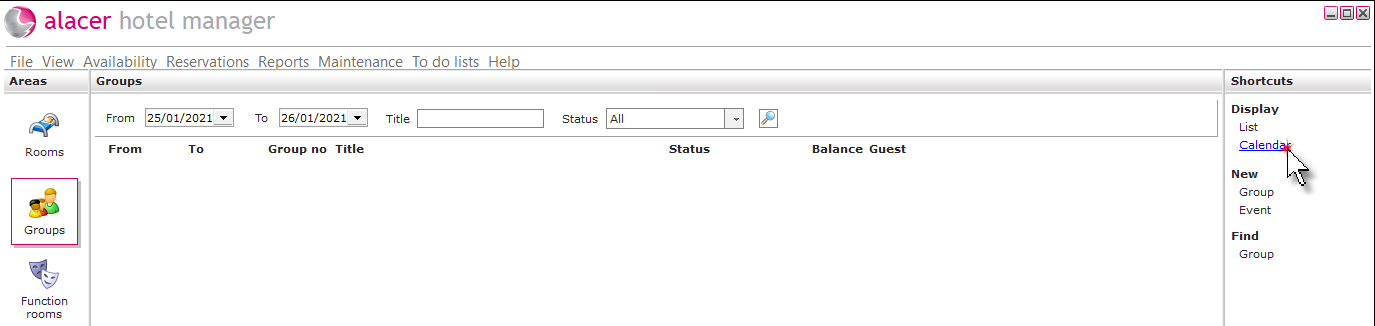
1. Click on the Groups area.

2. Click Calendar under the Display shortcut.
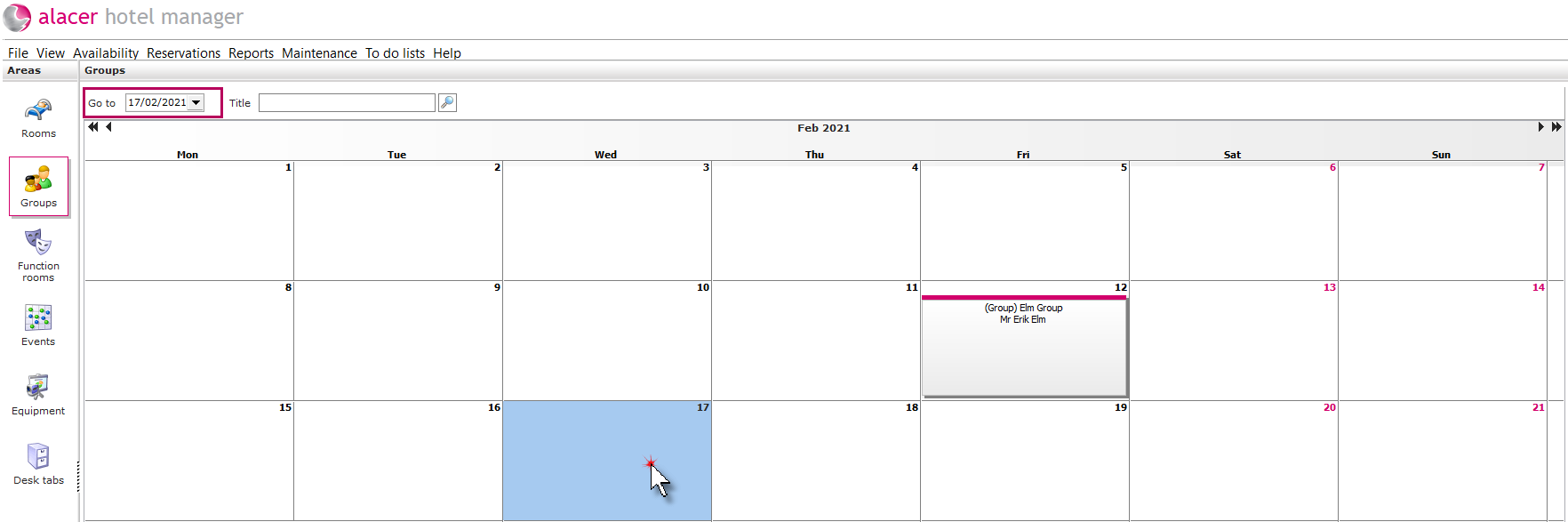
3. Change the date using the Go to calendar, select the date of the group booking. Double click on the highlighted to date to begin the reservation process.
4. Complete the New group form.
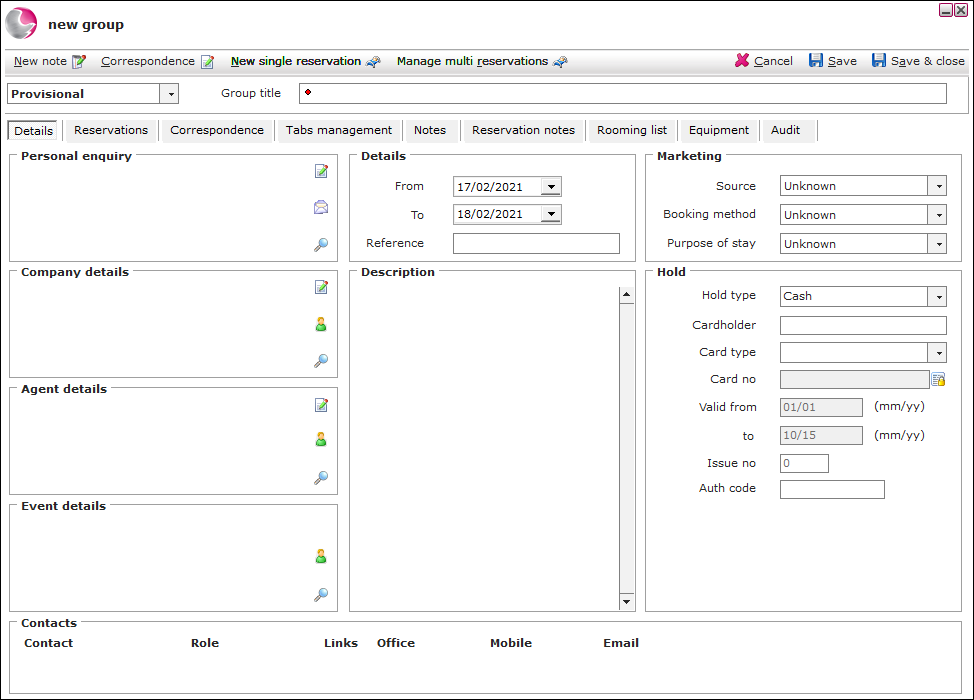
Group title: Enter the name of the group.
Status: Select a status.
Personal enquiry: Select a guest as the main contact for the group.
Company details: Select a company if required.
Agent details: Select an agent if required.
Event details: Select if the group is part of an event.
Contacts: If additional contacts need to be added, right click in the box and select add contact which will open the guest search.
Details: Check the group reservation dates.
Description: Group information can be added in this box.
Marketing: Select a source code, booking method and purpose of stay if required.
Hold: Enter the credit card details if required.
Adding multiple reservations:
5. Click Manage multi reservations.
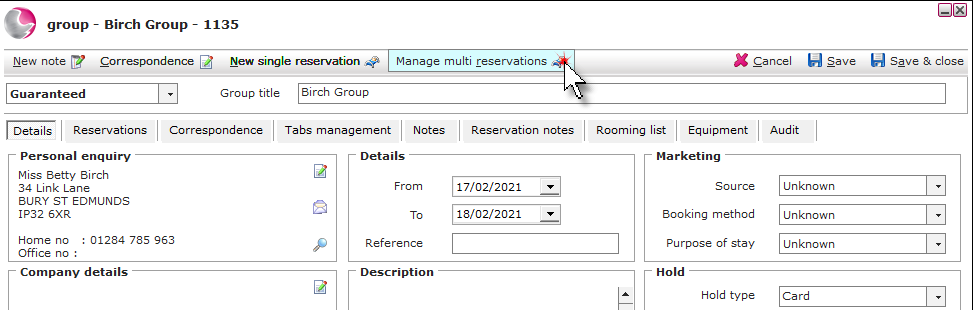
The available rooms will be displayed on the left on the screen. The Availability map can be used to check available rooms for multiple days.
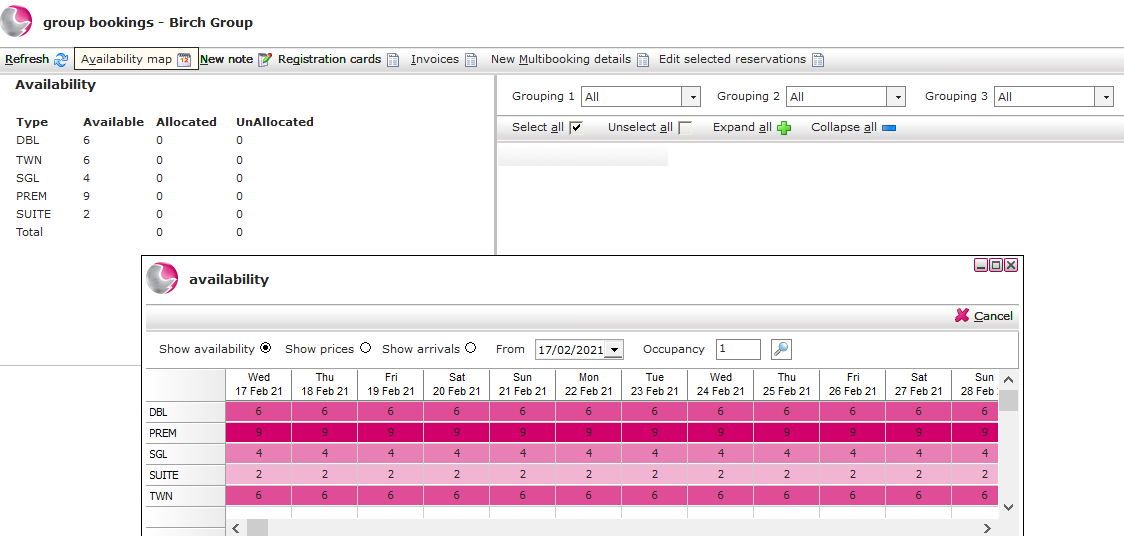
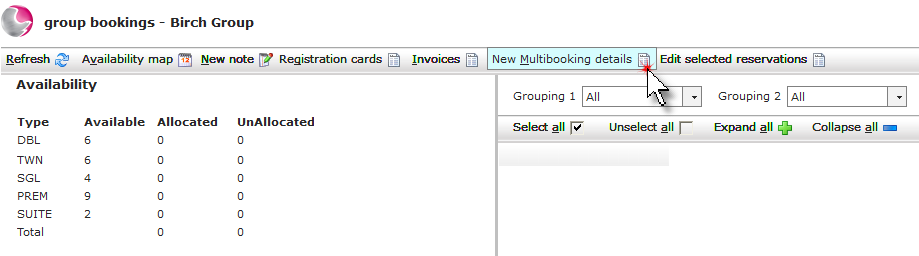
6. Click New Multi booking details.
7. Complete the Multi booking details form.
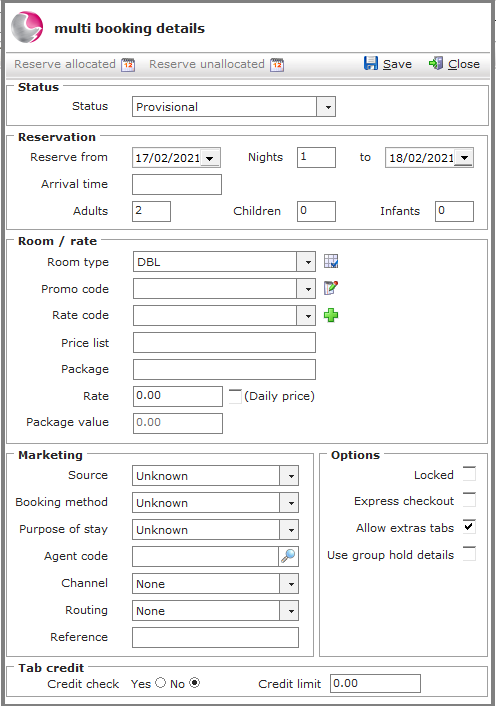
Status: Select a status.
Reserve From/To: The reservation dates.
Nights: The number of nights will depend on the reservation dates entered.
Arrival time (Optional): Enter the guests estimated time of arrival (this field can hold 12 characters).
Adults, Children, Infants: Enter/check the occupants,
Room Type: The type of room the guest has requested e.g. single, double, suite etc.
Promo Code: Used for specific promotions and special rates.
Rate Code: The rate code booked by the guest.
Price List & Package: This will be picked up automatically from the rate code selection.
Rate: The rate price will display, if the the rate code allows overrides the price can be changed.
Package Value: The total cost to the customer for the reservation.
Source Code: Select/check the source code.
Booking Method: Select /check the booking method.
Agent Code: Select/check the agent.
Channel & Routing: Select the channel an routing (if required). i.e. Booking.com, Expedia, Own website.
Reference: A booking reference from the guest or agency making the booking can be entered.
Use group hold details: Tick to add the card details entered on the group details form, to all reservations made as part of the group.
Locked: Tick to lock the reservations.
Express Check Out: If a guest has paid and will be checking out early, ticking this box will display the reservation on the express checkout report.
Allow extras tabs: Tick/untick to allow extras tabs to be created for the reservation.
Adding a single reservations:
8. Once the multi booking details form has been completed the next step is to book the bedrooms.
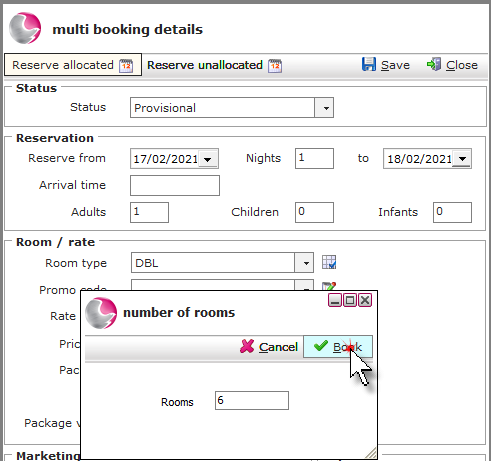
Reserve allocated: This option will automatically allocate the bookings into a room number/name.
Click Reserve allocated, enter the number of rooms to book against the room type selected. Click Book.
Reserve unallocated: This option will will reserve the booking against the room type so that a room number/name can be allocated at a later date.
Click Reserve unallocated, enter the number of rooms to book against the room type selected. Click Book.
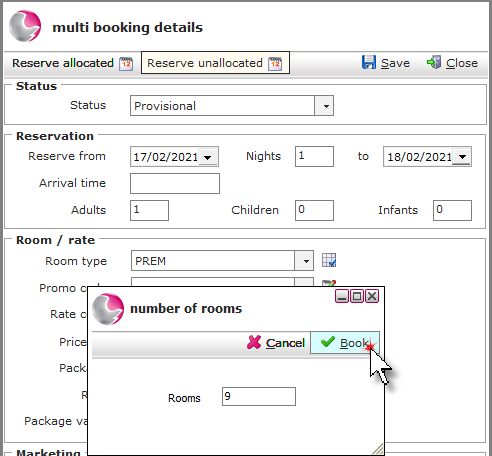
Reserve specific rooms: This option will allocate a specific room room based on the room type selected.
Click on the specific room from the available rooms on the left of the screen.
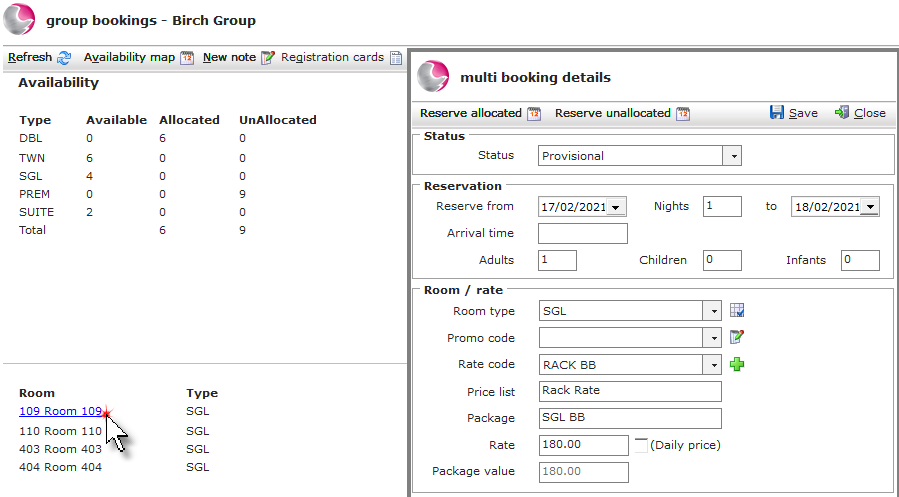
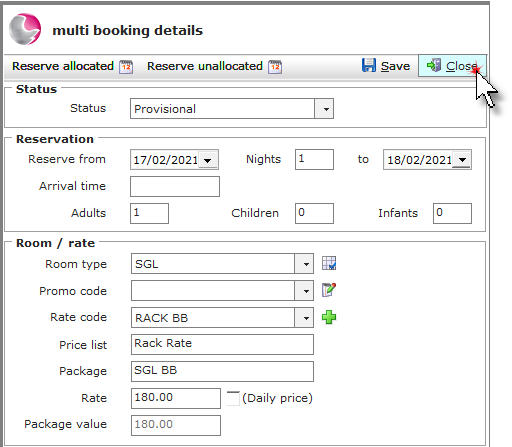
9. The above methods can be repeated as many times as necessary to book the rooms required. Once all of the rooms have been reserved, Click Close.
10. The reserved rooms will display on the screen. Click Save.
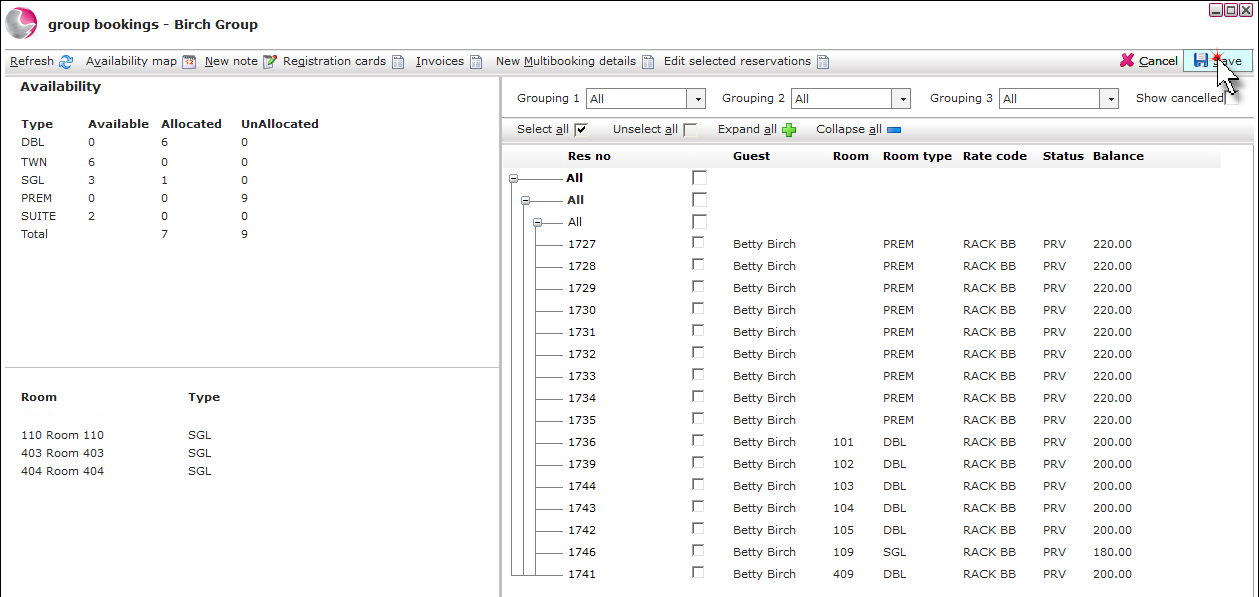
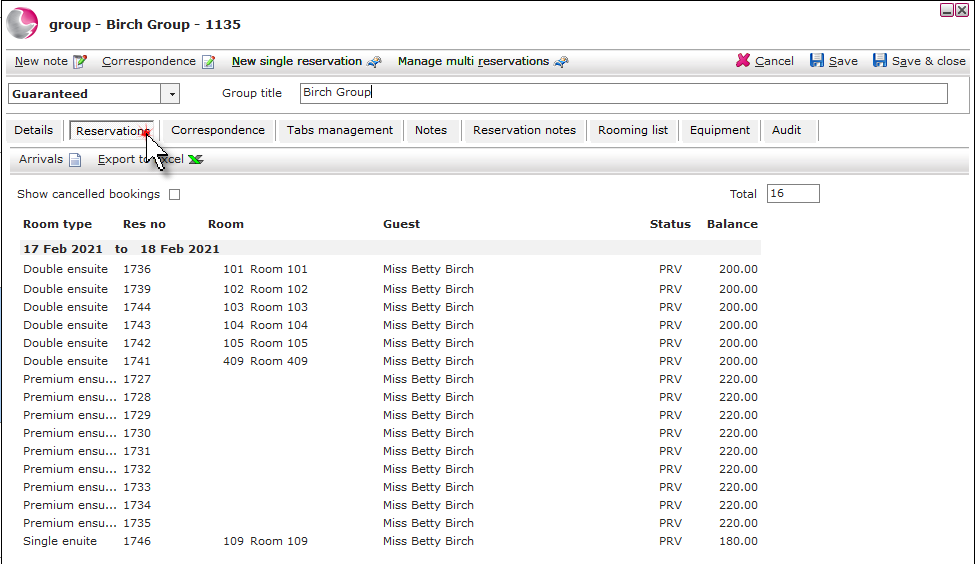
11. The bedrooms can be viewed from the reservations page within group booking.
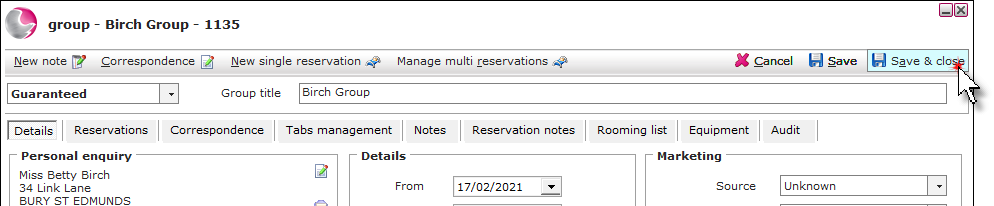
12. Click Save & Close.
See next: How to Cancel Group Booking
How to amend Group Booking