
1. Open the group booking, click New note.


2. Complete the note form. Click Save.
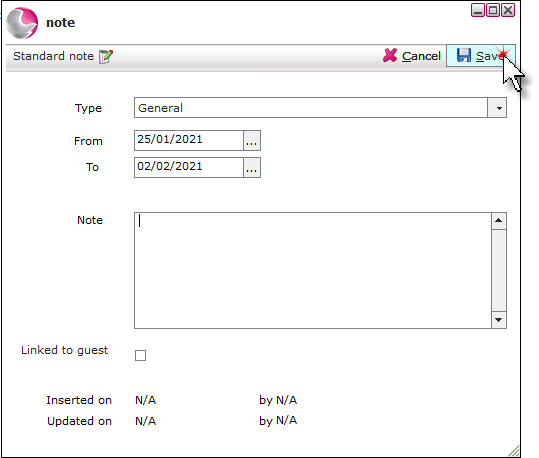
Type: Select the note type from the menu. New note actions can be created from Admin Manager if required.
From/To: Select the note dates.
Notes: Add the details of the note.
Link to guest: Tick if the note should be applied to the guests future reservations. i.e. Guest requires a ground floor room.
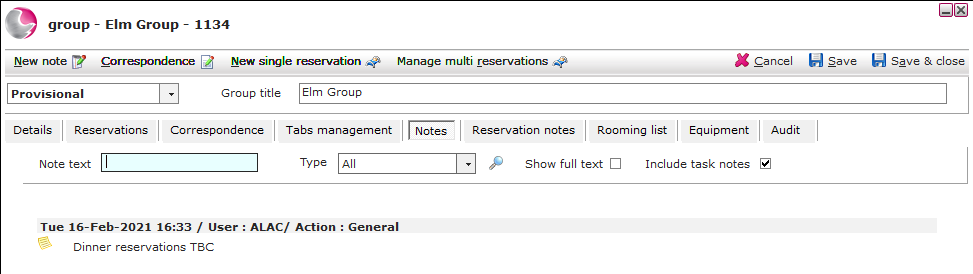
3. The note can be viewed on the notes page.
Add a note to multiple bedroom bookings:
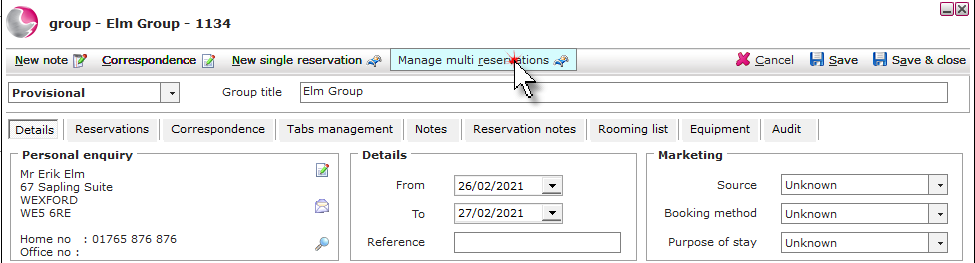
1. Click Manage multi reservations.
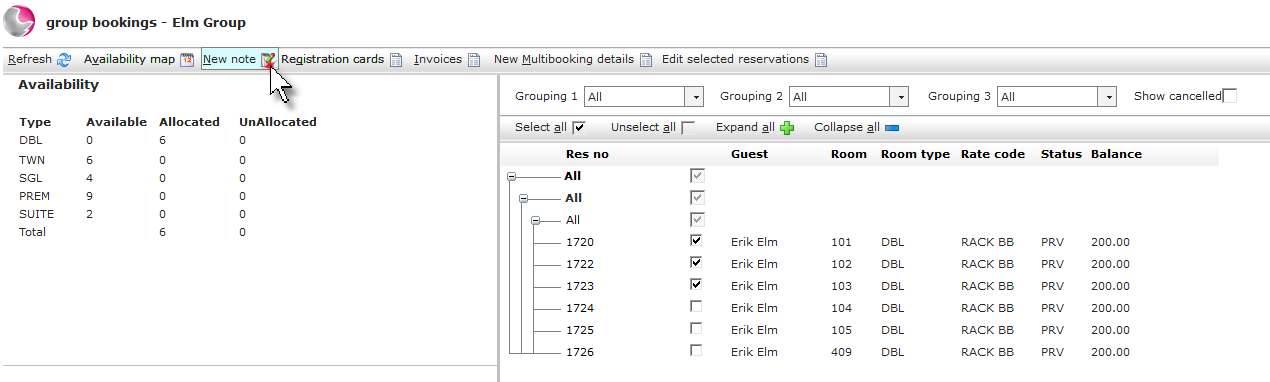
2. Tick the reservations the note needs to be applied to. Click New Note.
3. Complete the note form. Click Save.
Type: Select the note type from the menu. New note actions can be created from Admin Manager if required.
From/To: Select the note dates.
Notes: Add the details of the note.
Link to guest: Tick if the note should be applied to the guests future reservations. i.e. Guest requires a ground floor room.
4. Save the group booking form.
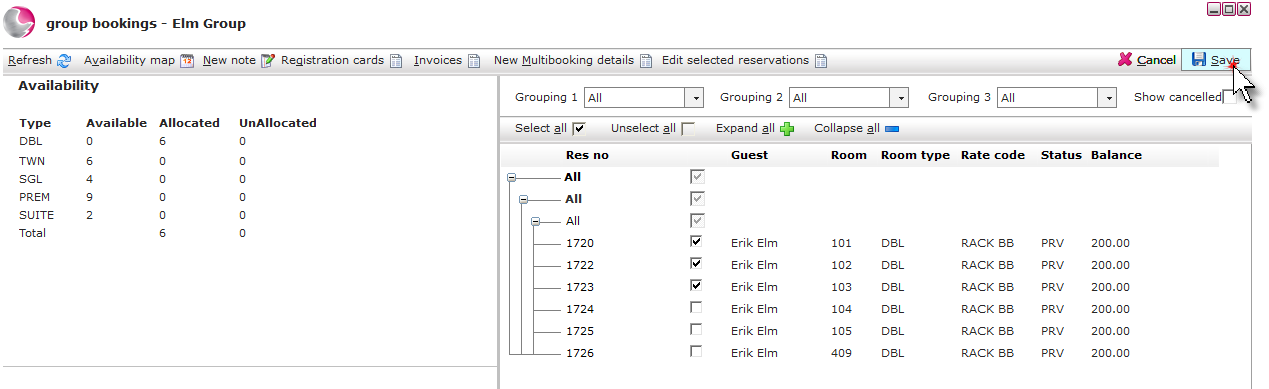
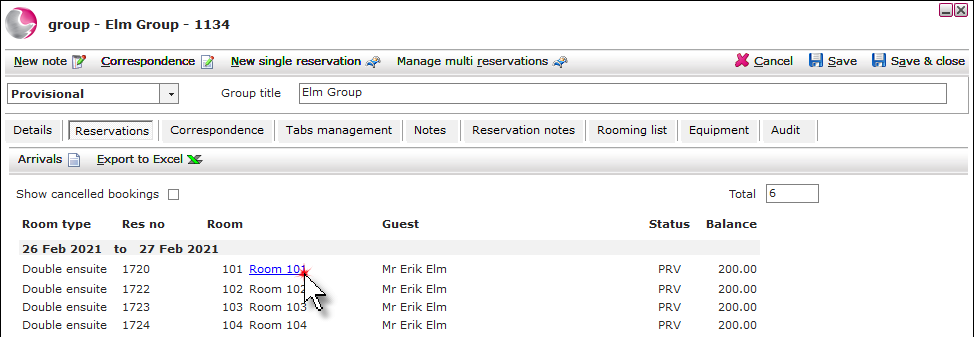
5. The notes can be viewed on the individual bookings, accessed from the reservations page.
See next: How to Use Rooming List
How to Cancel Group Booking
How to Settle Group Booking
How to Generate Rooming Spreadsheet in Excel