
Itinerary is a feature that helps devise a detailed plan for an individual function room booking.
TABLE OF CONTENTS
Create a new itinerary item:
1. Open the function and click on the Itinerary page.
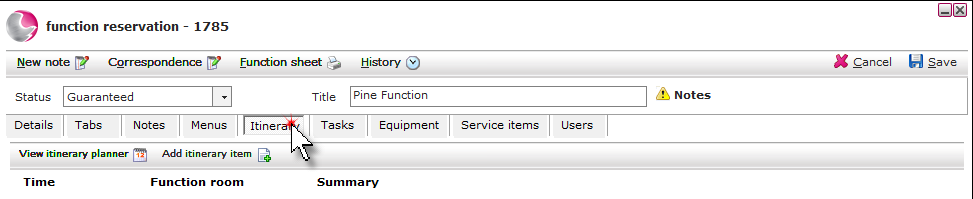
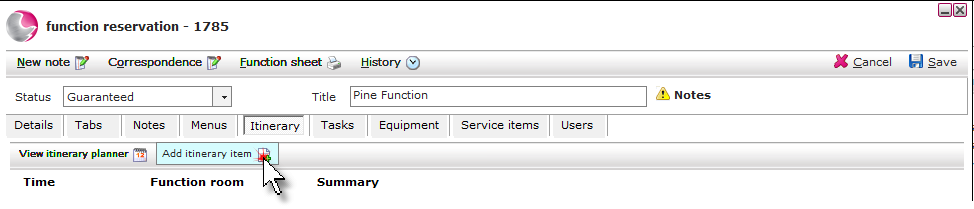
2. Click Add itinerary item.
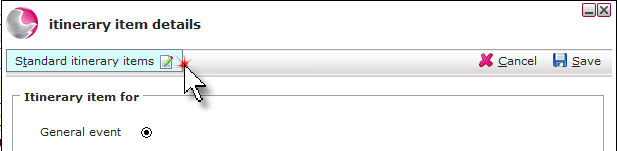
3. Click Standard itinerary item.
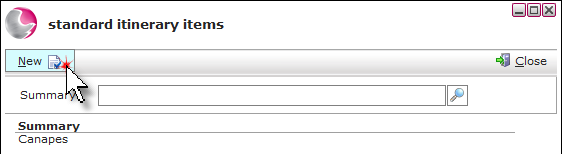
4. Click New.
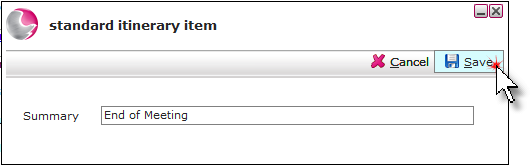
5. Enter the itinerary in the summary field. Click Save.
Add an itinerary item to a function:
1. Complete the itinerary item details form.
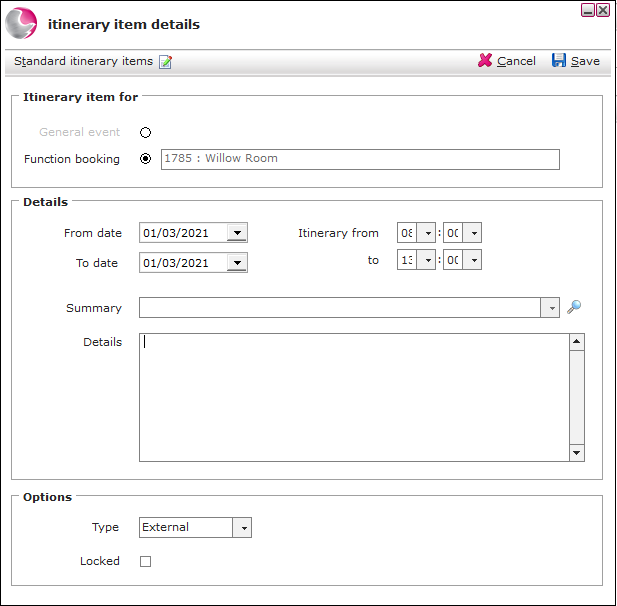
Itinerary item for:
Function booking - Displays the selected function room.
Details:
From and To date - Enter the itinerary date.
Itinerary From and To - Enter the time for the itinerary.
Summary - Select an itinerary item.
Details - Enter a description if required.
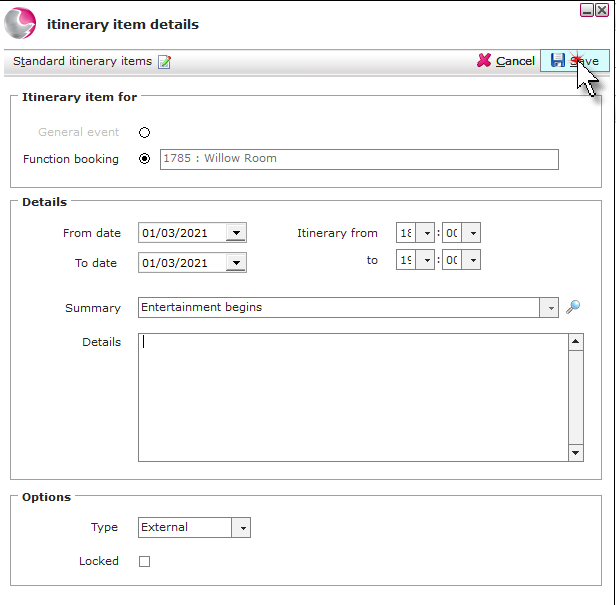
2. Click Save.
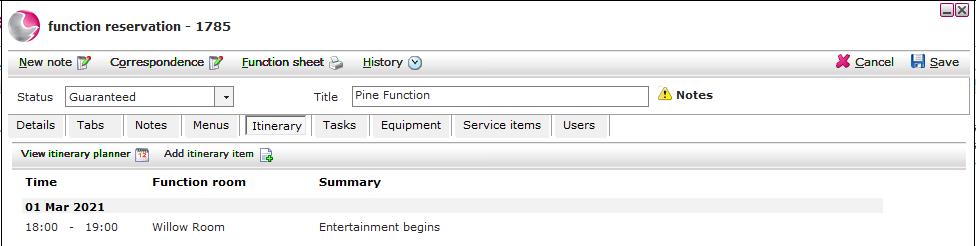
3. The itinerary items will be displayed on the Itinerary page of the function room booking.
See next: How to Check in a Function Room Reservation
How to Link a Function Room Reservation to an Event Booking.