
This section lets you choose which email template the system will automatically send for different types of guest activity, such as a bedroom booking made through your website.
1. Go to Correspondence – Correspondence.
2. Find the appropriate field in the Delivery column,
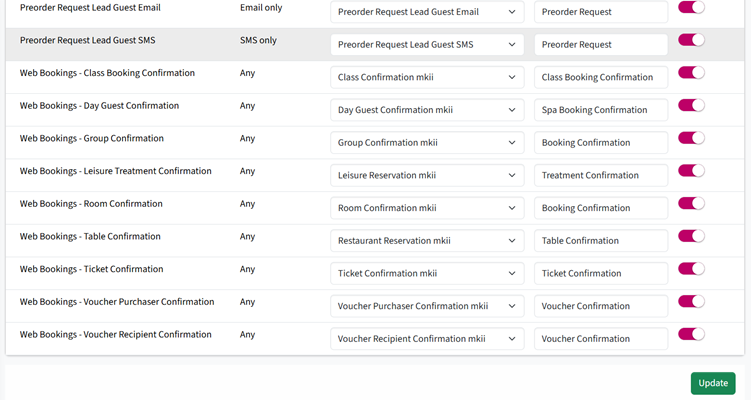
for example Web Room Confirmation, Web Booking Voucher Purchaser or Recipient Confirmation.
3. In Template, select the template you want to use.
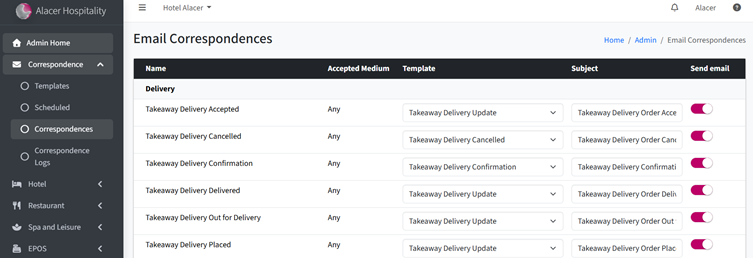
4. In Subject, enter the subject line you want guests to see.
5. Turn on the Send Email toggle to activate the automatic email.
6. Click Update to save your changes.
See next: How to Create an Email Correspondence Template
How to Schedule Correspondence