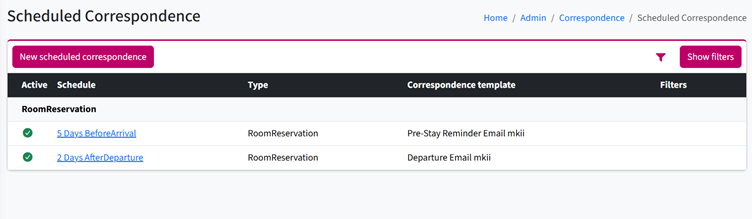
You can schedule correspondence to be sent automatically before a guest’s arrival to remind them about their upcoming booking and share important information, or after their departure to ask for feedback about their stay.
To set up Scheduled Correspondence:
1. Go to Alacer Hospitality – Admin – Correspondence – Scheduled.
2. Click New Scheduled Correspondence.
3. Select the Reservation Type the correspondence should be sent for:
- Room – for bedroom bookings.
- Table- for table bookings
- Day Guest – For Leisure Day Guest booking
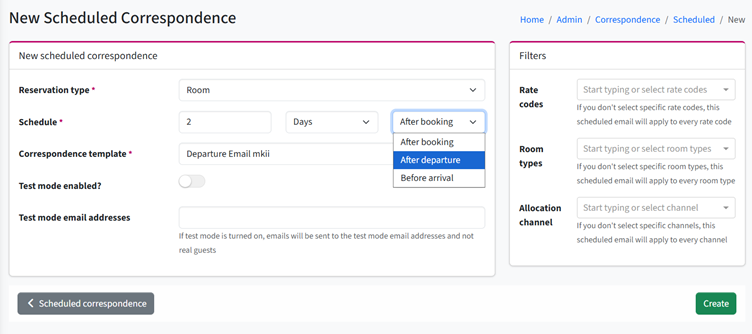
4. Choose when the correspondence should be sent. You can schedule it by Hours or Days, and choose whether it should be sent After Booking, Before Arrival, or After Departure.
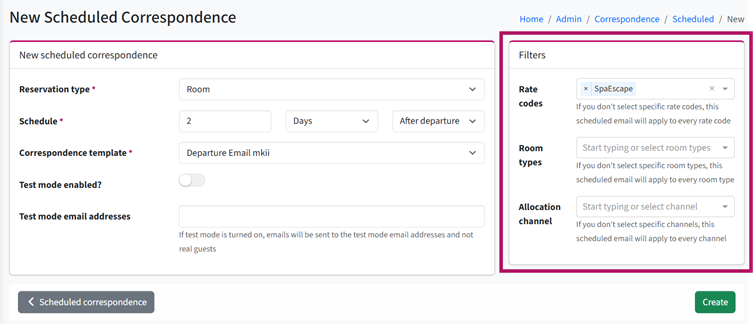
5. Use the Filters section to decide which bookings receive the correspondence. You can filter bookings by Rate Code, Room Type, or Booking Channel. This allows you to tailor correspondence to different types of bookings
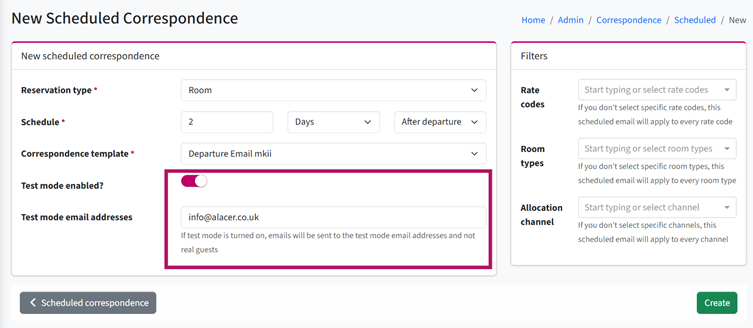
6. Use Test Mode to send the correspondence to a specified email address instead of the guest. This allows you to check that your settings and email content are working correctly before sending it to guests.
7. Once you are happy with the setup, turn off Test Mode so the correspondence can be sent to the relevant guests.
8. Click Create to save the Scheduled Correspondence.