
In Correspondence Templates, you can create and design emails that will be sent to guests. You can customise the content, layout and information included in each email.
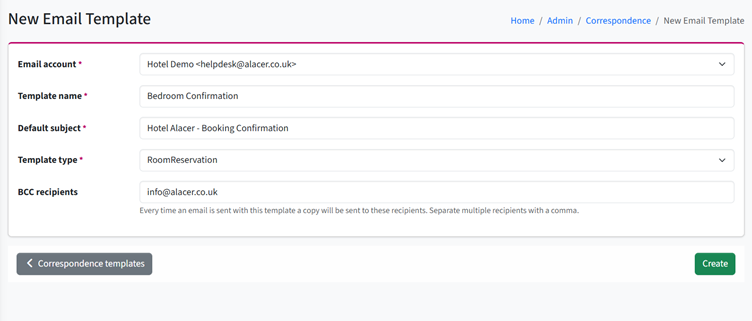
1. Click New Template and select Email.
2. Select the Email Account you want emails using this template to be sent from.
If you cannot find the correct email account, please contact the Help Desk.
3. Enter a Template Name. This name is for internal use and helps you identify the template within the system.
4. Enter the Default Subject. This is the subject line guests will see when they receive the email.
5. Select the Template Type to define what the template will be used for.
For example:
- Generic Block – Use this for reusable sections, such as headers or footers, that can be added to other email templates.
- Room Reservation – For correspondence relating to bedroom bookings.
- Room Reservation Payment Link – For correspondence containing a payment link for a bedroom booking.
- Table Reservation – For correspondence relating to table bookings.
- Ticket Reservation – For correspondence relating to ticket sales.
- Preorder Request – For correspondence relating to preorders
6. If you want a copy of every email sent using this template to be sent to another recipient, enter their email address in BCC Recipients
7. Click Create to save the template and start designing your email.
Building the Email Content
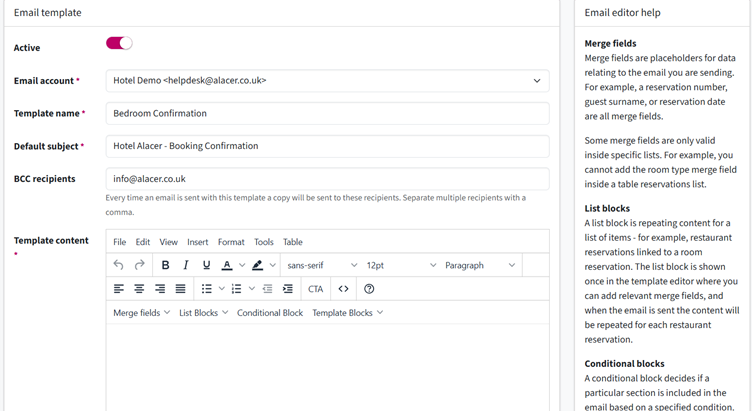
8. Once the template has been created, you can start building the content of your email. The editor provides several tools to help you add dynamic and reusable content. A description of each option is available on the right-hand side of the editor.
- Merge Fields – Placeholders that automatically add information from the reservation or guest record, such as the guest name, booking number or booking date.
- List Blocks – Sections that repeat for each item in a list. For example, if a guest has three restaurant bookings, the relevant information will appear three times—once for each booking.
- Conditional Blocks – Sections that only appear when specific conditions are met. For example, you could display restaurant booking information only when the guest has a restaurant booking.
- Template Blocks – Reusable sections of an email, such as a header or footer. If you update the original Template Block, the changes will automatically be applied to all email templates that use it.
Template Editor
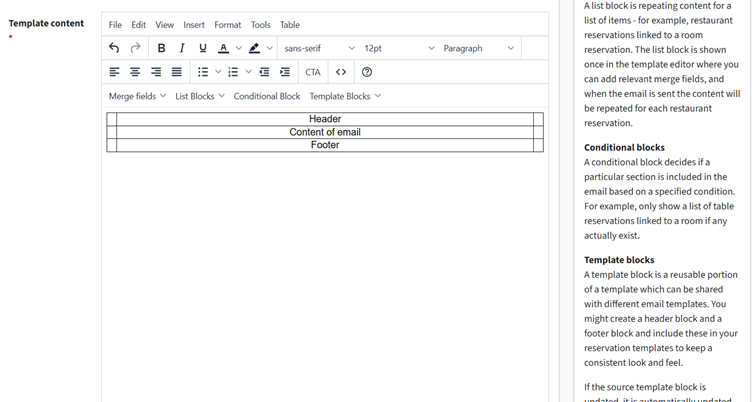
9. The Template Editor works similarly to Microsoft Word, allowing you to type, format and arrange the content of your email.
Tip: We recommend starting by adding a 3 × 3 grid. This helps keep your email layout consistent across different devices and screen sizes, including phones, tablets and computers.
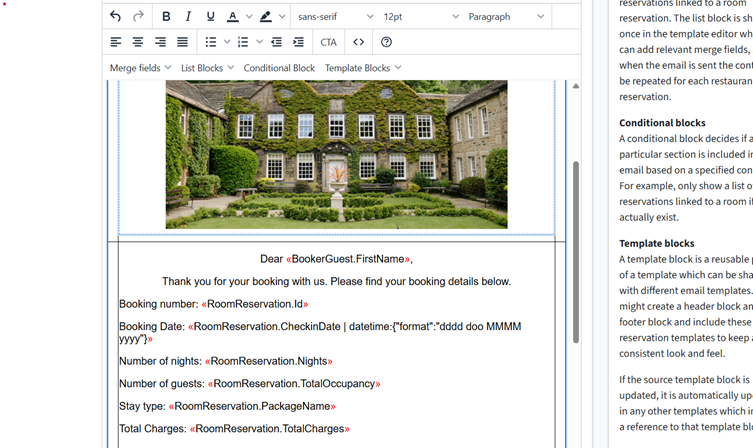
10. You can also add images, links and videos to your email to showcase your property and help guests get a better feel for what you offer.
11. Once you’re happy with your template, click Update to save your changes.
See next: How to Schedule Correspondence
How to Assign Templates to automatic Correspondence