
You can create deposit policies for restaurant bookings to automatically collect a deposit when guests make a reservation.
1. Go to Alacer Hospitality → Restaurant → Deposit Policies and click New Deposit Policy.
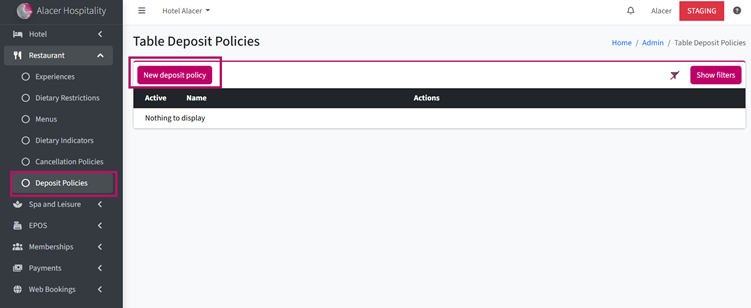
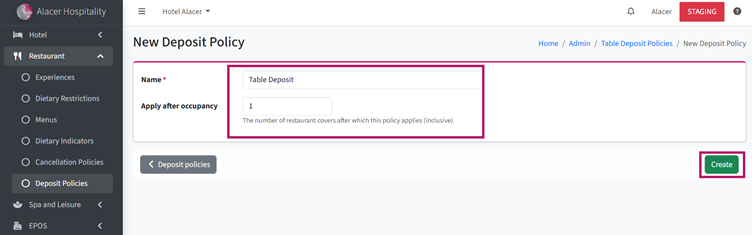
2. Enter a Policy Name.
For example: Table Deposit.
3. Enter the Minimum Occupancy for the policy.
For example:
- Enter 1 if you want the policy to apply to every booking.
- Enter a higher number if you only want it to apply to larger groups.
4. Click Create.
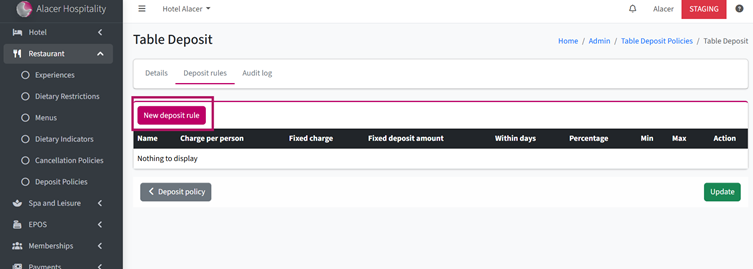
5. Click New Deposit Rule.
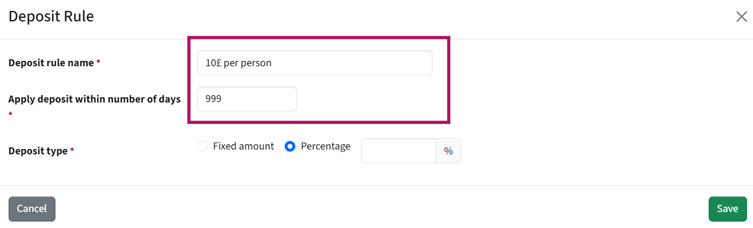
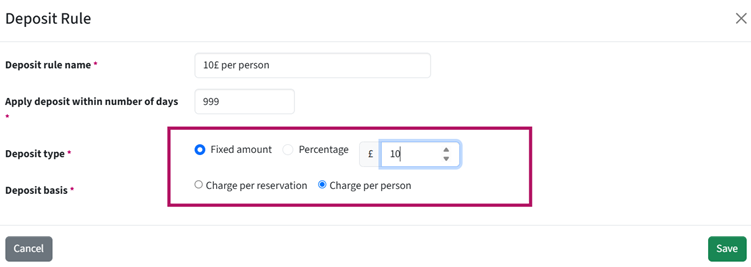
6. Enter a Rule Name to identify the deposit rule.
7. Set when the deposit should be applied by entering the number of days before arrival.
For example, enter 7 to apply the deposit requirement to reservations made within 7 days of arrival.
If the deposit should be required for all reservations, enter 999.
.
8. Choose the Deposit Type:
- Fixed Amount – Charge a specific amount.
- Percentage – Charge a percentage of the reservation value.
9. Enter the Deposit Amount or Percentage and choose whether it should be charged Per Reservation or Per Person for Fixed Amount Deposit.
10. Click Save.
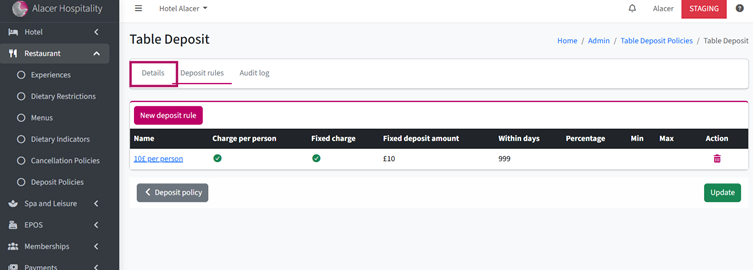
11. Open the Details tab,
12. Switch the Active toggle On, and click Update.
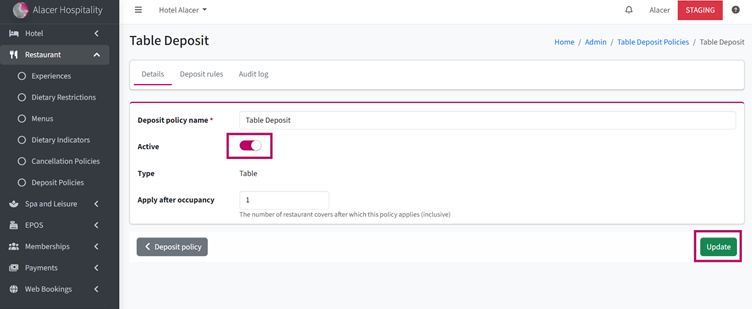
Your deposit policy is now active and can be selected in the Experience settings.
See next: How to Create an Experience