
A Discount Scheme is a preset discount that can be applied to the whole bill, but only to items that have been set up to accept the discount. It can be used for discounts such as Staff Discount, Local Discount, 10% Off, 20% Off, and similar offers. Once set up, staff can select the appropriate Discount Scheme on the EPOS, and the discount will be applied to the eligible items.
1. Go to Alacer Hospitality – Admin – EPOS – Discount Scheme and click Add New Discount Scheme.
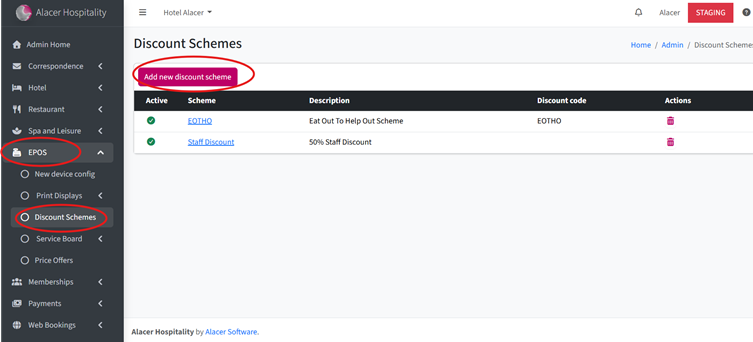
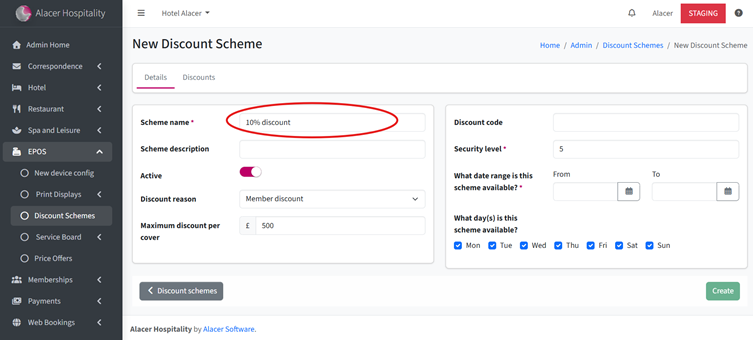
2. Enter the Scheme Name. This is the name that will appear on the EPOS.
For example: 10% Discount.
3. Enter a Scheme Description if required. This description will be visible within Alacer Hospitality but not on the EPOS.
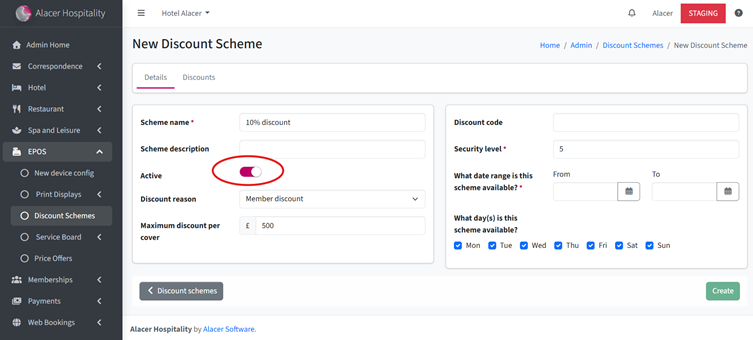
4. Turn the Active button on to make the Discount Scheme available for use.
5. Select a Discount Reason from the dropdown menu.
For this example, we will select Member Discount.
Can’t find it? See How to Add a New Discount Reason
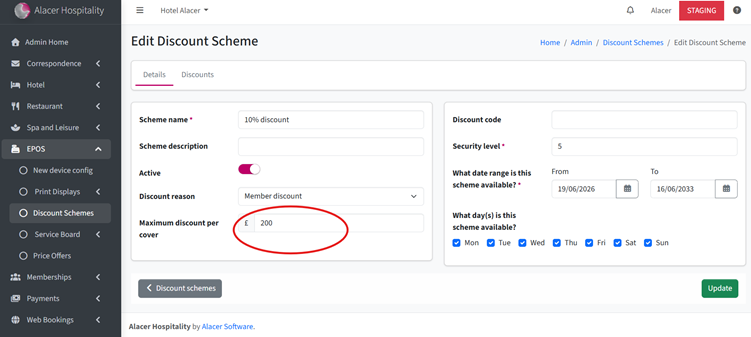
6. Enter the Maximum Discount per Cover. This sets the maximum discount that can be applied to each guest. If you do not want to set a maximum, enter 9999.
7. Set the EPOS Security Level from 1–9. This determines which employees can apply the discount on the EPOS.
For example, if the Security Level is set to 5, employees with a security level of 5 or higher will be able to apply the discount.
See How to Setup Security Level
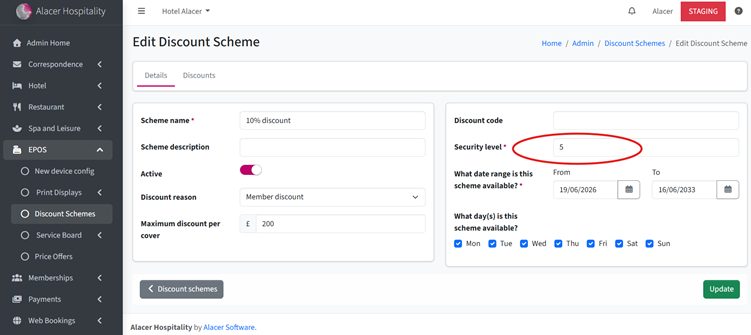
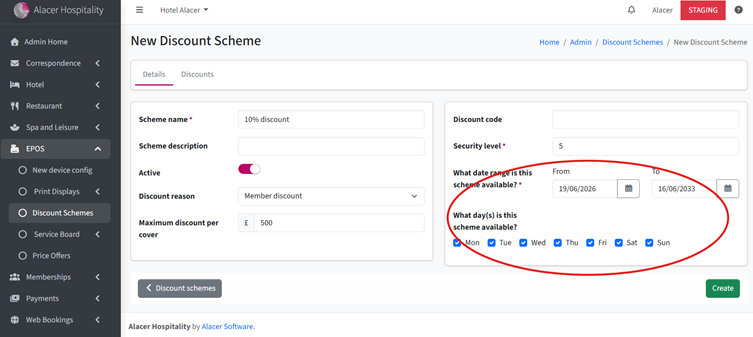
8. Select the Date Range and Days when the Discount Scheme will be available to apply.
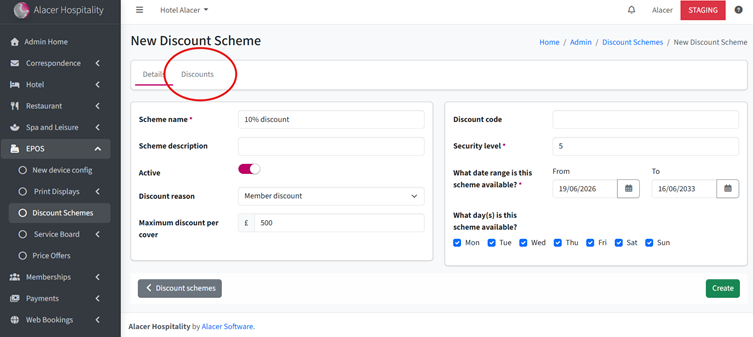
9. Go to the Discounts page.
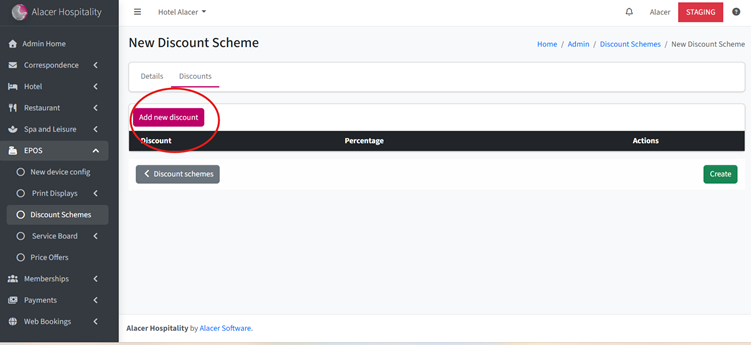
10. Click Add New Discount to create a discount rule.
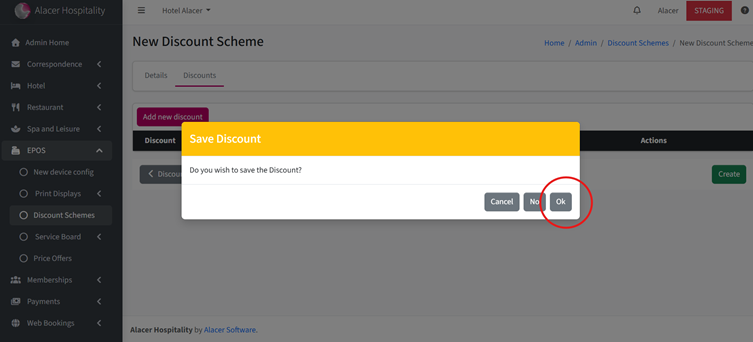
11. Press Ok to Save the Discount
12. Enter the Discount Name.
For example: 10% Discount.
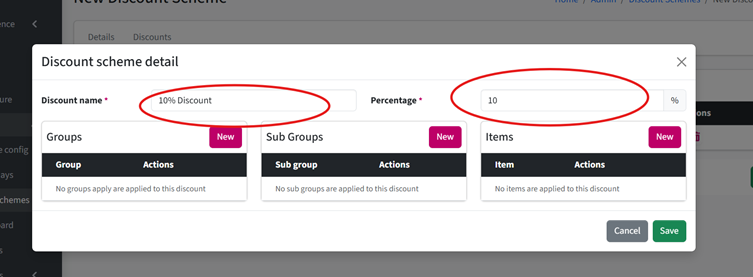
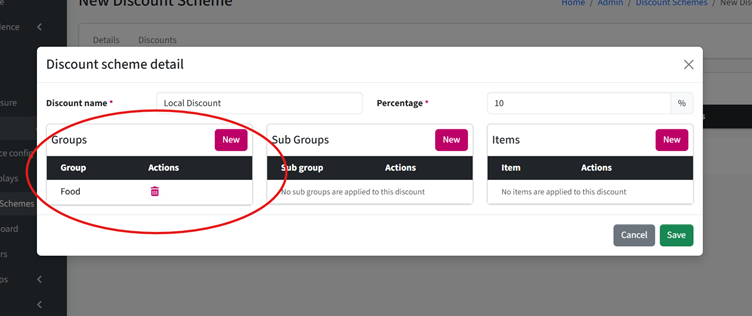
13. Select the Groups, Subgroups or Items that the discount will apply to.
For example, you could select the Food group to apply the discount to all food items.
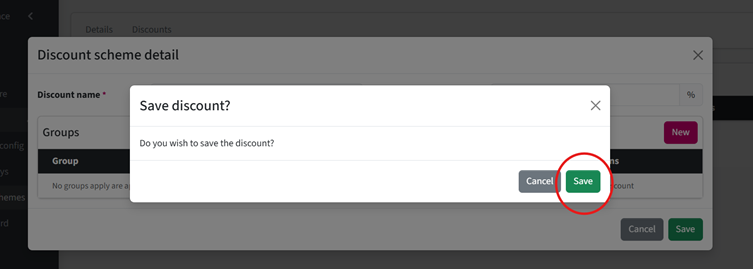
14. Click Save to save the discount rule. You can add additional discount rules if the scheme needs to include different percentages or different groups/items.
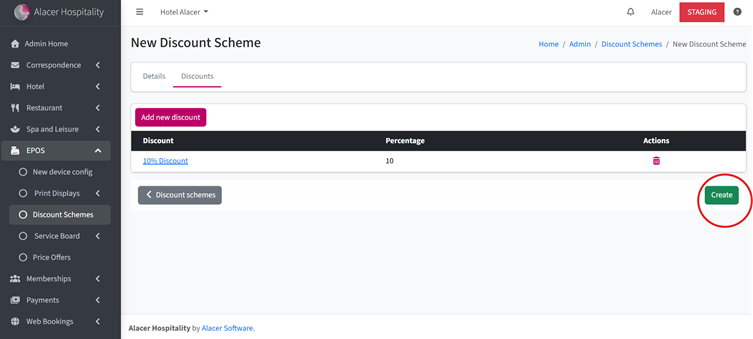
15. Once all the Discount Rules have been added, click Create to save the Discount Scheme.
See next: How to Create a Price Offer
How to Add a Discount Scheme (EPOS)