
Price Offers are useful for creating promotions and special deals in EPOS. They can be used for offers such as:
- Discount for Multiple Item Purchases (5% off when buying 6 bottles of wine)
- Fixed Price Offer (3 courses for £20)
- Highest Price Item/s Free (Buy 3 items and get the most expensive item free)
- Lowest Price Item/s Free (Buy 3 items and get the cheapest item free)
Before setting up a Price Offer, you need to create the Discount Item that will be used with the offer.
See How to Create the Discount Item
Discount for Multiple Item Purchases
Use this option when you want to give a percentage discount when a customer purchases a certain number of items.
Example: 5% off when buying 6 bottles of wine.
To set up the offer:
1. Go to Alacer Hospitality – Admin – EPOS – Price Offers.
2. Click New Price Offer.
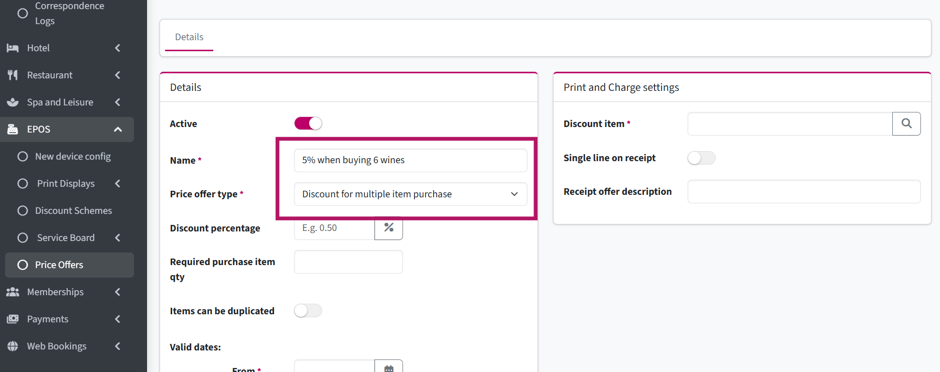
3. Enter the Name of the offer.
For example, 5% off when buying 6 wines.
4. Select Discount for Multiple Item Purchases as the Price Offer Type.
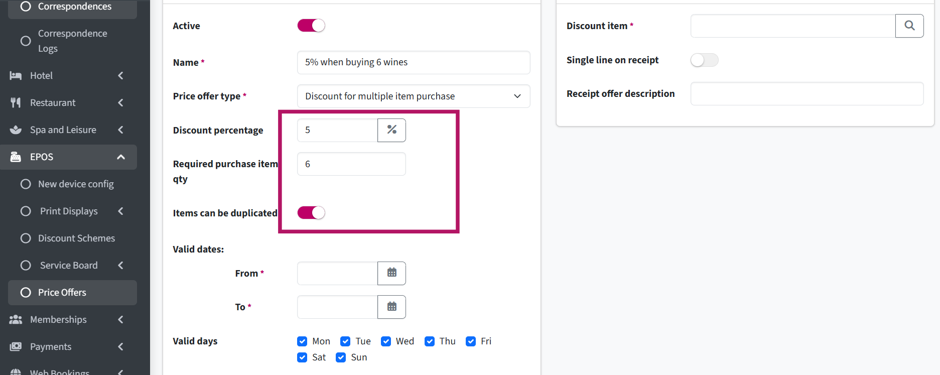
5. Enter the Discount Percentage.
For example, enter 5 for a 5% discount.
6. Enter the Required Purchase Items Qty. This is the number of items the customer needs to purchase to receive the discount.
For example, enter 6.
7. Use the Items Can Be Duplicated toggle to decide whether the customer can purchase the same item multiple times as part of the offer:
- On – the same item can be purchased multiple times.
For example, the customer can buy 6 bottles of the same wine.
- Off – the items must be different.
For example, the customer must choose 6 different bottles of wine.
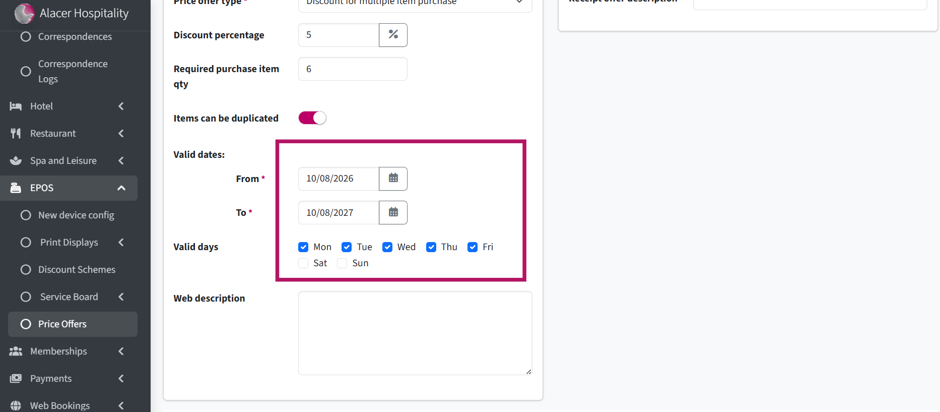
8. Set the Valid Dates From/To using the calendar.
9. Select the days on which the offer should be available.
Web Description – If the price offer will be available for Preorders, add a description to let guests know about the offer when selecting their dishes in advance.
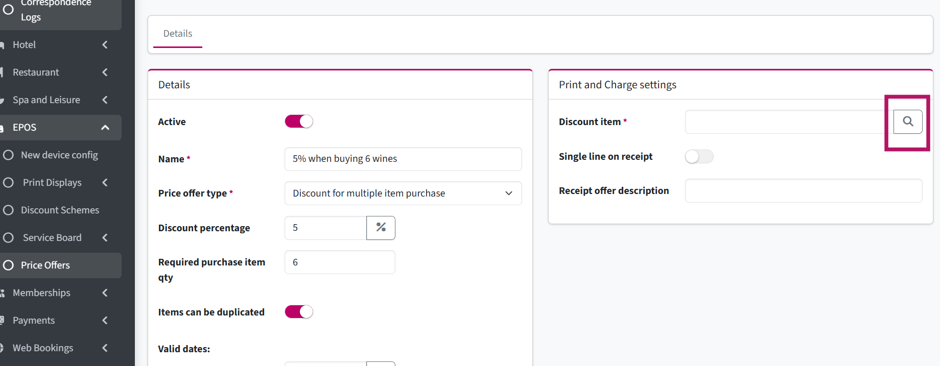
10. Add the Discount Item using the magnifying glass.
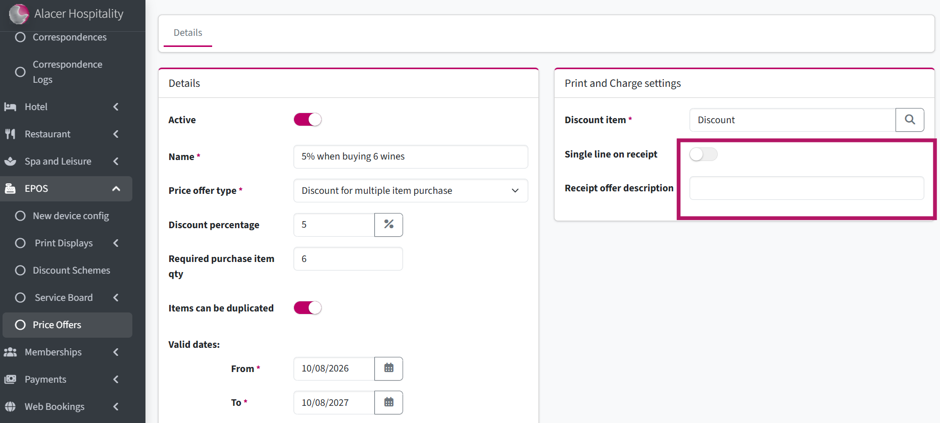
11. If you want the offer to appear as a single line on the customer receipt instead of showing the individual items and discount separately, turn on the relevant receipt option and enter the name you want to display.
12. Click Create to save the Price Offer.
Fixed Price Offer
Use this option when you want customers to purchase a set number of items for one fixed price.
Example: 3 courses for £20.
To set up the offer:
1. Go to Alacer Hospitality – Admin – EPOS – Price Offers.
2. Click New Price Offer.
3. Enter the Name of the offer.
For example, 3 Course Sunday Lunch.
4. Select Fixed Price Offer as the Price Offer Type.
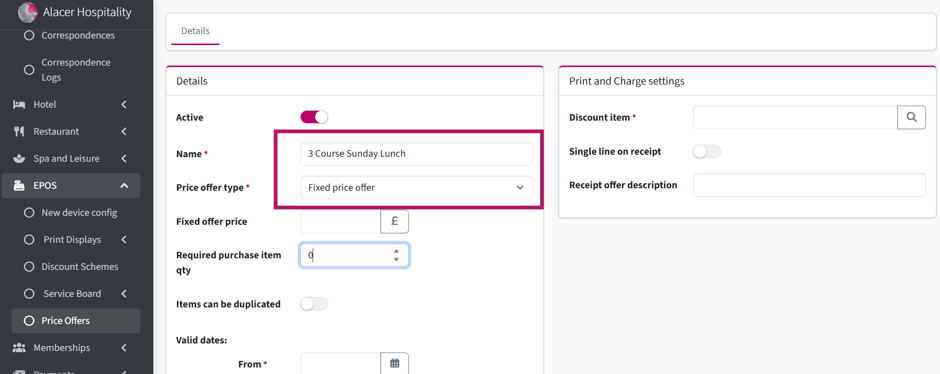
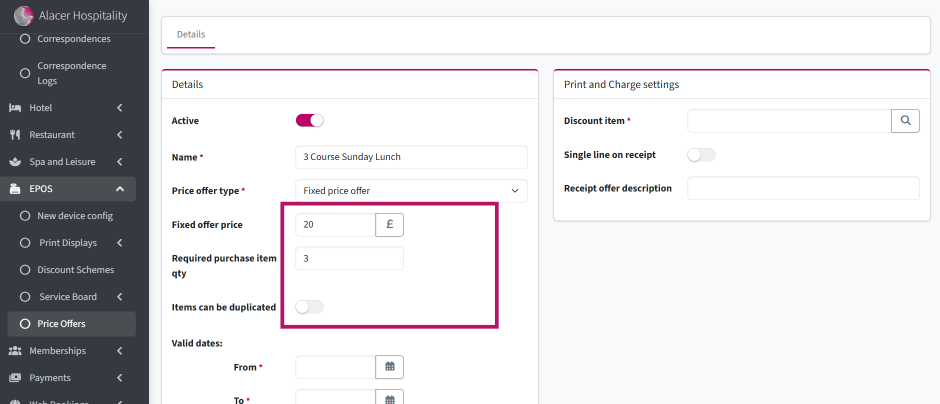
5. Enter the Fixed Offer Price.
For example, enter £20.
6. Use the Items Can Be Duplicated toggle to decide whether the same item can be selected more than once as part of the offer:
- On – the same item can be selected multiple times.
For example, a customer could select 3 the same starters as part of the 3 starters for £12 offer .
- Off – the selected items must be different.
In our example, we will leave this Off.
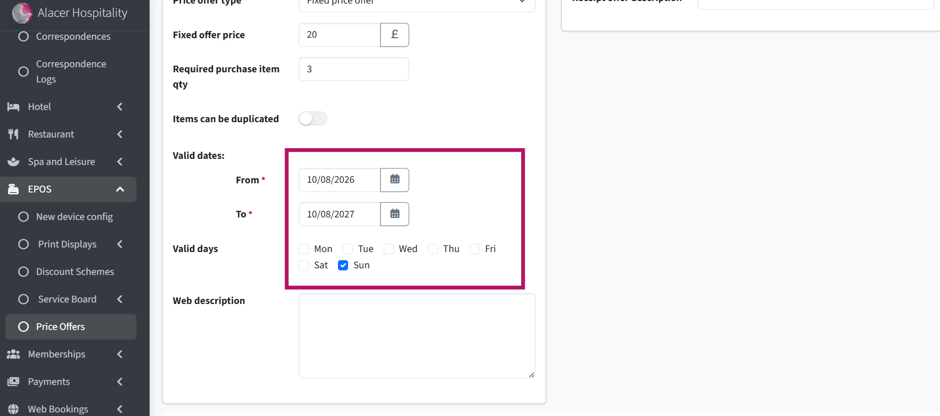
7. Set the Valid Dates From/To using the calendar.
8. Select the days on which the offer should be available.
Web Description – If the price offer will be available for Preorders, add a description to let guests know about the offer when selecting their dishes in advance.
9. Add the Discount Item using the magnifying glass.
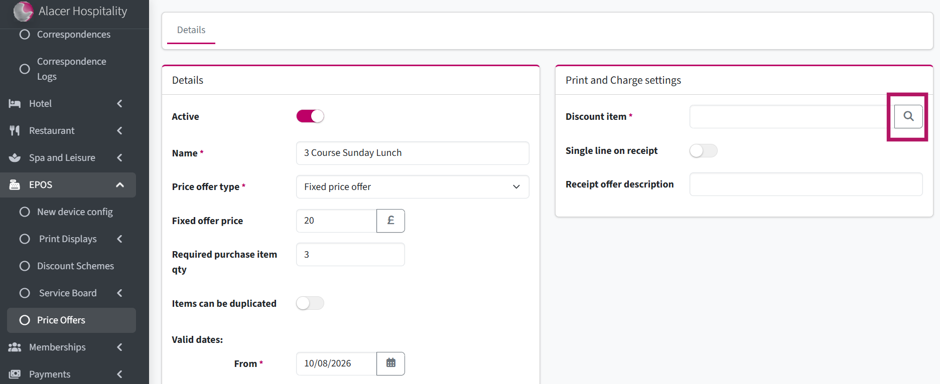
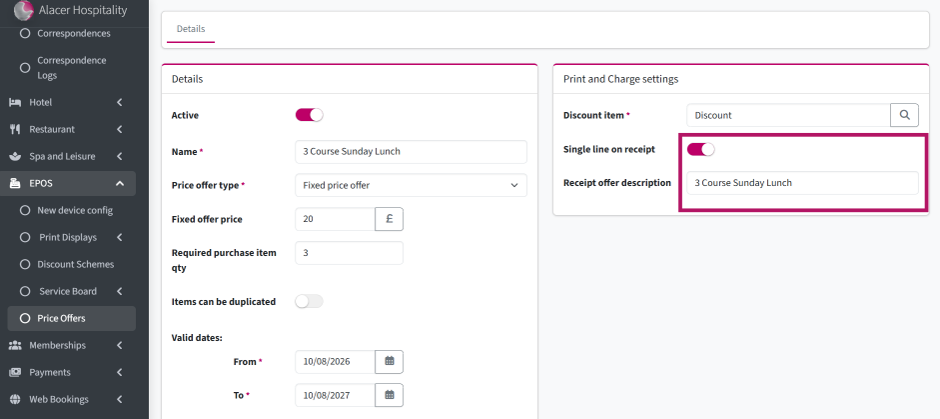
10. You can choose how the offer appears on the customer receipt. If you want the receipt to show the offer as one line instead of displaying the individual dishes and discount separately, turn on the relevant option and enter the name you want to display.
For example, instead of showing the 3 dishes and the discount separately, the receipt could show 3 Course Sunday Lunch.
11. Click Create to save the Price Offer.
Highest Price Item/s Free
Use this option for offers such as 3 for 2, where the most expensive item is given free.
Example: Buy 3 bottles of wine and get the most expensive bottle free.
To set up the offer:
1. Go to Alacer Hospitality – Admin – EPOS – Price Offers.
2. Click New Price Offer.
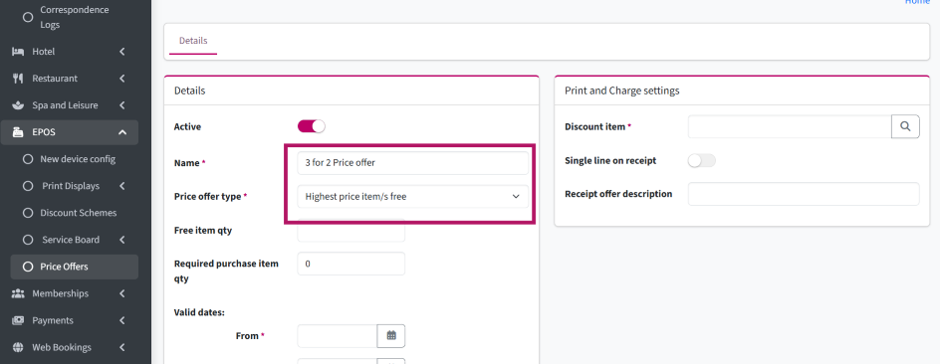
3. Enter the Name of the offer.
For example, 3 for 2 Price Offer.
4. Select Highest Price Item/s Free as the Price Offer Type.
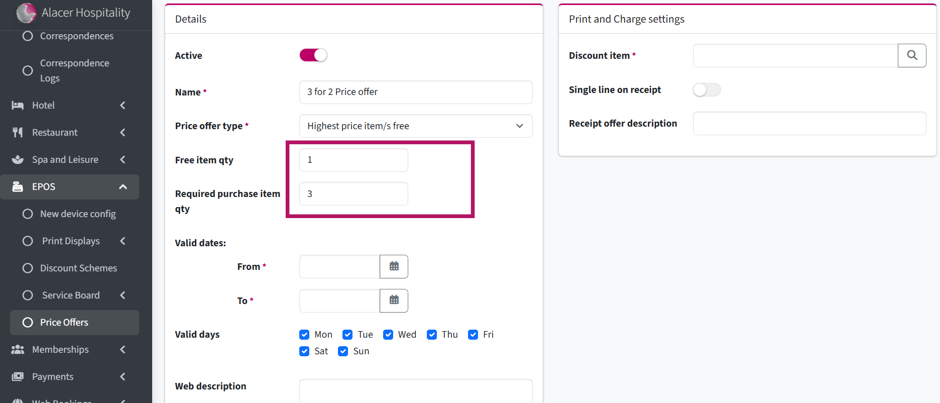
5. Enter the Free Item Qty. This is the number of items the customer receives for free.
For a 3 for 2 offer, enter 1.
6. Enter the Required Purchase Item Qty. This is the total number of items the customer needs to purchase for the offer to apply.
For a 3 for 2 offer, enter 3.
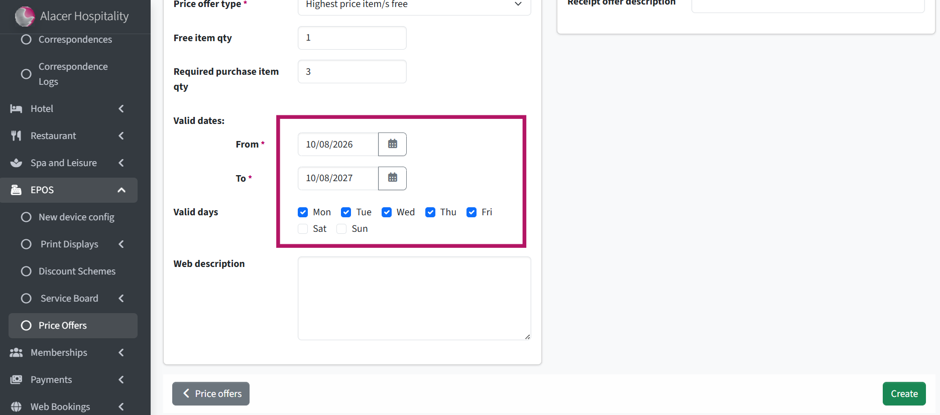
7. Set the Valid Dates From/To using the calendar.
8. Select the days on which the offer should be available.
Web Description – If the price offer will be available for Preorders, add a description to let guests know about the offer when selecting their dishes in advance.
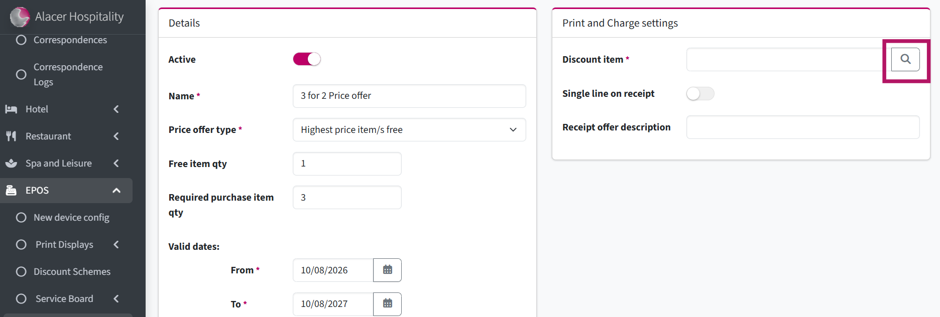
9. Add the Discount Item using the magnifying glass.
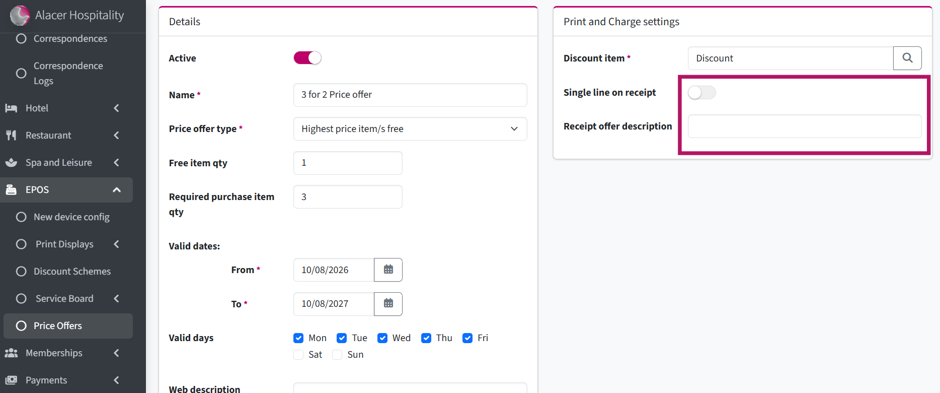
10. You can choose how the offer appears on the customer receipt. If you want the offer to appear as a single line instead of showing the individual items and discount separately, turn on the relevant option and enter the name you want to display.
11. Click Create to save the Price Offer.
Lowest Price Item/s Free
Use this option for offers such as 3 for 2, where the cheapest item is given free.
Example: Buy 3 bottles of wine and get the cheapest bottle free.
To set up the offer:
1. Go to Alacer Hospitality – Admin – EPOS – Price Offers.
2. Click New Price Offer.
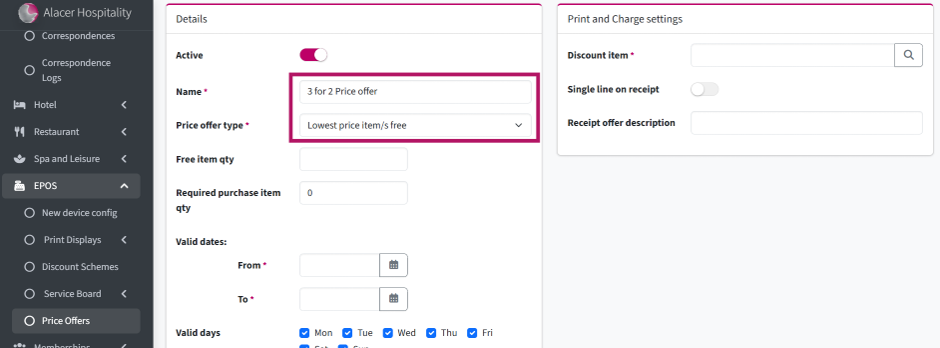
3. Enter the Name of the offer.
For example, 3 for 2 Price Offer.
4. Select Lowest Price Item/s Free as the Price Offer Type.
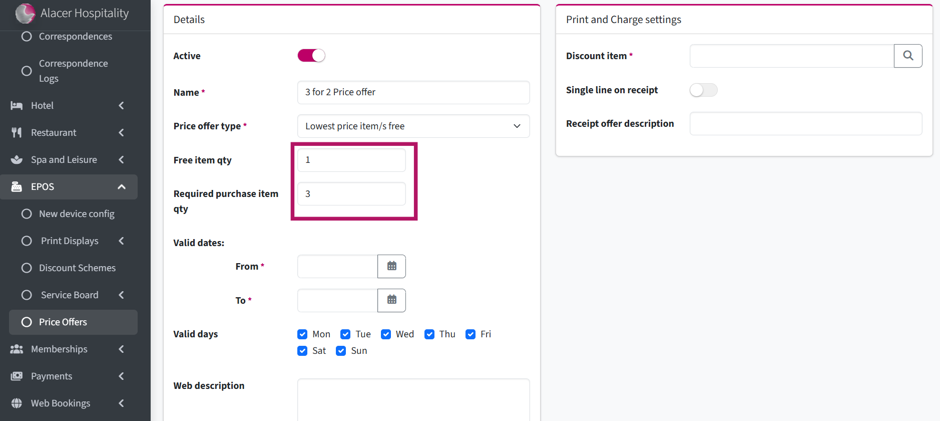
5. Enter the Free Item Qty. This is the number of items the customer receives for free.
For a 3 for 2 offer, enter 1.
6. Enter the Required Purchase Item Qty. This is the total number of items the customer needs to purchase for the offer to apply.
For a 3 for 2 offer, enter 3.
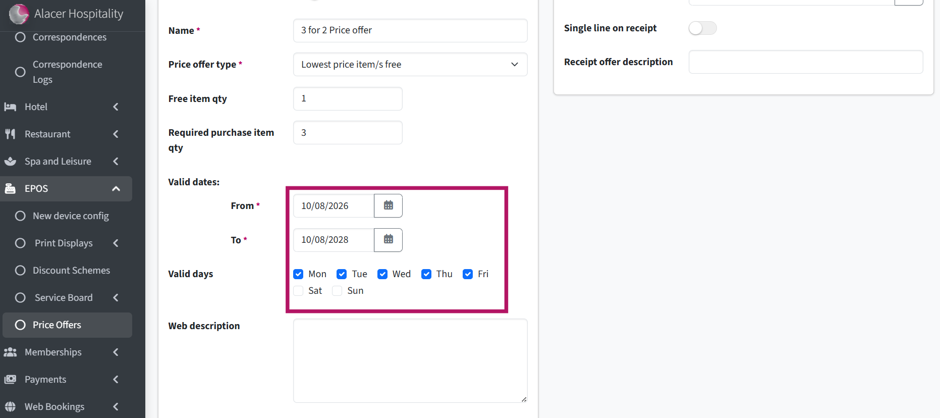
7. Set the Valid Dates From/To using the calendar.
8. Select the days on which the offer should be available.
Web Description – If the price offer will be available for Preorders, add a description to let guests know about the offer when selecting their dishes in advance.
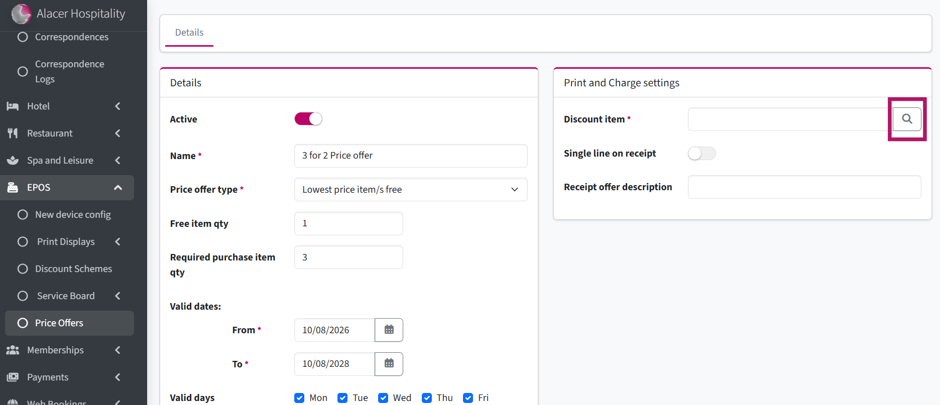
9. Add the Discount Item using the magnifying glass.
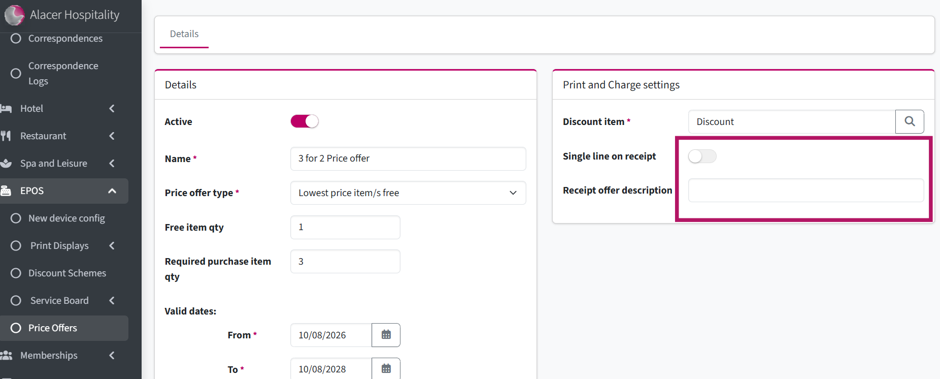
10. You can choose how the offer appears on the customer receipt. If you want the offer to appear as a single line instead of showing the individual items and discount separately, turn on the relevant option and enter the name you want to display.
11. Click Create to save the Price Offer.
See next: How to Create a Discount Scheme