
Before setting up a Price Offer, you need to create the Discount Item. This item is used to deduct the Price Offer discount from the bill.
You can use the same Discount Item for all Price Offers, or create a separate Discount Item for each offer if you want to track the discounts individually in your reports.
1. Go to Admin Manager.
2. Under New Section in Shortcuts, click Item to create a new item.
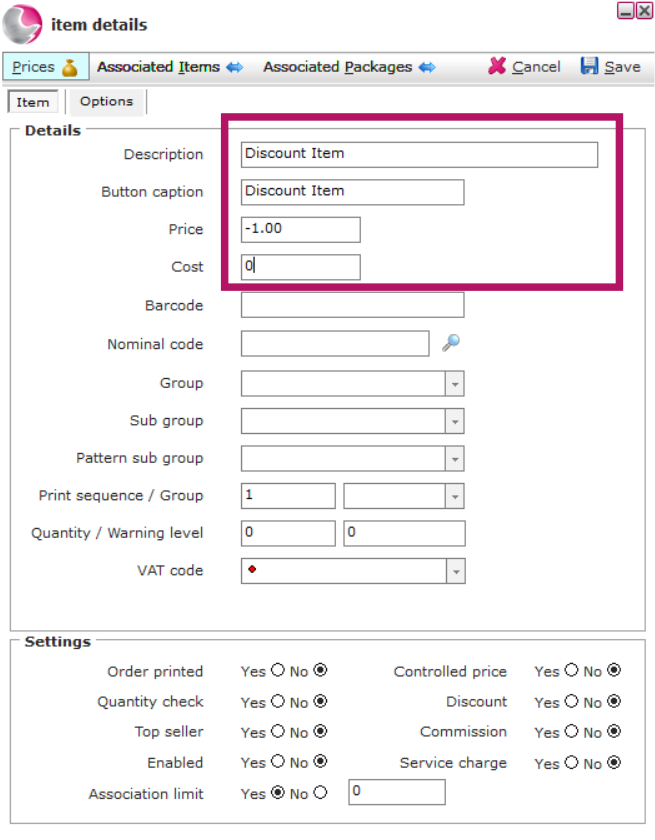
3. Enter the Item Description. You can call it Discount Item if you plan to use the same item for all Price Offers.
4. If you want to see how much has been deducted for each individual Price Offer in your reports, create a separate item for each offer. Give each item a name that makes it easy to identify,
for example:
- 3 Course Sunday Lunch
- 2 Course Sunday Lunch
- 3 for 2 Price Offer
5. Set the Price to £-1.00.
6. Set the Cost to £0.00.
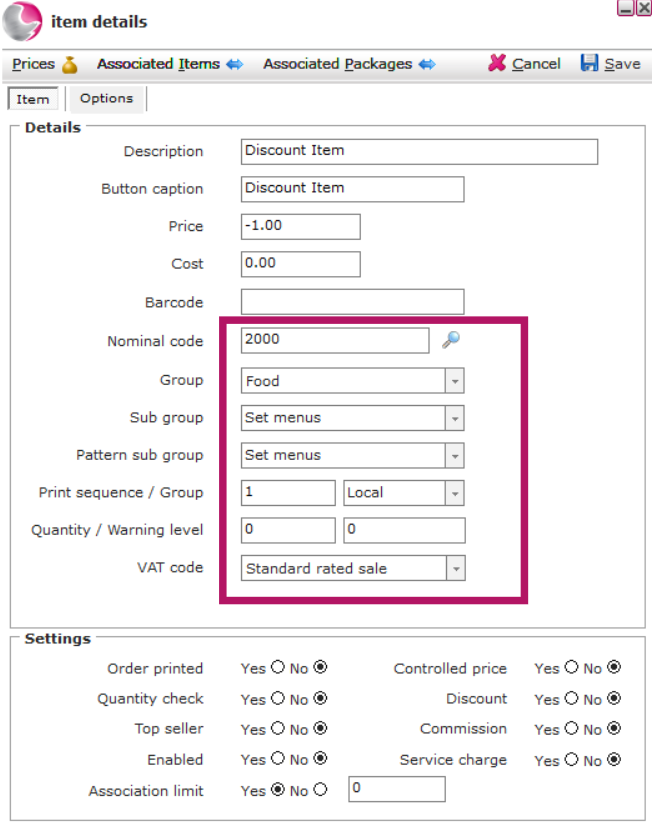
7. Select the appropriate Nominal Code based on your Nominal Area.
For example:
- Food Price Offer → Food Nominal Code
- Retail Price Offer → Retail Nominal Code
If you are unsure which Nominal Code to use, check with your accounting team.
8. Select the Group and Subgroup where you want the Price Offer to appear in your reports.
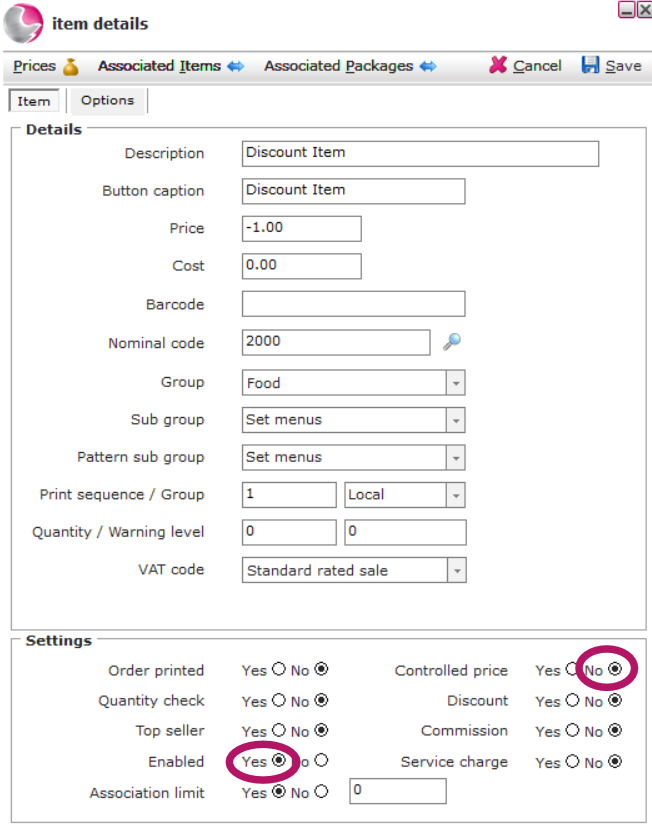
9. Enable the item.
10. Set Controlled Price to No.
11. Click Save to create the Discount Item.
See next: How to Create a Price Offer