
Transactions can only be deleted from a tab if they haven't been included in a Z Read, Banking or a Journal. If they have been included, depending on the type of transaction, a Item Credit, Package credit or Refund may need to be applied to the tab to make corrections.
See:
How to Z Read Ops from Hotel Manager
How to Bank Z Reads from Hotel Manager
How to Run a Journal from Admin Manager
See:
How to Add Item Credits to a Tab
How to Add Package Credits to a Tab
How to Refund a Payment on a Tab
Deleting transactions on a tab:
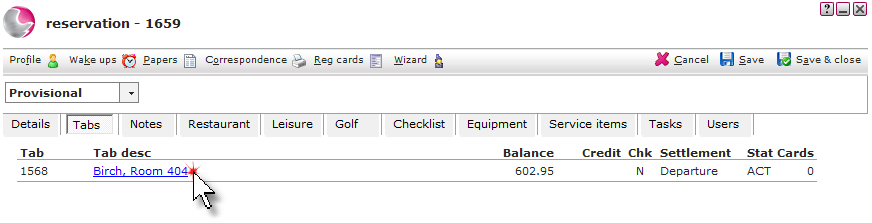
1. Open the reservation and click on the Tabs page. Click on the Tab description.
2. Right click on the transaction and select an option.
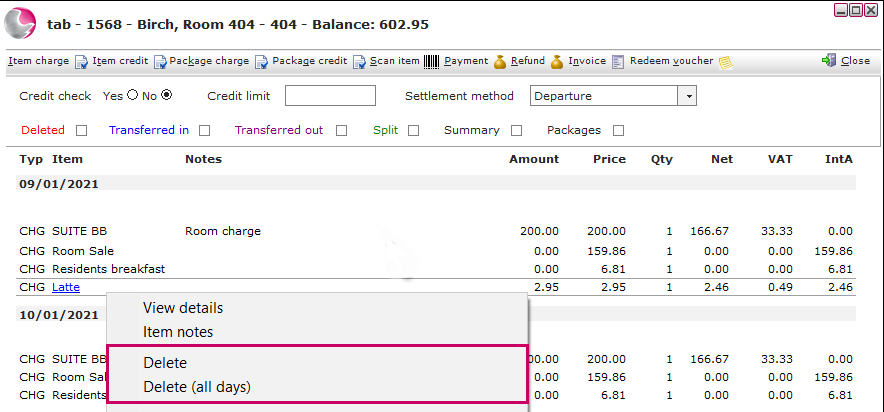
Delete: Delete the transaction selected.
Delete (all days): If the transaction has been added for more than one day this option can be selected to delete the transaction for every day it has been added to.
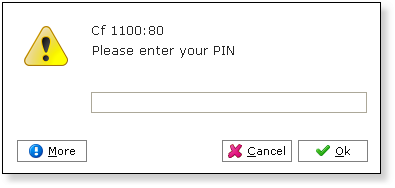
3. Enter a PIN number.
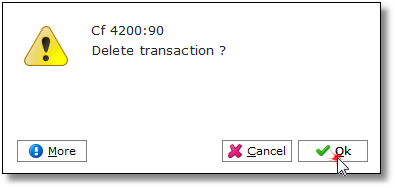
4. Click OK.
5. Transactions that have been deleted from a tab can be viewed by using the tab audit.
See How to Audit Transactions on a Tab
See next: How to View Deleted Items