
The article contains two Check out Methods:
Using the departures display:
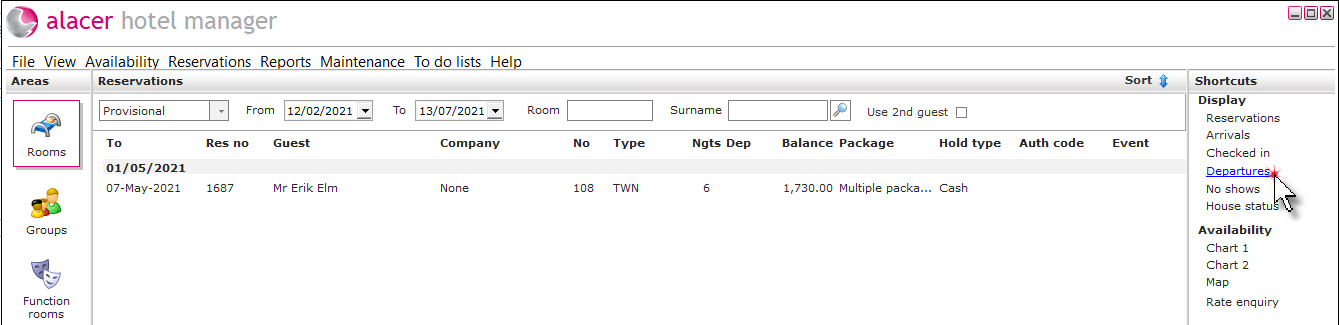
1. Click on Departures from the Reservations shortcut.
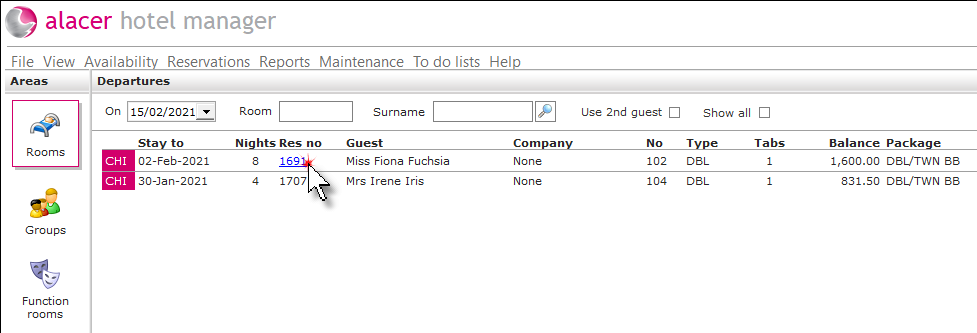
2. Click on the reservation to begin the check out process.
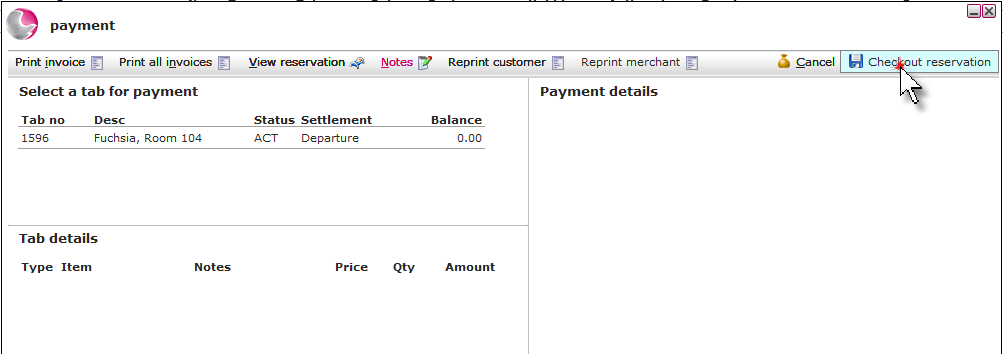
3. Complete the payment form.
The checkout reservation button will be greyed out until payment has been added.
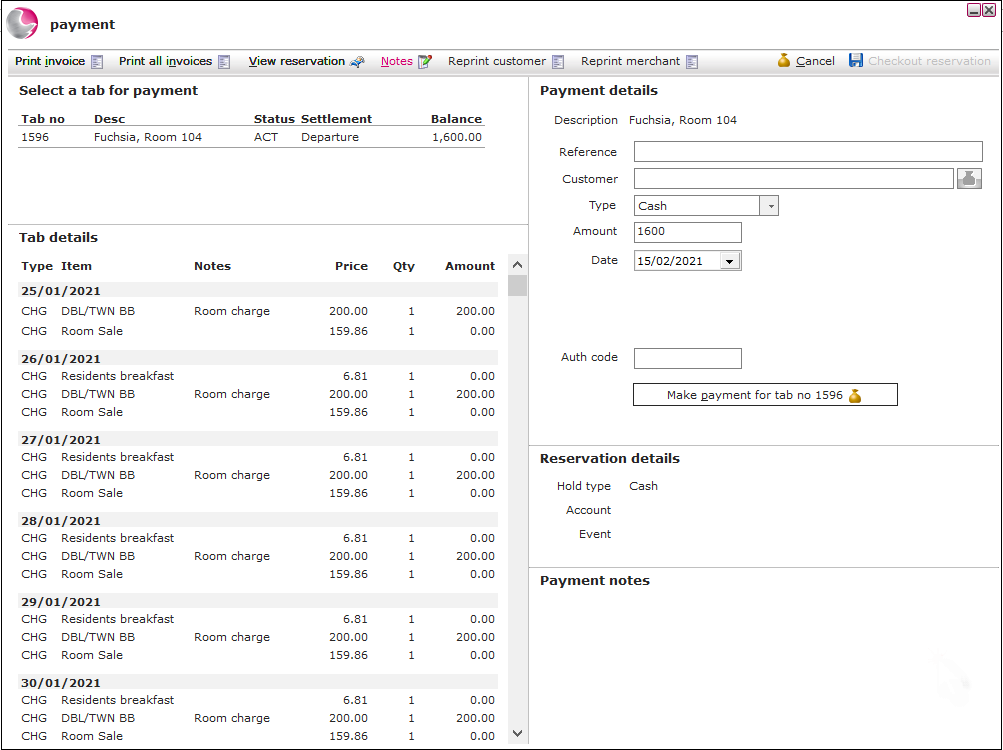
Print Invoice / Print all invoices: Print the invoice for the tab selected or print the invoices for all tabs i.e. extras tabs.
See How to Create Extra Tabs & How to Print an Invoice
View reservation: Click to view the reservation details.
Notes: Check any notes that have been added to the booking.
Reprint customer / merchant: Reprint receipts if using an integrated payment provider.
Select a tab for payment: If there is more than one tab, click on the tab required.
Tab details: An quick view of the reservation tab. Right clicking on the tab will show other options - Amend tab, cancel tab, new tab & transfer items.
Payment notes: Any payment notes added to the reservation will display here.
4. Complete the Payment details and click Make payment for tab.
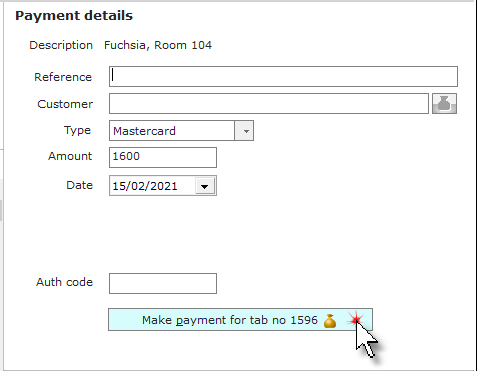
Reference: Enter an optional reference.
Type: Select the payment type. If an integrated payment provider is being used then additional options will display in the bottom right of the payment form.
Amount: Check the amount and overtype if required.
Date: The date will default to todays date and can be changed to a past date if needed.
5. Click Check out reservation.
Using the Charts:
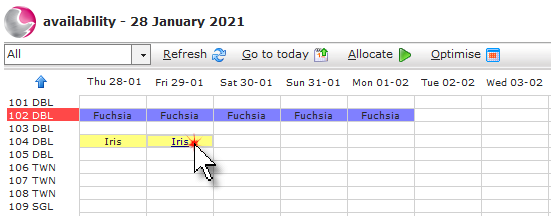
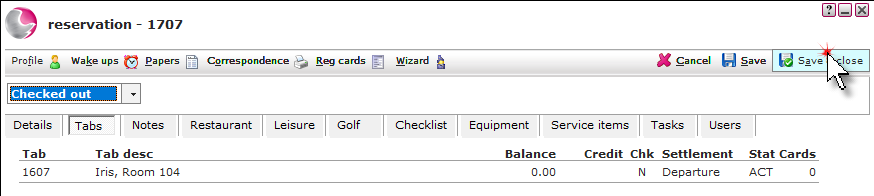
1. Click on the checked in reservation on Chart.
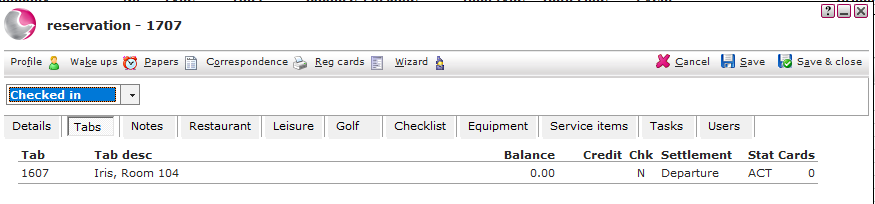
2. Click on the tabs page to check the tab balance. If the balance is not 0.00 the tab will need to be settled first.
See How to Add Payment to a Tab
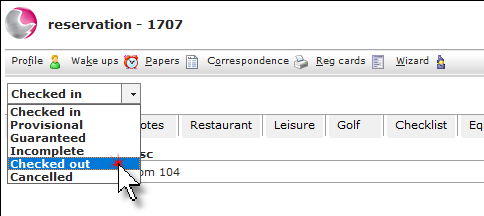
3. Change the status to Checked out.
4. Click Save & Close.
See Next: How to Move Reservations to Incomplete
How to Redeem a Voucher on a Tab